• Home
  • News
  • Software
  • Knowledge
  • MMO
  • Tips
  • Security
  • Network
  • Office
AnonyViet - English Version
  • Home
  • News
  • Software
  • Knowledge
  • MMO
  • Tips
  • Security
  • Network
  • Office
No Result
View All Result
  • Home
  • News
  • Software
  • Knowledge
  • MMO
  • Tips
  • Security
  • Network
  • Office
No Result
View All Result
AnonyViet - English Version
No Result
View All Result

How to enable Windows Copilot in Windows 11

AnonyViet by AnonyViet
July 6, 2023
in Tips
0

Did you know Windows 11 has a very cool new feature? That is Windows Copilot, an intelligent AI assistant that helps you get more done on your computer. So what is Windows Copilot and how to activate and use it? Let’s find out with AnonyViet in this article!

Join the channel Telegram belong to AnonyViet ???? Link ????

About Windows Copilot

Windows Copilot is a new AI assistant for Windows 11, making it easy for users to take actions and get things done. It has a chat interface, can interact with voice or keyboard, integrates with some Windows features such as taking screenshots, turning on dark mode, as well as accessing features from Bing Chat such as search. information, translation, appointment booking…

How to enable Windows Copilot in Windows 11
What is Windows Copilot?

Windows Copilot is a very convenient and useful feature for Windows 11 users. However, it is currently still in beta and is only available to some users participating in the Windows Insider program. So how to enable Windows Copilot in Windows 11? Let’s see the next part!

Benefits of Windows Copilot

Windows Copilot is designed to help you save time and energy when working on your computer, no need to search, launch and work through different applications, it will assist you in taking actions. , customize settings, and connect seamlessly between your favorite apps.
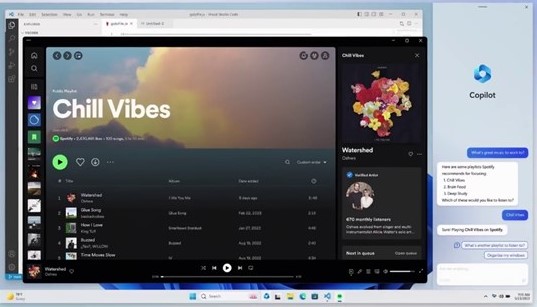
How to enable Windows Copilot in Windows 11
Windows Copilot virtual assistant

For example, you want to enable dark mode for your computer. You can type or say “Turn on dark mode” into the chat box. Windows Copilot automatically adjusts settings so your computer goes into dark mode, helping you protect your eyes and save battery.

Or you want to take a screenshot of a certain web page. You can type or say “Take a screenshot of this page” into the chat box. Windows Copilot will automatically take a screenshot and show it to you. You can save this photo or share it via email, messenger or other apps.

Alternatively, you can also use Windows Copilot to access features from Bing Chat. Bing Chat is a chatbot service from Microsoft, allowing you to look up information, translate, etc. You can type or say “Open Bing Chat” into the chat box to connect to Bing Chat.

How to enable Windows Copilot in Windows 11

To activate Windows Copilot, you need to install Windows Insider version of Windows 11, Dev channel, starting from build 23493. This is the version for those who want to experience the latest features of Windows 11, but also may encounter many bugs and instability. Therefore, you need to consider carefully before installing this version.

To install Windows Insider version of Windows 11, Dev channel, you can follow these steps:

Step 1: Open the Settings app of Windows 11 > Select “Windows Update”
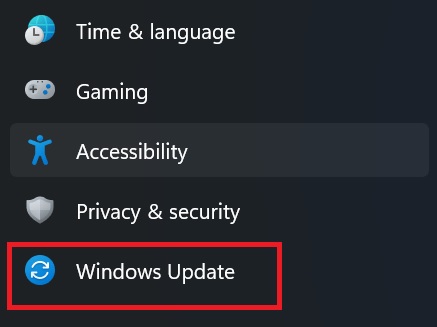
How to enable Windows Copilot in Windows 11
Select “Windows Update”

Step 2: Select “Windows Insider Program” and sign in with your Microsoft account.

Step 3: Click the “Get Started” button, link your Microsoft account and select Dev Channel
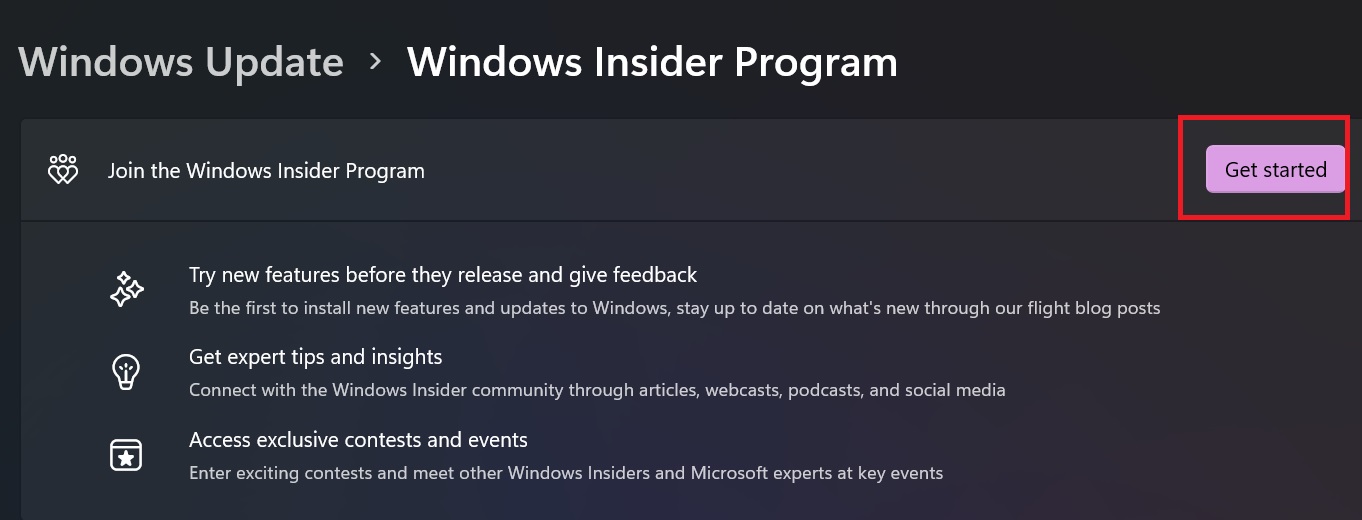
How to enable Windows Copilot in Windows 11
Click the “Get Started” button

Step 4: Press “Continue” and follow the on-screen steps. You will be asked to restart the computer.

Step 5: After rebooting, go back to “Windows Update” and press the “Check for Updates” button.

Your computer will download and install the latest version of Windows 11. Specifically Windows 11 build 23493 (or later).

Once the installation is done, you won’t see the Windows Copilot button on the taskbar immediately. That’s because the feature is only being released to select users.

However, you can use a third-party tool to enable this feature. This tool is ViveTool GUI, an application that helps you change hidden or disabled features in Windows. You can follow these steps to use ViveTool GUI:

Step 1: Visit ‘s GitHub page ViveTool GUI and download the latest version.

Step 2: Launch the installer and follow the steps on your computer screen.
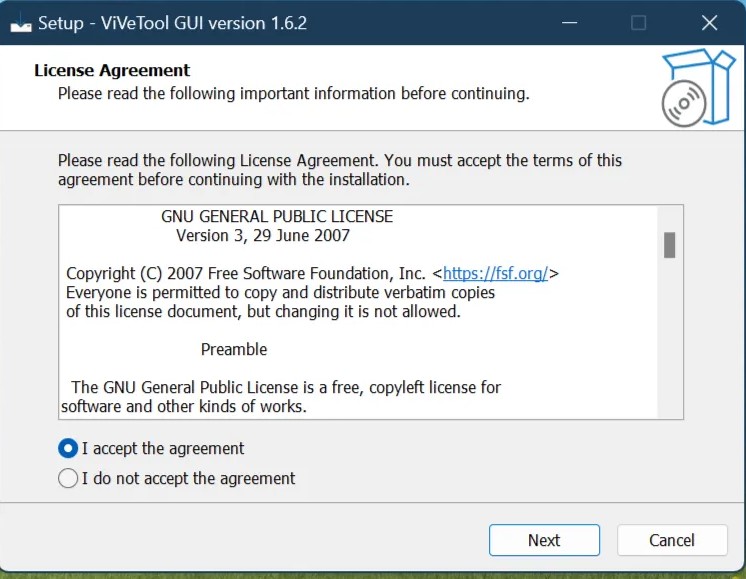
How to enable Windows Copilot in Windows 11
Install ViveTool GUI

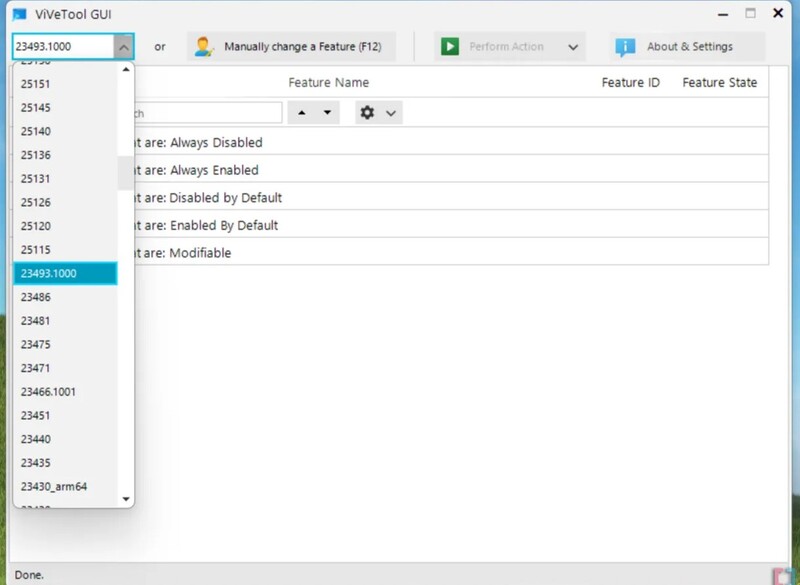
Step 3: Once installed, open the app and select build 23493.1000 in the “Select Build” section on the left. Wait for the list to be created. It may take a few minutes.
How to enable Windows Copilot in Windows 11
Choose build 23493.1000

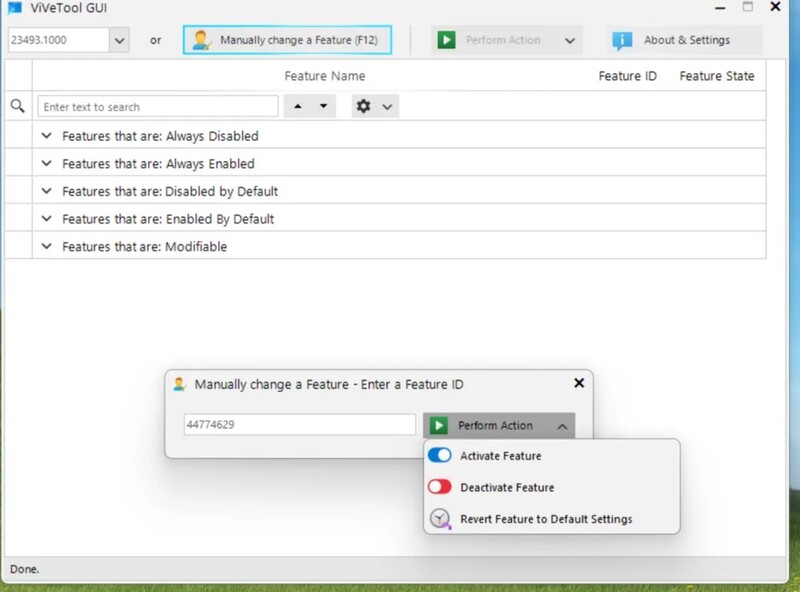
Step 4: Click the “Manually change a feature” button.

Search for number 44774629, click “Perform Action” and select “Activate Feature”
How to enable Windows Copilot in Windows 11
Search for number 44774629, click “Perform Action” and select “Activate Feature”

Then click Close.

Do the same with 44850061, 44776738, 42105254, 41655236

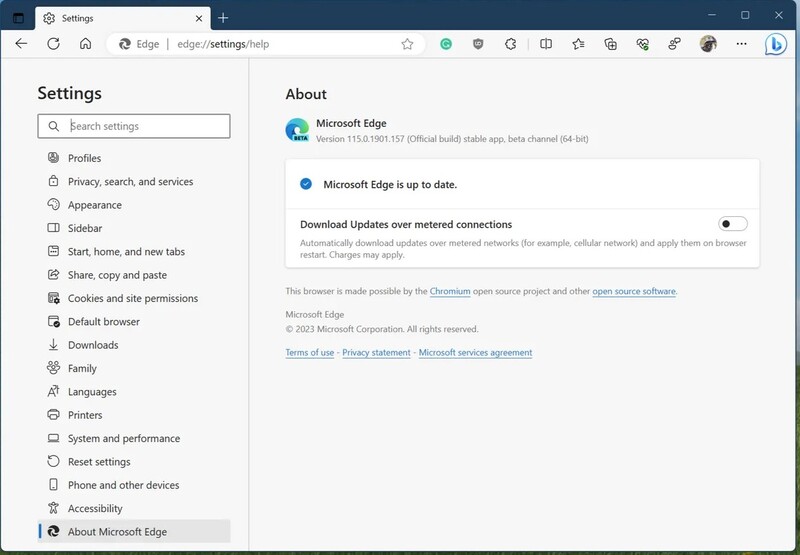
Step 5: Open Microsoft Edge and update the browser by clicking the three-dot button, go to “Help and Feedback” > “About Microsoft Edge”. The browser will download an update.
How to enable Windows Copilot in Windows 11
Download an update

Step 6: Restart the PC, two or three times.

Step 7: Launch Windows Copilot with the key combination “Windows + C”

Epilogue

Windows Copilot is a breakthrough feature of Windows 11, bringing many benefits to users and developers. It shows Microsoft’s progress in AI and their commitment to creating the best PC platform for everyone. Let’s wait for Windows Copilot to be completed and officially launched in the near future!


Rate this post

Tags: CopilotEnableWindows
Previous Post

How to manage tasks using Google Sheet’s Digital Planner

Next Post

When will Samsung Galaxy Z Fold 5 be released? Where to buy reputable?

AnonyViet

AnonyViet

Related Posts

How to add sliders to Facebook Stories to easily rewind videos
Tips

How to add sliders to Facebook Stories to easily rewind videos

April 21, 2026
How to change the default font on Windows 10
Tips

How to change the default font on Windows 10

April 13, 2026
5 tips for using a Browser to replace an App (helps save RAM, time and money)
Tips

5 tips for using a Browser to replace an App (helps save RAM, time and money)

April 13, 2026
How to make funny MeMe photos without Photoshop within 10 seconds
Tips

How to make funny MeMe photos without Photoshop within 10 seconds

April 11, 2026
How to quickly design your own Logo without Photoshop
Tips

How to quickly design your own Logo without Photoshop

April 10, 2026
How to convert Website into App on Windows
Tips

How to convert Website into App on Windows

April 9, 2026
Next Post
When will Samsung Galaxy Z Fold 5 be released?  Where to buy reputable?

When will Samsung Galaxy Z Fold 5 be released? Where to buy reputable?

0 0 votes
Article Rating
Subscribe
Login
Notify of
guest

guest

0 Comments
Oldest
Newest Most Voted
Inline Feedbacks
View all comments

Recent News

How to turn off password suggestions on iPhone: Prevent Safari from auto-filling passwords

How to turn off password suggestions on iPhone: Prevent Safari from auto-filling passwords

April 27, 2026
Instructions for looking up prescriptions on VNeID instead of paper medical books

Instructions for looking up prescriptions on VNeID instead of paper medical books

April 26, 2026
Tips to completely turn off CAPTCHA codes on iPhone and Mac are super simple

Tips to completely turn off CAPTCHA codes on iPhone and Mac are super simple

April 25, 2026
Compare Poco X8 Pro and Poco X7 Pro: A new step for the “king” of mid-range performance

Compare Poco X8 Pro and Poco X7 Pro: A new step for the “king” of mid-range performance

April 24, 2026
How to turn off password suggestions on iPhone: Prevent Safari from auto-filling passwords

How to turn off password suggestions on iPhone: Prevent Safari from auto-filling passwords

April 27, 2026
Instructions for looking up prescriptions on VNeID instead of paper medical books

Instructions for looking up prescriptions on VNeID instead of paper medical books

April 26, 2026
Tips to completely turn off CAPTCHA codes on iPhone and Mac are super simple

Tips to completely turn off CAPTCHA codes on iPhone and Mac are super simple

April 25, 2026
AnonyViet - English Version

AnonyViet

AnonyViet is a website share knowledge that you have never learned in school!

We are ready to welcome your comments, as well as your articles sent to AnonyViet.

Follow Us

Contact:

Email: anonyviet.com[@]gmail.com

Main Website: https://anonyviet.com

Recent News

How to turn off password suggestions on iPhone: Prevent Safari from auto-filling passwords

How to turn off password suggestions on iPhone: Prevent Safari from auto-filling passwords

April 27, 2026
Instructions for looking up prescriptions on VNeID instead of paper medical books

Instructions for looking up prescriptions on VNeID instead of paper medical books

April 26, 2026
No Result
View All Result
  • Home
  • News
  • Software
  • Knowledge
  • MMO
  • Tips
  • Security
  • Network
  • Office

wpDiscuz
0
0
Would love your thoughts, please comment.x
()
x
| Reply