• Home
  • News
  • Software
  • Knowledge
  • MMO
  • Tips
  • Security
  • Network
  • Office
AnonyViet - English Version
  • Home
  • News
  • Software
  • Knowledge
  • MMO
  • Tips
  • Security
  • Network
  • Office
No Result
View All Result
  • Home
  • News
  • Software
  • Knowledge
  • MMO
  • Tips
  • Security
  • Network
  • Office
No Result
View All Result
AnonyViet - English Version
No Result
View All Result

How to enable Dynamic Refresh Rate to automatically change the screen refresh rate

AnonyViet by AnonyViet
September 11, 2024
in Tips
0

How to enable Dynamic Refresh Rate on Windows 11 to save battery for laptops is a useful tip that not everyone knows. This feature helps balance display performance and battery life by automatically adjusting the screen refresh rate based on the task you are performing. This article will guide you in detail on how to enable/disable Dynamic Refresh Rate on Windows 11, and also provide some other battery saving tips.

Join the channel Telegram belong to AnonyViet 👉 Link 👈

What is screen refresh rate?

The refresh rate of a monitor is the number of times an image is displayed per second. The higher the refresh rate, the smoother the motion on the screen, which is especially useful for tasks like playing games or watching videos. However, the downside of a high refresh rate is that it consumes more power, leading to a decrease in the laptop's battery life.
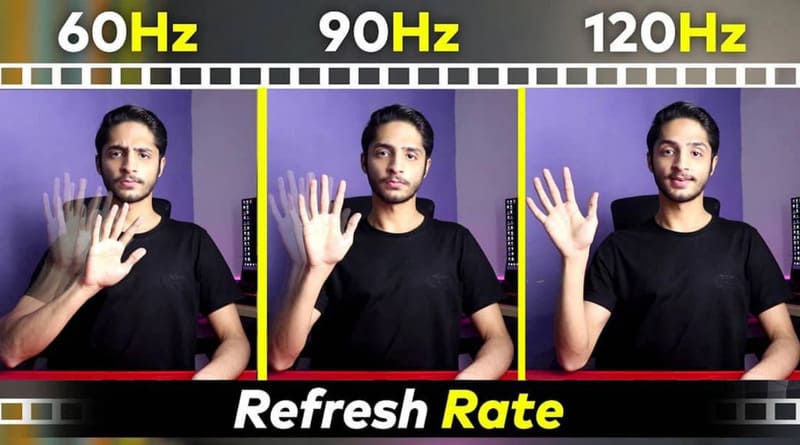
What is screen refresh rate?

What is Dynamic Refresh Rate feature?

Windows 11 offers Dynamic Refresh Rate (DRR) to help balance display performance and battery life. DRR automatically adjusts the display's refresh rate based on the task you're performing.

For example, when viewing text or surfing the web, DRR will reduce the refresh rate to a lower level (e.g. 60Hz) to save battery. Conversely, when playing games or watching videos that require smooth motion, DRR will increase the refresh rate to a higher level (e.g. 120Hz) to provide the best experience.
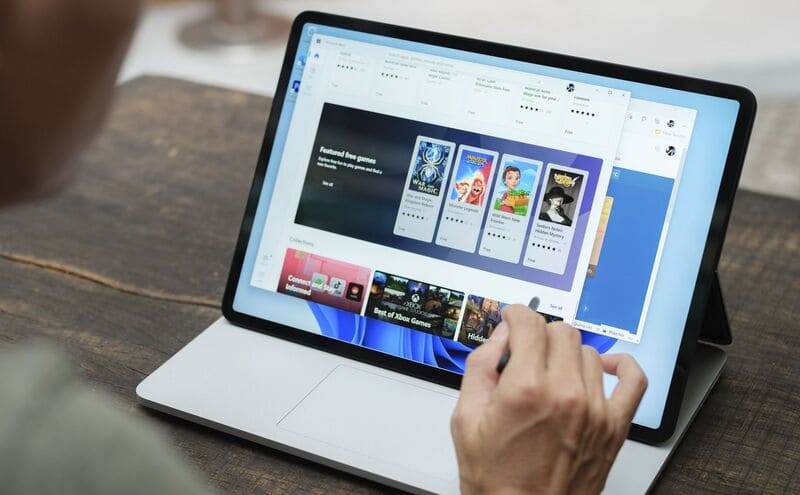
What is Dynamic Refresh Rate feature?

See also: How restore old Notepad on Windows 11

Which devices support DRR?

To use the DRR feature, your device needs to meet a few requirements:

  • Screen supports VRR (Variable Refresh Rate): VRR is a technology that allows the screen to change the scanning frequency flexibly according to the displayed content.
  • Minimum refresh rate of 120Hz: DRR works best with displays that have a refresh rate higher than 60Hz.
  • Graphics card that supports WDDM 3.0 or later: WDDM (Windows Display Driver Model) is the Windows display driver. You can check your WDDM version by running the DirectX Diagnostic Tool (DXDiag).

How to enable/disable Dynamic Refresh Rate on Windows 11

Instructions to enable Dynamic Refresh Rate

Note: The steps may vary slightly depending on your version of Windows 11 (23H2 or 24H2 or later).

Step 1: Open Settings > Click System

Step 2: Click on Display tab > Select Advanced display
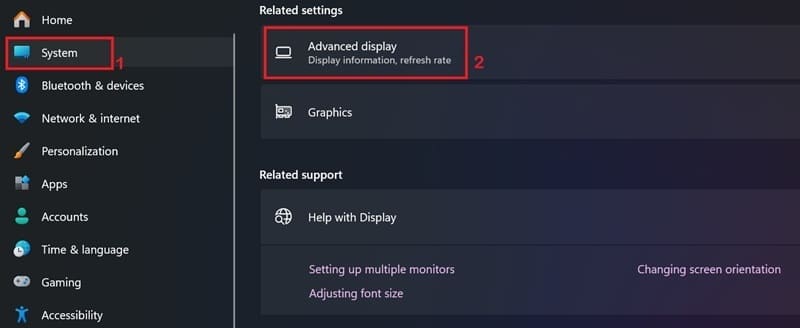
Select Advanced display

Step 3: If you have multiple monitors, select the monitor to adjust.

  • For Windows 11 23H2: Under Choose a refresh rate, select Dynamic.
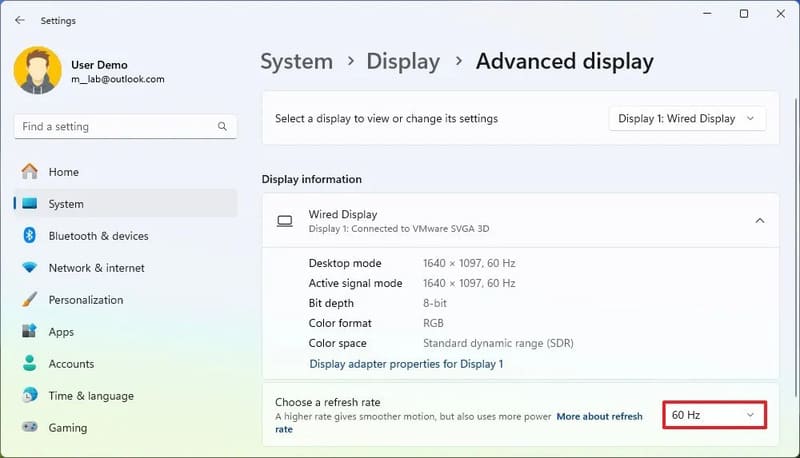
Under Choose a refresh rate, select Dynamic.
  • For Windows 11 24H2: Enable Dynamic refresh rate
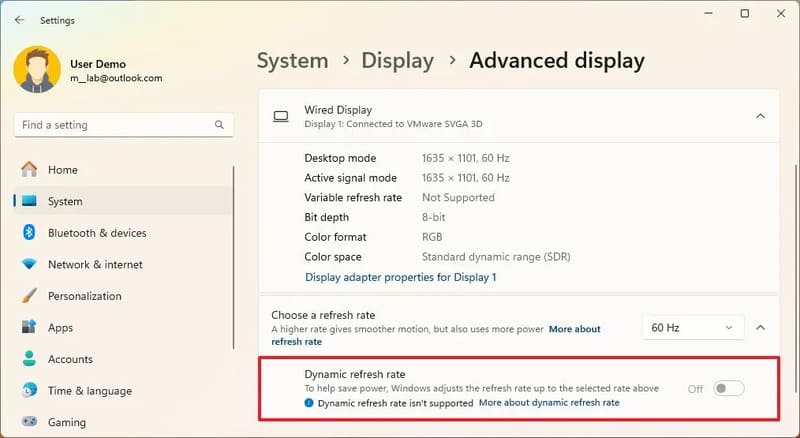
Enable Dynamic refresh rate

Once you complete the steps, your computer will automatically reduce the screen refresh rate to save energy.

If your device doesn't support this feature, you won't see the option in Choose a refresh rate or the enable button will be disabled.

Instructions to turn off Dynamic Refresh Rate

Perform steps 1-4 the same as enabling DRR.

  • For Windows 11 23H2: Under Choose a refresh rate, select the desired fixed refresh rate (e.g. 60Hz, 120Hz).
  • For Windows 11 24H2: Turn off the Dynamic refresh rate toggle.
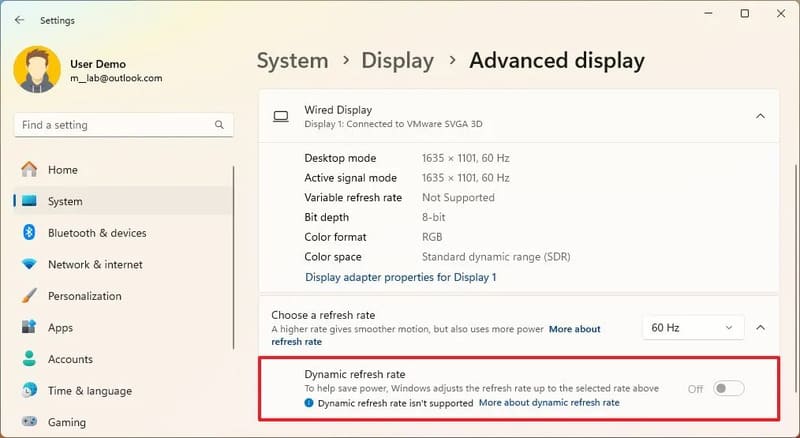
Turn off Dynamic refresh rate enable button

After completing the steps, Windows 11 will not automatically increase or decrease the screen refresh rate.

Other battery saving tips on Windows 11

In addition to using DRR, you can apply the following tips to save battery for your laptop:

  • Turn on Battery Saver or Energy Saver mode (depending on Windows 11 version).
  • Select the appropriate power mode (Power Mode) in the Battery or Power & battery section
  • Reduce screen brightness.
  • Turn off unnecessary background applications.
  • Disconnect Bluetooth and Wifi when not in use.

By combining DRR with other battery saving tips, you can significantly extend the battery life of your Windows 11 laptop.

See also: How Set up Dynamic Lighting on Windows 11 to customize RGB devices

Conclusion

With the above instructions, hopefully you can easily enable/disable the feature. Dynamic Refresh Rate and apply other battery saving tips to extend battery life for your Windows 11 laptop.


Tags: AutomaticallychangeDynamicEnableRateRefreshscreen
Previous Post

Download job application using PowerPoint Resume/CV Template

Next Post

3 ways to enable Windows Sandbox on Windows 11/10

AnonyViet

AnonyViet

Related Posts

How to record reaction videos with Android phones, no app needed
Tips

How to record reaction videos with Android phones, no app needed

June 1, 2026
Instructions on how to get Google AI Pro 1 year for free for new accounts
Tips

Instructions on how to get Google AI Pro 1 year for free for new accounts

June 1, 2026
Top free AI tools to help write, test and optimize content
Tips

Top free AI tools to help write, test and optimize content

June 1, 2026
Instructions for receiving Lovable Pro 12 months for free
Tips

Instructions for receiving Lovable Pro 12 months for free

May 29, 2026
Instructions for receiving 1 month of ElevenLabs Creator for free worth
Tips

Instructions for receiving 1 month of ElevenLabs Creator for free worth $22

May 25, 2026
How to create beautiful studio-like preschool graduation photos for your child
Tips

How to create beautiful studio-like preschool graduation photos for your child

May 21, 2026
Next Post
3 ways to enable Windows Sandbox on Windows 11/10

3 ways to enable Windows Sandbox on Windows 11/10

0 0 votes
Article Rating
Subscribe
Login
Notify of
guest

guest

0 Comments
Oldest
Newest Most Voted
Inline Feedbacks
View all comments

Recent News

Instructions on how to prevent acquaintances from seeing your Tiktok

Instructions on how to prevent acquaintances from seeing your Tiktok

June 2, 2026
How to record reaction videos with Android phones, no app needed

How to record reaction videos with Android phones, no app needed

June 1, 2026
Instructions on how to get Google AI Pro 1 year for free for new accounts

Instructions on how to get Google AI Pro 1 year for free for new accounts

June 1, 2026
Top free AI tools to help write, test and optimize content

Top free AI tools to help write, test and optimize content

June 1, 2026
Instructions on how to prevent acquaintances from seeing your Tiktok

Instructions on how to prevent acquaintances from seeing your Tiktok

June 2, 2026
How to record reaction videos with Android phones, no app needed

How to record reaction videos with Android phones, no app needed

June 1, 2026
Instructions on how to get Google AI Pro 1 year for free for new accounts

Instructions on how to get Google AI Pro 1 year for free for new accounts

June 1, 2026
AnonyViet - English Version

AnonyViet

AnonyViet is a website share knowledge that you have never learned in school!

We are ready to welcome your comments, as well as your articles sent to AnonyViet.

Follow Us

Contact:

Email: anonyviet.com[@]gmail.com

Main Website: https://anonyviet.com

Recent News

Instructions on how to prevent acquaintances from seeing your Tiktok

Instructions on how to prevent acquaintances from seeing your Tiktok

June 2, 2026
How to record reaction videos with Android phones, no app needed

How to record reaction videos with Android phones, no app needed

June 1, 2026
No Result
View All Result
  • Home
  • News
  • Software
  • Knowledge
  • MMO
  • Tips
  • Security
  • Network
  • Office

wpDiscuz
0
0
Would love your thoughts, please comment.x
()
x
| Reply