• Home
  • News
  • Software
  • Knowledge
  • MMO
  • Tips
  • Security
  • Network
  • Office
AnonyViet - English Version
  • Home
  • News
  • Software
  • Knowledge
  • MMO
  • Tips
  • Security
  • Network
  • Office
No Result
View All Result
  • Home
  • News
  • Software
  • Knowledge
  • MMO
  • Tips
  • Security
  • Network
  • Office
No Result
View All Result
AnonyViet - English Version
No Result
View All Result

3 ways to enable Windows Sandbox on Windows 11/10

AnonyViet by AnonyViet
September 12, 2024
in Tips
0

Discover how Enable Windows Sandbox on Windows 11/10 – a powerful feature that enhances the security of your computer. This is a perfect solution to test and run unknown applications without worrying about security risks.

Join the channel Telegram belong to AnonyViet 👉 Link 👈

About Windows Sandbox

Microsoft is trying to solve a long-standing problem that Windows users often face: how to safely execute an unknown .exe file on a PC? Previously, there was a method to execute unknown files on Windows, which was to use a virtual machine to test unknown applications, but this method was only suitable for users with in-depth knowledge.

Recognizing this, Microsoft has developed a simpler approach so that any Windows 11, 10 user can launch applications in a temporary desktop environment to isolate a particular application that you suspect may pose a security risk.
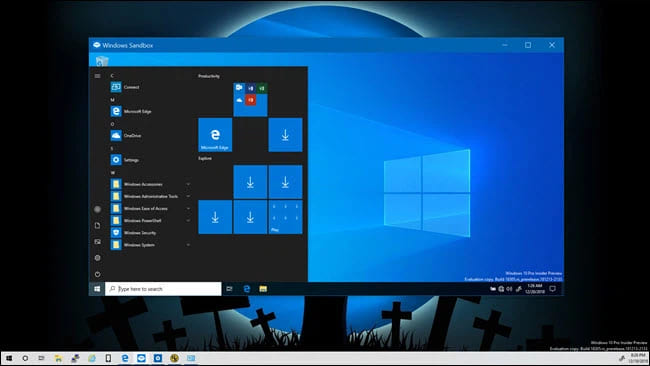
About Windows Sandbox

Basically, Windows Sandbox is designed for security and one-time use only, so once you are done using the application in this mode, the entire Sandbox will be deleted.

Additionally, a rather innovative new feature will be implemented, which is that every time Windows Sandbox is enabled, it will simplify the creation of a new lightweight (100MB) Windows installation to execute the application. Microsoft will apply its own hypervisor to create an independent kernel, completely separate from the host computer.

Requirements needed to use Windows Sandbox

  • Windows 10 Pro or Enterprise Insider, build 18305 or later.
  • Supports AMD64 architecture.
  • Virtualization needs to be enabled in BIOS.
  • Minimum 4GB RAM (8GB recommended).
  • Minimum 1GB free disk space (SSD recommended).
  • CPU needs to have at least 2 cores (4 cores with hyperthreading recommended).
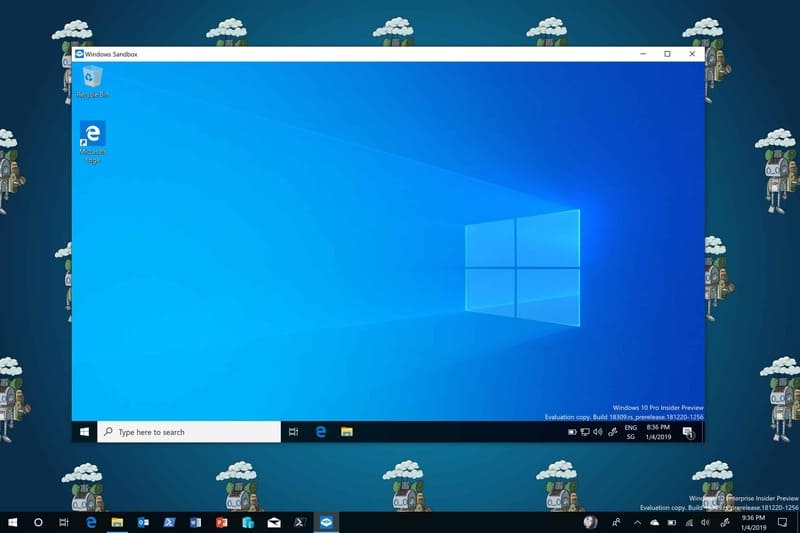
Requirements needed to use Windows Sandbox

See also: Change Spotify Interface with Spicetify

3 ways to enable Windows Sandbox on Windows 11/10

Method 1: Enable Windows Sandbox from Windows Features

Step 1: Search for Turn Windows features on or off and click on the corresponding result

Step 2: Check the Windows Sandbox box > Ok
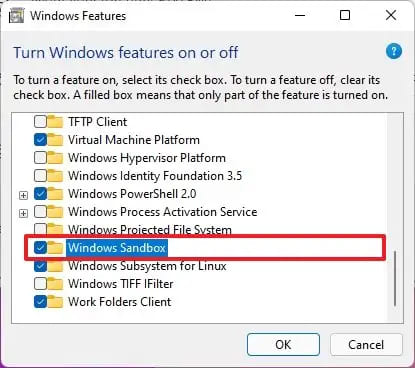
Check the Windows Sandbox box

Step 3: Click 'Restart Now'

Once you complete the steps, you can launch the application from the Start menu.

If you want to turn off this feature, you can do the same but in step 3, uncheck the Windows Sandbox box.

Method 2: Enable Windows Sandbox from PowerShell

To enable Windows Sandbox using a PowerShell command, follow these steps:

Step 1: Search for PowerShell > Click 'Run as administrator' on the displayed result.
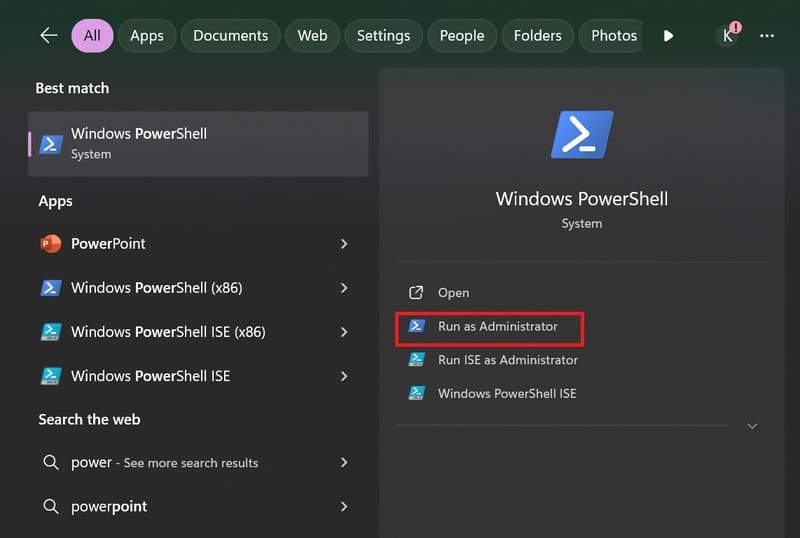
Open PowerShell
Open PowerShell

Step 2: Paste the following command to enable the Sandbox user and press Enter:

Enable-WindowsOptionalFeature -Online -FeatureName “Containers-DisposableClientVM” -All
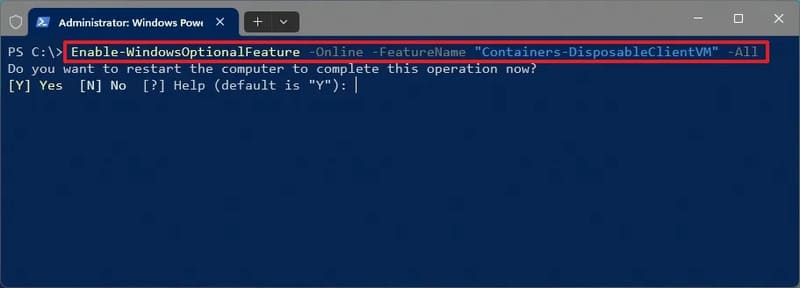
Paste the following command in

Step 3: Type Y and press Enter to restart your computer.

If you want to turn this feature off, in step 3, run the command:

Disable-WindowsOptionalFeature -Online -FeatureName “Containers-DisposableClientVM”

Method 3: Enable Windows Sandbox from Command Prompt

Step 1: Search for Command Prompt > Click 'Run as administrator' to run with administrator rights.
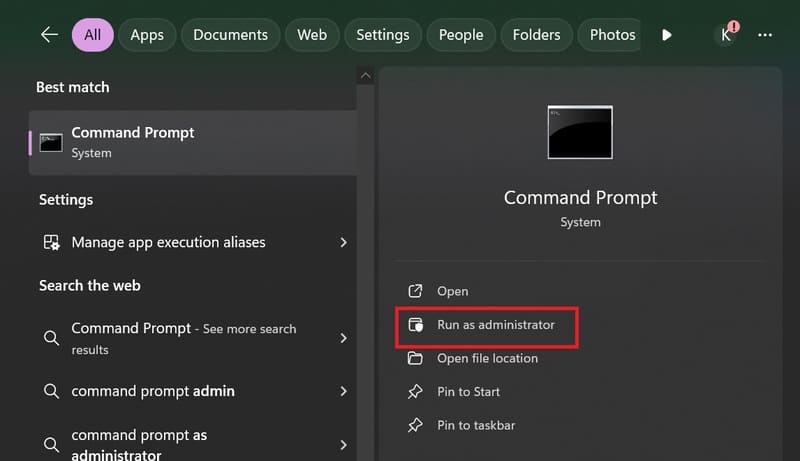
Search Command Prompt

Step 2: Paste the following command and press Enter:

Dism /online /Enable-Feature /FeatureName:”Containers-DisposableClientVM” -All
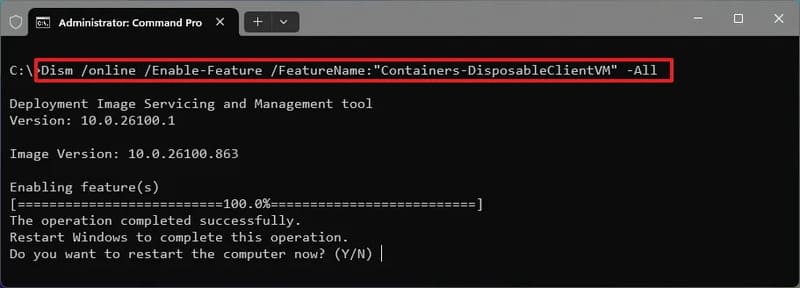
Paste the following command

Step 3: Type Y and press Enter to restart the computer.

At this time, you can install any software or applications that you do not trust.

To turn off Sandbox, run the following command:

Dism /online /Disable-Feature /FeatureName:”Containers-DisposableClientVM”

See also: File Converter – Convert file format and size in the right click menu

Conclusion

So, we have learned through the way Enable Windows Sandbox on Windows 11/10. Make the most of this feature to ensure the safety of your computer when testing new applications. Follow AnonyViet to discover many other useful Windows features to enhance your computer experience!


Tags: EnableSandboxwaysWindows
Previous Post

How to enable Dynamic Refresh Rate to automatically change the screen refresh rate

Next Post

Get AnyViewer Professional key: Remote computer control software

AnonyViet

AnonyViet

Related Posts

How are Windows 11 Pro and Windows 10 Pro different?
Tips

How are Windows 11 Pro and Windows 10 Pro different?

October 23, 2026
Instructions for using CleanYourTV: Remove ads on Android TV, Google TV
Tips

Instructions for using CleanYourTV: Remove ads on Android TV, Google TV

October 23, 2026
How to use Messenger without a Facebook account
Tips

How to use Messenger without a Facebook account

October 22, 2026
The website helps you draw beautifully like TikToker Viet My
Tips

The website helps you draw beautifully like TikToker Viet My

October 21, 2026
Instructions on how to hard reset iPhone 18 Pro / iPhone 18 Pro Max
Tips

Instructions on how to hard reset iPhone 18 Pro / iPhone 18 Pro Max

October 21, 2026
Anyone can do how to increase Internet speed using CMD
Tips

Anyone can do how to increase Internet speed using CMD

October 20, 2026
Next Post
Get AnyViewer Professional key: Remote computer control software

Get AnyViewer Professional key: Remote computer control software

0 0 votes
Article Rating
Subscribe
Login
Notify of
guest

guest

0 Comments
Oldest
Newest Most Voted

Recent News

How are Windows 11 Pro and Windows 10 Pro different?

How are Windows 11 Pro and Windows 10 Pro different?

October 23, 2026
Instructions for using CleanYourTV: Remove ads on Android TV, Google TV

Instructions for using CleanYourTV: Remove ads on Android TV, Google TV

October 23, 2026
Receive copyright for 3 Halloween software worth 0

Receive copyright for 3 Halloween software worth $150

October 23, 2026
How to use Messenger without a Facebook account

How to use Messenger without a Facebook account

October 22, 2026
How are Windows 11 Pro and Windows 10 Pro different?

How are Windows 11 Pro and Windows 10 Pro different?

October 23, 2026
Instructions for using CleanYourTV: Remove ads on Android TV, Google TV

Instructions for using CleanYourTV: Remove ads on Android TV, Google TV

October 23, 2026
Receive copyright for 3 Halloween software worth 0

Receive copyright for 3 Halloween software worth $150

October 23, 2026
AnonyViet - English Version

AnonyViet

AnonyViet is a website share knowledge that you have never learned in school!

We are ready to welcome your comments, as well as your articles sent to AnonyViet.

Follow Us

Contact:

Email: anonyviet.com[@]gmail.com

Main Website: https://anonyviet.com

Recent News

How are Windows 11 Pro and Windows 10 Pro different?

How are Windows 11 Pro and Windows 10 Pro different?

October 23, 2026
Instructions for using CleanYourTV: Remove ads on Android TV, Google TV

Instructions for using CleanYourTV: Remove ads on Android TV, Google TV

October 23, 2026
  • Home
  • Home 2
  • Home 3
  • Home 4
  • Home 5
  • Home 6
  • Next Dest Page
  • Sample Page

say88 tỷ lệ kèo nhà cái kèo nhà cái 5 febet

No Result
View All Result
  • Home
  • News
  • Software
  • Knowledge
  • MMO
  • Tips
  • Security
  • Network
  • Office

say88 tỷ lệ kèo nhà cái kèo nhà cái 5 febet

wpDiscuz
0
0
Would love your thoughts, please comment.x
()
x
| Reply