• Home
  • News
  • Software
  • Knowledge
  • MMO
  • Tips
  • Security
  • Network
  • Office
AnonyViet - English Version
  • Home
  • News
  • Software
  • Knowledge
  • MMO
  • Tips
  • Security
  • Network
  • Office
No Result
View All Result
  • Home
  • News
  • Software
  • Knowledge
  • MMO
  • Tips
  • Security
  • Network
  • Office
No Result
View All Result
AnonyViet - English Version
No Result
View All Result

How to download all photos from Google Photos to transfer to another service

AnonyViet by AnonyViet
January 29, 2023
in Tips
0

Google previously announced that they will stop supporting unlimited free high-quality storage for the Google Photos app from June 2021. So I’m sure you’re looking for some Google alternatives Photos and how to download all photos from Google Photos right?

Join the channel Telegram of the AnonyViet 👉 Link 👈

How to download all photos from Google Photos to transfer to another service

There was a time when Google allowed unlimited original-quality photo uploads on its Pixel devices. But from June 1, any photos or videos you upload will count towards 15GB of free storage. So, if you have already used up all your space, then I will guide you to download all your photos from Google Photos to switch to another service. You can choose 1 of 5 alternative photo hosting services as good as Google.

How to download all Google Photos data?

The process of downloading all images and videos from Google Photos will be very stable in one go. Google offers a feature called Takeout allows you to export all your Google Photos data.

Step 1: To use Takeout, you first need to access this link on PC.

Step 2: Next, click on the item Data & personalization in the menu on the left.
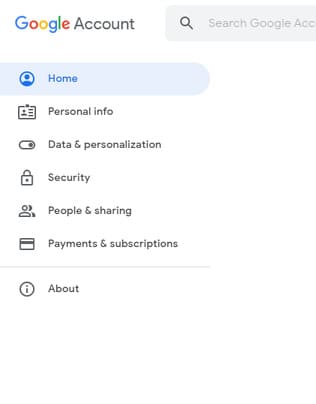
Data & personalization

Step 3: Scroll down and tap Download your data.
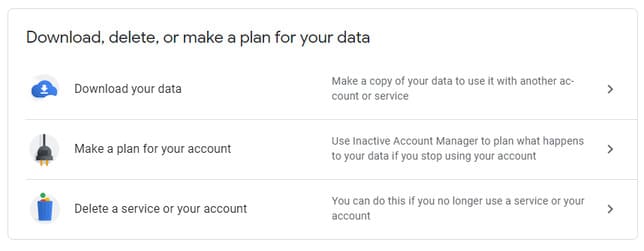
Download your data

Step 4: Next, Google Takeout will display a list of data that you can export. Click option Deselect all.
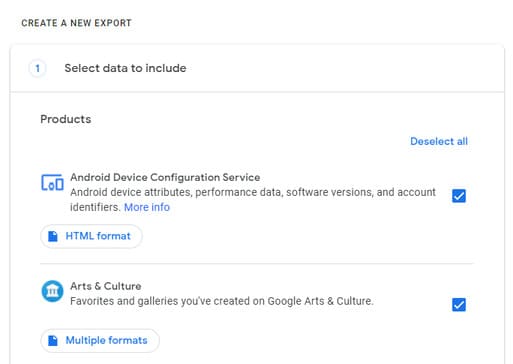
Deselect all

Step 5: Then scroll down and select Google Photos.
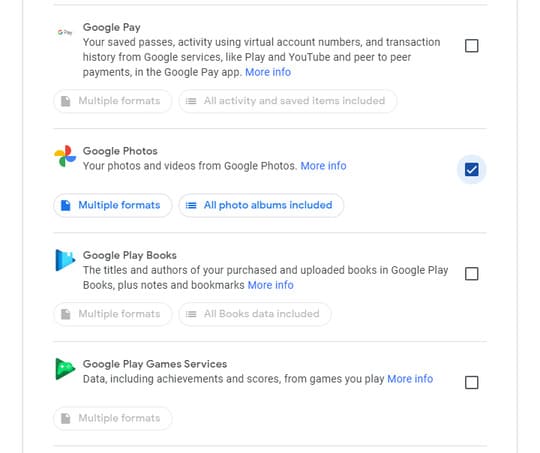
Google Photos

Step 6: Here you can also download individual Google Photos albums by clicking the . button All photo albums included.

Step 7: Scroll down and tap Next.

Step 8: Next, you need to choose download methods such as receiving an email link or transferring the data directly to Dropbox or another cloud service. You can also decide how often to upload data, the file type, and the minimum file size after which the data will be split into multiple files.
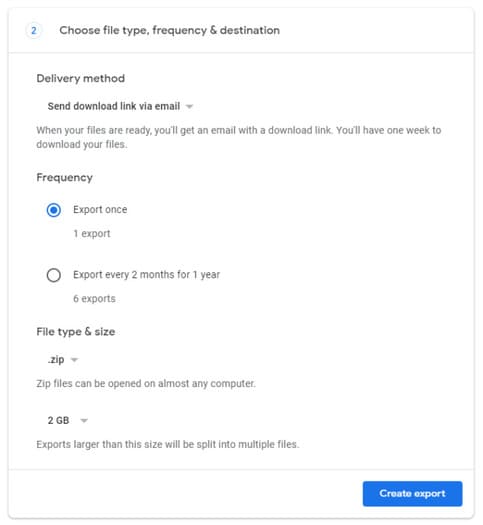
google photos photo download method

Step 9: Once you’re done, click the button Create Export. Depending on the amount of data, it may take Google several hours to several days to generate the export file. If you are a photographer, your data must be up to hundreds of GB, right? At this time, waiting for Google to create the export file, only crying.
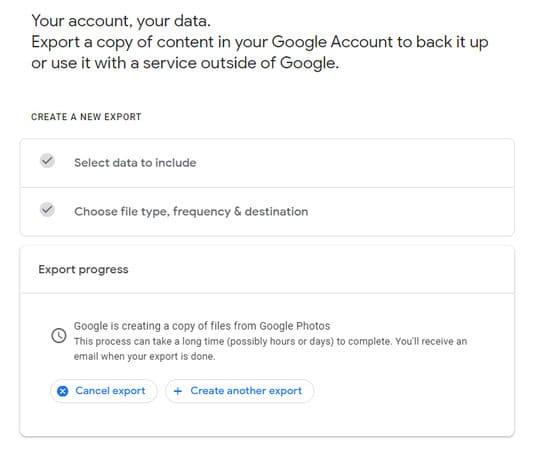
Create Export

That’s how you can download all your Google Photos images and videos to back them up elsewhere. You can return to the Google takeout page again to check the status of your export file.

How to transfer Google Photos data to other cloud services?

If your Google storage is running low, you can transfer your images and videos to other cloud services. You can refer to Step 8 above, Google can directly transfer your data to cloud services like Dropbox, OneDrive and Box.

For unsupported cloud services like Apple’s iCloud, you’ll have to manually download the data on your device and then re-upload it to iCloud.
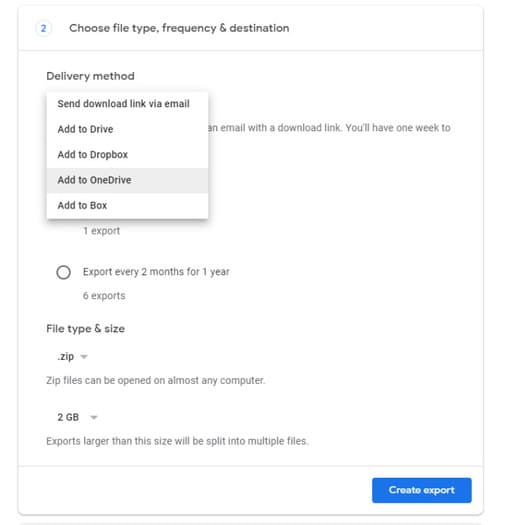
How to transfer Google Photos data to other cloud services?

And that’s all you need to know about how to get all your photos from Google Photos to transfer to another service. Plus, you can learn more interesting facts about Google that you didn’t know here.


The article achieved: 5/5 – (100 votes)

Tags: DownloadGooglephotosServiceTransfer
Previous Post

Droidefense – Highly technical Android virus analysis framework

Next Post

Use Filter to pair iPhone 12 on Instagram to live virtual like real

AnonyViet

AnonyViet

Related Posts

How to add sliders to Facebook Stories to easily rewind videos
Tips

How to add sliders to Facebook Stories to easily rewind videos

April 21, 2026
How to change the default font on Windows 10
Tips

How to change the default font on Windows 10

April 13, 2026
5 tips for using a Browser to replace an App (helps save RAM, time and money)
Tips

5 tips for using a Browser to replace an App (helps save RAM, time and money)

April 13, 2026
How to make funny MeMe photos without Photoshop within 10 seconds
Tips

How to make funny MeMe photos without Photoshop within 10 seconds

April 11, 2026
How to quickly design your own Logo without Photoshop
Tips

How to quickly design your own Logo without Photoshop

April 10, 2026
How to convert Website into App on Windows
Tips

How to convert Website into App on Windows

April 9, 2026
Next Post
Use Filter to pair iPhone 12 on Instagram to live virtual like real

Use Filter to pair iPhone 12 on Instagram to live virtual like real

0 0 votes
Article Rating
Subscribe
Login
Notify of
guest

guest

0 Comments
Oldest
Newest Most Voted
Inline Feedbacks
View all comments

Recent News

Tips for pinning the step counter to the iPhone screen to monitor your health

Tips for pinning the step counter to the iPhone screen to monitor your health

April 28, 2026
How to turn off password suggestions on iPhone: Prevent Safari from auto-filling passwords

How to turn off password suggestions on iPhone: Prevent Safari from auto-filling passwords

April 27, 2026
Instructions for looking up prescriptions on VNeID instead of paper medical books

Instructions for looking up prescriptions on VNeID instead of paper medical books

April 26, 2026
Tips to completely turn off CAPTCHA codes on iPhone and Mac are super simple

Tips to completely turn off CAPTCHA codes on iPhone and Mac are super simple

April 25, 2026
Tips for pinning the step counter to the iPhone screen to monitor your health

Tips for pinning the step counter to the iPhone screen to monitor your health

April 28, 2026
How to turn off password suggestions on iPhone: Prevent Safari from auto-filling passwords

How to turn off password suggestions on iPhone: Prevent Safari from auto-filling passwords

April 27, 2026
Instructions for looking up prescriptions on VNeID instead of paper medical books

Instructions for looking up prescriptions on VNeID instead of paper medical books

April 26, 2026
AnonyViet - English Version

AnonyViet

AnonyViet is a website share knowledge that you have never learned in school!

We are ready to welcome your comments, as well as your articles sent to AnonyViet.

Follow Us

Contact:

Email: anonyviet.com[@]gmail.com

Main Website: https://anonyviet.com

Recent News

Tips for pinning the step counter to the iPhone screen to monitor your health

Tips for pinning the step counter to the iPhone screen to monitor your health

April 28, 2026
How to turn off password suggestions on iPhone: Prevent Safari from auto-filling passwords

How to turn off password suggestions on iPhone: Prevent Safari from auto-filling passwords

April 27, 2026
No Result
View All Result
  • Home
  • News
  • Software
  • Knowledge
  • MMO
  • Tips
  • Security
  • Network
  • Office

wpDiscuz
0
0
Would love your thoughts, please comment.x
()
x
| Reply