• Home
  • News
  • Software
  • Knowledge
  • MMO
  • Tips
  • Security
  • Network
  • Office
AnonyViet - English Version
  • Home
  • News
  • Software
  • Knowledge
  • MMO
  • Tips
  • Security
  • Network
  • Office
No Result
View All Result
  • Home
  • News
  • Software
  • Knowledge
  • MMO
  • Tips
  • Security
  • Network
  • Office
No Result
View All Result
AnonyViet - English Version
No Result
View All Result

How to display the Show Desktop button on the Windows 11 taskbar

AnonyViet by AnonyViet
June 20, 2024
in Tips
0

In the recent Windows 11 update, Microsoft replaced the “Show Desktop” button with a Copilot button. This can make it difficult for regular users to access programs and files from the home screen. However, no need to worry, this article will guide you how to display the Show Desktop button back on the Windows 11 taskbar.

Join the channel Telegram belong to AnonyViet 👉 Link 👈

Why did the Show Desktop button disappear?

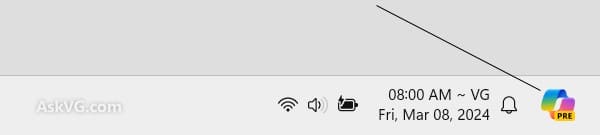
In the update Windows 11 Recently, Microsoft replaced the “Show Desktop” button with a Copilot button at the bottom of the taskbar. This means that if you are using the latest version of Windows 11, you will see the Copilot button instead of “Show Desktop”.
How to display the Show Desktop button
Microsoft has replaced the “Show Desktop” button with a Copilot button

How to display the Show Desktop button on the Windows 11 taskbar

Although the “Show Desktop” button is disabled by default on Windows 11, you can still easily re-enable it. Here are the steps to restore this button on the taskbar:

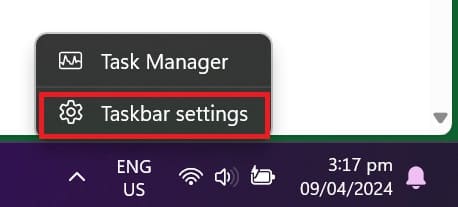
Step 1: Right click on the Taskbar > Select 'Taskbar Settings'.
How to display the Show Desktop button
Select 'Taskbar Settings'

Another way is that you can go to Settings > Personalization > Taskbar.

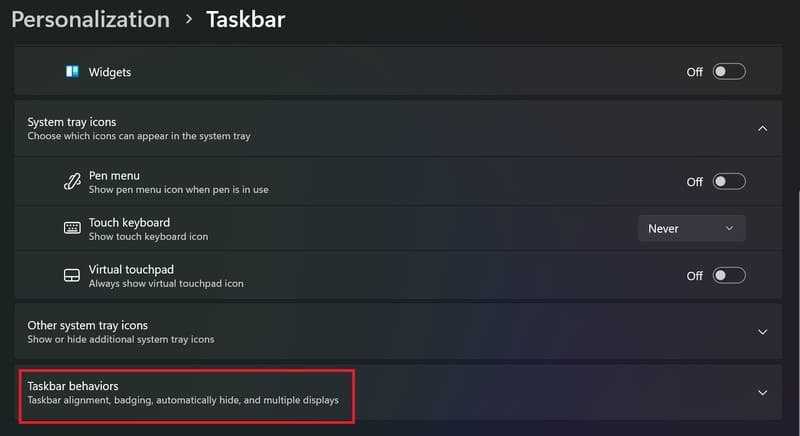
Step 2: Click on 'Taskbar Behaviors'.
How to display the Show Desktop button
Click on 'Taskbar Behaviors'.

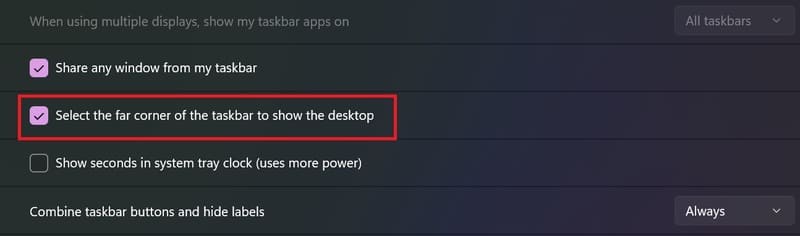
Step 3: Check the option “Select the far corner of the taskbar to show the desktop”.
How to display the Show Desktop button
Check “Select the far corner of the taskbar to show the desktop”.

Step 4: After making changes, you will see a small transparent silver bar appear in the right corner of the taskbar. Please restart your computer if you do not see the “Show Desktop” button.
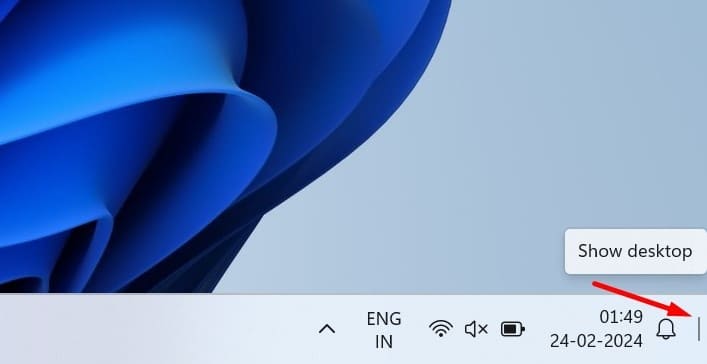
How to display the Show Desktop button

Epilogue

From the steps above, you can know how to display the Show Desktop button on Windows 11 is extremely simple. Hopefully through the operations we have shared, you can easily regain this familiar icon to study and work more effectively. Wishing you a successful application!


Tags: buttonDesktopdisplayshowTaskbarWindows
Previous Post

How to turn off entering password when downloading applications on iPhone

Next Post

Instructions for viewing the Euro 2024 schedule on Zalo

AnonyViet

AnonyViet

Related Posts

How to see your email account creation date
Tips

How to see your email account creation date

November 11, 2025
Microsoft’s ranking of the 10 best Windows versions
Tips

Microsoft’s ranking of the 10 best Windows versions

November 11, 2025
Recover deleted data on Windows 10 with Windows File Recovery
Tips

Recover deleted data on Windows 10 with Windows File Recovery

November 10, 2025
Tips

Why hasn’t your computer been updated to Windows 10 2004?

November 9, 2025
3 OCR Tools Extract Text from Images without Retyping
Tips

3 OCR Tools Extract Text from Images without Retyping

November 8, 2025
Ways hackers use to hack your Facebook and how to fix it
Tips

Ways hackers use to hack your Facebook and how to fix it

November 7, 2025
Next Post
Instructions for viewing the Euro 2024 schedule on Zalo

Instructions for viewing the Euro 2024 schedule on Zalo

0 0 votes
Article Rating
Subscribe
Login
Notify of
guest

guest

0 Comments
Oldest
Newest Most Voted
Inline Feedbacks
View all comments

Recent News

How to install Anh Hai’s Pho Shop on MacBook is super easy

How to install Anh Hai’s Pho Shop on MacBook is super easy

November 11, 2025
How to turn off ads on Yoosee app in just 1 minute

How to turn off ads on Yoosee app in just 1 minute

November 11, 2025
Windows 11 and MS Office 2021 lifetime license, genuine from  during Keysoff’s 11.11 sale

Windows 11 and MS Office 2021 lifetime license, genuine from $14 during Keysoff’s 11.11 sale

November 11, 2025
How to see your email account creation date

How to see your email account creation date

November 11, 2025
How to install Anh Hai’s Pho Shop on MacBook is super easy

How to install Anh Hai’s Pho Shop on MacBook is super easy

November 11, 2025
How to turn off ads on Yoosee app in just 1 minute

How to turn off ads on Yoosee app in just 1 minute

November 11, 2025
Windows 11 and MS Office 2021 lifetime license, genuine from  during Keysoff’s 11.11 sale

Windows 11 and MS Office 2021 lifetime license, genuine from $14 during Keysoff’s 11.11 sale

November 11, 2025
AnonyViet - English Version

AnonyViet

AnonyViet is a website share knowledge that you have never learned in school!

We are ready to welcome your comments, as well as your articles sent to AnonyViet.

Follow Us

Contact:

Email: anonyviet.com[@]gmail.com

Main Website: https://anonyviet.com

Recent News

How to install Anh Hai’s Pho Shop on MacBook is super easy

How to install Anh Hai’s Pho Shop on MacBook is super easy

November 11, 2025
How to turn off ads on Yoosee app in just 1 minute

How to turn off ads on Yoosee app in just 1 minute

November 11, 2025
  • Home
  • Home 2
  • Home 3
  • Home 4
  • Home 5
  • Home 6
  • Next Dest Page
  • Sample Page

new88 trang chủ shbet trang chủ f168 trang chủ qq88 nhà cái 78win

No Result
View All Result
  • Home
  • News
  • Software
  • Knowledge
  • MMO
  • Tips
  • Security
  • Network
  • Office

new88 trang chủ shbet trang chủ f168 trang chủ qq88 nhà cái 78win

wpDiscuz
0
0
Would love your thoughts, please comment.x
()
x
| Reply