Windows 10 has a counter FPS built into the Xbox Game Bar was upgraded with the Windows 10 October 2019 update but is little known. Probably because everyone is used to using msi afterburner. Xbox Game Bar is a powerful gaming support feature that you can use in all PC games. Knowing those advantages, I will guide you how to display FPS when playing games on Windows 10 without installing 3rd party software.
| Join the channel Telegram belong to AnonyViet 👉 Link 👈 |
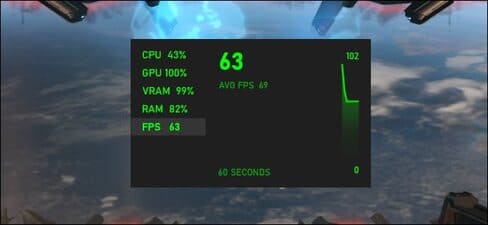
The FPS display feature is a feature of Game Bar. To open it, you just need to press Windows + G. (If the Game Bar doesn’t appear, go in Settings > Gaming > Xbox Game Bar and make sure this feature is turned to “On”. You can also choose another custom shortcut to launch it from here).
What is FPS?
Short for “frames per second,” it represents the number of frames your graphics card can display per second. or how many frames your monitor can display per second. The former depends on the processing power of the graphics card, while the latter depends entirely on the refresh rate of the screen.
So the higher the FPS, the clearer the displayed image and smoother the game play. To display FPS on Windows 10, you just need to do the following steps:
How to display FPS on Windows 10
Turn on the feature “Performance” on the Game Bar.
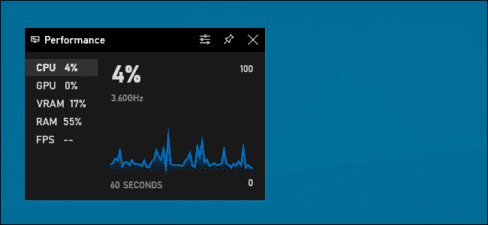
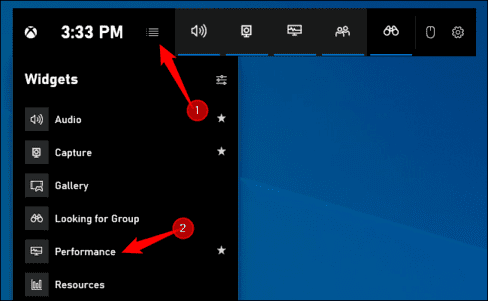
If you don’t see the Performance panel appear, click it menu button on the Game Bar at the top of the screen and click “Performance” to display.
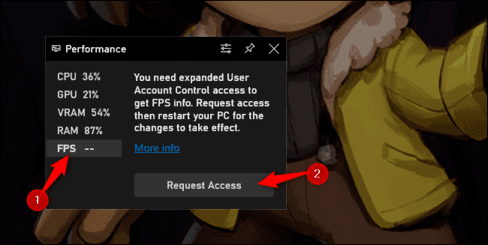
Click on the option “FPS” in the window Performance. The first time you open this feature, you’ll see a message stating that you need user account control access (User Account Control) to access the game’s FPS information.
Click “Request Access” to continue. A UAC window will appear asking if you agree to this action. You just need to press “Yes” is okay.
After confirming UAC permissions, you need to restart your PC to enable this feature. The FPS counter will not work until you restart your device.
After restarting your PC, launch the game and open the Game Bar (Windows + G). The Performance feature will display your frames per second (FPS) along with your CPU, GPU, VRAM, and RAM usage.
To see a graph of FPS over time, click on the category “FPS“. Click on the (“>”) to display the graph if the Performance window is displayed in minimized mode.
To keep FPS visible on the screen at all times, click on the “Battery” at the top of the Performance window. Now, even if you hide the Game Bar, it will remain on screen and always appear at the top of your gameplay until you unpin it.

You can move the Performance window on your screen by dragging it around the Game Bar. You can also change its size.
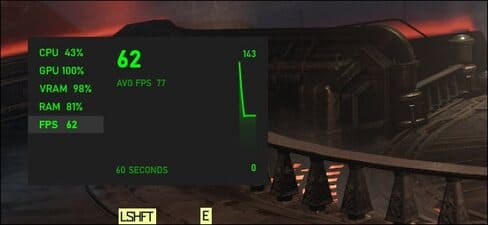
To exit the Performance window, return to the Game Bar (Windows + G) and click the “Unpin” button. That’s it, you can now view fps parameters in the game without having to install external software.
If you want to use third-party software, you can try it FPS Monitorhas more advanced features.
Frequently asked questions
What software do I need to install to display FPS?
You don’t need to install any software. The FPS display feature has been built into the Xbox Game Bar of Windows 10 (October 2019 update or later).
How to enable FPS display?
Press the Windows + G key combination to open Xbox Game Bar. Turn on the “Performance” feature and select “FPS” in the Performance window. It may be necessary to restart the computer after granting access.
If I don’t see the Xbox Game Bar, what do I do?
Check your settings: Settings > Gaming > Xbox Game Bar and make sure this feature is turned on (“On”). You can also customize the keyboard shortcut to launch the Game Bar.