• Home
  • News
  • Software
  • Knowledge
  • MMO
  • Tips
  • Security
  • Network
  • Office
AnonyViet - English Version
  • Home
  • News
  • Software
  • Knowledge
  • MMO
  • Tips
  • Security
  • Network
  • Office
No Result
View All Result
  • Home
  • News
  • Software
  • Knowledge
  • MMO
  • Tips
  • Security
  • Network
  • Office
No Result
View All Result
AnonyViet - English Version
No Result
View All Result

How to design a business card with Microsoft Word

AnonyViet by AnonyViet
January 26, 2023
in Office
0

If you want to design business cards, but don’t have experience with complex design software like InDesign and Photoshop, you can still design business cards in Word. With just 5 minutes you can design a professional business card without using professional software.

Join the channel Telegram of the AnonyViet 👉 Link 👈

Design a business card in Word

Before designing a business card, it is important to understand what content should be added to the business card. While the content on your business card may vary depending on your industry, here are the basics to have:

  • First and last name
  • position
  • Address
  • Phone number
  • Web address
  • Email
  • Company’s logo

Next, I will show you how to design a business card. First, open Microsoft Wordgo to tab “File” and then select “new” in the menu on the left.

Microsoft Word

In the search bar at the top of the window, find the keyword “Business Cards“. A large number of business card templates will appear for you to choose from.

my name is in word state

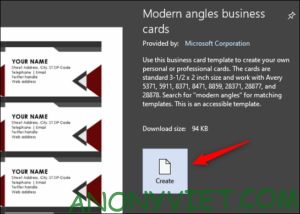
Choose the vist card template that you like best. You will then be able to preview the image and description of that template. Click “Create”.Create
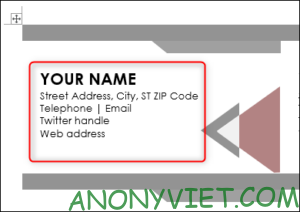
Your business card will appear and all you need to do is fill in your information.Fill in business card information
Design a handmade business card in Word

If you don’t find the templates you like above, you can still design your own business cards by creating tables, adding photos, and manually formatting text.

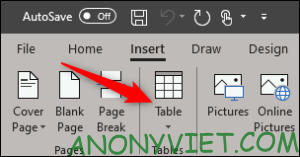
Open a blank Word page, go to tab “Insert“, then press “Table“.
Design a handmade business card in Word

Create Table 2×4. You can create the size of the table you want, but 2×4 will be more suitable for word pages.
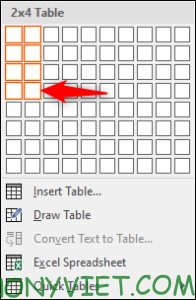
create a business card design board

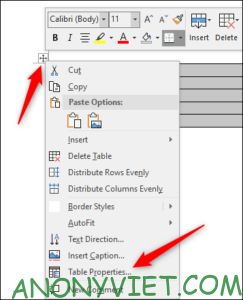
Once you’ve created the table, you’ll need to make some tweaking. Right click on the selection cross of the table, then select “Table Properties“.Table Properties
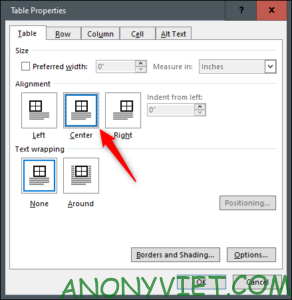
The “Table Properties” window will appear. In the “Table” tab, select “Center” in the “Alignment” box. It will help you keep your information even and beautiful.Alignment
Next, go to the “Row” tab. Here, check the “Specify height” box, increase the height to 2 inches, and then select “Exactly”.
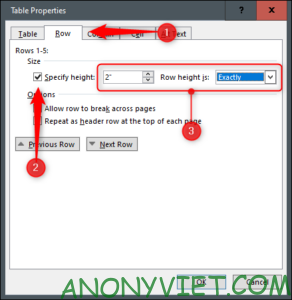
Row

Now go to the “Column” tab. Check the box for “Preferred width”, increase the width to 3 inches and click “OK”.Preferred width
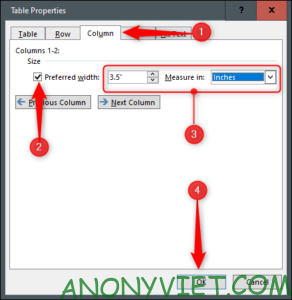
Your board has been resized to fit the size of a standard business card. However, you can see the table is slightly wider than the width of the margin.
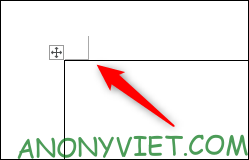
adjust business card width

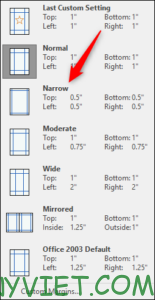
To fix it, go to the “Layout” tab then select the “Margins” button.
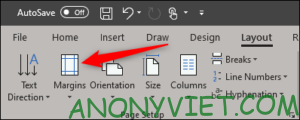
Margins

Select “Narrow” in the menu.

Narrow

Your business card will now be in the page margins.

word business card design

Now, all you need to do is add your information to the table, use the formatting tools to format the text, add an image, and you’re all set. Try insert pictures into text and design more details to make the business card come to life.
The article achieved: 5/5 – (100 votes)

Tags: BusinesscardDesignMicrosoftword
Previous Post

How to review hidden messages on Zalo when forgetting PIN code

Next Post

How to Hack Game Friend20 – Who knows you best

AnonyViet

AnonyViet

Related Posts

Instructions on how to convert text into QR codes in Word
Office

Instructions on how to convert text into QR codes in Word

October 5, 2026
Tool to adjust the format of administrative documents according to Decree 30
Office

Tool to adjust the format of administrative documents according to Decree 30

October 1, 2026
How to add Watermark to Google Docs to protect copyright
Office

How to add Watermark to Google Docs to protect copyright

April 19, 2026
Instructions on how to hide formulas in Excel to secure data
Office

Instructions on how to hide formulas in Excel to secure data

February 6, 2026
Top who creates the most beautiful presentation slide today
Office

Top who creates the most beautiful presentation slide today

September 23, 2025
Automatically check and correct spelling errors on Google Docs
Office

Automatically check and correct spelling errors on Google Docs

February 23, 2025
Next Post
How to Hack Game Friend20 – Who knows you best

How to Hack Game Friend20 - Who knows you best

0 0 votes
Article Rating
Subscribe
Login
Notify of
guest

guest

0 Comments
Oldest
Newest Most Voted

Recent News

Instructions for receiving pension through VNeID without going to the ward

Instructions for receiving pension through VNeID without going to the ward

October 16, 2026
MBTI, Big Five, DISC or Holland: which personality test should you choose?

MBTI, Big Five, DISC or Holland: which personality test should you choose?

October 15, 2026
How to create a virtual Pet, a virtual character running around on the Desktop to relax

How to create a virtual Pet, a virtual character running around on the Desktop to relax

October 15, 2026
Record first, choose focus later: how to use 4K 60 fps Cinema mode on iPhone 18 Pro

Record first, choose focus later: how to use 4K 60 fps Cinema mode on iPhone 18 Pro

October 15, 2026
Instructions for receiving pension through VNeID without going to the ward

Instructions for receiving pension through VNeID without going to the ward

October 16, 2026
MBTI, Big Five, DISC or Holland: which personality test should you choose?

MBTI, Big Five, DISC or Holland: which personality test should you choose?

October 15, 2026
How to create a virtual Pet, a virtual character running around on the Desktop to relax

How to create a virtual Pet, a virtual character running around on the Desktop to relax

October 15, 2026
AnonyViet - English Version

AnonyViet

AnonyViet is a website share knowledge that you have never learned in school!

We are ready to welcome your comments, as well as your articles sent to AnonyViet.

Follow Us

Contact:

Email: anonyviet.com[@]gmail.com

Main Website: https://anonyviet.com

Recent News

Instructions for receiving pension through VNeID without going to the ward

Instructions for receiving pension through VNeID without going to the ward

October 16, 2026
MBTI, Big Five, DISC or Holland: which personality test should you choose?

MBTI, Big Five, DISC or Holland: which personality test should you choose?

October 15, 2026
  • Home
  • Home 2
  • Home 3
  • Home 4
  • Home 5
  • Home 6
  • Next Dest Page
  • Sample Page

say88 tỷ lệ kèo nhà cái kèo nhà cái 5 febet

No Result
View All Result
  • Home
  • News
  • Software
  • Knowledge
  • MMO
  • Tips
  • Security
  • Network
  • Office

say88 tỷ lệ kèo nhà cái kèo nhà cái 5 febet

wpDiscuz
0
0
Would love your thoughts, please comment.x
()
x
| Reply