• Home
  • News
  • Software
  • Knowledge
  • MMO
  • Tips
  • Security
  • Network
  • Office
AnonyViet - English Version
  • Home
  • News
  • Software
  • Knowledge
  • MMO
  • Tips
  • Security
  • Network
  • Office
No Result
View All Result
  • Home
  • News
  • Software
  • Knowledge
  • MMO
  • Tips
  • Security
  • Network
  • Office
No Result
View All Result
AnonyViet - English Version
No Result
View All Result

How to delete payment method from Google account

AnonyViet by AnonyViet
February 5, 2025
in Tips
0

How to delete payment methods Out of Google account is a necessary skill if you want to manage your personal finance more effectively. The storage of credit cards or debit cards in Google Payments Center makes it easy to make a transaction, but sometimes it causes nuisance with automatic fees. In this article, Anonyviet will guide you how to delete the payment method quickly and safely.

Join the channel Telegram belong to Anonyviet 👉 Link 👈

Why should you delete the payment method?

When adding payment methods to Google account, card information will be saved at Google Payments Center. This feature makes it easy to make transactions such as:

  • Register YouTube Premium or other Google services.
  • Buy paid apps or service registration on Google Play Store.
  • Increase Google Drive capacity via Google One.
  • Buy Google Workspace package for work.

However, if you no longer use the card or want to prevent automatic subtraction, delete this payment method. Note, if not replaced by other cards, the service or registered in operation may be interrupted.
Why should you delete the payment method?

See also: launch feature Create AI image on Google Docs

Instructions on how to delete payment methods

Step 1: To get started, visit Google Payments Center and log in Google account. Or you can enter myaccount.google.comselect Payment and subscription package > Manage payment method.
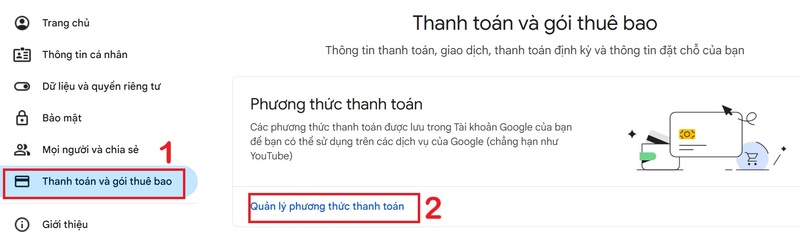
Select payment method management.

Step 2: Find the card you want to delete.

Step 3: Click Edit If you want to change the card information. Note, not all cards have this option.

Step 4: To delete the card, click on Delete.
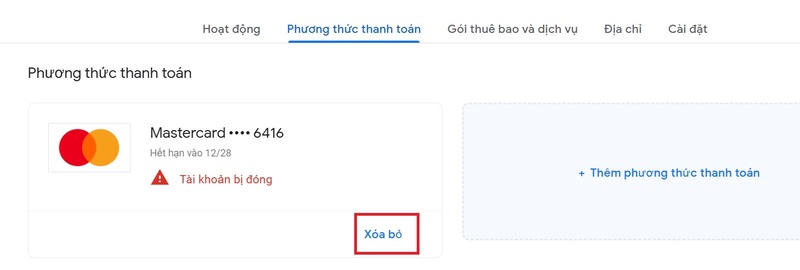
Click to delete
Click to delete

Step 5: At this time, the system will request confirmation. You choose Delete Again to complete.
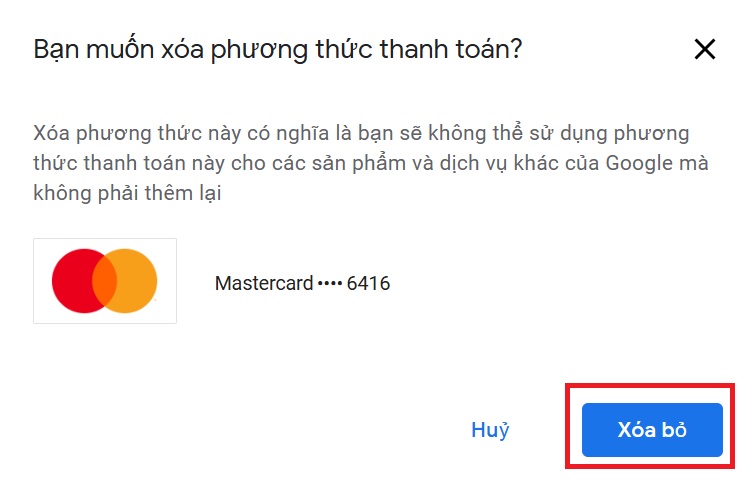
Choose to delete again

After successful deletion, the card will no longer display in your payment list.
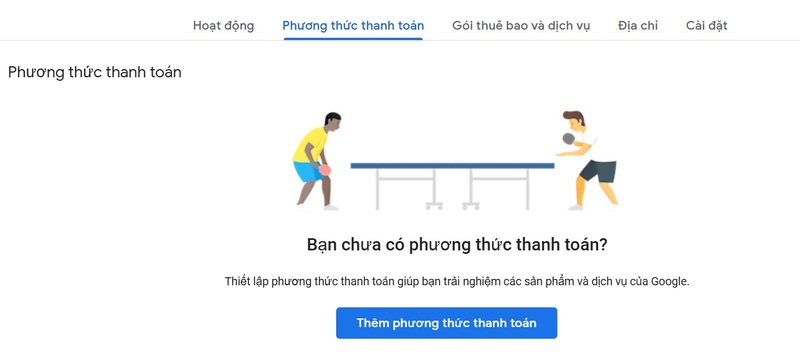
Delete success
Successful erasing

Why can't you delete the payment method?

If it is not possible to delete the current card, the cause may be:

  • Your account has a service registration, for example: YouTube Premium.
  • There is no replacement card to maintain these services.

How to fix:

  • Add a new card to the account and ensure successful authentication. After that, you can delete the old card.
  • If you do not want to add a new card, you need to cancel all the active registration (such as YouTube Premium), wait a few hours or days until the service ends completely, then follow the steps above to delete the card .
Why can't you delete the payment method?

Some other solutions

If you have canceled registration and wait for a while but still cannot delete the card, try the following:

Wait until the payment period

After canceling a registration like YouTube Premium, you can still use the service until the end of the current payment period. Wait until now before trying to delete the card.

Wait until the payment period

Turn off online transactions on the card

Access your application or bank website and turn off the online transaction feature for this card. This will prevent Google or other services automatically deduct money. However, this feature is not always available in all banks and countries.

Cancel payment authorization from the bank

Depending on the bank's regulations, you may request to cancel the automatic payment authorization related to the card.

Lock or change the card

If you can't delete the card in the above methods, you can ask the bank to lock the card or repay the new card. The new card will have card numbers, expiry date and other CVV code, help you avoid deducting money from the old card.

See also: Tips Transfer photos and videos from Google Photos to iCloud Photos

Conclusion

With How to delete payment methods On the Google account that Anonyviet has guided above, you not only better control online transactions but also prevent unwanted fees. Please follow the instructions above to protect your personal finance and optimize the use of Google services!


Tags: accountdeleteGoogleMethodpayment
Previous Post

[Lập trình Game] Lesson 0: About Godot and install

Next Post

Nhà cái J88 có phải là sự lựa chọn tốt nhất cho cược thể thao?

AnonyViet

AnonyViet

Related Posts

How to add sliders to Facebook Stories to easily rewind videos
Tips

How to add sliders to Facebook Stories to easily rewind videos

April 21, 2026
How to change the default font on Windows 10
Tips

How to change the default font on Windows 10

April 13, 2026
5 tips for using a Browser to replace an App (helps save RAM, time and money)
Tips

5 tips for using a Browser to replace an App (helps save RAM, time and money)

April 13, 2026
How to make funny MeMe photos without Photoshop within 10 seconds
Tips

How to make funny MeMe photos without Photoshop within 10 seconds

April 11, 2026
How to quickly design your own Logo without Photoshop
Tips

How to quickly design your own Logo without Photoshop

April 10, 2026
How to convert Website into App on Windows
Tips

How to convert Website into App on Windows

April 9, 2026
Next Post

Nhà cái J88 có phải là sự lựa chọn tốt nhất cho cược thể thao?

0 0 votes
Article Rating
Subscribe
Login
Notify of
guest

guest

0 Comments
Oldest
Newest Most Voted
Inline Feedbacks
View all comments

Recent News

How to create a Face Sticker Collection using ChatGPT

How to create a Face Sticker Collection using ChatGPT

April 29, 2026
How to install the cute Bongo Cat mouse pointer for Windows

How to install the cute Bongo Cat mouse pointer for Windows

April 29, 2026
Tips for pinning the step counter to the iPhone screen to monitor your health

Tips for pinning the step counter to the iPhone screen to monitor your health

April 28, 2026
How to turn off password suggestions on iPhone: Prevent Safari from auto-filling passwords

How to turn off password suggestions on iPhone: Prevent Safari from auto-filling passwords

April 27, 2026
How to create a Face Sticker Collection using ChatGPT

How to create a Face Sticker Collection using ChatGPT

April 29, 2026
How to install the cute Bongo Cat mouse pointer for Windows

How to install the cute Bongo Cat mouse pointer for Windows

April 29, 2026
Tips for pinning the step counter to the iPhone screen to monitor your health

Tips for pinning the step counter to the iPhone screen to monitor your health

April 28, 2026
AnonyViet - English Version

AnonyViet

AnonyViet is a website share knowledge that you have never learned in school!

We are ready to welcome your comments, as well as your articles sent to AnonyViet.

Follow Us

Contact:

Email: anonyviet.com[@]gmail.com

Main Website: https://anonyviet.com

Recent News

How to create a Face Sticker Collection using ChatGPT

How to create a Face Sticker Collection using ChatGPT

April 29, 2026
How to install the cute Bongo Cat mouse pointer for Windows

How to install the cute Bongo Cat mouse pointer for Windows

April 29, 2026
No Result
View All Result
  • Home
  • News
  • Software
  • Knowledge
  • MMO
  • Tips
  • Security
  • Network
  • Office

wpDiscuz
0
0
Would love your thoughts, please comment.x
()
x
| Reply