• Home
  • News
  • Software
  • Knowledge
  • MMO
  • Tips
  • Security
  • Network
  • Office
AnonyViet - English Version
  • Home
  • News
  • Software
  • Knowledge
  • MMO
  • Tips
  • Security
  • Network
  • Office
No Result
View All Result
  • Home
  • News
  • Software
  • Knowledge
  • MMO
  • Tips
  • Security
  • Network
  • Office
No Result
View All Result
AnonyViet - English Version
No Result
View All Result

How to delete files and folders with CMD on Windows 10/11

AnonyViet by AnonyViet
January 26, 2023
in Tips
0

If you prefer to use the command line, Windows 10/11 will provide several commands to help you delete files and folders using Command Prompt. I will show you how to do this.

Join the channel Telegram of the AnonyViet 👉 Link 👈

How to delete files and folders with CMD on Windows 10/11

How to delete files with CMD on Windows 10/11

If you are interested in researching about CMD, you should not miss it 27 interesting CMD tips on Windows i wrote.

To delete Files using Command Prompt on Windows 10, you can use the built-in del command. This command helps you to delete specified Files from your PC.a

Warning: The del command will delete the specified File without moving it to the Trash. This means that you cannot retrieve your File after it has been deleted.

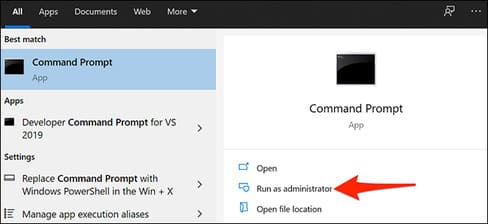
To use the command, first open the Command Prompt. Do this by opening the Start Menu, searching for “Command Prompt” and clicking “Run as Administrator” to the right of the search results.
How to delete files and folders with CMD on Windows 10/11 12

In the “User Account Control” window, click “Yes”.

You now have a Command Prompt window open. Here, enter the following command, replacing PATH with the full path to the File you want to delete. Then press Enter.

del PATH

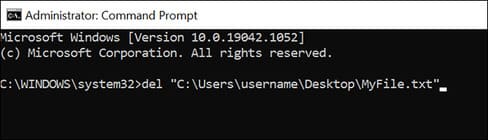
For example, to delete a File named “MyFile.txt” on the Desktop, use the following command to replace username with your own username:

del "C:\Users\username\Desktop\MyFile.txt"
How to delete Files and folders with CMD on Windows 10/11 13

And the specified File has been deleted from your memory!

To customize the deletion process, you can use a few parameters that the del command provides.

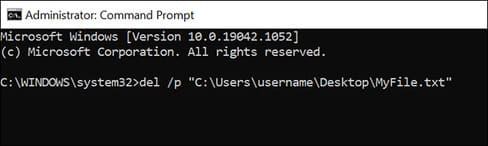
For example, you can add the /p parameter to the command so that the Command Prompt confirms your request before deleting the File. Similarly, you can add the /f parameter to the command to force delete your read-only files.

Here is the command with the /p parameter:

del /p "C:\Users\username\Desktop\MyFile.txt"
How to delete Files and folders with CMD on Windows 10/11 14

Delete folder with CMD on Windows 10

To delete folders on your PC, use the built-in rmdir command in Windows. This command helps you to delete folders as well as subfolders and files within them.

Warning: The rmdir command deletes directories without moving them to the Recycle Bin. You cannot restore your folders once they have been deleted with this command.

To use this command, open a Command Prompt window. Do this by opening the Start Menu, finding “Command Prompt” and clicking “Run as Administrator” to the right of the search results.
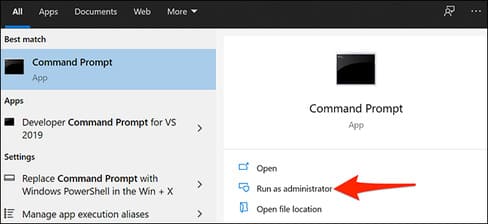
How to delete Files and folders with CMD on Windows 10/11 15

In the Command Prompt window, enter the following command replacing PATH with the full path to the directory you want to delete. Then press Enter.

Note: Make sure that the folder you are deleting does not contain any Files or folders. If the folder is not empty, use the second command given below to delete your folder.

rmdir PATH

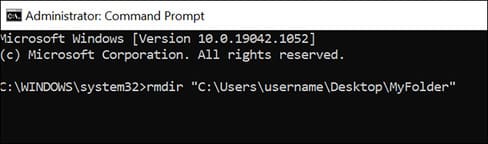
For example, to delete a folder named “MyFolder” on the Desktop, use the following command to replace username with your own username:

rmdir "C:\Users\username\Desktop\MyFolder"
How to delete files and folders with CMD on Windows 10/11 16

And the command will delete the specified folder from your PC!

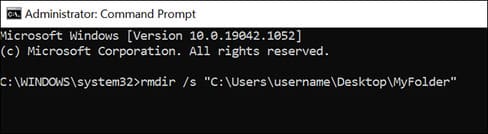
If the directory you want to delete contains any files or directories in it, add the /s parameter to the command and this will delete all subdirectories and files inside that directory.

rmdir /s "C:\Users\username\Desktop\MyFolder"
How to delete Files and folders with CMD on Windows 10/11 17

Different uses of the Del . command

With the del command, you can use your creativity to delete files in a variety of ways. For example, you can delete certain types of files, delete only files with a certain word in their name, etc.

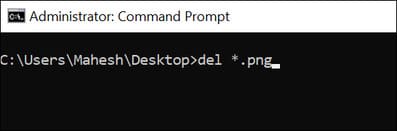
For example, to delete all PNG files in your current directory in Command Prompt, you can use the following command:

Tip: Replace “.png” with whatever File extension you want to remove.

del *.png
How to delete files and folders with CMD on Windows 10/11

This command selects all PNG files in the current directory and deletes them.

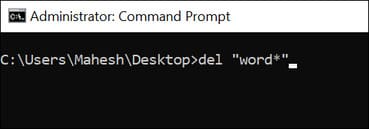
Another creative use of the del command is to delete files that contain a certain word in their name. For example, to delete all files whose name starts with “word”, you would use the following command:

Tip: Add an asterisk before the word to remove all Files ending with your specified word.

del "word*"
How to delete files and folders with CMD on Windows 10/11 19

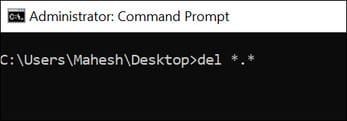
Finally, if you want to delete all files from the current directory, use the following command:

del *.*
How to delete files and folders with CMD on Windows 10/11 20

And that’s how you delete files and folders using CMD. Very handy!

Deleting files using these methods is certainly not as intuitive as using graphical software, but you can still use this method like cmd.

In addition, you can also use CMD to increase internet speed here.

The article achieved: 5/5 – (100 votes)

Tags: CMDdeletefilesfoldersWindows
Previous Post

Lesson 87: How to center content when printing in Excel

Next Post

Create NameCheap Stellar Hosting for 1 Month for Free

AnonyViet

AnonyViet

Related Posts

Quét lỗ hổng bảo mật cho Vide Coding bằng Security Audit Skill
Tips

Quét lỗ hổng bảo mật cho Vide Coding bằng Security Audit Skill

October 27, 2026
Instructions for registering for OxionAI Pro for 1 year with many powerful AI models
Tips

Instructions for registering for OxionAI Pro for 1 year with many powerful AI models

October 24, 2026
How are Windows 11 Pro and Windows 10 Pro different?
Tips

How are Windows 11 Pro and Windows 10 Pro different?

October 23, 2026
Instructions for using CleanYourTV: Remove ads on Android TV, Google TV
Tips

Instructions for using CleanYourTV: Remove ads on Android TV, Google TV

October 23, 2026
How to use Messenger without a Facebook account
Tips

How to use Messenger without a Facebook account

October 22, 2026
The website helps you draw beautifully like TikToker Viet My
Tips

The website helps you draw beautifully like TikToker Viet My

October 21, 2026
Next Post
Create NameCheap Stellar Hosting for 1 Month for Free

Create NameCheap Stellar Hosting for 1 Month for Free

0 0 votes
Article Rating
Subscribe
Login
Notify of
guest

guest

0 Comments
Oldest
Newest Most Voted

Recent News

How to play the mosquito swatter game, calling students’ names and asking them to return their homework

How to play the mosquito swatter game, calling students’ names and asking them to return their homework

October 28, 2026
Quét lỗ hổng bảo mật cho Vide Coding bằng Security Audit Skill

Quét lỗ hổng bảo mật cho Vide Coding bằng Security Audit Skill

October 27, 2026
Postpaid for new employees: Should you start using it?

Postpaid for new employees: Should you start using it?

October 26, 2026
How to create a UFO Game that calls students to return their homework

How to create a UFO Game that calls students to return their homework

October 26, 2026
How to play the mosquito swatter game, calling students’ names and asking them to return their homework

How to play the mosquito swatter game, calling students’ names and asking them to return their homework

October 28, 2026
Quét lỗ hổng bảo mật cho Vide Coding bằng Security Audit Skill

Quét lỗ hổng bảo mật cho Vide Coding bằng Security Audit Skill

October 27, 2026
Postpaid for new employees: Should you start using it?

Postpaid for new employees: Should you start using it?

October 26, 2026
AnonyViet - English Version

AnonyViet

AnonyViet is a website share knowledge that you have never learned in school!

We are ready to welcome your comments, as well as your articles sent to AnonyViet.

Follow Us

Contact:

Email: anonyviet.com[@]gmail.com

Main Website: https://anonyviet.com

Recent News

How to play the mosquito swatter game, calling students’ names and asking them to return their homework

How to play the mosquito swatter game, calling students’ names and asking them to return their homework

October 28, 2026
Quét lỗ hổng bảo mật cho Vide Coding bằng Security Audit Skill

Quét lỗ hổng bảo mật cho Vide Coding bằng Security Audit Skill

October 27, 2026
  • Home
  • Home 2
  • Home 3
  • Home 4
  • Home 5
  • Home 6
  • Next Dest Page
  • Sample Page

say88 tỷ lệ kèo nhà cái kèo nhà cái 5 febet

No Result
View All Result
  • Home
  • News
  • Software
  • Knowledge
  • MMO
  • Tips
  • Security
  • Network
  • Office

say88 tỷ lệ kèo nhà cái kèo nhà cái 5 febet

wpDiscuz
0
0
Would love your thoughts, please comment.x
()
x
| Reply