• Home
  • News
  • Software
  • Knowledge
  • MMO
  • Tips
  • Security
  • Network
  • Office
AnonyViet - English Version
  • Home
  • News
  • Software
  • Knowledge
  • MMO
  • Tips
  • Security
  • Network
  • Office
No Result
View All Result
  • Home
  • News
  • Software
  • Knowledge
  • MMO
  • Tips
  • Security
  • Network
  • Office
No Result
View All Result
AnonyViet - English Version
No Result
View All Result

How to delete an account on Windows 11

AnonyViet by AnonyViet
January 14, 2023
in Tips
0

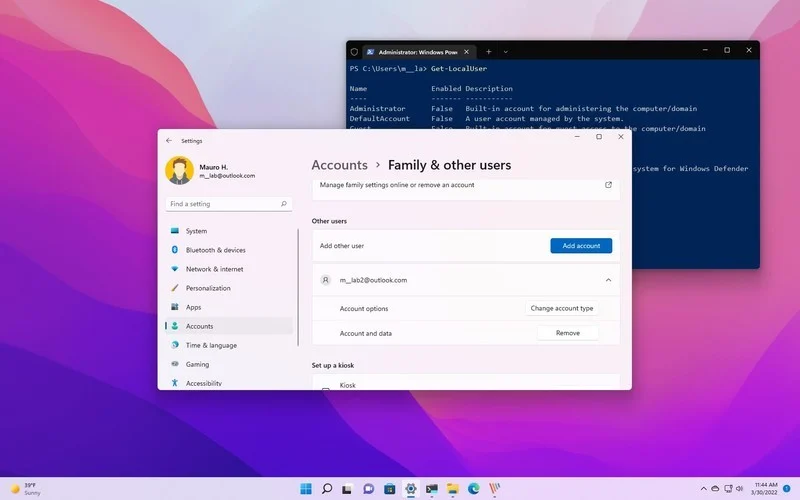
Above Windows 11, having multiple accounts allows you to create a separate space for everyone to use your computer without affecting your experience. However, when an account is no longer needed, you can delete it in several ways, including through the Settings app, Control Panel, User Account, Computer Management, Control Panel and PowerShell.

Join the channel Telegram of the AnonyViet 👉 Link 👈

How to delete an account on Windows 11

If you must temporarily restrict a user’s access, you do not need to delete the account. Instead, you should disable users on Windows 11.

In this Windows 11 guide, we will show you different ways to delete an account on your computer.

How to delete an account on Windows 11 using Settings

To delete an account and data using the Settings app on Windows 11, follow these steps:

1. Open Settings.

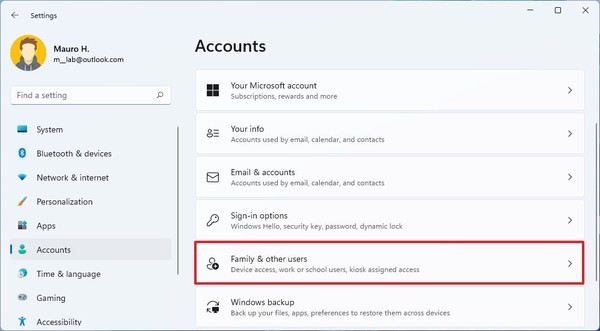
2. Click Accounts.

3. Click Family & other users on the right side.
How to delete an account on Windows 11

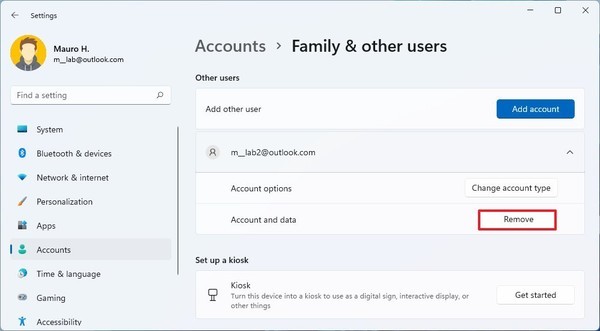
4. Select an account and click the button Remove.
How to delete an account on Windows 11 16

5. Click the button Delete account and data.

After you complete the above steps, the user’s account and data files will be deleted from the system.

How to delete an account using Control Panel

To delete accounts and files using Control Panel, follow these steps:

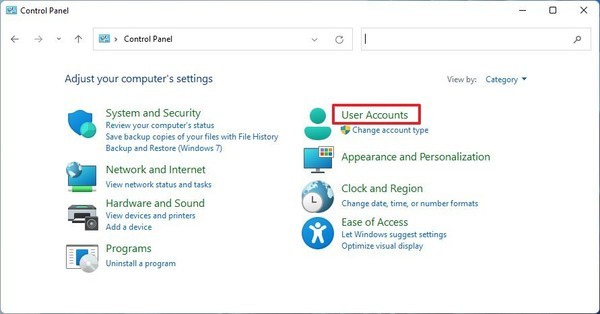
1. Open Control Panel.

2. Click User Accounts.
How to delete an account on Windows 11 17

3. Click option Remove user accounts.
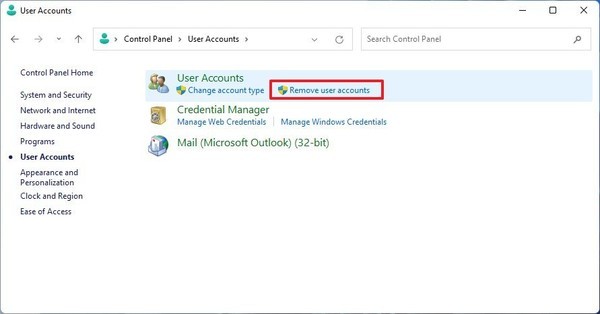
How to delete an account on Windows 11 18

4. Select the account to delete.

5. Click option Delete the account.
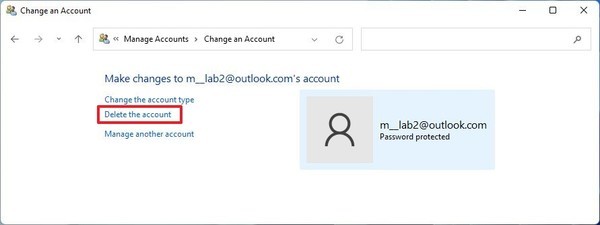
How to delete an account on Windows 11 19

6. Click the button Delete Files to delete accounts and files.
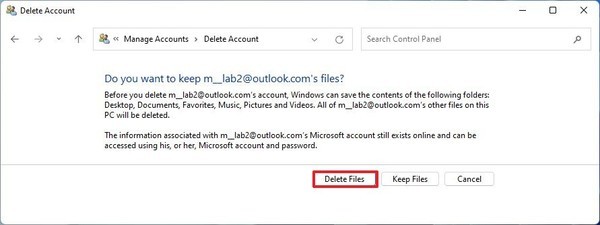
How to delete an account on Windows 11 20

7. Click the button Keep files to delete the account, keep the files in the profile folder.

8. Click the button Delete Account.

After you complete the steps, the account will be removed from Windows 11.

How to delete an account using Computer Management

To delete an account using Computer Management, follow these steps:

1. Open Start.

2. Search Computer Management and click on the top result to open Computer Management.

3. Access the following path:

Computer Management > System Tools > Local Users and Groups > Users

4. Right click on the user and select Delete.
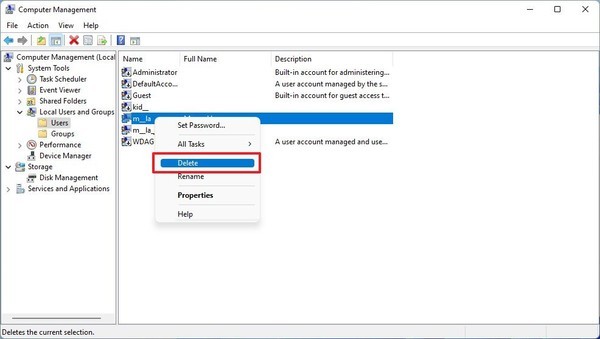
How to delete an account on Windows 11 21

5. Click the button Yes.

After you complete the steps, the account will be deleted, but the files will still be in the “Users” folder, below the account name folder.

How to delete an account using User Account

To remove an account from the old User Account interface, follow these steps:

1. Open Start.

2. Search netplwiz and click on the top result to open the interface User Accounts old.

3. Select the account to delete on Windows 11.

4. Click the button Remove.
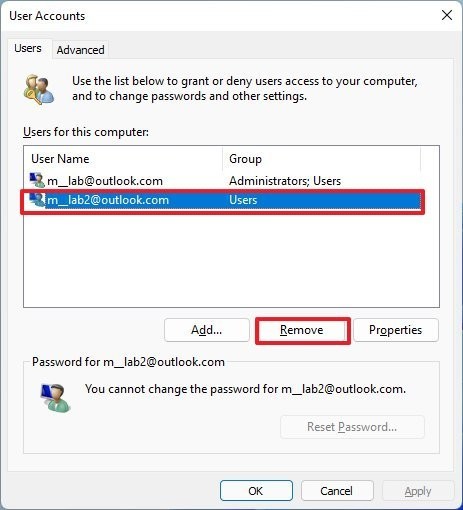
How to delete an account on Windows 11 22

5. Click the button Yes.

6. Press Apply.

7. Then choose OK.

After you complete the steps, the Windows 11 account will be deleted without deleting the user’s files.

How to delete an account using Command Prompt

To delete an account using Command Prompt on Windows 11, follow these steps:

1. Open Start.

2. Search for Command Prompt, right-click on the top result and select the option Run as administrator.

3. Type the following command to note the available user accounts and press Enter:

net user

4. Type the following command to delete a user account on Windows 11 and press Enter:

net user USER-NAME /delete

In the command, replace “USER-NAME” with the name of the account to be deleted. This example deletes the account “JohnSmith”:

net user JohnSmith /delete
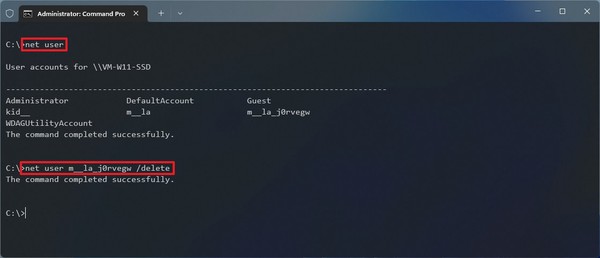
How to delete an account on Windows 11 23

After you complete the steps, this command will delete the account and the account files will remain on the computer.

How to delete an account using PowerShell

To delete an account using a PowerShell command on Windows 11, follow these steps:

1. Open Start.

2. Search for PowerShell, right click on the top result and select Run as administrator.

3. Type the following command to note the available user accounts and press Enter:

Get-LocalUser

4. Type the following command to delete a user account on Windows 11 and press Enter:

Remove-LocalUser -Name "USER-ACCOUNT"

In the above command you need to replace “USER-ACCOUNT” with the name of the account to be deleted. This example deletes the account “JohnSmith”:

Remove-LocalUser -Name "JohnSmith"
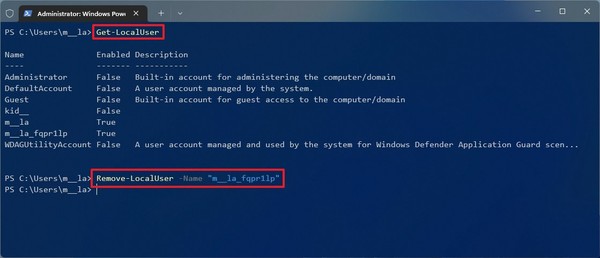
How to delete an account on Windows 11 24

After you complete the steps, PowerShell will delete the account without deleting the files on Windows 11.


The article achieved: 5/5 – (100 votes)

Tags: accountdeleteWindows
Previous Post

Instructions to fix Vietnamese typing errors on iOS 16

Next Post

How to create a Cover for a Dissertation in Word with just 1 note

AnonyViet

AnonyViet

Related Posts

Windows can now run Linux applications
Tips

Windows can now run Linux applications

March 17, 2026
New features of Windows 10 21H1 are coming soon
Tips

New features of Windows 10 21H1 are coming soon

March 16, 2026
How to convert normal music into 8D music with Audioalter
Tips

How to convert normal music into 8D music with Audioalter

March 14, 2026
How to prevent your family’s Security Camera from being hacked
Tips

How to prevent your family’s Security Camera from being hacked

March 13, 2026
Pixel Agents: Turn VS Code into a Pixel Art Office for AI
Tips

Pixel Agents: Turn VS Code into a Pixel Art Office for AI

March 12, 2026
English learning app Memrise is offering a lifetime discount of only 21,000 VND
Tips

English learning app Memrise is offering a lifetime discount of only 21,000 VND

March 11, 2026
Next Post
How to create a Cover for a Dissertation in Word with just 1 note

How to create a Cover for a Dissertation in Word with just 1 note

0 0 votes
Article Rating
Subscribe
Login
Notify of
guest

guest

0 Comments
Oldest
Newest Most Voted
Inline Feedbacks
View all comments

Recent News

Windows can now run Linux applications

Windows can now run Linux applications

March 17, 2026
How to install extension to remind office workers to drink water

How to install extension to remind office workers to drink water

March 17, 2026
Why are iPhones and MacBooks still the number 1 “weapons” of the technology world?

Why are iPhones and MacBooks still the number 1 “weapons” of the technology world?

March 16, 2026
New features of Windows 10 21H1 are coming soon

New features of Windows 10 21H1 are coming soon

March 16, 2026
Windows can now run Linux applications

Windows can now run Linux applications

March 17, 2026
How to install extension to remind office workers to drink water

How to install extension to remind office workers to drink water

March 17, 2026
Why are iPhones and MacBooks still the number 1 “weapons” of the technology world?

Why are iPhones and MacBooks still the number 1 “weapons” of the technology world?

March 16, 2026
AnonyViet - English Version

AnonyViet

AnonyViet is a website share knowledge that you have never learned in school!

We are ready to welcome your comments, as well as your articles sent to AnonyViet.

Follow Us

Contact:

Email: anonyviet.com[@]gmail.com

Main Website: https://anonyviet.com

Recent News

Windows can now run Linux applications

Windows can now run Linux applications

March 17, 2026
How to install extension to remind office workers to drink water

How to install extension to remind office workers to drink water

March 17, 2026
No Result
View All Result
  • Home
  • News
  • Software
  • Knowledge
  • MMO
  • Tips
  • Security
  • Network
  • Office

wpDiscuz
0
0
Would love your thoughts, please comment.x
()
x
| Reply