• Home
  • News
  • Software
  • Knowledge
  • MMO
  • Tips
  • Security
  • Network
  • Office
AnonyViet - English Version
  • Home
  • News
  • Software
  • Knowledge
  • MMO
  • Tips
  • Security
  • Network
  • Office
No Result
View All Result
  • Home
  • News
  • Software
  • Knowledge
  • MMO
  • Tips
  • Security
  • Network
  • Office
No Result
View All Result
AnonyViet - English Version
No Result
View All Result

How to customize the Windows 10 lock screen

AnonyViet by AnonyViet
January 30, 2023
in Tips
0

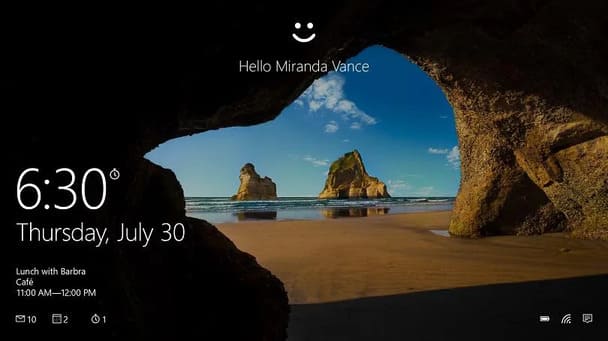
You can do a lot of cool things in Windows 10, but the first thing that greets you when the operating system boots up is the lock screen. Hovering up or tapping on it will take you to the login screen where you log into Windows. It may seem unnecessary, but it does carry some information that might be useful before you launch Windows.

Join the channel Telegram of the AnonyViet 👉 Link 👈

How to customize the Windows 10 lock screen

From the lock screen, you can view information for certain apps, including calendar, weather, and other useful features. People who are using the update Windows 10 Anniversary and above can also chat with Cortana. And you can customize the display with your favorite wallpaper or slideshow.

To start customizing the lock screen, you need to access the settings of the lock screen by going to Settings > Personalization > Lock screen.

Choose Windows 10 lock screen wallpaper

The first thing you can change is the wallpaper of the lock screen. In section Backgroundyou can choose Windows spotlight, static wallpaper, or slideshow for multiple backgrounds.
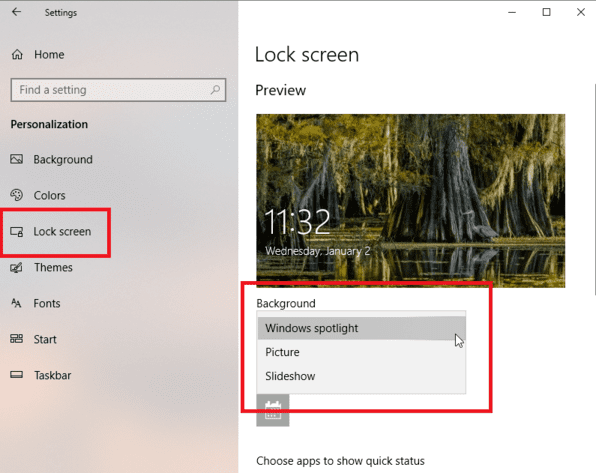
Windows 10 lock screen wallpaper

If you select Windows spotlight, the lock screen will periodically display different images. You can vote for which image you like (choose the “Like what you see?” section at the top right to vote yes or no), Windows 10 will better understand your preferences and display the image. that you want.

If you want to set the wallpaper yourself, select Picture. You can also find your own photo by selecting the image you like. The Slideshow option will allow you to select multiple images to display alternately.

If you’re happy with your lock screen wallpaper, you can keep it for your login screen. Just scroll down in the Lock screen to enable the “Show lock screen background picture on the sign-in screen” option.
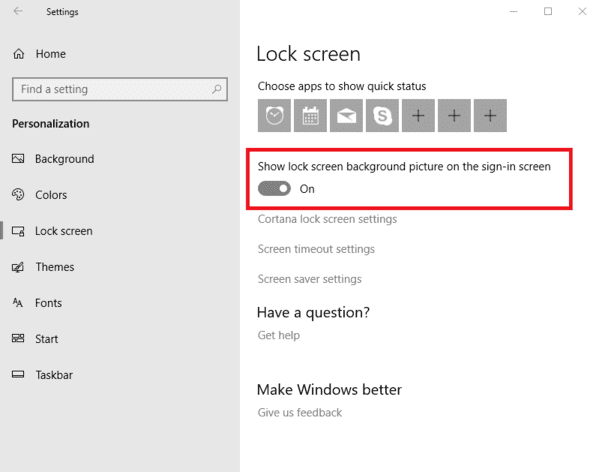
Show lock screen background picture on the sign-in screenMore Apps on Windows 10 Lock Screen

Windows 10 also allows you to add certain information to your lock screen. Click the plus sign below “CChoose an app to show detailed status”.
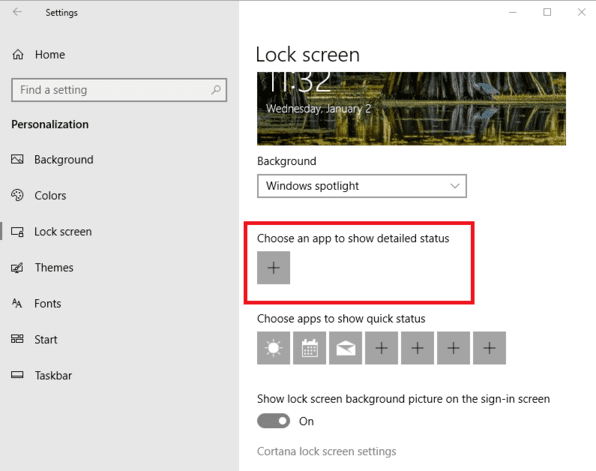
More Apps on lock screen

Here, you can choose to see apps like Xbox, Messaging, Mail, 3D Viewer, Weather, and Calendar, etc. For example, choosing Calendar can show you the appointments for the day, while choosing Weather will show you. current temperature display.
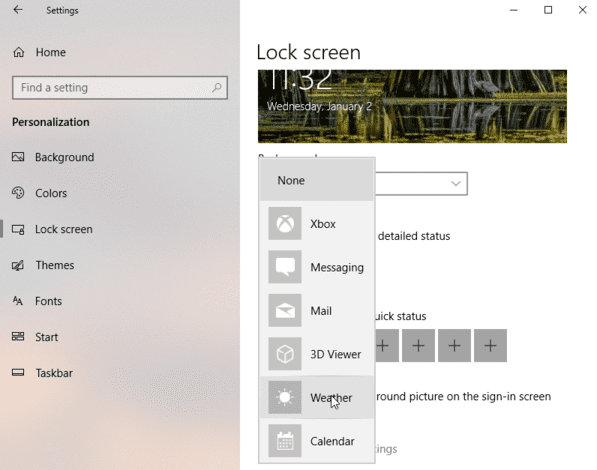
select windows 10 display app

Then you can also select some apps to display quick information. Click on each icon under the phrase “Choose apps to show quick status”. Again, you can choose from apps like Weather, Messaging, and Calendar as well as BAlarms & Clock, Mail, and the Windows Store. The next time the lock screen pops up, you’ll see information from the apps you’ve selected.
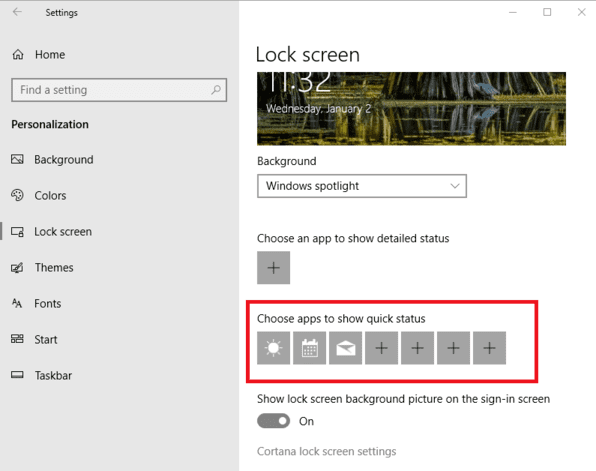
Choose apps to show quick status

Chat with Cortana on the lock screen

The coolest option might be the ability to chat with Cortana on the lock screen without having to sign in. On the Lock screen menu, scroll down and click “Cortana lock screen settings.” Scroll down to Lock Screen and make sure the option “SUse Cortana even when my device is locked” is enabled.
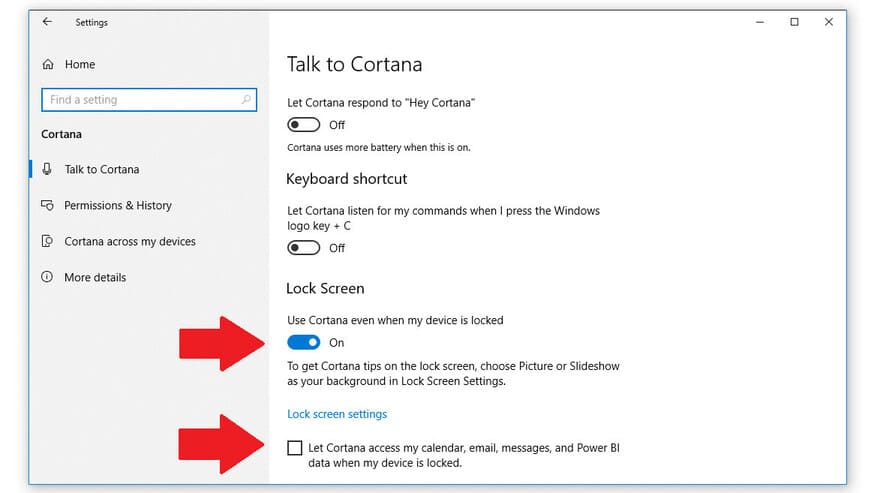
Chat with Cortana on the lock screen

As long as this option is enabled, you can say “Hey, Cortana” and chat directly with Microsoft’s virtual assistant, even if you’re not signed in to Windows 10. Keep in mind, you must use the original version. Update Windows 10 Anniversary or higher version.

To enhance your interaction with Cortana on the lock screen, select the option that allows integration with calendar, email, messages, and Power BI data even when your device is locked.

Above, are the ways you can customize the Windows 10 lock screen according to your preferences, if you have any good tips, please comment.


The article achieved: 5/5 – (100 votes)

Tags: customizeLockscreenWindows
Previous Post

Download Assassin’s Creed II for free on Uplay

Next Post

Guide to becoming a Hacker

AnonyViet

AnonyViet

Related Posts

How to record reaction videos with Android phones, no app needed
Tips

How to record reaction videos with Android phones, no app needed

June 1, 2026
Instructions on how to get Google AI Pro 1 year for free for new accounts
Tips

Instructions on how to get Google AI Pro 1 year for free for new accounts

June 1, 2026
Top free AI tools to help write, test and optimize content
Tips

Top free AI tools to help write, test and optimize content

June 1, 2026
Instructions for receiving Lovable Pro 12 months for free
Tips

Instructions for receiving Lovable Pro 12 months for free

May 29, 2026
Instructions for receiving 1 month of ElevenLabs Creator for free worth
Tips

Instructions for receiving 1 month of ElevenLabs Creator for free worth $22

May 25, 2026
How to create beautiful studio-like preschool graduation photos for your child
Tips

How to create beautiful studio-like preschool graduation photos for your child

May 21, 2026
Next Post
Guide to becoming a Hacker

Guide to becoming a Hacker

0 0 votes
Article Rating
Subscribe
Login
Notify of
guest

guest

0 Comments
Oldest
Newest Most Voted
Inline Feedbacks
View all comments

Recent News

How to record reaction videos with Android phones, no app needed

How to record reaction videos with Android phones, no app needed

June 1, 2026
Instructions on how to get Google AI Pro 1 year for free for new accounts

Instructions on how to get Google AI Pro 1 year for free for new accounts

June 1, 2026
Top free AI tools to help write, test and optimize content

Top free AI tools to help write, test and optimize content

June 1, 2026
TruyenDrive: Turn Google Drive into a professional manga reader

TruyenDrive: Turn Google Drive into a professional manga reader

May 31, 2026
How to record reaction videos with Android phones, no app needed

How to record reaction videos with Android phones, no app needed

June 1, 2026
Instructions on how to get Google AI Pro 1 year for free for new accounts

Instructions on how to get Google AI Pro 1 year for free for new accounts

June 1, 2026
Top free AI tools to help write, test and optimize content

Top free AI tools to help write, test and optimize content

June 1, 2026
AnonyViet - English Version

AnonyViet

AnonyViet is a website share knowledge that you have never learned in school!

We are ready to welcome your comments, as well as your articles sent to AnonyViet.

Follow Us

Contact:

Email: anonyviet.com[@]gmail.com

Main Website: https://anonyviet.com

Recent News

How to record reaction videos with Android phones, no app needed

How to record reaction videos with Android phones, no app needed

June 1, 2026
Instructions on how to get Google AI Pro 1 year for free for new accounts

Instructions on how to get Google AI Pro 1 year for free for new accounts

June 1, 2026
No Result
View All Result
  • Home
  • News
  • Software
  • Knowledge
  • MMO
  • Tips
  • Security
  • Network
  • Office

wpDiscuz
0
0
Would love your thoughts, please comment.x
()
x
| Reply