Windows 11, the latest operating system from Microsoft, offers a fresh and modern interface. Let's explore the ways with AnonyViet Customize Start Menu on Windows 11 to optimize your computing experience. From rearranging app icons to adding convenient shortcuts.
| Join the channel Telegram belong to AnonyViet 👉 Link 👈 |
1. Arrange application icons
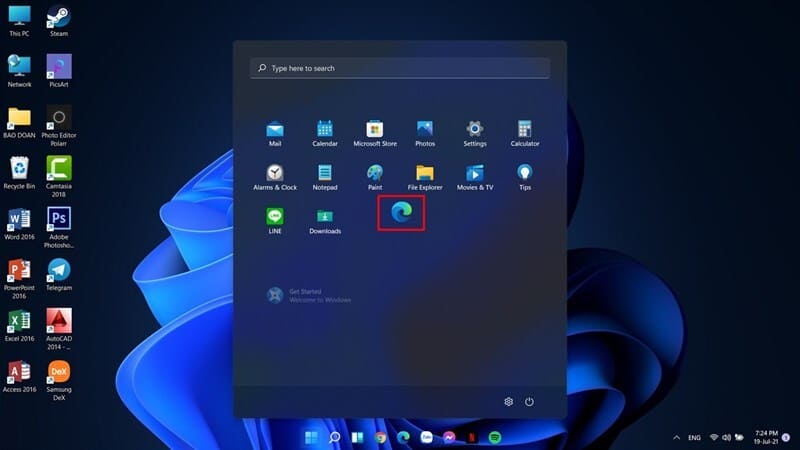
To personalize the Start Menu, you can rearrange application icons according to personal preferences. Just open the Start Menu and drag and drop the icon to the desired location.
2. Manage pinned apps
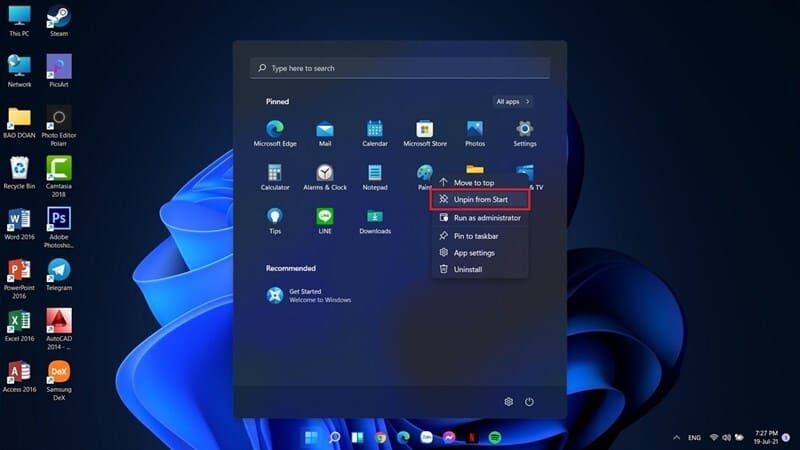
You can easily delete or unpin unnecessary apps from the Start Menu. Right-click on applications and select 'Unpin from Start' to remove them.
3. Pin your favorite apps
Pin frequently used applications or folders to the Start Menu for quick access by:
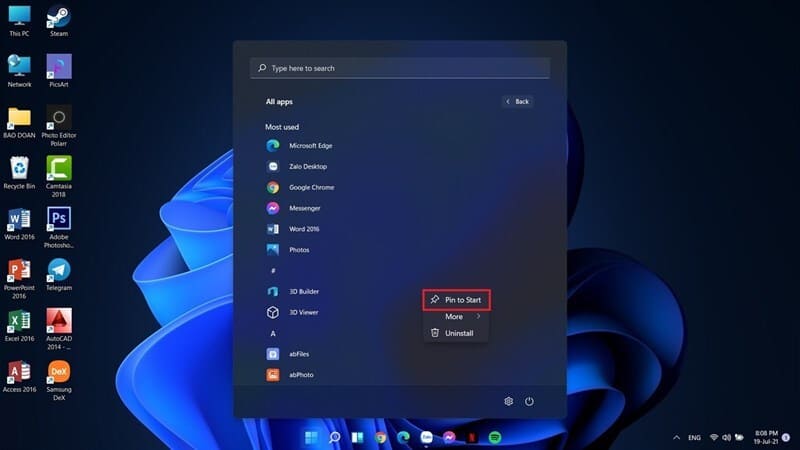
Step 1: Open Start > Select 'All app' at the top right
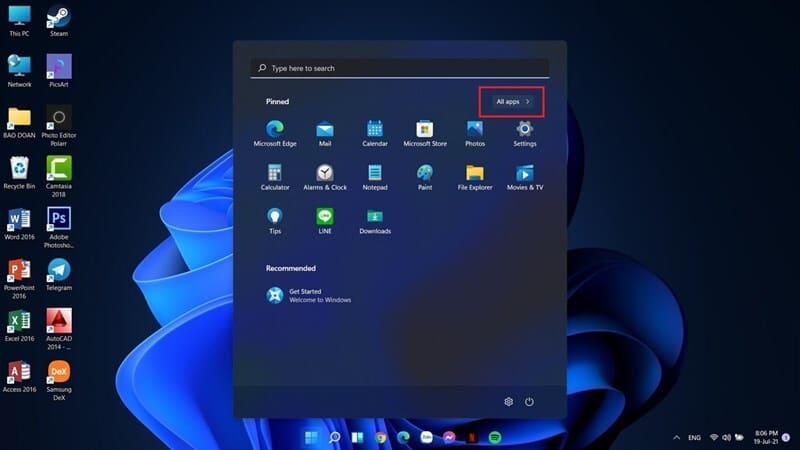
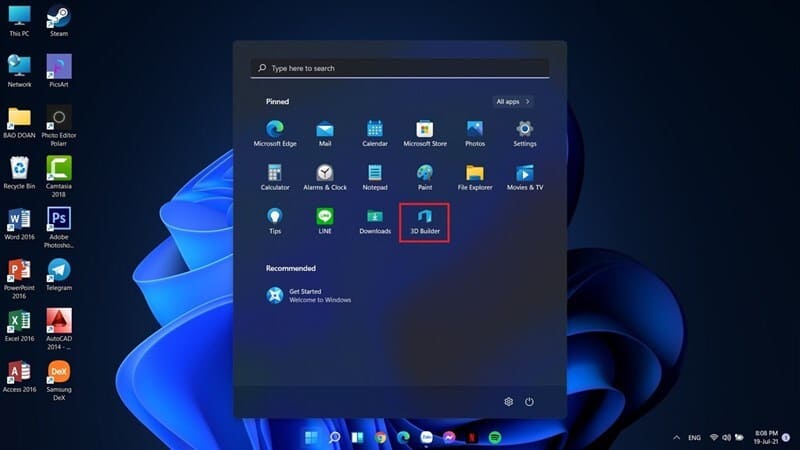
Step 2: Right-click on the app you want to pin to Start and select 'Pin to Start'. Thus, those applications will appear in the Pinned area of the Start Menu.
4. Hide recent files suggestions
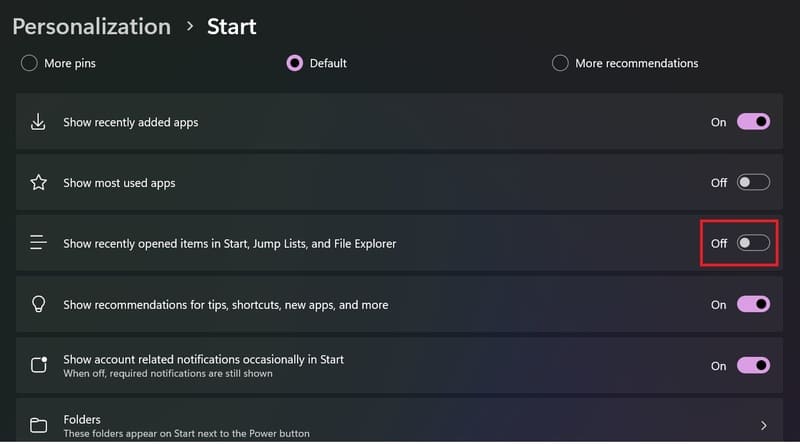
If you want to hide suggested files in the Start Menu, follow these steps:
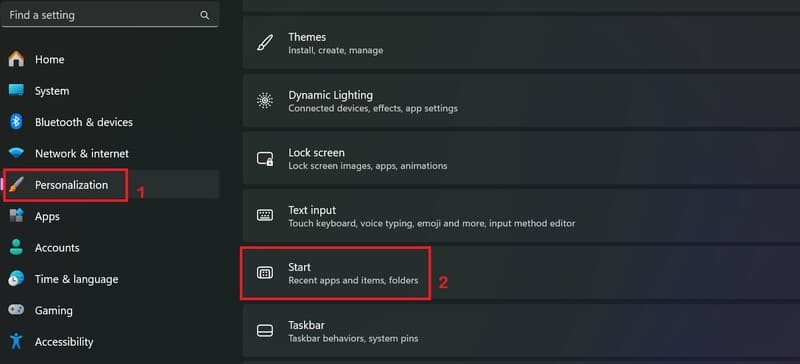
Step 1: Go to 'Settings' > 'Personalization' > 'Start'
Step 2: In the Start section, turn off the 'Show recently opened items from Start, Jump Lists, and File Explorer' option.
5. Add utility shortcuts
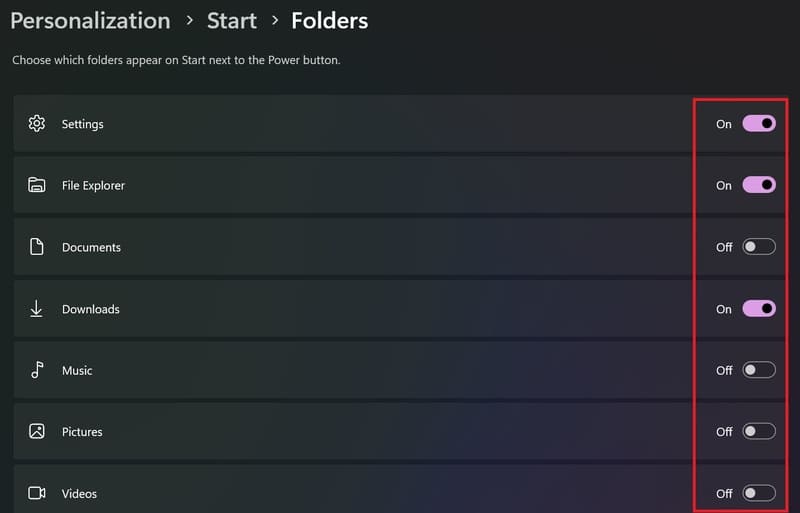
Windows 11 allows adding shortcuts to utilities such as File Explorer or Settings right in the Start Menu. You just need:
Step 1: Go to 'Settings' > 'Personalization' > 'Start'
Step 2: Click on 'Folder' and enable the shortcuts you desire.
6. Turn on/off transparency effect
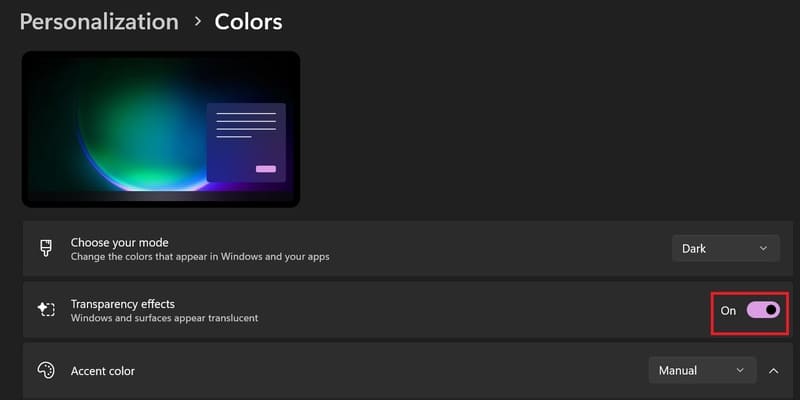
To customize the transparency effect for the Start Menu and applications, you can do the following:
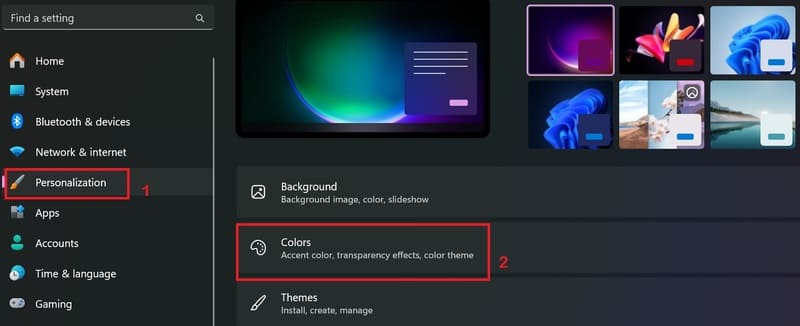
Step 1: Go to 'Settings' > Select 'Personalization' > Select 'Colors'
Step 2: Turn 'Transparency effects' on or off.
Epilogue
With tips Customize Start Menu above Windows 11 that we have shared, hope you can make the most of your workspace and improve your computer performance. Experiment and create a Start Menu that suits your needs and preferences. Good luck!