• Home
  • News
  • Software
  • Knowledge
  • MMO
  • Tips
  • Security
  • Network
  • Office
AnonyViet - English Version
  • Home
  • News
  • Software
  • Knowledge
  • MMO
  • Tips
  • Security
  • Network
  • Office
No Result
View All Result
  • Home
  • News
  • Software
  • Knowledge
  • MMO
  • Tips
  • Security
  • Network
  • Office
No Result
View All Result
AnonyViet - English Version
No Result
View All Result

How to create stickers with Paint on Windows 11

AnonyViet by AnonyViet
September 15, 2025
in Tips
0

Creating a unique and creative sticker is now easier than ever with the new Sticker Generator feature in the Paint application on Windows 11. Using artificial intelligence (AI), you can turn ideas into funny stickers with just a few lines described. In this article, let’s explore the way Create sticker with painttake advantage of AI tools on Copilot+ PC to bring unique products.

Join the channel Telegram belong to Anonyviet 👉 Link 👈

What is the Sticker Generator feature on the Paint?

Sticker Generator is a new feature integrated into the application Paint On Windows 11, reserved for Copilot+ PC devices. This feature uses AI to create customized stickers based on the description you provide. For example, you can ask a sticker “Cats to drink coffee” or “Windows logo wearing superhero cloak”. This tool is currently being tested in the version Paint 11,2504.451.0belonging to Canary and Dev channels of the Windows Insider program.

With a friendly interface and simple operation, how to create a sticker with Paint is not only for designers but also suitable for ordinary users who want to add a little creativity to the personal project.
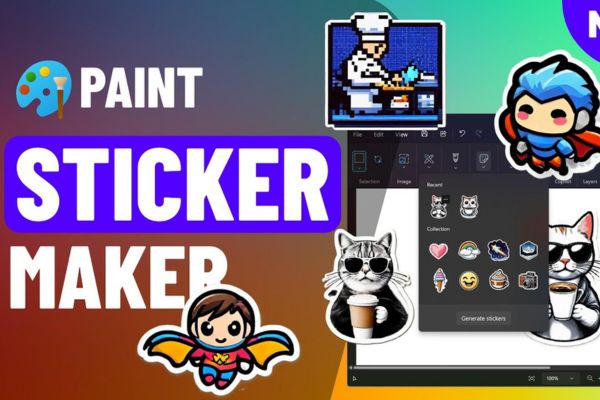
What is the Sticker Generator feature on the Paint?

Detailed instructions on how to create a sticker with Paint

Here are the specific steps for you to start creating a sticker with AI tools in Paint on Windows 11:

Step 1: First, open the Paint application. Make sure you are using Paint version to support the Generator Sticker (at least version 11,2504.451.0).

If your device has not been updated, don’t worry, I will guide how to download the new version later.

Step 2: In the Paint interface, find and click Sticker On the toolbar. Next, choose Generate Stickers From the menu appears.
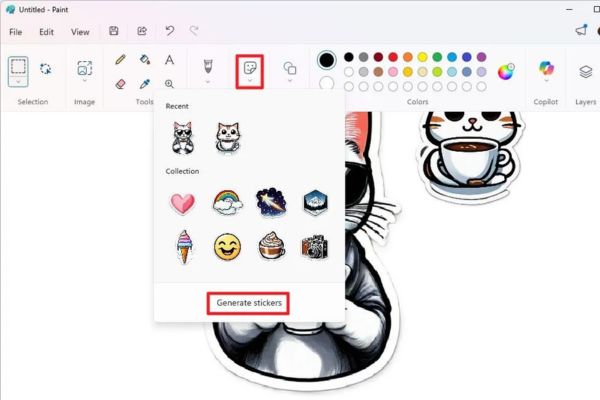
Select Generate Stickers

Step 3: In the text box, enter the detailed description of the sticker you want to create. For example:

“A cute cat is drinking coffee”

“The Windows logo in Chibi style, wearing superhero cloak, flying through the city.”

The more detailed, the more AI will create a sticker closer to your idea. After writing, click the button Generate To start the creation process.
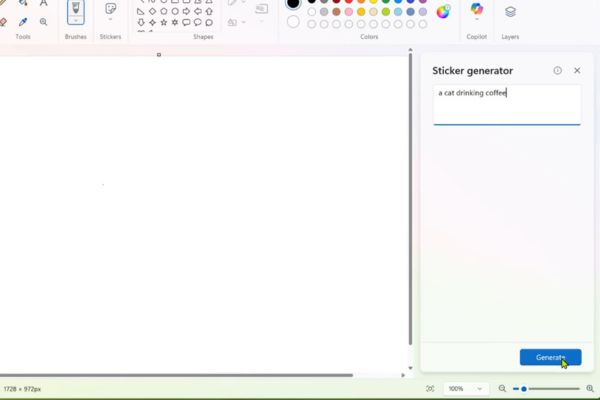
Enter detailed description

Who will create four stickers based on your description. You can:

  • Click any sticker to add it to the current drawing frame in the Paint.
  • Right -click on Sticker, Select Copy Image To copy into the clipboard or Save Image To save as PNG file.
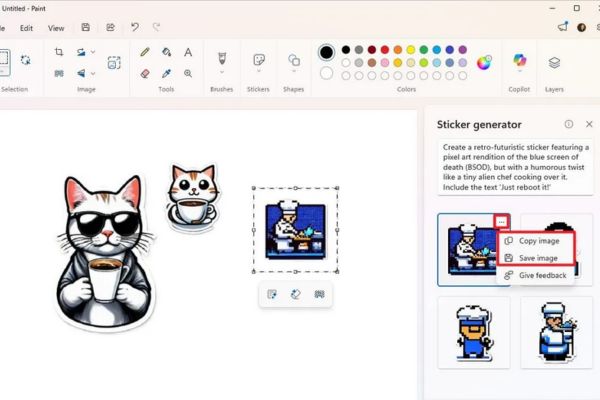
How to create stickers with Paint on Windows 11

In addition, the created stickers will be stored in the Stickers menu on the toolbar, making it easy to access at any time.

How to download and activate the Generator Sticker

If your Copilot+ PC device does not have a Paint version that supports Sticker Generator, you can update the application by yourself in these steps:

  1. Visit the website Store.rg-adguard.net
  2. Select the option Productid and enter the code 9PCFS5B6T72H.
  3. Choose channel FAST and download the file Microsoft.paint_11.2504.451.0_neuutral_ ~ _8weyb3d8bbwe.msixbundle
  4. Run the downloaded file and click the button Update To install a new version.
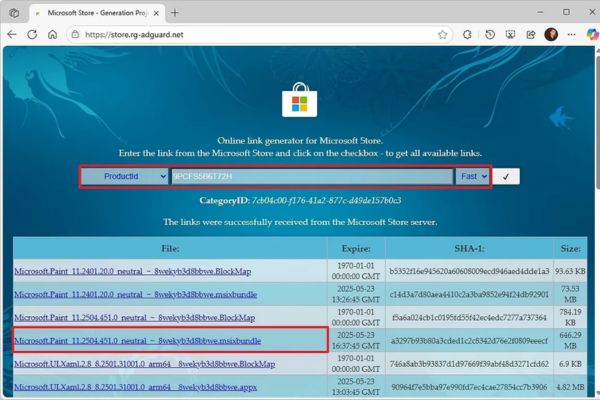
How to download and activate the Generator Sticker

After updating, you can open the Paint and check the Sticker Generator feature in the Copilot menu.

If the feature has not appeared, you can activate it with the tool Vivetool. Make the following command in Command Prompt or PowerShell with Admin:

vivetool /enable /id:56094336,56174134,57571928,56904074,54315747

This command not only activates the Generator Sticker but also enabled features such as the Object Select and the new welcome interface.

Conclusion

Way Create sticker with paint On Windows 11 is an interesting experience, combining AI technology and personal creativity. With the Generator Sticker feature, you can easily turn the idea into a reality through just a few simple steps. Update Paint, try this tool now and create your own unique stickers!


Tags: createPaintStickersWindows
Previous Post

Instructions on how to restore Launchpad on MacOS 26

Next Post

iPhone 17 Series and iPhone Air: All valuable upgrades and monopoly offers at topzone

AnonyViet

AnonyViet

Related Posts

Instructions for creating Minecraft-style food photos
Tips

Instructions for creating Minecraft-style food photos

June 9, 2026
Get free Cambridge courses to prepare for IELTS, Starters, Movers
Tips

Get free Cambridge courses to prepare for IELTS, Starters, Movers

June 4, 2026
How to record reaction videos with Android phones, no app needed
Tips

How to record reaction videos with Android phones, no app needed

June 1, 2026
Instructions on how to get Google AI Pro 1 year for free for new accounts
Tips

Instructions on how to get Google AI Pro 1 year for free for new accounts

June 1, 2026
Top free AI tools to help write, test and optimize content
Tips

Top free AI tools to help write, test and optimize content

June 1, 2026
Instructions for receiving Lovable Pro 12 months for free
Tips

Instructions for receiving Lovable Pro 12 months for free

May 29, 2026
Next Post
iPhone 17 Series and iPhone Air: All valuable upgrades and monopoly offers at topzone

iPhone 17 Series and iPhone Air: All valuable upgrades and monopoly offers at topzone

0 0 votes
Article Rating
Subscribe
Login
Notify of
guest

guest

0 Comments
Oldest
Newest Most Voted
Inline Feedbacks
View all comments

Recent News

Cách làm mờ khuôn mặt trên iPhone, không cần tải app

Cách làm mờ khuôn mặt trên iPhone, không cần tải app

June 11, 2026
Website to check the World Cup 2026 match schedule intuitively, with automatic calendar synchronization

Website to check the World Cup 2026 match schedule intuitively, with automatic calendar synchronization

June 11, 2026
PDF editing application on Android worth 199k is free

PDF editing application on Android worth 199k is free

June 10, 2026
Instructions for creating Minecraft-style food photos

Instructions for creating Minecraft-style food photos

June 9, 2026
Cách làm mờ khuôn mặt trên iPhone, không cần tải app

Cách làm mờ khuôn mặt trên iPhone, không cần tải app

June 11, 2026
Website to check the World Cup 2026 match schedule intuitively, with automatic calendar synchronization

Website to check the World Cup 2026 match schedule intuitively, with automatic calendar synchronization

June 11, 2026
PDF editing application on Android worth 199k is free

PDF editing application on Android worth 199k is free

June 10, 2026
AnonyViet - English Version

AnonyViet

AnonyViet is a website share knowledge that you have never learned in school!

We are ready to welcome your comments, as well as your articles sent to AnonyViet.

Follow Us

Contact:

Email: anonyviet.com[@]gmail.com

Main Website: https://anonyviet.com

Recent News

Cách làm mờ khuôn mặt trên iPhone, không cần tải app

Cách làm mờ khuôn mặt trên iPhone, không cần tải app

June 11, 2026
Website to check the World Cup 2026 match schedule intuitively, with automatic calendar synchronization

Website to check the World Cup 2026 match schedule intuitively, with automatic calendar synchronization

June 11, 2026
  • Home
  • Home 2
  • Home 3
  • Home 4
  • Home 5
  • Home 6
  • Next Dest Page
  • Sample Page

6789 kv999

No Result
View All Result
  • Home
  • News
  • Software
  • Knowledge
  • MMO
  • Tips
  • Security
  • Network
  • Office

6789 kv999

wpDiscuz
0
0
Would love your thoughts, please comment.x
()
x
| Reply