• Home
  • News
  • Software
  • Knowledge
  • MMO
  • Tips
  • Security
  • Network
  • Office
AnonyViet - English Version
  • Home
  • News
  • Software
  • Knowledge
  • MMO
  • Tips
  • Security
  • Network
  • Office
No Result
View All Result
  • Home
  • News
  • Software
  • Knowledge
  • MMO
  • Tips
  • Security
  • Network
  • Office
No Result
View All Result
AnonyViet - English Version
No Result
View All Result

How to create a Shortcut to turn off UAC on Windows with Task Scheduled

AnonyViet by AnonyViet
February 2, 2023
in Tips
0

User Access Control (UAC) in Windows 10 can be frustrating, especially when you frequently run programs that require Admin rights. Thankfully, there is a way to create a Shortcut that turns off UAC on Windows 10 without prompting you for UAC. For each software you want to run as admin but do not want to appear UAC, create a separate Shortcut.

Join the channel Telegram belong to AnonyViet 👉 Link 👈

This way still ensures that other Apps still need UAC permissions, except for the Apps for which you have created the Shortcut.

This trick works by setting scheduled tasks to run the application in Admin mode. Then you can create shortcut on Desktop, it will ignore UAC when you click on shortcut.

Although, you can disable the UAC prompts altogether, it is a foolish move as it only warns when there are computer security problems.

Because running the Task Scheduler (scheduled task) requires you to go through UAC to set up the task.

Use Task Scheduled to create a Shortcut to turn off UAC on Windows

Creating a Shortcut to turn off UAC on Windows 10 for each software will help you run the Admin rights of that software without having to appear a notice of UAC. This way still ensures that other Apps still need UAC permissions, except for the Apps for which you have created the Shortcut.

To open the Task Scheduler, press Startimport Task Scheduler Enter the search box and select the first result that appears. Create Shortcut to turn off UAC on Windows
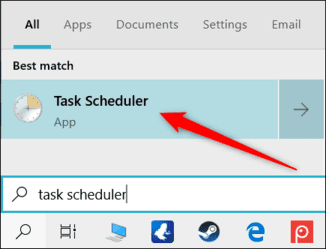
Once the Task Scheduler is open, click “Create Task” from the right panel.How to create a Shortcut to turn off UAC on Windows with Scheduled task

Give this task a simple name and preferably no spaces. Then check the box “Run with Highest Privileges”. You can also write it a short description if you want, but it’s not necessary.
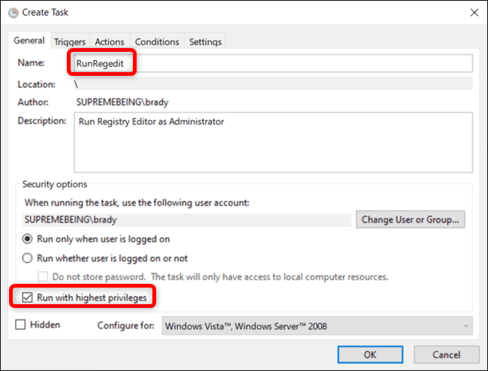
  Scheduled task turn off UAC

By default, if you set up a task on your laptop, the Task Scheduler will not run the task unless your laptop is plugged in. If you cannot disable this option, when you open the shortcut, the task will run in the “Queued” state until you plug in the power.

Switch to tabs “Conditions” and deselect the place “Start the Task Only If the Computer Is on AC Power”.How to create a Shortcut to turn off UAC on Windows with Task Scheduled 20

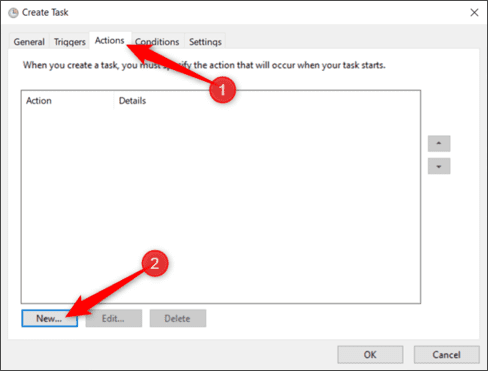
Next, switch to the “Actions” tab and then click “New” to create a new task for the task.How to create a Shortcut to turn off UAC on Windows with Task Scheduled 21
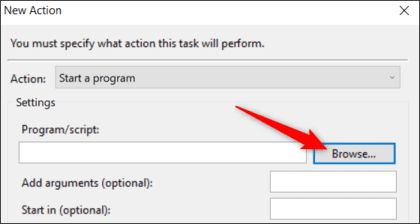
Click “Browse” to find the software you want to run when the task starts.How to create a Shortcut to turn off UAC on Windows with Task Scheduled 22
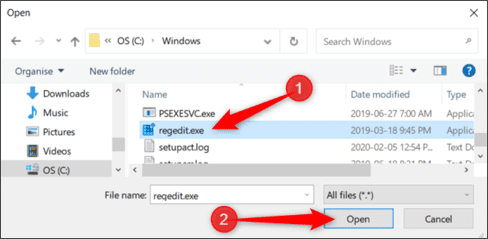
Find the application location and click “Open”.How to create a Shortcut to turn off UAC on Windows with Task Scheduled 23
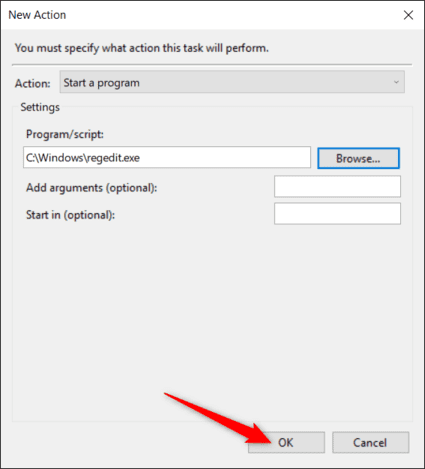
Click “OK” to save the changes.How to create a Shortcut to turn off UAC on Windows with Task Scheduled 24

Click “OK” again to finish creating the task.How to create a Shortcut to turn off UAC on Windows with Task Scheduled 25

That’s all you need to do for this part. If you want to make sure the task runs as expected, select “Task Scheduler Library”, right-click the task, and then click “Run”.How to create a Shortcut to turn off UAC on Windows with Task Scheduled 26
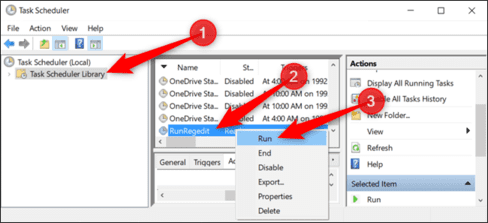
When the tasks are working properly, close the Task Scheduler, and remember the name you used for the task.

How to create Shortcut to run Task

Right-click on the Desktop and select New > Shortcut.How to create a Shortcut to turn off UAC on Windows with Task Scheduled 27
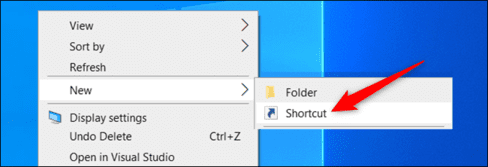
Then enter the command below and replace with the name of the task you created:

schtasks /run /tn "<taskName>"

Click “Next” after you have entered the command. How to create a Shortcut to turn off UAC on Windows with Task Scheduled 28

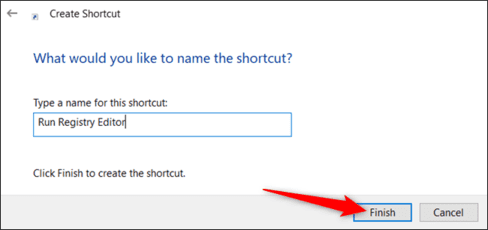
Give the Shortcut a name and click “Finish”.How to create a Shortcut to turn off UAC on Windows with Task Scheduled 29
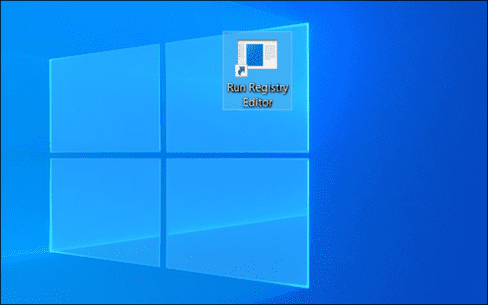
Now, on your Desktop, the newly created Shortcut will appear. It will run the task as Admin without prompting you for UAC when you open it.How to create a Shortcut to turn off UAC on Windows with Task Scheduled
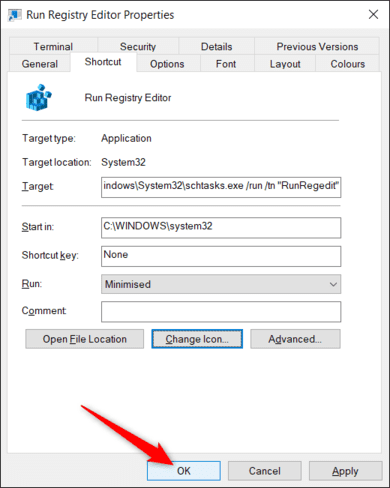
However, if you want to tweak it a bit further, right-click on the Shortcut and then select “Properties”.
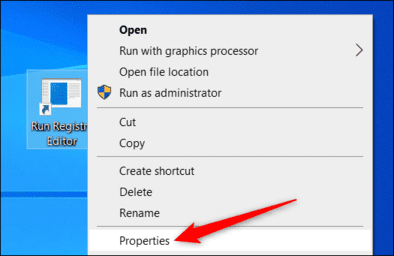
How to create a Shortcut to turn off UAC on Windows with Task Scheduled 31

Because Shortcut runs commands in Command Prompt, when opening Shortcut, a CMD window also opens and closes before the software is enabled. If you want, you can set the CMD window to be minimized.

In the “Run” section, select “Minimized”.
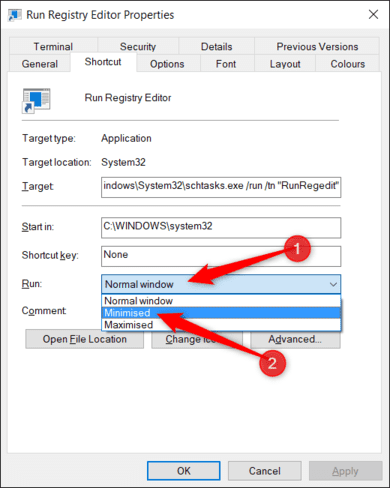
How to create a Shortcut to turn off UAC on Windows with Task Scheduled 32

Next click “Change Icon” to change the icon you like.How to create a Shortcut to turn off UAC on Windows with Task Scheduled 33

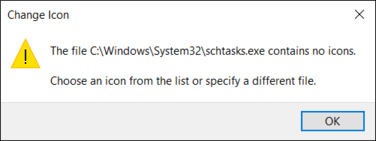
If you get the message, just click “Next”.How to create a Shortcut to turn off UAC on Windows with Task Scheduled 34
Now, select the stack of icons that Windows provides or click “Browse” and select the icon of the software you want to run when opening the task. Then click “Open”.How to create a Shortcut to turn off UAC on Windows with Task Scheduled 35
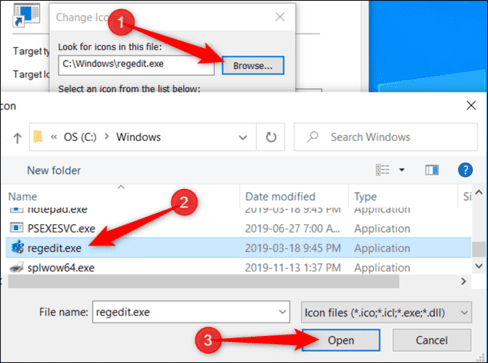
Select the icon and press “OK” to save the changes.How to create a Shortcut to turn off UAC on Windows with Task Scheduled 36

Click “OK” again.How to create a Shortcut to turn off UAC on Windows with Task Scheduled 37

Now you have a Shortcut that looks good, you can even open it without UAC anymore.How to create a Shortcut to turn off UAC on Windows with Task Scheduled 38
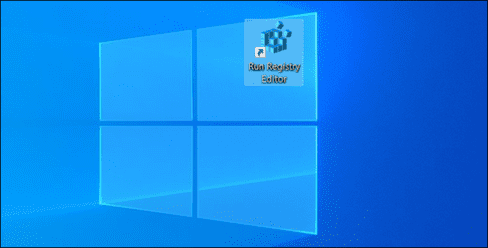
If you want to create more Shortcuts, do the same steps above.

The article achieved: 5/5 – (100 votes)

Tags: createScheduledShortcutTaskturnUACWindows
Previous Post

Windows 10’s new Start Menu could get rid of Live Tiles forever

Next Post

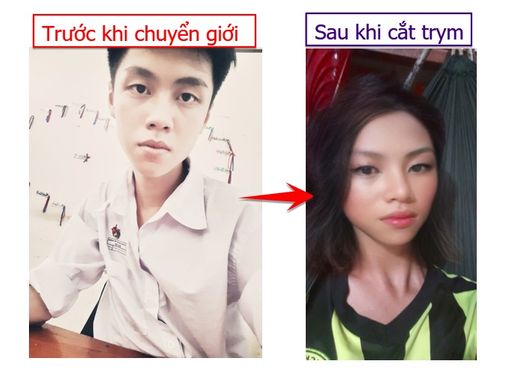
How to take transgender photos with Snapchat to turn Male into female

AnonyViet

AnonyViet

Related Posts

How to write Shell Script in Linux/Unix
Tips

How to write Shell Script in Linux/Unix

December 6, 2025
How to completely uninstall WSL on Windows 11?
Tips

How to completely uninstall WSL on Windows 11?

December 6, 2025
Kinh nghiệm mua Laptop cho sinh viên nhóm ngành kế toán, kinh tế, xã hội…
Tips

Kinh nghiệm mua Laptop cho sinh viên nhóm ngành kế toán, kinh tế, xã hội…

December 5, 2025
8 tips for more successful PowerPoint presentations
Tips

8 tips for more successful PowerPoint presentations

December 4, 2025
Chrome extensions to improve productivity in 2021
Tips

Chrome extensions to improve productivity in 2021

December 2, 2025
How to create photos that run KPIs while crying using Gemini for the 12 zodiac animals
Tips

How to create photos that run KPIs while crying using Gemini for the 12 zodiac animals

December 1, 2025
Next Post
How to take transgender photos with Snapchat to turn Male into female

How to take transgender photos with Snapchat to turn Male into female

0 0 votes
Article Rating
Subscribe
Login
Notify of
guest

guest

0 Comments
Oldest
Newest Most Voted
Inline Feedbacks
View all comments

Recent News

How to transfer music from other services to Apple Music, no app required

How to transfer music from other services to Apple Music, no app required

December 8, 2025
How to create Mind Map and Flowchart using ChatGPT is super simple

How to create Mind Map and Flowchart using ChatGPT is super simple

December 7, 2025
Free Gemini Google certification exam guide and Answers

Free Gemini Google certification exam guide and Answers

December 6, 2025
How to write Shell Script in Linux/Unix

How to write Shell Script in Linux/Unix

December 6, 2025
How to transfer music from other services to Apple Music, no app required

How to transfer music from other services to Apple Music, no app required

December 8, 2025
How to create Mind Map and Flowchart using ChatGPT is super simple

How to create Mind Map and Flowchart using ChatGPT is super simple

December 7, 2025
Free Gemini Google certification exam guide and Answers

Free Gemini Google certification exam guide and Answers

December 6, 2025
AnonyViet - English Version

AnonyViet

AnonyViet is a website share knowledge that you have never learned in school!

We are ready to welcome your comments, as well as your articles sent to AnonyViet.

Follow Us

Contact:

Email: anonyviet.com[@]gmail.com

Main Website: https://anonyviet.com

Recent News

How to transfer music from other services to Apple Music, no app required

How to transfer music from other services to Apple Music, no app required

December 8, 2025
How to create Mind Map and Flowchart using ChatGPT is super simple

How to create Mind Map and Flowchart using ChatGPT is super simple

December 7, 2025
  • Home
  • Home 2
  • Home 3
  • Home 4
  • Home 5
  • Home 6
  • Next Dest Page
  • Sample Page

trang chủ f168 nhà cái 78win https://www.qq8827.com/

No Result
View All Result
  • Home
  • News
  • Software
  • Knowledge
  • MMO
  • Tips
  • Security
  • Network
  • Office

trang chủ f168 nhà cái 78win https://www.qq8827.com/

wpDiscuz
0
0
Would love your thoughts, please comment.x
()
x
| Reply