Normally, each time you copy and paste you can only do it once, if you continue to copy the second time, the data copied for the first time will be overwritten, when you paste you can only paste the data of the second copy. Windows 10 has a feature that allows copying and pasting without being overwritten thanks to the clipboard feature. To enable multiple copy feature on Windows 10, do the following:
| Join the channel Telegram of the AnonyViet 👉 Link 👈 |

To work around these limitations of being copied and pasted only once and to make the copy paste experience easier, starting with the October 2018 Update, Windows 10 introduces a clipboard. help manage the text and images (up to 4MB) that you have copied. In addition, you can also view and paste content from the clipboard history and even pin items that you copy and paste frequently so that the pinned content is still there when you restart your computer.
For example, you have 2 paragraphs
- Paragraph 1: I am AnonyViet
- Paragraph 2: I don’t have a name
Normally, you copy paragraph 1 and then paste it through Word, then go back to copy paragraph 2 and then paste it through Word, which is very time consuming.
Now you just need to do the same, highlight paragraph 1 press Ctrl + C, then continue to highlight paragraph 2 press Ctrl + C.
Next press the key combination Windows + DRAW to display the frame to save the copy data and select the content to paste.
In addition, leveraging the same cloud technology to sync your Timeline content, clipboard history is now syncable and accessible across all your devices.
So, in this article, I will guide you to set up and use the latest Windows 10 clipboard.
How to enable Clipboard Copy mode multiple times on Windows 10
Above Windows 10 version 1809you can enable the new clipboard using the Settings app and a new keyboard shortcut.
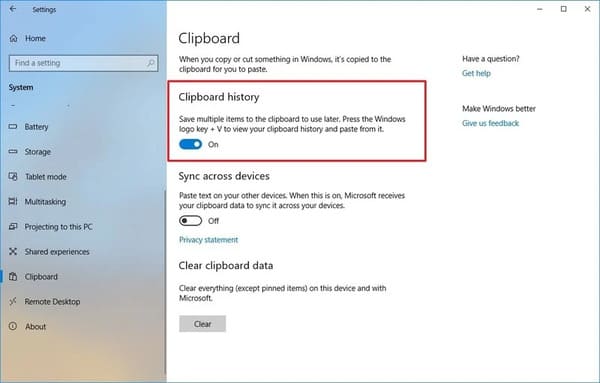
Enable clipboard using Settings
To enable clipboard in the Settings app, you need to follow these steps:
- Open Settings
- Click System
- Select Clipboard
- Turn on Clipboard history
Enable clipboard with keyboard shortcut
You can also enable the clipboard with that keyboard shortcut:
- Press shortcut Windows + DRAW
- Press Turn on
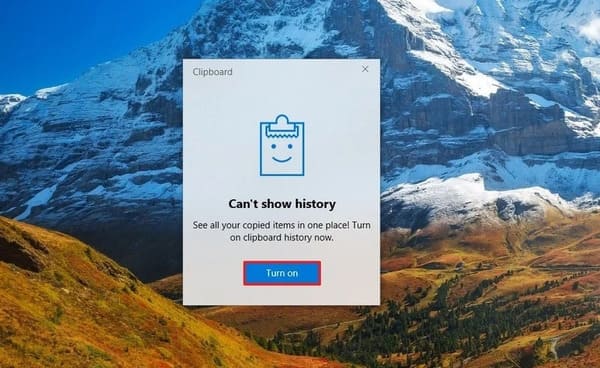
After completing the steps, you can start using the new clipboard and manage many other settings.
Turn off clipboard on Windows 10
Establish Clipboard history is disabled by default, but you can check or disable it if it is enabled by following these steps:
- Open Settings
- Press System
- Select Clipboard
- Turn off Clipboard history
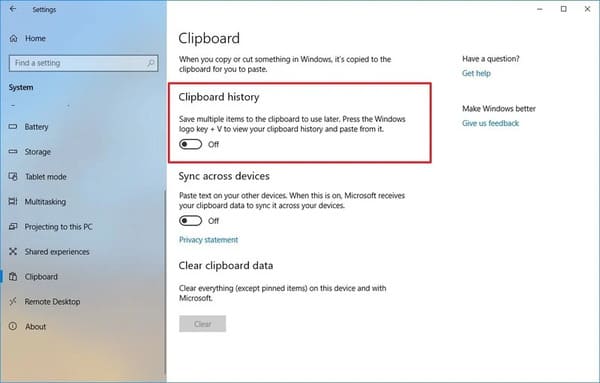
Once you’ve completed the steps above, the new clipboard will no longer work, but it won’t affect the old clipboard’s functionality.
How to sync clipboard history on Windows 10
Perhaps one of the coolest features of the new clipboard is the ability to paste text and images across your other devices. However, for security reasons, this is a feature that you must manually enable and configure using these steps:
- Open Settings
- Select System
- Select Next Clipboard
- Enable “Sync across devices”
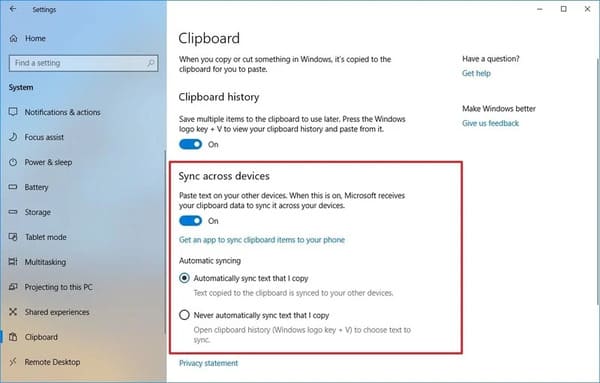
- Select the automatic sync option you want to use:
-
- Automatically sync text that I copy: Your clipboard history will sync to the cloud and across your devices.
- Never automatically sync text that I copy: You must manually open the clipboard history and select what you want to paste across devices.
After completing the steps above, your content history will sync to the cloud and across devices according to the settings you specified.
How to clear the history of the clipboard on Windows 10
If you want to clear the clipboard history because you don’t want to use it anymore or it’s not working correctly and you want to reset the history to see if that fixes the problem, follow these steps. following steps:
- Open settings
- Select System
- Click Clipboard
- Below the item “Clear clipboard data”press the Clear button.
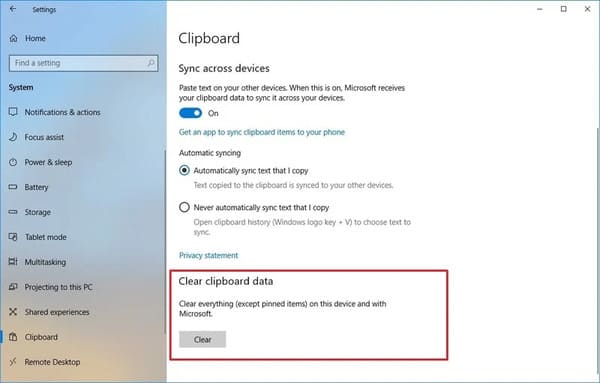
Once you’ve completed the steps above, the contents of the clipboard will be deleted from your device and Microsoft account, but the pinned items will remain in the history until you manually delete them.
If you’re looking to delete something or two, instead of deleting the entire history, you can open the Clipboard with Windows key + V and click the X button for each item you want to delete. Alternatively, you can also click the . button Clear all in the history view to clear all clipboard content.
How to use clipboard Copy multiple times without overwriting data
While the new clipboard introduces a new interface and some new features, it’s not too difficult to use.
The new clipboard complements the old experience you already know. You can still use the keyboard shortcut Ctrl + C to copy and the keyboard shortcut Ctrl + V to paste. Same with the right-click menu.
However, you can now use keyboard shortcuts Windows + DRAW to display clipboard history. In this new interface, you will find a list of items (such as text and images) that you have copied from different applications such as Microsoft Word, Snip & Sketch, OneNote, etc.
If you want to copy and paste content from the Clipboard’s history, follow these steps:
- Select text or image
- Right click and select Copy or Cut
- Open the app you want to paste
- Press Windows + DRAW to open Clipboard history
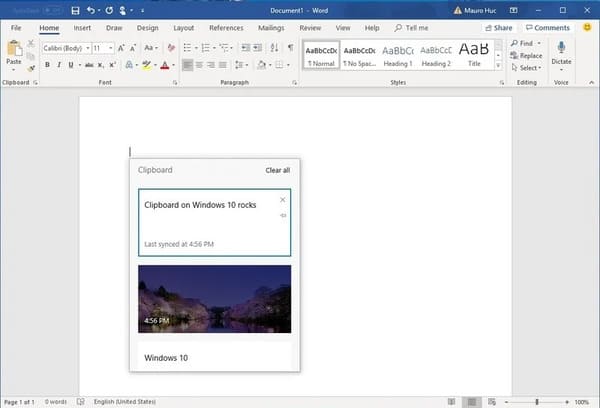
- Select the content you want to paste
You can also pin items that you frequently have to paste for faster access.
- Press Windows + V to open Clipboard history
- Press the button The battery for the content you want

When you don’t need it anymore, click the unpin button again or the button X to unpin that content.
There are some obvious limitations to using clipboard history as anything you copy won’t appear in the history or sync across devices. For example, you can copy the name of a file, but copying a file to move it to another location won’t appear in the Clipboard history.
Also, the cloud clipboard supports images, but only if you copy images in a document. You can’t copy an image file and expect it to appear in Clipboard history or sync across devices.
Conclusion
While the new clipboard experience can sync your history across devices, you can only access your history on computers running Windows 10 version 1809 or later, or when using the same Microsoft account.
If you enable this feature, make sure you also understand the potential security risks. For example, if you are one of those people who often copy sensitive information (such as passwords, addresses, names, etc.), anything you copy to the clipboard will store it as plain text and This information can be viewed by anyone with access to your computer simply by using the keyboard shortcut Windows + V. Also, if you enable the sync option, you will also load your history. to the Microsoft server. If you want to completely disable Clipboard sync then you can read this post.