Over time, your computer will slow down. Outdated hardware is a factor, of course, but for most people, the more common cause is poor operating system maintenance. So, it’s almost Tet, why don’t we clean up our computer trash to welcome the new Tet? Below are methods to speed up Windows by deleting redundant files, junk files…
| Join the channel Telegram belong to AnonyViet 👉 Link 👈 |
Reinstalling Windows is the first choice. Removing all the junk space will help your machine run faster and smoother.
However, you don’t need to take such drastic steps. Spending some time cleaning up Windows can yield similar results. Sure, your 5-year-old laptop may never be able to play the latest AAA games, but you’ll still see noticeable improvements.
1. Uninstall unused software
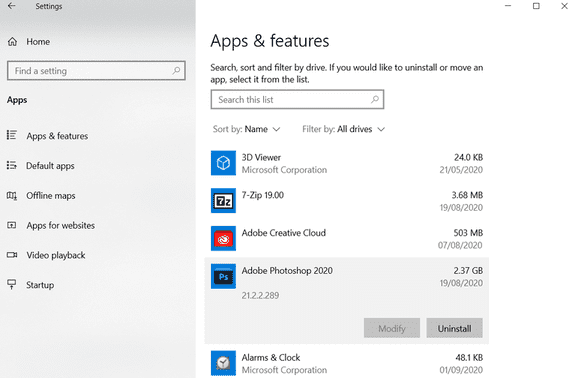
Let’s start with the way that everyone already knows. A clean computer is one that does not have old software that you no longer use. If you’re not a neat person, you’ll be surprised at how much unnecessary software you have installed on your machine.
To see all the apps on your computer, go to Start > Settings > Apps > Apps and features. Scroll down and click Uninstall on any software you no longer need.
Just a quick reminder, you need to be careful. Don’t just delete things you don’t know what they are. Please google and learn about that software before deleting it. Or you can also use software IObit Uninstaller to completely remove that software.
2. Run anti-virus software
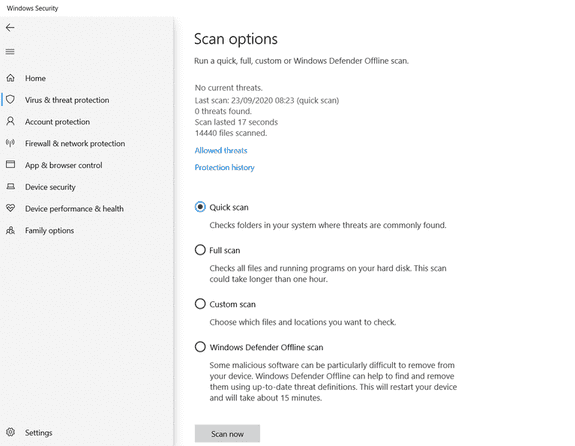
Next, you should run your antivirus software. One of the most common causes of a slow computer is viruses, so it’s a great way to clean up your Windows PC.
Each anti-virus software has different options, but there is one thing that every anti-virus software must have: Full Scan or Deep Scan. The scan will take a lot longer to complete, but you can be sure that it won’t miss anything on the operating system.
You may consider using it TOP anti-virus software that AnonyViet has listed. Instead of focusing on viruses, its main goal is to protect users against the latest trojans, backdoors, adware, and spyware.
3. Disk Clean-Up
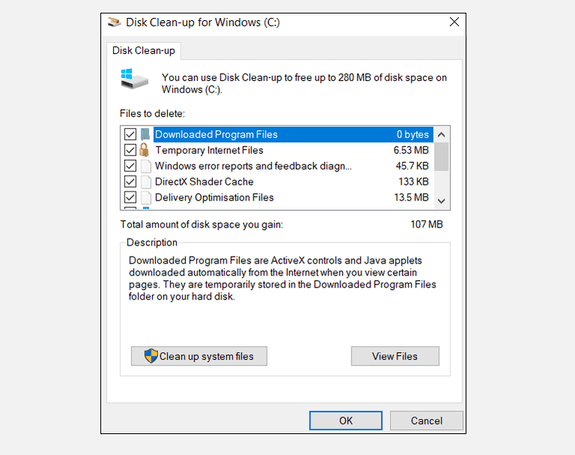
Disk Cleanup has been a part of the Windows operating system for many years, and it remains effective in cleaning unnecessary files and improving system performance.
To run Disk Cleanup, enter the application name in the Start Menu or go to Control Panel > Administrative Tools > Disk Clean-up.
Before scanning, click Clean up system files. It allows the application to run a more thorough scan by checking old Windows Update files and log files.
In general, you can delete all files the program finds. Mark the checkbox next to each result and click OK. However, note that when you choose to delete the previous Windows installation file(s) using the option Clean up system filesyou will no longer be able to go back to the previous version of Windows.
4. Defragment the hard drive
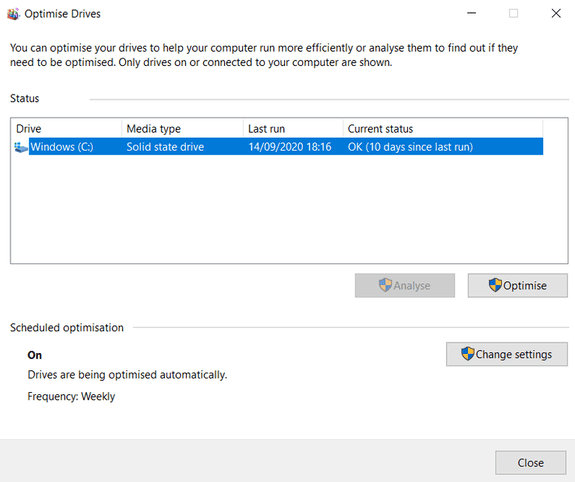
Windows 10 runs disk defragmentation when necessary. However, since we are thoroughly cleaning the computer, you should not run it manually.
You can find stuff Defragment and Optimize Drives by searching on the Start Menu or going to Control Panel > Administrative Tools.
To use the application, highlight your main hard drive and click Optimize on the right side of the window.
5. Delete old Driver
Windows still retains the old drivers. The purpose behind saving is just in case: you will never be at fault if a new driver does not work as expected. However, the difference is that your device may be full of drivers from devices that you stopped using many years ago.
There are two easiest ways to remove old drivers from your computer: cmd or environment variables. For more information about these two ways, you can read this article to learn how to remove old drivers from Windows. Or the simplest way is to download the software completely IObit Advanced SystemCare about making it fast.
6. Clean Startup
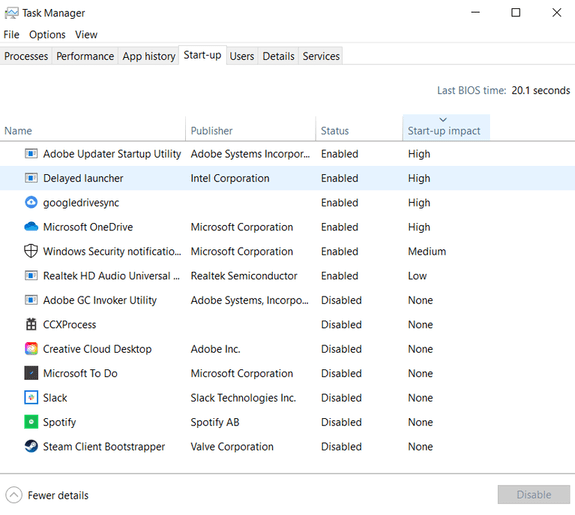
Any seasoned Windows user knows that the operating system lags behind macOS, Chrome OS, and Linux when it comes to slow boot times.
Usually, the cause is the number of programs that Windows tries to launch when starting the computer. Most of them are unnecessary.
To clear your startup list, tap Ctrl + Alt + Delete and choose Task Manager. On the new window, click Startup.
You can now look at all the applications Windows tries to run at startup. To disable an app, select it and click Disable.
7. Clean up the AppData folder
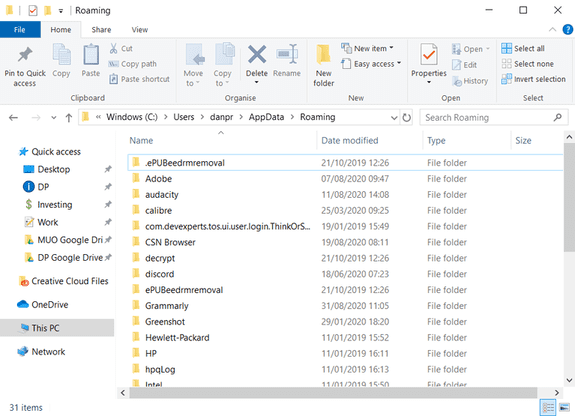
When you uninstall an app, you’ll often find remnants of that app scattered around your machine. One of the most common locations is the AppData folder.
By default, this folder will be hidden. You can find it at C:\Users\[Username]\AppData or by entering %AppData% into the Windows search box.
In the main folder, there are three subfolders: Local, LocalLow and Roaming. Make sure you check all three of these folders for any traces of old software. Again, don’t delete anything unless you’re sure it’s safe.
The best way to help you remove software completely is to use it IObit Uninstaller.
8. Delete old program files
Another place where you often find remnants of old applications is in the Program Files folder.
On most machines, there are two Program Files folders: C:\Program Files and C:\Program Files (x86).
As with the AppData folder, examine the contents of each folder carefully and delete any files and folders that are no longer in use.
9. Clean up the Registry
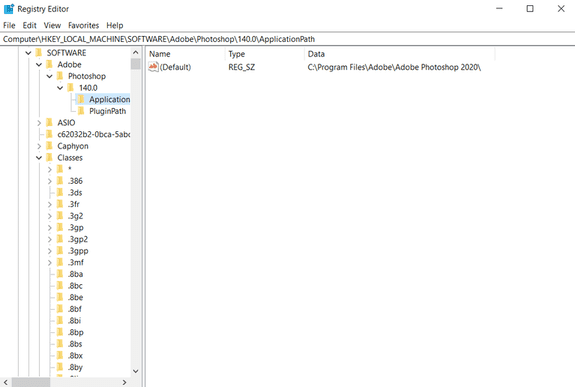
You’ve probably heard a few horror stories about the Registry or you’ve also experienced a similar feeling, where just one wrong click is enough to destroy your system. No kidding.
It is essential to keep your registry tidy. Think of it like a library: the bigger the library, the longer it takes you to find what you’re looking for. Likewise, the more junk in your registry, the longer it takes Windows to identify the entries it needs.
Let’s solve this problem together. Search regedit and press Enter. Then, go ahead Computer\HKEY_LOCAL_MACHINE\SOFTWARE and Computer\HKEY_CURRENT_USER\Software. In each folder, slowly go through the list and delete entries of software you no longer use.
Warning: Deleting the wrong registry entry can have serious consequences for your system. Make sure you have created a complete backup of your registry data before continuing.
It is recommended to use Advanced SystemCare software.
10. Clean all caches
Windows 10 is full of cache. Without delving into technical jargon, a cache is a non-permanent file that Windows may need again in the future.
But what if Windows doesn’t need it anymore? You will have a dump of garbage lying around every corner of your system.
Windows 10 is quite good Many different types of caches And each type has a different way to delete it, so doing it all will take a lot of time. And this is where Advanced SystemCare comes into play :))
How to clean up your computer?
I have introduced to you some important steps to clean up computer trash. By completing all 10 items, we can guarantee you will see an increase in performance.
Of course, there are other ways to improve your computer’s speed—for example, you can upgrade the hardware—but doing so is often expensive and complicated for beginners. The trade-off is not always worth it.
Frequently asked questions
Do I need to reinstall Windows to speed up my computer?
Unnecessary! Reinstalling Windows is a strong solution, but cleaning the system with simple steps such as removing unused software, running antivirus, and using Disk Cleanup also helps improve performance significantly.
How to delete old drivers from the computer?
You can use cmd command or environment variables to delete old drivers. However, a simpler way is to use specialized software such as IObit Advanced SystemCare for automatic cleaning.
Can I delete all the files that Disk Cleanup finds?
In general, it’s okay, but be careful. Before deleting, carefully check what files they are. Deleting previous Windows installation files using the “Clean up system files” option will make it impossible to go back to the previous version of Windows.