• Home
  • News
  • Software
  • Knowledge
  • MMO
  • Tips
  • Security
  • Network
  • Office
AnonyViet - English Version
  • Home
  • News
  • Software
  • Knowledge
  • MMO
  • Tips
  • Security
  • Network
  • Office
No Result
View All Result
  • Home
  • News
  • Software
  • Knowledge
  • MMO
  • Tips
  • Security
  • Network
  • Office
No Result
View All Result
AnonyViet - English Version
No Result
View All Result

How to check Macbook battery health

AnonyViet by AnonyViet
August 18, 2024
in Tips
0

Let's explore how to assess and manage the battery life of your beloved MacBook. This article will provide you with simple steps to check Macbook battery life and better understand how to use batteries efficiently.

Join the channel Telegram belong to AnonyViet 👉 Link 👈

Instructions for checking Macbook battery health

Check with System Report

To check the battery status of MacBook Air or MacBook Pro, you can follow these steps to use the System Report function:

Step 1: Press Command + Space to open the search dialog box, then type “System Report”.

Step 2: In the new window, scroll down and select “System Report”.
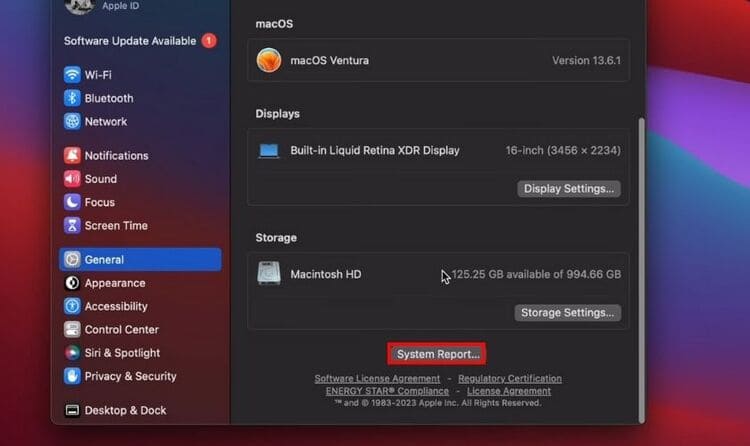
Scroll down and select “System Report”.

Step 3: Go to “Power” and select it.
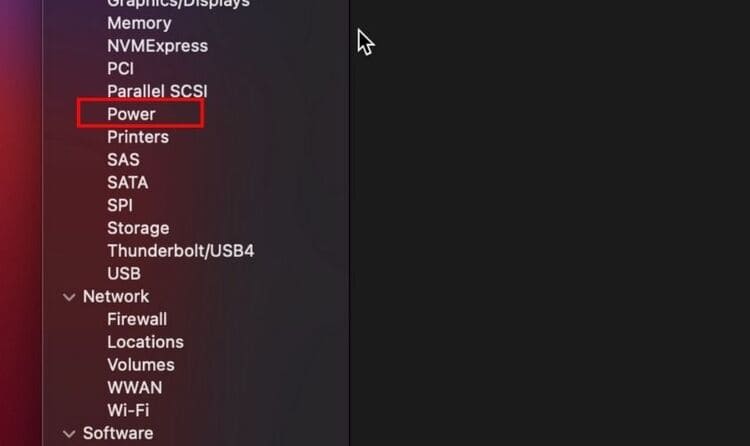
Select “Power”
Select “Power”

Step 4: Scroll down and you'll see three important battery health metrics: Condition, Cycle Count, and Maximum Capacity. These metrics provide an overview of the current health of your MacBook battery.
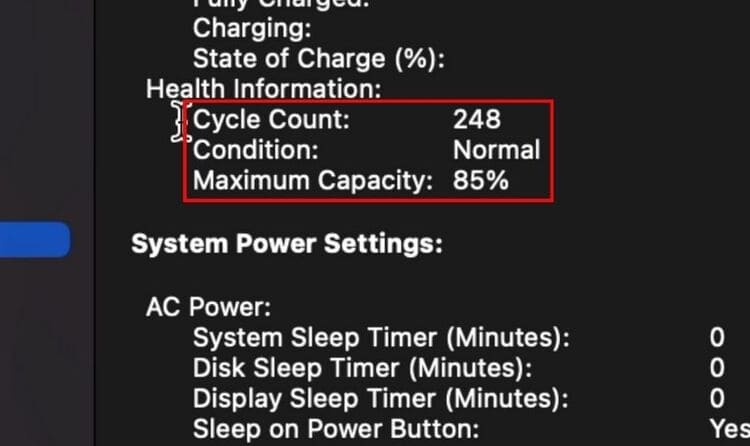
3 important indicators to check Macbook battery life
3 important indicators: Condition, Cycle Count and Maximum Capacity

What do battery indicators tell?

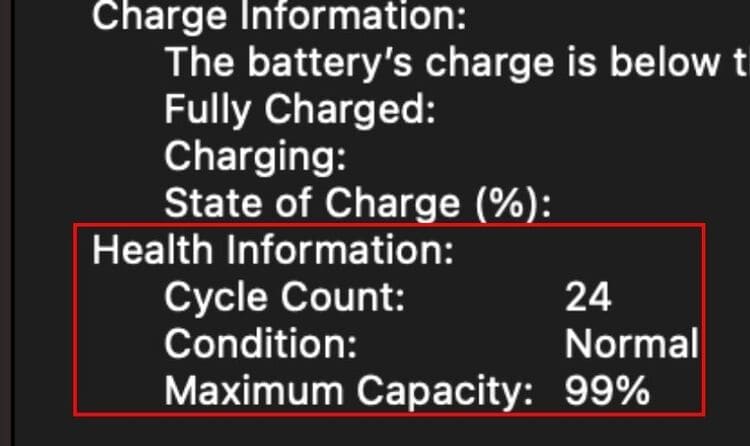
MacBook battery indicators will help you not only monitor battery health but also recognize whether the battery is deteriorating or not, thereby managing and optimizing battery usage more intelligently:

  • Condition: Classifies MacBook battery status into four states: Normal, Replace Soon, Replace Now, and Service Battery.
  • Cycle Count: Count the number of times the battery has been charged from 0% to 100%, it does not have to be a continuous charge from empty to full, but can be many small charges added together.
  • Maximum Capacity: The maximum capacity that the battery can store compared to the beginning, gradually decreasing with time and usage.
<yoastmark class=

Test with Coconut Battery

Coconut Battery is a useful tool that helps you monitor your MacBook battery status quickly and accurately.

Step 1: Download and install Coconut Battery from the website HERE.
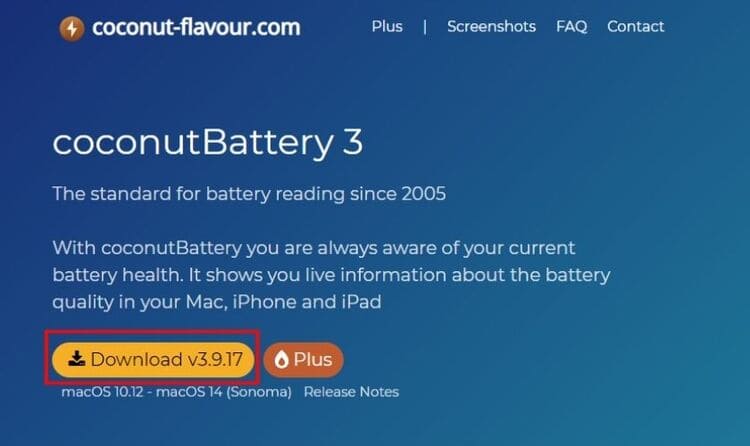
Download and install Coconut Battery to check Macbook battery
Download and install Coconut Battery

Step 2: Open the app and connect your MacBook. You'll see battery details like:

  • Current Charge: The current battery percentage in the MacBook.
  • Full Charge Capacity: Maximum capacity when the battery is fully charged. This value will decrease with use, indicating the battery's condition.
  • Design Capacity: Initial rated capacity according to the manufacturer. This value below 100% indicates that the battery is gradually deteriorating.
  • Manufacture Date: Battery manufacturing date, provides information about the newness of the battery.
  • Cycle Count: Counts the number of battery charge cycles to 100%.
  • Battery Temperature: Current temperature of the battery. Lower temperature is better for battery life.
  • Battery Usage: The amount of power your MacBook is consuming, helping you manage your power usage efficiently.
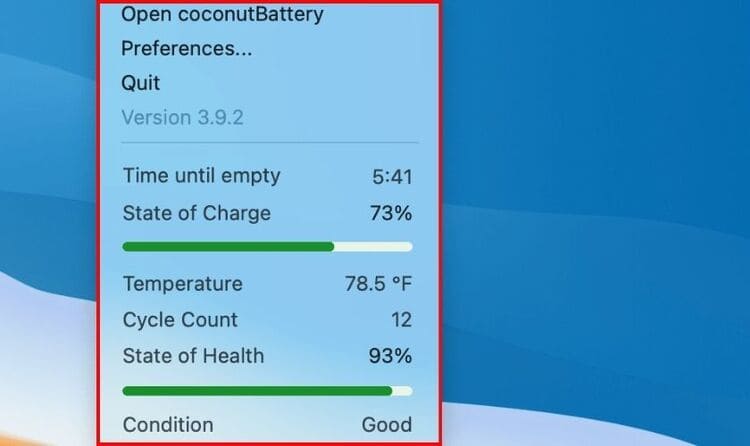
Detailed information on checking Macbook battery health

Using Coconut Battery helps you have a comprehensive view of battery status, detect problems early and take timely maintenance measures. Don't forget to check periodically to ensure stable and efficient operation of MacBook.

How to limit MacBook battery failure

To protect your MacBook battery and extend its life, follow these tips:

  • Put your MacBook to sleep when not in use.
  • Use optimized battery charging in macOS Catalina 10.5.5 or later.
  • Turn on Low Power mode to save energy.
  • Set the screen to turn off automatically for added security and battery savings.

These measures help reduce energy consumption and protect your MacBook battery from unnecessary wear and tear, while ensuring optimal performance.

Conclusion

With the information and tips shared, hopefully you can protect and extend the battery life of your MacBook. Check regularly. Macbook battery life and apply maintenance measures to keep the machine working at its best. Good luck!


Tags: batterycheckhealthMacBook
Previous Post

Instructions to turn off post notifications on TikTok

Next Post

DNS Spy: DNS Analysis Tool of Any Domain

AnonyViet

AnonyViet

Related Posts

How to record reaction videos with Android phones, no app needed
Tips

How to record reaction videos with Android phones, no app needed

June 1, 2026
Instructions on how to get Google AI Pro 1 year for free for new accounts
Tips

Instructions on how to get Google AI Pro 1 year for free for new accounts

June 1, 2026
Top free AI tools to help write, test and optimize content
Tips

Top free AI tools to help write, test and optimize content

June 1, 2026
Instructions for receiving Lovable Pro 12 months for free
Tips

Instructions for receiving Lovable Pro 12 months for free

May 29, 2026
Instructions for receiving 1 month of ElevenLabs Creator for free worth
Tips

Instructions for receiving 1 month of ElevenLabs Creator for free worth $22

May 25, 2026
How to create beautiful studio-like preschool graduation photos for your child
Tips

How to create beautiful studio-like preschool graduation photos for your child

May 21, 2026
Next Post
DNS Spy: DNS Analysis Tool of Any Domain

DNS Spy: DNS Analysis Tool of Any Domain

0 0 votes
Article Rating
Subscribe
Login
Notify of
guest

guest

0 Comments
Oldest
Newest Most Voted
Inline Feedbacks
View all comments

Recent News

How to record reaction videos with Android phones, no app needed

How to record reaction videos with Android phones, no app needed

June 1, 2026
Instructions on how to get Google AI Pro 1 year for free for new accounts

Instructions on how to get Google AI Pro 1 year for free for new accounts

June 1, 2026
Top free AI tools to help write, test and optimize content

Top free AI tools to help write, test and optimize content

June 1, 2026
TruyenDrive: Turn Google Drive into a professional manga reader

TruyenDrive: Turn Google Drive into a professional manga reader

May 31, 2026
How to record reaction videos with Android phones, no app needed

How to record reaction videos with Android phones, no app needed

June 1, 2026
Instructions on how to get Google AI Pro 1 year for free for new accounts

Instructions on how to get Google AI Pro 1 year for free for new accounts

June 1, 2026
Top free AI tools to help write, test and optimize content

Top free AI tools to help write, test and optimize content

June 1, 2026
AnonyViet - English Version

AnonyViet

AnonyViet is a website share knowledge that you have never learned in school!

We are ready to welcome your comments, as well as your articles sent to AnonyViet.

Follow Us

Contact:

Email: anonyviet.com[@]gmail.com

Main Website: https://anonyviet.com

Recent News

How to record reaction videos with Android phones, no app needed

How to record reaction videos with Android phones, no app needed

June 1, 2026
Instructions on how to get Google AI Pro 1 year for free for new accounts

Instructions on how to get Google AI Pro 1 year for free for new accounts

June 1, 2026
No Result
View All Result
  • Home
  • News
  • Software
  • Knowledge
  • MMO
  • Tips
  • Security
  • Network
  • Office

wpDiscuz
0
0
Would love your thoughts, please comment.x
()
x
| Reply