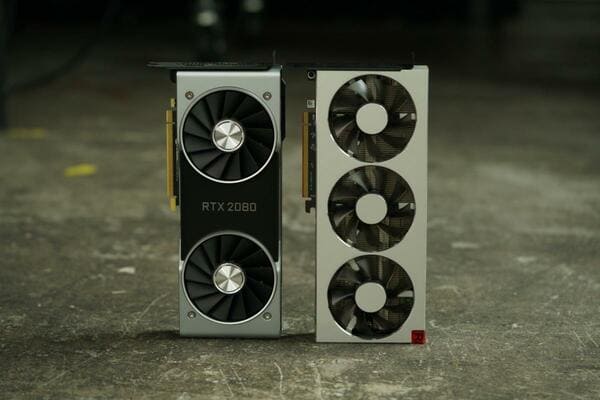
Is your GPU hot enough to make an omelet? During normal operations, the temperature of your GPU is not an important issue, many graphics cards today only control the display and handle video games. They will automatically lock the temperature so as not to affect component life or cause the GPU to suddenly shut down due to overheating. But if you're using an older PC or if you want to test out their graphics card's overclocking capabilities, monitoring GPU temperatures is important.
| Join the channel Telegram belong to AnonyViet 👉 Link 👈 |

Good news for you, checking the graphics card temperature is very simple, especially now that Windows has displayed the GPU temperature on Task Manager. And all kinds of GPU monitoring tools are free.
How to check GPU temperature

Microsoft has finally listened to users with an update Windows 10 May 2020Task Manager added a GPU temperature monitor. It probably took Microsoft 24 years to do this (careful research).
To see how hot your graphics card is, open Task Manager by pressing Ctrl + Shift + Esc or Ctrl + Alt + Delete and select “Task Manager“, or right-click on the taskbar and select “Task Manager”. Then go to the Performance tab, find the GPU you want to see the temperature of, there will be a temperature line displayed below the GPU name. This method is only for those who have installed the Windows 10 May 2020 update or higher.
However, this feature only displays the current temperature. And it's also quite inconvenient when you have to keep holding Task Manager while playing games or overclocking. Although I'm glad Microsoft finally added this feature, third-party tools offer more diverse and in-depth options.
Other GPU temperature monitoring tools
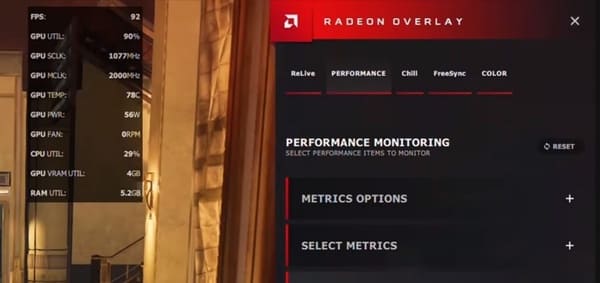
If you are using an AMD Radeon card, displaying GPU temperature is very simple. In 2017, AMD launched the feature Radeon Overlay, provides handy tools for fine-tuning your game visual settings. It also includes tools to monitor performance, GPU temperature, and other important information while you're gaming.
To activate this tool, enable the Radeon Overlay feature by pressing Alt + R and select performance options in the Performance Monitoring section. Once installed, you can manually turn on the Performance Monitoring tool by clicking Ctrl + Shift + 0.
You can still check GPU temperature in Radeon Settings > Wattman. Right click on Desktop and select Radeon Settings, then go to Gaming > Global Settings >> Global Wattman. With this tool, you will have access to Wattman, which monitors GPU temperature and other important statistics in graph form.
But what if you don't use AMD? According to Steam's hardware survey, 75% of users use Nvidia for gaming. This is where third-party software comes into play.
Many graphics card manufacturers provide specialized software for GPU overclocking. These tools often include important on-screen display (OSD) options, similar to AMD Radeon Overlay. I chose MSI Afterburner software because of its flexibility. This popular utility works with both Nvidia and AMD graphics cards, offering a number of features suitable for gamers.
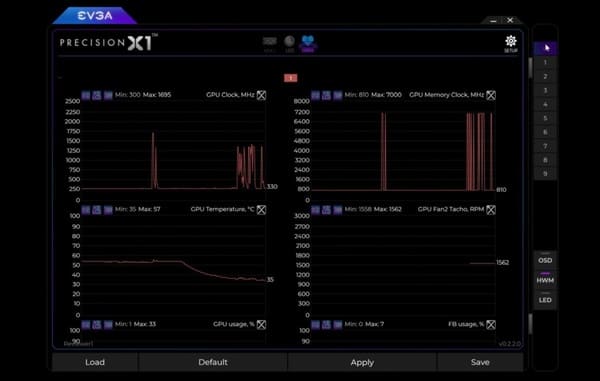
If you prefer a better designed app, I recommend it EVGA Precision X1has been remastered for release with Nvidia's new RTX 20-series graphics cards. Although EVGA only works with Nvidia graphics cards.
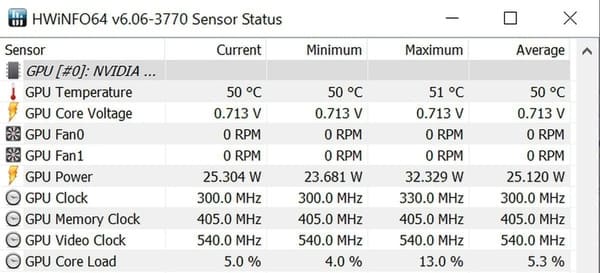
If you are not a gamer or don't care about checking GPU temperature while gaming. You will need a hardware and system temperature monitor. HWInfo is the next program I want to mention, because it provides most of the hardware parameters, but SpeedFan and Open Hardware Monitor are also great options. Open Hardware Monitor also supports Linux.
The sparse and information-dense interface of the above software does not satisfy you, NZXT CAM software would be a great replacement, even if you don't have NZXT hardware in your PC. The software is aesthetically pleasing, clean, simple, and it also has a mobile app for remote PC monitoring, but you'll need a CAM account to use it.
What GPU temperature is okay?
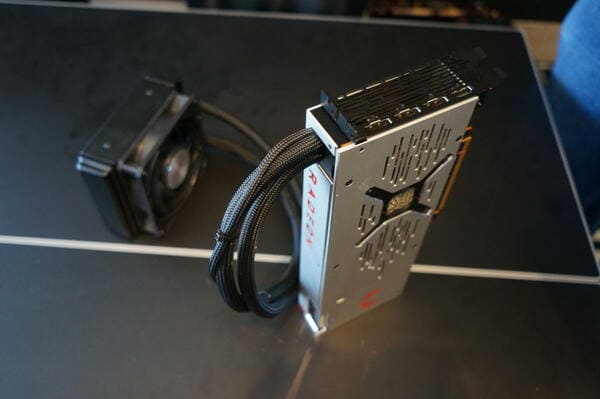
That's a difficult question. Most modern GPUs can run in the mid-90s, and you'll often see them reach that temperature while gaming. In GPU systems with good air cooling, your graphics card temperature should not be in the 80 degree range. Custom graphics cards have multiple fans usually between 70 and 60, or you can also attach a water cooler to the GPU to lower the temperature.
How to reduce GPU temperature?
If your graphics card is too hot, 1 is you have to upgrade the hardware, and 2 is to undervolt (lower the heat and power of the GPU).
For the first method, you should check the airflow in your PC before buying new hardware. See if the case fans are mounted in the most optimal position. After that, reapply the thermal paste to the GPU. With good glues, it can lower it by 2 – 7 degrees, quite high. And the last step, if the above steps don't work, install a custom air or water cooler for your GPU.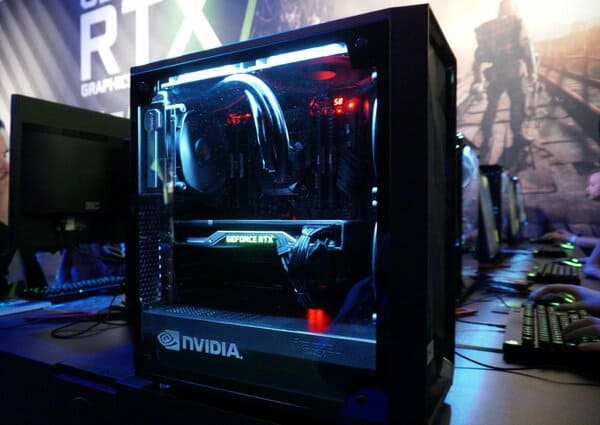
As for how undervolt For GPU, please refer to this video.
Warning: Undervolting can cause the GPU to turn off suddenly many times until it finds the ideal power level. So this is very harmful to your entire system.