In this article, I will guide you to block the installation of 21H1 on Windows 10. Although 21H1 will have many new features, changes, and new interfaces, there are still quite a few people who still do not like to update because of fear…. error.
| Join the channel Telegram of the AnonyViet 👉 Link 👈 |
How to block updates to Windows 10 version 21H1
Windows 10 21H1 has just been released and some hardware is still not compatible, so you are prone to unexpected errors. The best way is to postpone Update to Windows 21H2, wait for a while many users feel fine and then update later. We will do it in the following way:
Step 1: Check what version the computer is running?
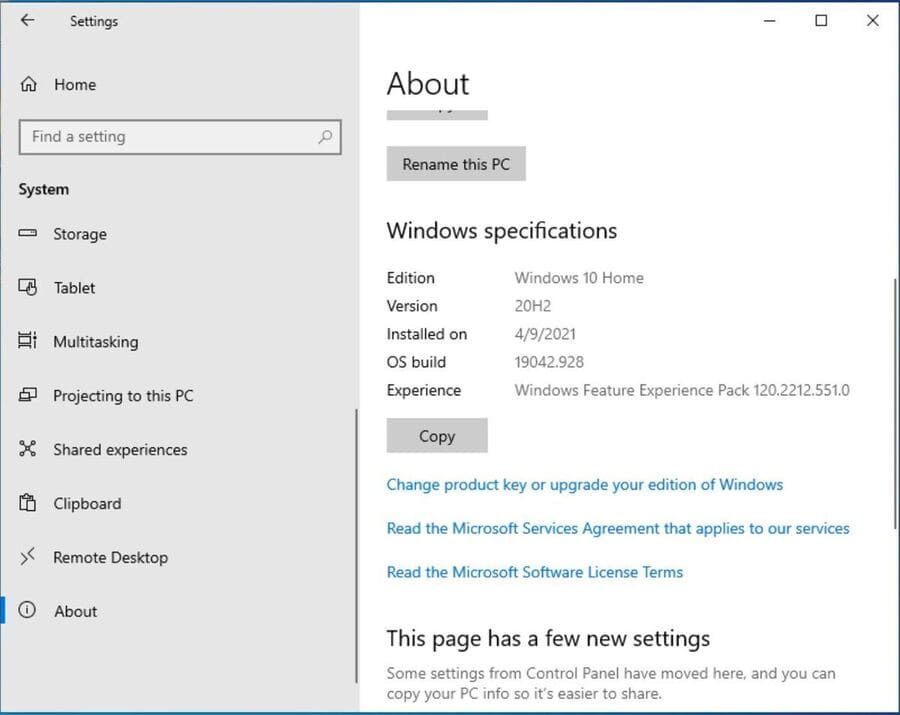
The method of blocking the installation of versions varies depending on the version of Windows 10 you are running. To see the running version, go to Start > Settings (the gear icon) > System and on the bottom left side, click About.
You will now see a screen like the one below. You just need to note whether you are using Home, Pro, Education or Enterprise edition only.
Step 2: If you are using version 1909 or below, update to a newer version ASAP
For the Home and Pro editions, the last security update for Windows 10 version 1909 was on May 11, 2021. That means that starting in June, that version will no longer receive these features. more security updates.
You must update to higher versions of Windows 10 1909. As these releases go out of support, you’ll start to see more and more notifications that your machine is ready for version 20H2. At this point, 20H2 is good enough for you to spend time updating.
The best way to update 20H2 is to download the Windows 20H2 ISO file. Back up everything first, then follow the steps in the Windows Update Assistant. Alternatively, you can go to Windows Update (Start > Settings > Update & Security) and click Download and install for version 20H2, but using the Windows Update Assistant allows you to save a copy of the ISO 20H2 for future use.
When the 21H1 release is ready, the Windows Update Assistant (as well as Windows Update) will start providing 21H1 version updates instead of 20H2.
Step 3: If you are using version 20H2, don’t upgrade to 21H1
Both Home and Pro users running Windows 10 version 2004 or 20H2 will see a Windows Update message (Start > Settings > Update & Security) as shown below, indicating that 21H1 is ready to download and install.
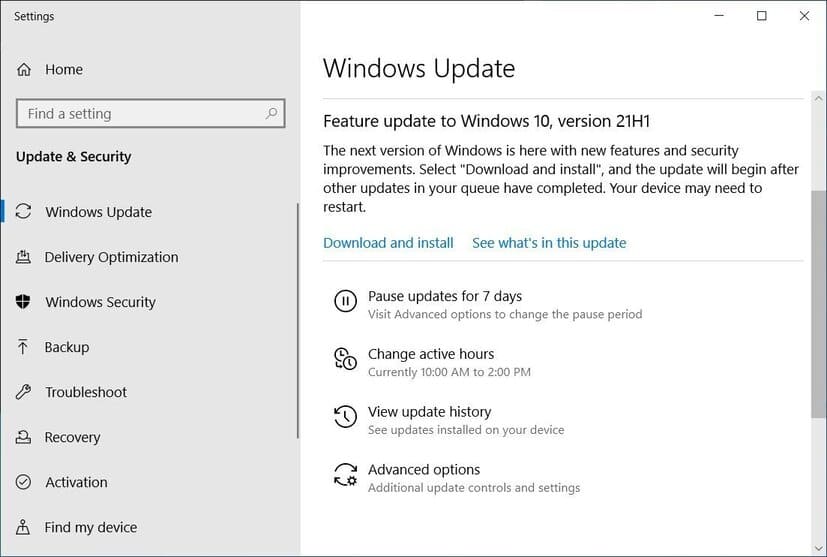
If you want to block installation of version 21H1, do not click Download and install. And always remember not to click Check for updatesas this will provide .NET updates that you do not want to install.
Step 4: The best way not to update to 21H1
For those who are comfortable with editing the Windows registry, it is easier for them to block 21H1. Using a registry called TargetFeatureRelease, you can make sure the computer is not provisioned with version 21H1.
Step 1: Before editing the registry, you should always back up your registry and your computer in case something goes wrong.
Step 2: Open Registry Editor by typing regedit in Windows Search and clicking Registry Editor.
Step 3: Find the key WindowsUpdate : HKEY_LOCAL_MACHINE\SOFTWARE\Policies\Microsoft\Windows\WindowsUpdate
Step 4: Right-click the key, select New, and then select DWORD.
Step 5: Enter the new key name TargetReleaseVersion.
Step 6: Set value to 1.
Step 7: Right click again on the key WindowsUpdate select New > String value.
Step 8: Enter the name TargetReleaseVersionInfo.
Step 9: Set value as the version you want, I will enter 20H2.
If the WindowsUpdate key does not appear in the Registry Editor, first apply the following steps:
Step 1: Open the Registry editor.
Step 2: Find the key: HKEY_LOCAL_MACHINE\SOFTWARE\Policies\Microsoft\Windows
Step 3: Right click on the key and select New>Key.
Step 4: Enter the key name as Windows Update.
Step 5: Redo the steps above.
Alternatively, you can also download File Block Update Windows 20H2 this process from the AskWoody website. Click to open the file to automatically block Update.
When you are ready to install 21H1, you can go back to the Registry and change the value TargetReleaseVersionInfo into 21H1 or Download the file to allow Update 21H1 from AskWoody.
In addition, you can also see more details about the new features of version 21H1 here.