• Home
  • News
  • Software
  • Knowledge
  • MMO
  • Tips
  • Security
  • Network
  • Office
AnonyViet - English Version
  • Home
  • News
  • Software
  • Knowledge
  • MMO
  • Tips
  • Security
  • Network
  • Office
No Result
View All Result
  • Home
  • News
  • Software
  • Knowledge
  • MMO
  • Tips
  • Security
  • Network
  • Office
No Result
View All Result
AnonyViet - English Version
No Result
View All Result

How to block the Website on your computer to prevent others from accessing it

AnonyViet by AnonyViet
January 30, 2023
in Tips
0

Google Chrome automatically block websites with bad intentions such as viruses, phishing, etc. However, sometimes even the most popular browser in the world does not recognize threats from other Websites.

Join the channel Telegram of the AnonyViet 👉 Link 👈

Whether you want your family members to stay away from harmful, useless websites or you want to restrict access to social networking sites, blocking websites on Chrome is a breeze.

How to block websites on Chrome?

Unfortunately, Google Chrome does not allow users to block websites unless you are Chrome Enterprise admin wants to prevent its employees from accessing the site.

But fortunately, there are many third-party extensions that can block websites on Chrome easily.

Step 1: Access extensions BlockSite on the Chrome Store.

Step 2: Press the button “Add to Chrome”.
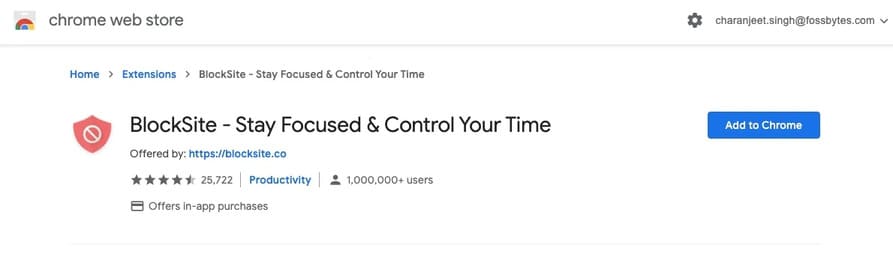
How to block websites on Chrome

Step 3: Again, click “Add Extensions” in the pop-up window.
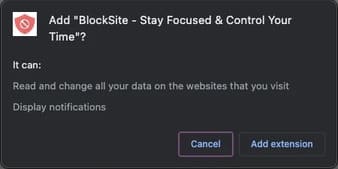
BlockSite on Chrome Store

After installing BlockSite on Chrome, you will see an orange icon along with other extensions in the top right corner of Chrome.

Step 4: Go to the site you want to block on Chrome.

Step 5: Click the BlockSite icon and then tap “Block this site”.
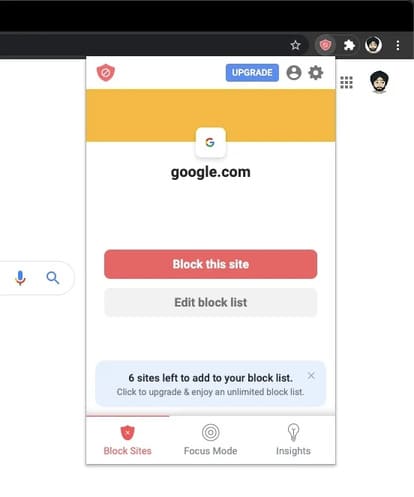
Block this site

To block multiple sites on Google Chrome, click the BlockSite icon and click Edit Block List. Now, on the extension settings page, enter the website URL and tap on the . icon “+”.

Edit Block List

To unblock a website, simply click on the . icon “-” on the BlockSite settings page.
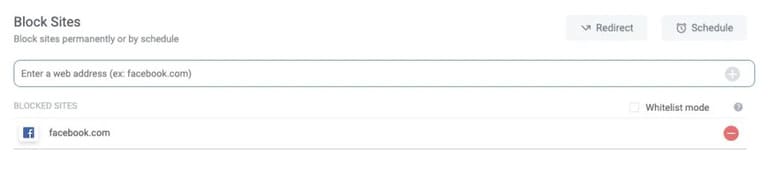
unblock a website

You should password protect the settings page BlockSite or blocked websites so that other people cannot unlock websites without your permission.

BlockSite also allows users to set blocking schedules for websites. You can even block certain words, where the extension will block a web page on Chrome if it contains blocked words. This will be useful if someone tries to access a website through URL obfuscation.

Note that you can only block up to six websites in the free version of BlockSite.

Other ways to block websites on Chrome

Use a website blocker

Really, you have a lot to choose from 3rd party apps to block websites. But I only list some of the apps that I think are the best for your reference.

Eg: you can use apps like Self Control (MACOS), LeechBlockand Cold Turkey to block websites using all other browsers. Since adding extensions to Chrome can take a toll on the system and make Chrome slower, it’s a good idea to install a standalone app to block certain websites on Chrome. looks more awesome.

Website blocking app

How to block websites on Google Chrome for Android?

Speaking of apps, there are many apps out there CH Play with which you can block websites on your Android device. For example, you can use BlockSite’s applicationAppBlock is also a good choice to block websites on Google Chrome for mobile devices.

Using Access list Control on Modem/Router

Another way to block websites on Google Chrome is to use the website blocker available in the settings of new Wi-Fi routers and Internet connection modems.

If you can’t find an option to block websites, you can also try calling your network service provider and ask them to block certain websites.

Use Chrome’s Blocklist URL

Like I said earlier, Chrome has URL Blocker but can only be used if you are using a Chrome Enterprise administrator account.

An organization can create an enterprise policy that prohibits users from accessing certain websites. Administrators can even enforce the same policy across all Chrome platforms (Windows, Mac, Linux, Android, Chromebook).

Block Website with hosts file

You access the link "C:\Windows\System32\drivers\etc"

Open the hosts file with Notepad or Notepad++.

Add the page you want to block according to the following structure:

127.0.0.1   tên-trang-web

Eg: 127.0.0.1   facebook.com

hosts chan website

Finally, Save the hosts file and you’re done

The article achieved: 5/5 – (100 votes)

Tags: accessingBlockcomputerpreventWebsite
Previous Post

Beautiful bathroom decorations in Adorable Home

Next Post

Instructions for Phishing Facebook, Gmail without Host and programming

AnonyViet

AnonyViet

Related Posts

Instructions on how to create POV product review videos using Flow
Tips

Instructions on how to create POV product review videos using Flow

July 13, 2026
How to fix “This PC can’t run Windows 11” error This PC doesn’t meet the minimum system requirements
Tips

How to fix “This PC can’t run Windows 11” error This PC doesn’t meet the minimum system requirements

July 13, 2026
How to fix Windows 11 error of not being able to install .Net Framework 3.5
Tips

How to fix Windows 11 error of not being able to install .Net Framework 3.5

July 11, 2026
How to encrypt messages with GenZ’s smiley face icon
Tips

How to encrypt messages with GenZ’s smiley face icon

July 10, 2026
Download the Copyright-Free Music app for Cafes now
Tips

Download the Copyright-Free Music app for Cafes now

July 9, 2026
Multcloud – Manage, copy, and move data between Cloud Drives
Tips

Multcloud – Manage, copy, and move data between Cloud Drives

July 9, 2026
Next Post
Instructions for Phishing Facebook, Gmail without Host and programming

Instructions for Phishing Facebook, Gmail without Host and programming

0 0 votes
Article Rating
Subscribe
Login
Notify of
guest

guest

0 Comments
Oldest
Newest Most Voted

Recent News

Instructions on how to create POV product review videos using Flow

Instructions on how to create POV product review videos using Flow

July 13, 2026
How to fix “This PC can’t run Windows 11” error This PC doesn’t meet the minimum system requirements

How to fix “This PC can’t run Windows 11” error This PC doesn’t meet the minimum system requirements

July 13, 2026
Compact design, durable battery, excellent camera: Review of OPPO Reno 16 Pro 5G

Compact design, durable battery, excellent camera: Review of OPPO Reno 16 Pro 5G

July 12, 2026
Download the free 3D Pinball Space Cadet game on the App Store now

Download the free 3D Pinball Space Cadet game on the App Store now

July 12, 2026
Instructions on how to create POV product review videos using Flow

Instructions on how to create POV product review videos using Flow

July 13, 2026
How to fix “This PC can’t run Windows 11” error This PC doesn’t meet the minimum system requirements

How to fix “This PC can’t run Windows 11” error This PC doesn’t meet the minimum system requirements

July 13, 2026
Compact design, durable battery, excellent camera: Review of OPPO Reno 16 Pro 5G

Compact design, durable battery, excellent camera: Review of OPPO Reno 16 Pro 5G

July 12, 2026
AnonyViet - English Version

AnonyViet

AnonyViet is a website share knowledge that you have never learned in school!

We are ready to welcome your comments, as well as your articles sent to AnonyViet.

Follow Us

Contact:

Email: anonyviet.com[@]gmail.com

Main Website: https://anonyviet.com

Recent News

Instructions on how to create POV product review videos using Flow

Instructions on how to create POV product review videos using Flow

July 13, 2026
How to fix “This PC can’t run Windows 11” error This PC doesn’t meet the minimum system requirements

How to fix “This PC can’t run Windows 11” error This PC doesn’t meet the minimum system requirements

July 13, 2026
  • Home
  • Home 2
  • Home 3
  • Home 4
  • Home 5
  • Home 6
  • Next Dest Page
  • Sample Page

say88 tỷ lệ kèo nhà cái kèo nhà cái 5 febet

No Result
View All Result
  • Home
  • News
  • Software
  • Knowledge
  • MMO
  • Tips
  • Security
  • Network
  • Office

say88 tỷ lệ kèo nhà cái kèo nhà cái 5 febet

wpDiscuz
0
0
Would love your thoughts, please comment.x
()
x
| Reply