Facebook is a disaster for your productivity or any other social network. Tell yourself to your best friend, it only took “five minutes” to surf, but it turned into an hour or more. If this is the case, the simplest solution is to block distracting websites and other social networks.
I will use two methods to block distracting websites: editing system files and using third-party software. Most people can easily edit files on computer operating systems like Windows, macOS, and Linux. As for mobile phones, you will need to download 3rd party software.
Manually blocking websites requires you to edit your computer’s hosts file. Before DNS, the hosts file was used to associate domain names and IP addresses.
You can use the system’s hosts file to modify domain requests to other servers. This is commonly used in web development to test web pages before they go live. Blocking a website is as simple as modifying requests to 127.0.0.1 or localhost, which is your machine’s IP address. You can use 0.0.0.0 or any other IP address.
The benefit of manually blocking a site is that the site will be blocked until you edit the hosts file again. If you are looking to block Facebook or Twitter permanently on your computer, then this is a great choice. If you want to access these sites again, just edit the hosts file again.
If you still want to access these sites during breaks — for example, at lunchtime or after work — this isn’t so good. Instead, you can use an application that blocks websites of your choice on a schedule or only for a certain period of time.
Although the method of editing the hosts file will vary depending on the operating system you are using, the changes you will make are different. The changes you make also depend on the site you’re trying to block. To block Facebook desktop and mobile sites, you must add the following lines:
127.0.0.1 www.facebook.com

127.0.0.1 m.facebook.com
These lines tell your computer that the domain “www.facebook.com” will be found at 127.0.0.1, which is your computer’s local address (or any wrong IP). No matter what browser you use, your computer will not be able to access facebook because there is no domain name “www.facebook.com” on 127.0.0.1 .
You can use the # symbol to add a description after the domain name, reminding yourself why you’re doing it, for example # block facebook.
The operating system will ignore the content after the “#” sign. So, you can also add “#” to the beginning of the line to remove that command line. For example, when you want to unblock facebook, you just need to do this:
# 127.0.0.1 www.facebook.com

# 127.0.0.1 m.facebook.com
You should add your changes at the end of the hosts file so as not to affect other lines in the hosts file.
Edit the hosts file on Windows
You need to run Notepad as Administrator to be able to make changes to the file system. So you also need an administrator account.
On Windows 10 or 8: Open the Start Menu and type “Notepad”. Right click on “Notepad” and select “Run as administrator”.
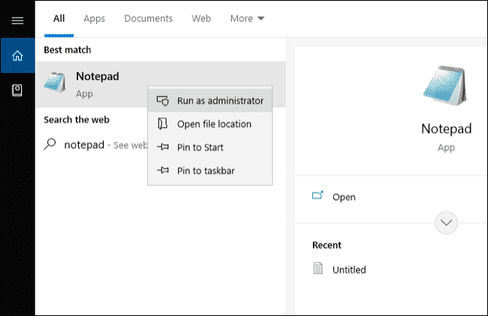
Now press File > Open and open the file c:\windows\system32\drivers\etc\hosts. Now you can block any domain you want using the command I mentioned above. When done, press File > Save to save your changes.
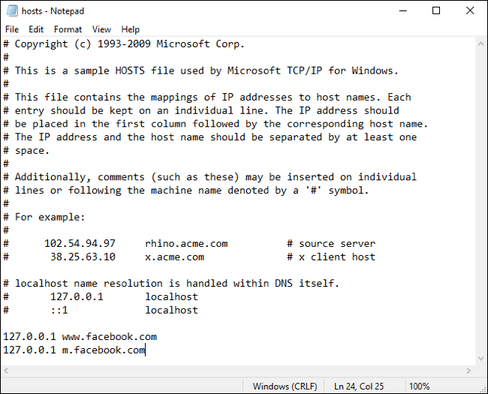
On Windows 7: Click Start Menu, and type notepad. Then click once on Notepad in the search box and then hold down Shift + Ctrl + Enter to open notepad with Admin rights. You also make the same changes as Windows 10.8.
Edit the hosts file on macOS
Just like on Windows, you will need to use administrator rights on macOS to make changes. On a Mac, changes will be made using Terminal and the system’s built-in text editor – nano.
First, launch Terminal in Applications > Terminal. Then enter the following command: sudo nano /etc/hosts. Enter your account password, then press Enter, to confirm.
 Add the changes you want at the end of the file and try not to change anything else in the file. Once done, you can save your changes by pressing Control + O.

If you don’t want to save your changes, use the keyboard shortcut Control + X.
Edit the hosts file on Linux
On Linux, you just need to do the same as on macOS. Both Linux and macOS have a nano text editor and the hosts file is stored in /etc/hosts. Just launch the terminal, and enter the command sudo nano /etc/hostspress Ctrl + O when you’re done.
How to manually block the web on iPhone and iPad
You cannot access the hosts file on iPhone and iPad unless Jailbreak. But Apple also has options to help you block the web.
In addition to blocking anything Apple deems risky, this option also removes private browsing from Safari. For these reasons, this is not a good solution in the long run. Luckily, once it’s set up, you can turn it on and off relatively easily.
To block a specific website on your iPhone or iPad, first turn on Settings (Settings) then tap Screen Time
- For iOS 14 or higher, follow the instructions: Turn on Restrict -> Turn the ON button on, select Restrict Content -> Web Content -> Limit Adult Web Sites -> Don’t Allow -> Add Web to be blocked.
- For iOS 13 below, follow the figure below:
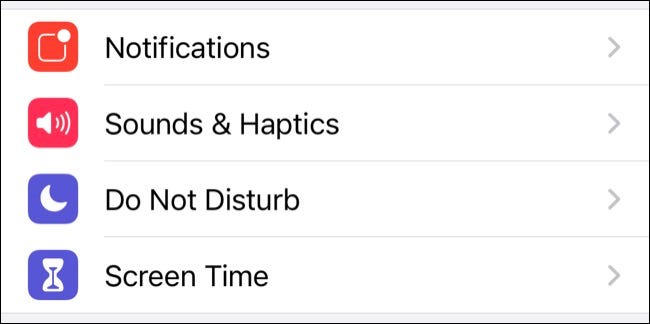
Continue searching”Content & Privacy Restrictions” (App Limit/Content Limit).

Enable the option “Content & Privacy Restrictions” at the top of the screen and enter your password if asked.
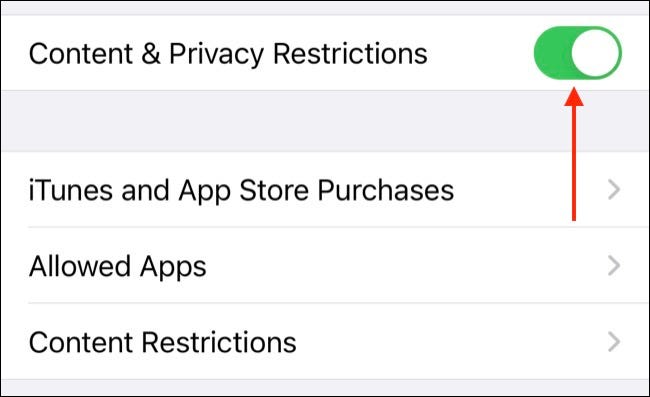
Next, tap on “Content Restrictions” > “Web Content“.
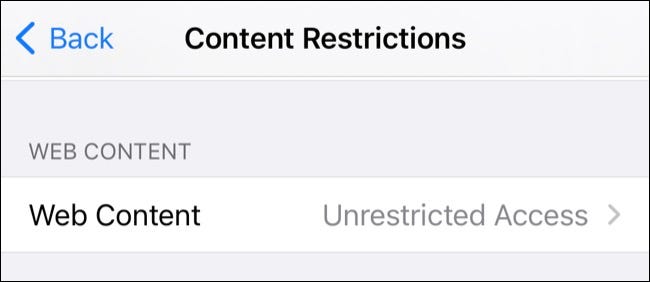
Now tap on “Limit Adult Websites” and in “Never Allow, you can add any website you want to block. Finally, delete any apps associated with the website you’re blocking (Facebook, Twitter, etc.).
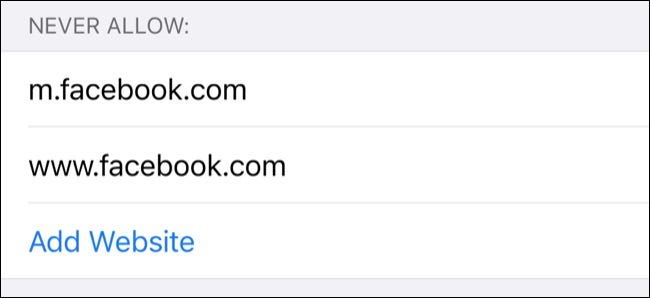
You can turn off blocking quickly by going back to Settings > Screen Time > Content & Privacy Restrictions and turning off “Content & Privacy Restrictions” at the top of the screen.
Block website by app (Including Android)
If you don’t like using a text editor to manually edit your hosts file, and you want to schedule your blocking or you are using an Android device, then you can use 3rd party software.
Blocker app for Android
On Android, Google Family Links gives you the same control as Screen Time on iOS. The app is handy for restricting access to websites and services on children’s devices, but you can also use it to restrict your own devices. If you don’t like the above app, then BlockSite is another popular solution designed to completely block distracting websites.
Application to block the above Website for Windows
A small free app called FocalFilter will allow you to set up a list of websites you want to block, and you can enable the use of this list for a certain period of time. This is the simplest way to deal with distracting websites and it works on Windows 10, 8, 7, Vista and XP.
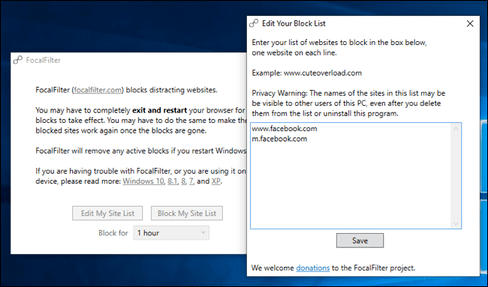
If you want something a little more automated, you can learn Cold Turkey (free version available). The free version of this app will allow you to block distracting websites. However, you will need to pay a $39 subscription fee to access advanced features like scheduling and app blocking.
Application to block Web sites on macOS
On macOS you can use the app for free SelfControl to set up a block list, and block those sites for as long as you want. Just like FocalFilter on Windows, it’s simple and effective, but lacks advanced features like the scheduling of the Cold Turkey app (also available for macOS), which costs $39.
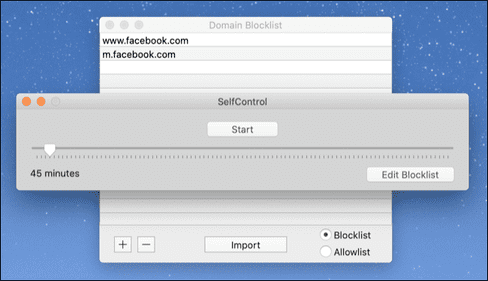
Application to block Web sites on Linux
Free app Chomper seems to be the best designed tool for blocking websites on Linux. This is a command line tool that is easier to use and simpler than editing the hosts file.
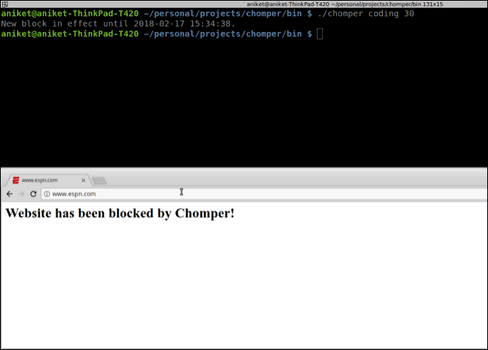
You can use Chomper to schedule blocks and quickly switch between different block lists, all with just a few text commands.
Improve your work productivity
Blocking websites can help you improve your productivity. But the temptation is inescapable, especially with mobile apps, which make it easy to waste an entire day.
There are other things you can do to improve your productivity, like using multiple monitors and tweaking your computer.