Backup Windows 10 to Dropbox, sounds pretty cool, right? Dropbox is a popular cloud storage service that allows you to upload files and folders from your PC. Dropbox storage service was born in 2007 and is a competitor of Microsoft OneDrive and Google Drive. So today, I will guide you to backup Windows 10 to Dropbox.
| Join the channel Telegram of the AnonyViet 👉 Link 👈 |
How to Automatically Backup Windows 10 to Dropbox
To backup Windows 10 to Dropbox. You need to download and set up the Dropbox app to automatically sync files and folders on your computer with Dropbox.
Step 1: Access to this website and download Dropbox.
Step 2: Open the downloaded Dropbox file.
Step 3: First, you need to sign in to your Dropbox account. You can also sign in to Dropbox through Google or Apple.
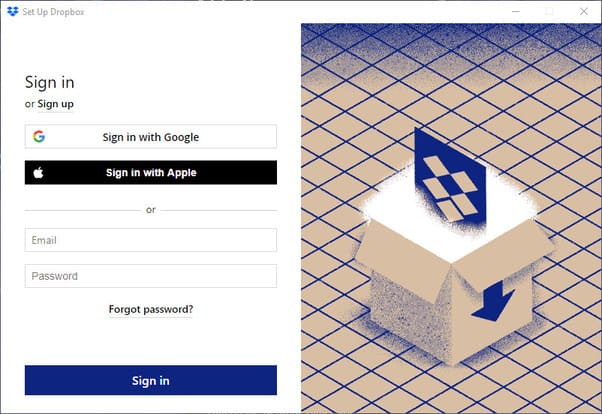
Step 4: Click Advanced Settings to choose where to install Dropbox.
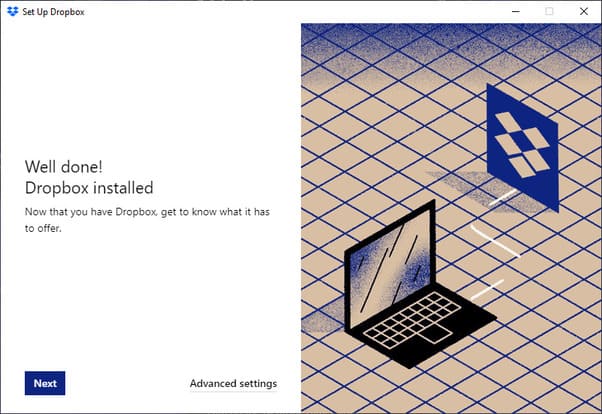
Step 5: Press Change Settings in the Selective Sync section to choose the folders to show on your PC.

Step 6: You can choose to save files locally or save files online on Dropbox. The second option only works if you have a Dropbox Plus subscription.

Step 7: Next, you can select the Windows 10 folders that you want to automatically back up to your Dropbox account. Here, you can only backup system folders like Documents, Pictures, Downloads..

Step 8: Press Setup. You will then see the option to purchase a plan that provides additional Dropbox storage. Basic plan can only use 2GB.
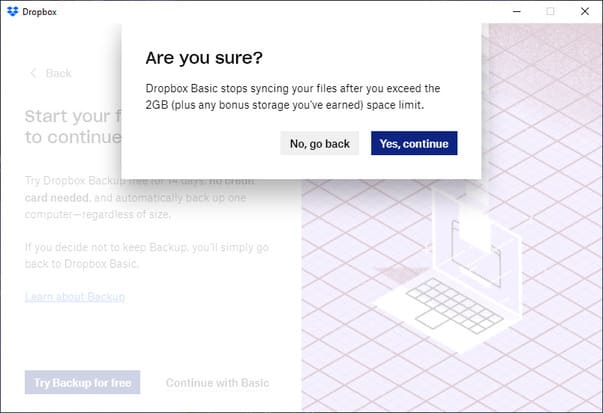
Step 9: Now, if you have OneDrive or other cloud app installed, the problem you will face is automatic backups. For example, if you’ve configured OneDrive to back up your Downloads folder, you won’t be able to sync it in Dropbox. The solution to this is to unlink your PC from OneDrive and remove the app.

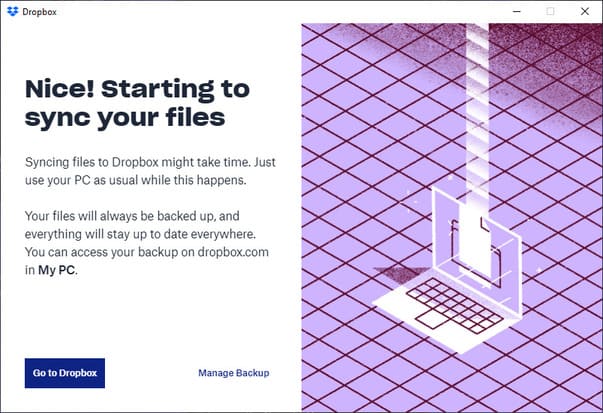
Step 10: You can then tap “Go to Dropbox” to open Dropbox, or go into settings by tapping “Manage Backup.”
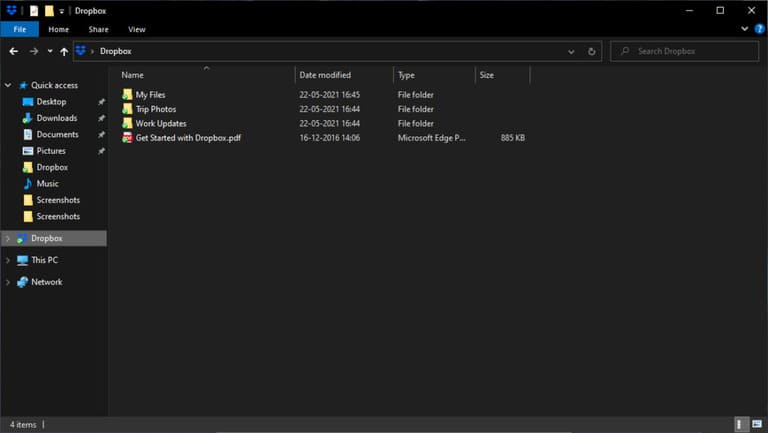
Just like other cloud services, the Dropbox folder will appear in File Explorer in the left menu and provide all the options that a normal folder would. Now all you need to do is copy your files and folders here and it will be synced to Dropbox.
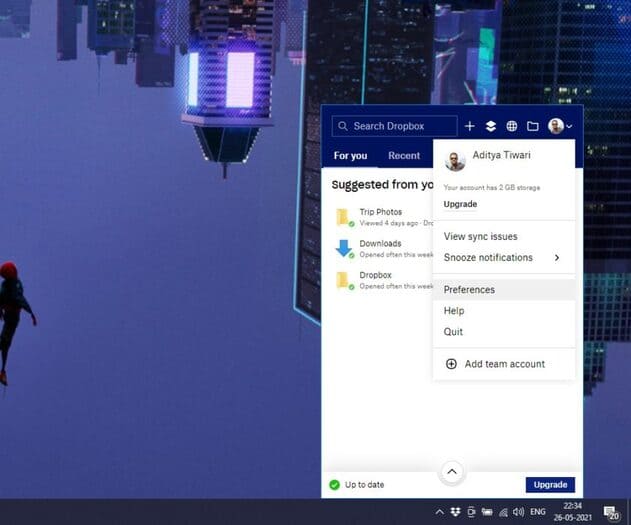
To change settings related to your backup, click the Dropbox icon in the notification area on the Taskbar, then tap your avatar in the upper-right corner, and then click Preferences.
Everything you need to know about how to sync your Windows 10 PC with Dropbox
As mentioned above, you can backup Windows 10 system folders to Dropbox. However, unlike OneDrive, these system folders don’t appear in the Dropbox folder on your PC.
When you open the Dropbox web version in your browser, you’ll see a Windows 10 backup. You can add or remove system folders in Preferences > Backup.

Is Dropbox good for backups?
When it comes to file backups, Dropbox has some plus points over Microsoft OneDrive. For example, OneDrive only lets you select three specific folders from your library for automatic backups, and Dropbox doesn’t.
However, you cannot backup Windows 10 Settings and Themes that you can do on OneDrive. Also, Dropbox’s free plan is only 2GB.
Backup external devices to Dropbox
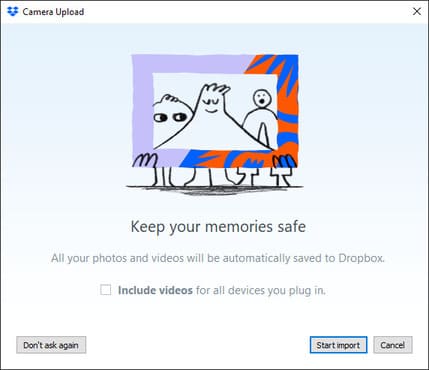
When you connect a hard drive, SSD, or camera, a Dropbox window will appear allowing you to upload files directly to the cloud.
Delete files and folders
It’s important to note that if you delete any file or folder from your Dropbox account, that file or folder will also be deleted from your devices.
Some Dropbox tips on Windows 10
Built-in file transfer tool
In addition to the ability to backup Windows 10 to Dropbox, this storage service also includes a built-in file transfer tool that you can use to share files with users with or without a Dropbox account. This feature is available in the web version and can send up to 100MB. The tool will send a copy of the file so that your original file remains untouched.
Proxy support
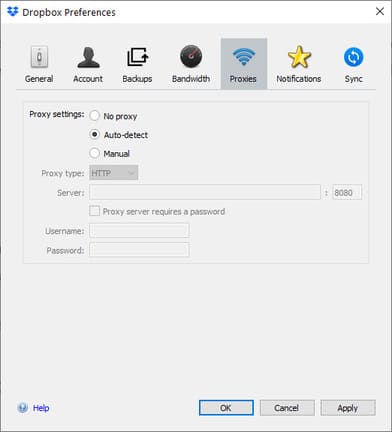
Dropbox Windows 10 also supports proxy connections for cases where you need to hide your IP address or drag and drop is blocked in your country. Click the Dropbox icon > avatar image > Preferences > Proxy.
Some other questions
Can Dropbox do automatic backups?
Yes, Dropbox can automatically back up Windows 10 system folders and connected peripherals including storage drives and cameras.
Can I backup my entire PC to Dropbox?
Even if you have cloud space, you can’t back up your entire Windows 10 installation. To solve this problem, you can create Windows 10 image files and upload it to your cloud storage.
Can Dropbox back up other folders?
Automatic backup on Dropbox only works with system folders. You cannot add folders from other drives on your PC. You can copy them to your Dropbox folder or any system folder.
So you can backup Windows 10 to Dropbox already. Good luck.