How to add or remove columns in File Explorer will help you speed up file management to a new level. Are you tired of having to constantly right-click to view file details? Let’s explore the simple trick below to display all the information you need right away!
| Join the channel Telegram belong to AnonyViet 👉 Link 👈 |
Why customize columns in File Explorer?
Customize columns in File Explorer Windows 11 will help you take full control of your workspace, such as:
Optimized for each type of work
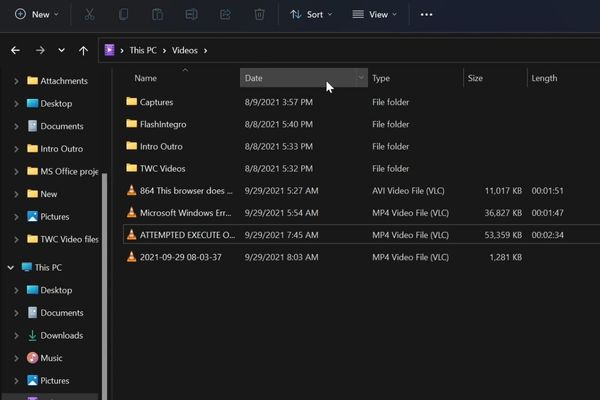
A folder containing photos will need columns like “Date taken” or “Dimensions”. Meanwhile, a document folder needs an “Authors” or “Word count” column. Customization helps you have the most suitable overview.
Save time
Instead of having to open each file to view detailed information, all important data is displayed immediately. You can compare, filter and search faster than ever.
Professional file management
A neatly and scientifically arranged interface not only helps you work more efficiently but also shows professionalism in the way you organize data.
How to add or remove columns in File Explorer for a specific folder
This method is ideal when you only want to change the display for a special project folder or a temporary folder without affecting other folders.
Step 1: First, let’s open File Explorer by pressing a key combination Win + E and navigate to the folder you want to customize. On the top toolbar, click View and make sure you’re selecting the mode Details. This is the only view that displays information as columns.
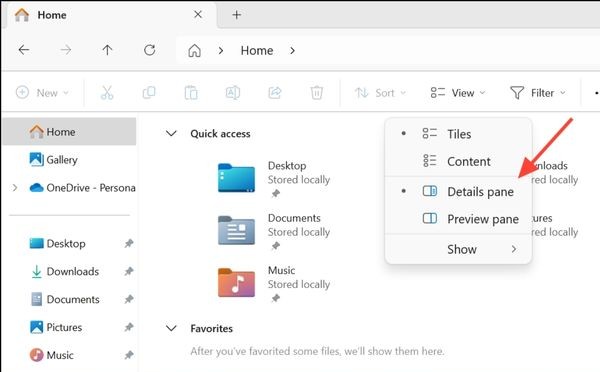
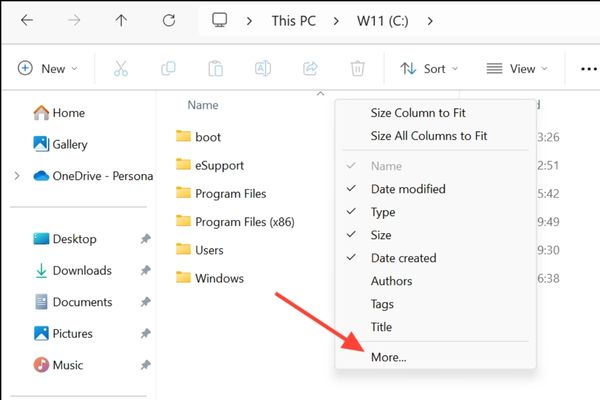
Step 2: Move your mouse pointer to the heading of any existing column (e.g. Name, Date modified, Type) and right-click it.
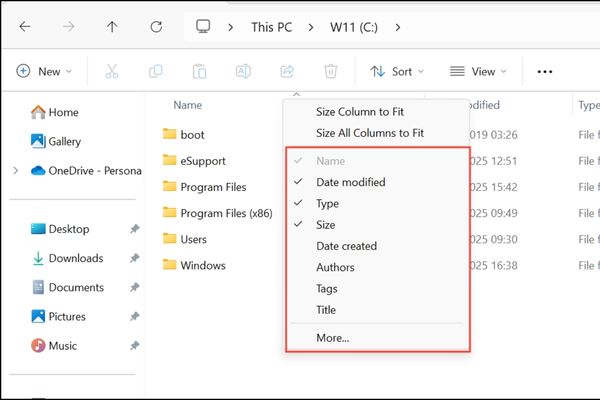
Step 3: In the menu that appears, you will see a list of columns with check marks next to them.
- To add a column: Find the column name you want and click on it. A check mark will appear and that column will be added to the view.
- To hide a column: Find the column name with the check mark and click on it. The check mark will disappear and the column will be hidden.
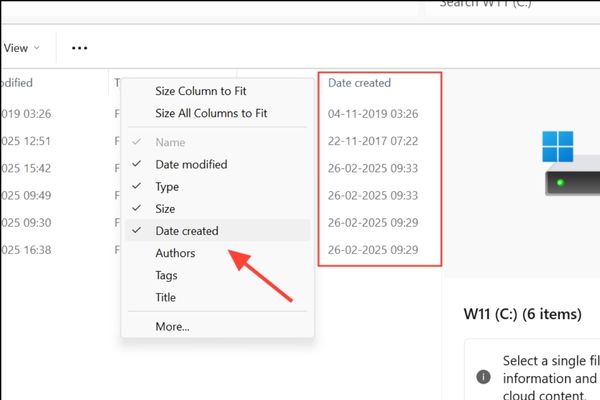
Step 4: If the column you need isn’t in the quick list, don’t worry. Click on options More… at the bottom of the menu.
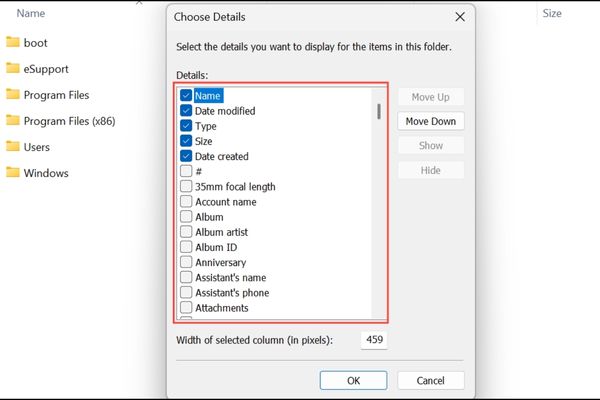
A new window has a name Choose Details opens, displaying a comprehensive list of all the columns of information that Windows supports. Here, you can scroll down, check the boxes to add columns, and uncheck them to remove them.
Step 5: In this window, you can not only add or subtract, but also rearrange the position of columns. Select a column name and use the button Move Up (Move up) and Move Down (Scroll down) to change the priority order. Once you are satisfied with your settings, click OK to save.
How to apply column settings to all folders of the same type
If you want to create a common display standard for all photo folders, or all document folders, this method is for you. Windows classifies folders into 5 main types: General Items (Shared), Documents (Document), Pictures (Image), Music (Music) and Videos.
Step 1: First, choose a representative folder (for example, a folder in the “Pictures” library). Use the steps above to customize the columns exactly how you want. Arrange them in the order you find most reasonable. This will be the “blueprint” for all folders of the same type.
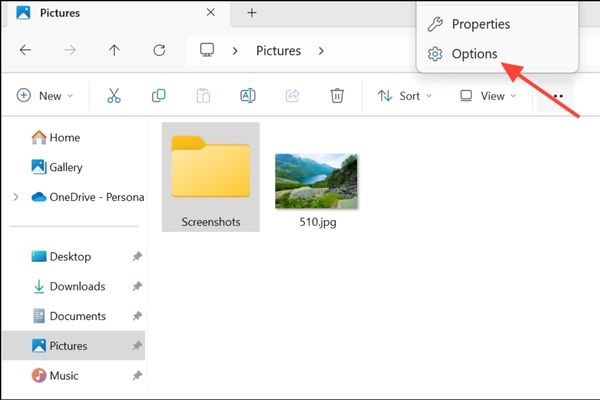
Step 2: Once the sample folder is perfect, click on the icon three dots (…) on the File Explorer toolbar and select Options.
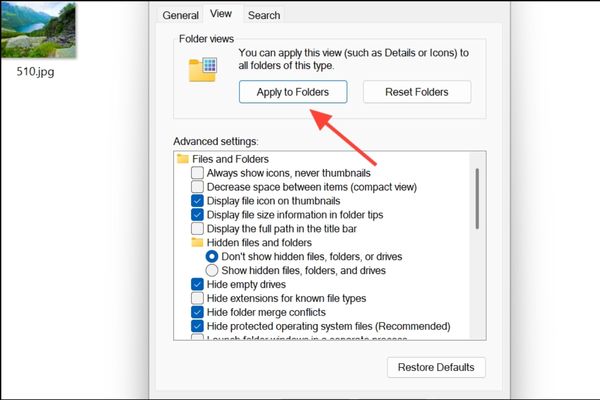
Step 3: Let’s switch to tabs View. Here, you will see an important button Apply to Folders (Applies to Folders). Click on it.
A confirmation dialog will appear, asking if you are sure you want all folders of the same type (for example, all Pictures folders) to have the same display settings as the current folder. Press Yes to confirm.
Step 4: For a consistent experience across your system, you’ll need to repeat this process for each folder type. After setting up “Pictures”, open a folder in “Documents”, customize it, then go again to “Folder Options” and click Apply to Folders. Do the same for Music, Videos, and a public folder (like the C: drive) to cover them all.
Conclusion
How to add or remove columns in File Explorer Really simple but surprisingly effective. Now you can confidently customize the interface as you like, making file management faster and more convenient.