• Home
  • News
  • Software
  • Knowledge
  • MMO
  • Tips
  • Security
  • Network
  • Office
AnonyViet - English Version
  • Home
  • News
  • Software
  • Knowledge
  • MMO
  • Tips
  • Security
  • Network
  • Office
No Result
View All Result
  • Home
  • News
  • Software
  • Knowledge
  • MMO
  • Tips
  • Security
  • Network
  • Office
No Result
View All Result
AnonyViet - English Version
No Result
View All Result

How to add Copilot to the right-click menu on Windows 11

AnonyViet by AnonyViet
November 2, 2023
in Tips
0

Equal How to add Copilot to the right-click menu, you can easily activate and use this feature when needed. In this article, AnonyViet will show you how to do this in just a few simple steps. Let’s get started!

Join the channel Telegram belong to AnonyViet 👉 Link 👈

Introducing Copilot

Copilot is an intelligent virtual assistant developed by Microsoft that can help you find information, entertain, study and work more effectively. You can open Copilot in a variety of ways, such as pressing the taskbar button, using the Windows + C keyboard shortcut, or creating a separate shortcut.

Additionally, you can also add Copilot to the right-click menu (context menu) by modifying the Registry.

Step 1: Click Start > Search for regedit and click the top result to open Registry Editor.

Step 2: Browse to the following path:

HKEY_CLASSES_ROOT\DesktopBackground\Shell

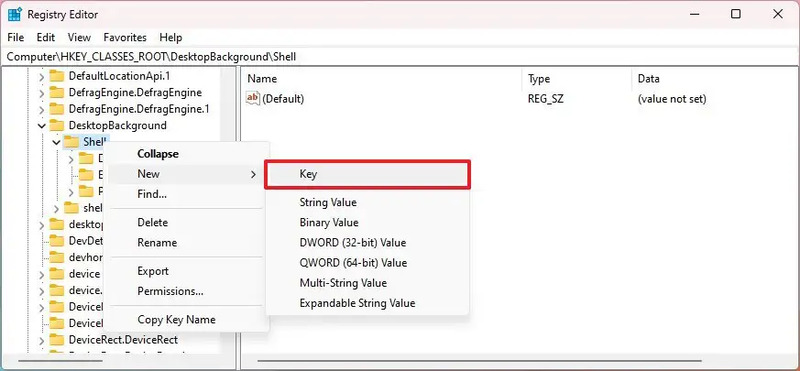
Step 3: Right-click Shell key > Select New > Key
How to add Copilot to the right-click menu
Right-click Shell key > Select New > Key

Step 4: Name it Copilot > Press Enter.

Step 5: Right-click on the newly created key > Select New > String Value

How to add Copilot to the right-click menu
Right-click on the newly created key > Select New > String Value

Step 6: Name it MUIVerb and then Enter

Step 7: Double-click the newly created String and set its value to Copilot > OK

Step 8: Right-click the Copilot key > New > Key

Step 9: Name it command > Enter

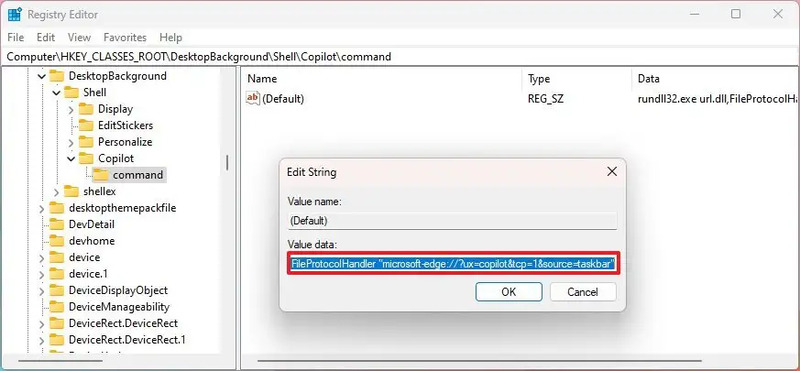
Step 10: Double-click String Value (Default) and set the value to:

rundll32.exe url.dll,FileProtocolHandler “microsoft-edge://?ux=copilot&tcp=1&source=taskbar”
How to add Copilot to the right-click menu

Step 11: Click OK

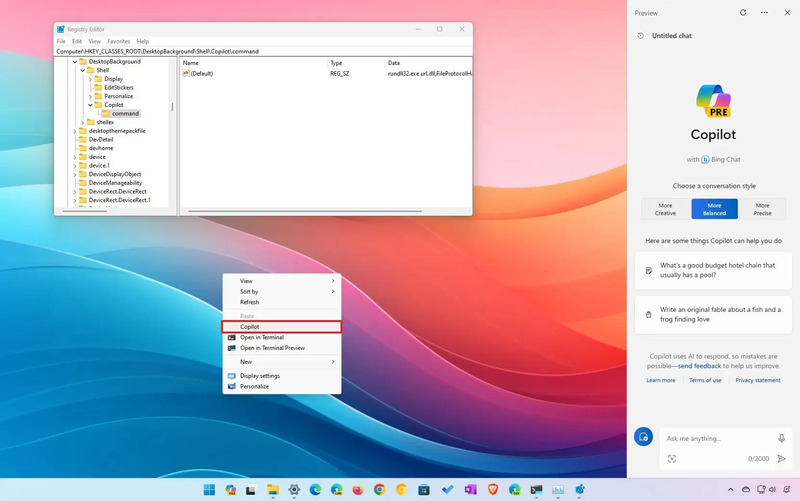
After completing the steps, you can right-click on the desktop and the “Copilot” option will be available from the “Show more options” menu. You can use the keyboard shortcut “Shift + right click” to directly access the context menu.
How to add Copilot to the right-click menu
“Copilot” will be available from the “Show more options” menu

Epilogue

How to add Copilot to the right-click menu It’s not too difficult, just follow the steps I have instructed in this article. With Copilot, you can save time and effort when working on your computer. Try using Copilot today and feel the difference!


Rate this post

Tags: AddCopilotmenurightclickWindows
Previous Post

Tinder’s Matchmaker feature: When friends suddenly become… Cupid

Next Post

Remote Desktop using Microsoft Account Windows 10/11

AnonyViet

AnonyViet

Related Posts

Windows can now run Linux applications
Tips

Windows can now run Linux applications

March 17, 2026
New features of Windows 10 21H1 are coming soon
Tips

New features of Windows 10 21H1 are coming soon

March 16, 2026
How to convert normal music into 8D music with Audioalter
Tips

How to convert normal music into 8D music with Audioalter

March 14, 2026
How to prevent your family’s Security Camera from being hacked
Tips

How to prevent your family’s Security Camera from being hacked

March 13, 2026
Pixel Agents: Turn VS Code into a Pixel Art Office for AI
Tips

Pixel Agents: Turn VS Code into a Pixel Art Office for AI

March 12, 2026
English learning app Memrise is offering a lifetime discount of only 21,000 VND
Tips

English learning app Memrise is offering a lifetime discount of only 21,000 VND

March 11, 2026
Next Post
Remote Desktop using Microsoft Account Windows 10/11

Remote Desktop using Microsoft Account Windows 10/11

0 0 votes
Article Rating
Subscribe
Login
Notify of
guest

guest

0 Comments
Oldest
Newest Most Voted
Inline Feedbacks
View all comments

Recent News

Windows can now run Linux applications

Windows can now run Linux applications

March 17, 2026
How to install extension to remind office workers to drink water

How to install extension to remind office workers to drink water

March 17, 2026
Why are iPhones and MacBooks still the number 1 “weapons” of the technology world?

Why are iPhones and MacBooks still the number 1 “weapons” of the technology world?

March 16, 2026
New features of Windows 10 21H1 are coming soon

New features of Windows 10 21H1 are coming soon

March 16, 2026
Windows can now run Linux applications

Windows can now run Linux applications

March 17, 2026
How to install extension to remind office workers to drink water

How to install extension to remind office workers to drink water

March 17, 2026
Why are iPhones and MacBooks still the number 1 “weapons” of the technology world?

Why are iPhones and MacBooks still the number 1 “weapons” of the technology world?

March 16, 2026
AnonyViet - English Version

AnonyViet

AnonyViet is a website share knowledge that you have never learned in school!

We are ready to welcome your comments, as well as your articles sent to AnonyViet.

Follow Us

Contact:

Email: anonyviet.com[@]gmail.com

Main Website: https://anonyviet.com

Recent News

Windows can now run Linux applications

Windows can now run Linux applications

March 17, 2026
How to install extension to remind office workers to drink water

How to install extension to remind office workers to drink water

March 17, 2026
No Result
View All Result
  • Home
  • News
  • Software
  • Knowledge
  • MMO
  • Tips
  • Security
  • Network
  • Office

wpDiscuz
0
0
Would love your thoughts, please comment.x
()
x
| Reply