• Home
  • News
  • Software
  • Knowledge
  • MMO
  • Tips
  • Security
  • Network
  • Office
AnonyViet - English Version
  • Home
  • News
  • Software
  • Knowledge
  • MMO
  • Tips
  • Security
  • Network
  • Office
No Result
View All Result
  • Home
  • News
  • Software
  • Knowledge
  • MMO
  • Tips
  • Security
  • Network
  • Office
No Result
View All Result
AnonyViet - English Version
No Result
View All Result

How to add and subtract time in Microsoft Excel

AnonyViet by AnonyViet
January 1, 2023
in Office
0

In Microsoft Excel there is a lot of knowledge and extremely useful tools for your life. For example, you can see the whole time with just a few small operations. Add and subtract the above time Microsoft Excel so you can see how much time you’ve spent at your job. Read the article to understand better.

How to add and subtract time in Microsoft Excel

How to add and subtract time in Microsoft Excel

Add time in Microsoft Excel

This will combine formulas and formats to calculate exact time totals in Excel.

Format hour and minute cells

Note that we will be using the H:MM structure to stay in sync with the current hours and minutes. Although Excel will recognize it as you enter data, you can always make sure by formatting your cells.

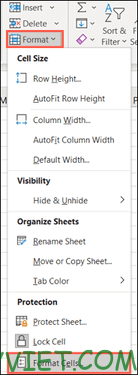
Select the cells and right click and select “Format Cells” or go to Home, select “Format” in the toolbar and select “Format Cells”.
How to add and subtract time in Microsoft Excel 15

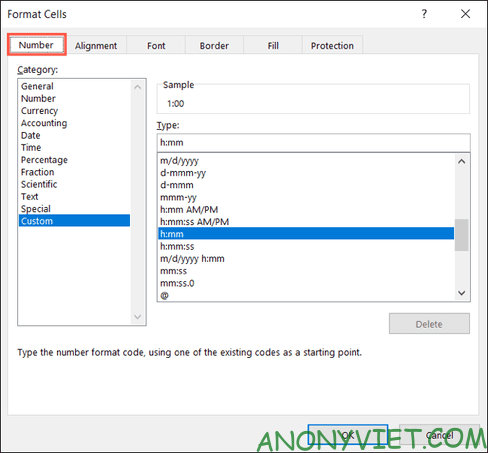
In the Format Cells window, make sure you’re on the Number tab. Then select “Custom” in Category. Next, select “h:mm” from the list or enter the format in the Type box.
How to add and subtract time in Microsoft Excel 16

Click “OK” to apply the formatting to the cells.

Add time using the formula

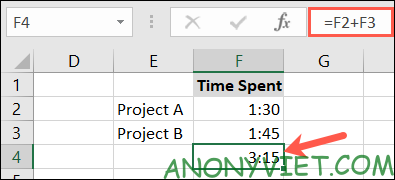
Select the cell where you want to enter your time. Enter the following formula, replacing the cell references with the cells you want.

=F2+F3

Press Enter to apply the formula and you’ll see your total hours and minutes for those cells.
more time

Add time using Sum . function

If you have many cells of data, use the SUM function, which is the easiest choice for you.

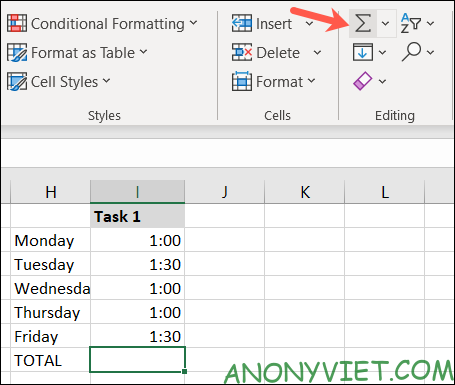
Select the cell at the end of the column of data. Go to the Home tab and select “Sum” (formerly named “AutoSum”).
How to add and subtract time in Microsoft Excel 17

Excel will identify the cells that you want to sum. Otherwise, just drag over the cells containing your time to fill in the formula and press Enter.
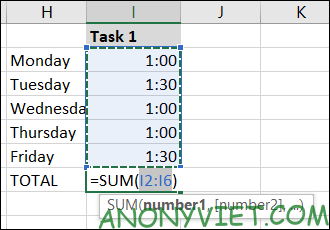
How to add and subtract time in Microsoft Excel 18

You will see the total hours and minutes of the data cells.
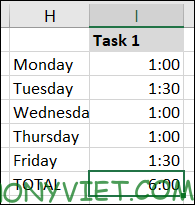
How to add and subtract time in Microsoft Excel 19

24-hour time format

When you add cells that use 24-hour time, you will most likely get incorrect results. To avoid this, you can format the cell containing the result.

Select the cell containing the formula. Right click and select “Format Cells”, or you can choose Home > Format > Format Cells.

In the Format Cells window, select the Number tab, then click “Custom” in the Category and select “[h]:mm;@”.
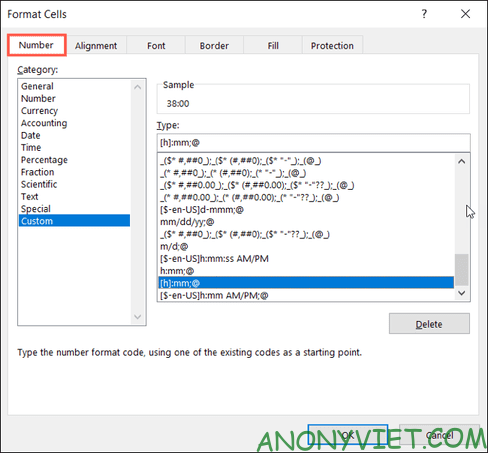
How to add and subtract time in Microsoft Excel 20

Click “OK” to apply the formatting to the cell. You will then see accurate results for cells using 24 hours.
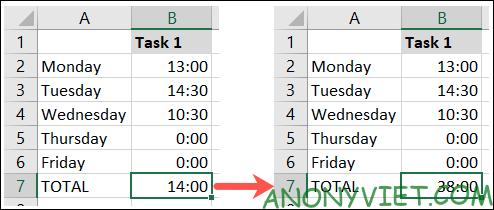
How to add and subtract time in Microsoft Excel 21

Subtract time in Microsoft Excel

You can also subtract the end time from the project start time in Excel.

Format time cells

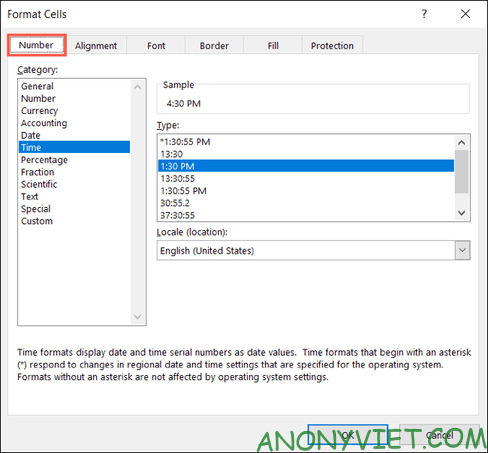
Just like when adding hours and minutes, make sure your time cells are formatted correctly. In this case, you would format the time to 4:30 am.

Select cells that contain data. Right-click and select “Format Cells”, or you can choose Home > Format > Format Cells.

In the Format Cells window, on the Number tab, select “Time” under Category. Select “1:30 PM” for hour and minute format.
How to add and subtract time in Microsoft Excel 22

Click “OK” to apply the formatting to your cells.

Except time

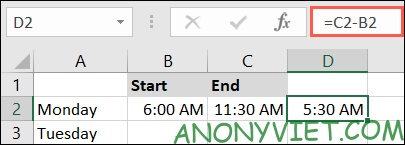
Select the cell you want and enter the following formula, replacing the cell references with your own.

=C2-B2

Press Enter to apply the formula.

Next, you may need to format the cell in hours and minutes to show the total time spent. By default, your results may show up according to the time of day.
Except time

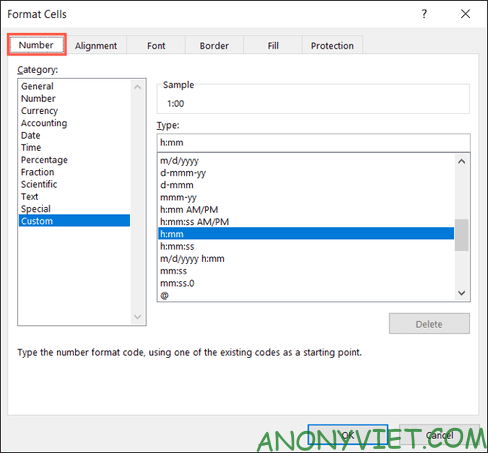
Select the cell containing the formula, right-click and select “Format Cells” or you can choose Home > Format > Format Cells.

In the Format Cells window, on the Number tab, select “Custom” in the category. Select “h:mm” or enter this format in Type and select “OK”.
How to add and subtract time in Microsoft Excel 23

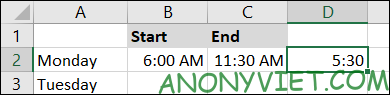
You will then see the number of hours and minutes that you have used.How to add and subtract time in Microsoft Excel 24
In addition, you can also refer to the free Excel course here.

The article achieved: 5/5 – (100 votes)

Tags: AddExcelMicrosoftsubtracttime
Previous Post

What is Haa La Tea? What does Tea Seed on TikTok mean?

Next Post

How to receive a Voucher of VND 50,000,000 to buy a beautiful MBBank account

AnonyViet

AnonyViet

Related Posts

How to add Watermark to Google Docs to protect copyright
Office

How to add Watermark to Google Docs to protect copyright

April 19, 2026
Instructions on how to hide formulas in Excel to secure data
Office

Instructions on how to hide formulas in Excel to secure data

February 6, 2026
Top who creates the most beautiful presentation slide today
Office

Top who creates the most beautiful presentation slide today

September 23, 2025
Automatically check and correct spelling errors on Google Docs
Office

Automatically check and correct spelling errors on Google Docs

February 23, 2025
Instructions for downloading Google Docs files easily on any device
Office

Instructions for downloading Google Docs files easily on any device

December 18, 2024
Launching AI image creation feature on Google Docs
Office

Launching AI image creation feature on Google Docs

November 20, 2024
Next Post
How to receive a Voucher of VND 50,000,000 to buy a beautiful MBBank account

How to receive a Voucher of VND 50,000,000 to buy a beautiful MBBank account

0 0 votes
Article Rating
Subscribe
Login
Notify of
guest

guest

0 Comments
Oldest
Newest Most Voted
Inline Feedbacks
View all comments

Recent News

Instructions for receiving Lovable Pro 12 months for free

Instructions for receiving Lovable Pro 12 months for free

May 29, 2026
How to extract text from photos using Zalo is super simple

How to extract text from photos using Zalo is super simple

May 29, 2026
HONOR 600 in hand – High-end design, 200MP camera, not cheap price

HONOR 600 in hand – High-end design, 200MP camera, not cheap price

May 28, 2026
Instructions for getting 4 months of Adobe copyright for free

Instructions for getting 4 months of Adobe copyright for free

May 28, 2026
Instructions for receiving Lovable Pro 12 months for free

Instructions for receiving Lovable Pro 12 months for free

May 29, 2026
How to extract text from photos using Zalo is super simple

How to extract text from photos using Zalo is super simple

May 29, 2026
HONOR 600 in hand – High-end design, 200MP camera, not cheap price

HONOR 600 in hand – High-end design, 200MP camera, not cheap price

May 28, 2026
AnonyViet - English Version

AnonyViet

AnonyViet is a website share knowledge that you have never learned in school!

We are ready to welcome your comments, as well as your articles sent to AnonyViet.

Follow Us

Contact:

Email: anonyviet.com[@]gmail.com

Main Website: https://anonyviet.com

Recent News

Instructions for receiving Lovable Pro 12 months for free

Instructions for receiving Lovable Pro 12 months for free

May 29, 2026
How to extract text from photos using Zalo is super simple

How to extract text from photos using Zalo is super simple

May 29, 2026
No Result
View All Result
  • Home
  • News
  • Software
  • Knowledge
  • MMO
  • Tips
  • Security
  • Network
  • Office

wpDiscuz
0
0
Would love your thoughts, please comment.x
()
x
| Reply