• Home
  • News
  • Software
  • Knowledge
  • MMO
  • Tips
  • Security
  • Network
  • Office
AnonyViet - English Version
  • Home
  • News
  • Software
  • Knowledge
  • MMO
  • Tips
  • Security
  • Network
  • Office
No Result
View All Result
  • Home
  • News
  • Software
  • Knowledge
  • MMO
  • Tips
  • Security
  • Network
  • Office
No Result
View All Result
AnonyViet - English Version
No Result
View All Result

How to activate Windows SandBox to create a virtual environment on Windows 10

AnonyViet by AnonyViet
October 28, 2025
in Tips
0

How many times have you downloaded a file but didn’t dare run it for fear of viruses? You want to install a virtual machine but don’t want to install VMWare or Hyper V. Since Windows 10 build 18305, Microsoft has integrated Windows Sandbox to create a virtual testing environment for users.

Join the channel Telegram belong to AnonyViet 👉 Link 👈

This feature has the basic function of virtual machine. Applications installed and running on Windows Sandbox will not affect the hard drive or Windows operations. Windows Sandbox can check for active applications that interfere with or sabotage the operation of the operating system. This helps protect you, and helps you decide whether to run on the real operating system or not. Besides, it helps you increase information protection when surfing the web.

Common examples is when you download Keygen or Path from the Internet. You just need to Copy the Keygen into SandBox to get the Key and then turn off SandBox. If the Keygen has a virus attached, Windows will not be affected

Windows Sandbox has the following basic features:

  • As part of Windows: Has all the basic features of Windows 10 Pro and Enterprise. You do not need to use additional VHD.
  • Pristine: Windows Sandbox operates independently of the operating system. You have an additional virtual Windows 10 in real Windows 10.
  • Disposable: When you close the application in Sanbbox everything will be deleted.
  • Doesn’t take up a lot of resources: Hardware-based virtualization to isolate the kernel, based on Microsoft’s hypervisor to run a separate kernel, isolating Windows Sandbox from the real machine.
  • Effective: Integrated kernel, intelligent memory management and virtual GPU.

Configuration required to use Windows Sandbox

  • Windows 10 Pro or Enterprise Insider build 18305 or later
  • AMD64 architecture
  • Virtualization capabilities are enabled in BIOS
  • At least 4GB of RAM (8GB recommended)
  • At least 1 GB of free disk space (SSD recommended)
  • At least 2 CPU cores (4 cores recommended with hyper-threading)

How to enable the SandBox feature to create a testing environment on Windows 10

To check if your BIOS is eligible to use Windows SandBox, you need to open it Task Manager up (Ctrl+Shift+Esc). Select the tab Performance. Look below if you see it Virtualization: Enabled Windows supports it. If it is disabled, please open it in BIOS.

How to activate Windows SandBox to create a virtual environment on Windows 10 7

Next step, open Control Panel (instruct) > Programs > Turn Windows Features On or Off. Scroll down check enter Windows Sandbox. Select OK and restart Windows

How to activate Windows SandBox to create a virtual environment on Windows 10 8

After restarting Windows, click the button Start (or the Windows key on the keyboard) type Sandboxand click on the Sandbox icon to start. You may be asked to enter Administrator rights to operate.
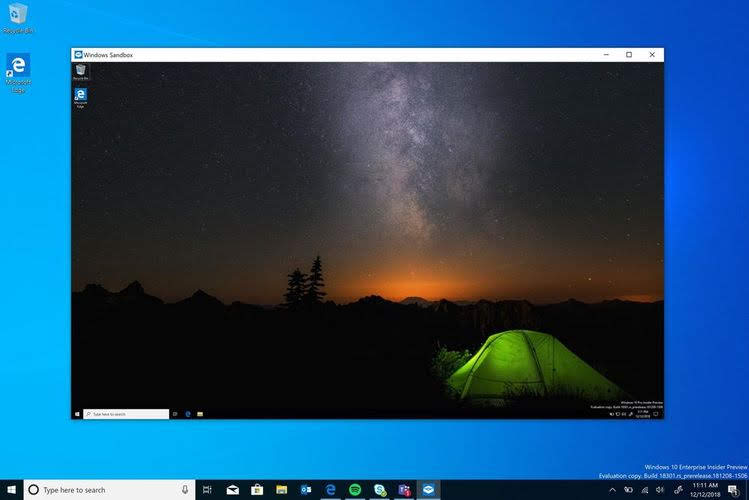
How to activate Windows SandBox to create a virtual environment on Windows 10 9

Now, copy the files suspected of being Viruses, or the software you want to test into SandBox’s virtual machine and run them. If there is a virus, real Windows will not be infected. In that case, you just need to restart SandBox and everything will be restored as before.

You can see more Details at Microsoft. Or you can use it Sandboxie to create a second SandBox environment.

Frequently asked questions

Is Windows Sandbox safe?

Completely safe! Windows Sandbox is a separate virtual environment, completely isolated from the main operating system. Any activity that takes place in the Sandbox will not affect your data or systems. When you close Sandbox, all data and applications will be deleted.

How do I configure my computer to use Windows Sandbox?

You need Windows 10 Pro or Enterprise (build 18305 or later), virtualization enabled in the BIOS, at least 4GB of RAM (8GB recommended), at least 1GB of free disk space (SSD recommended), and at least 2 CPU cores (4 cores recommended with hyper-threading).

If I close Windows Sandbox, what happens to my data?

All data and applications inside Windows Sandbox will be completely deleted when you close it. This is an important security feature of Windows Sandbox, ensuring the safety of your system.


Previous Post

How to handle when your phone number is registered by someone else on Zalo

Next Post

How to download Facebook Messenger messages to your computer

AnonyViet

AnonyViet

Related Posts

How to add sliders to Facebook Stories to easily rewind videos
Tips

How to add sliders to Facebook Stories to easily rewind videos

April 21, 2026
How to change the default font on Windows 10
Tips

How to change the default font on Windows 10

April 13, 2026
5 tips for using a Browser to replace an App (helps save RAM, time and money)
Tips

5 tips for using a Browser to replace an App (helps save RAM, time and money)

April 13, 2026
How to make funny MeMe photos without Photoshop within 10 seconds
Tips

How to make funny MeMe photos without Photoshop within 10 seconds

April 11, 2026
How to quickly design your own Logo without Photoshop
Tips

How to quickly design your own Logo without Photoshop

April 10, 2026
How to convert Website into App on Windows
Tips

How to convert Website into App on Windows

April 9, 2026
Next Post
How to download Facebook Messenger messages to your computer

How to download Facebook Messenger messages to your computer

0 0 votes
Article Rating
Subscribe
Login
Notify of
guest

guest

0 Comments
Oldest
Newest Most Voted
Inline Feedbacks
View all comments

Recent News

Decoding the problem of 4GB RAM and processing performance

Decoding the problem of 4GB RAM and processing performance

April 21, 2026
How to add sliders to Facebook Stories to easily rewind videos

How to add sliders to Facebook Stories to easily rewind videos

April 21, 2026
Reputable LG repair service in Hanoi & Ho Chi Minh City with LGservicecenter

Reputable LG repair service in Hanoi & Ho Chi Minh City with LGservicecenter

April 21, 2026
Japanese Watch Week: Choose the color that suits your destiny, start the new year well at Mobile World

Japanese Watch Week: Choose the color that suits your destiny, start the new year well at Mobile World

April 20, 2026
Decoding the problem of 4GB RAM and processing performance

Decoding the problem of 4GB RAM and processing performance

April 21, 2026
How to add sliders to Facebook Stories to easily rewind videos

How to add sliders to Facebook Stories to easily rewind videos

April 21, 2026
Reputable LG repair service in Hanoi & Ho Chi Minh City with LGservicecenter

Reputable LG repair service in Hanoi & Ho Chi Minh City with LGservicecenter

April 21, 2026
AnonyViet - English Version

AnonyViet

AnonyViet is a website share knowledge that you have never learned in school!

We are ready to welcome your comments, as well as your articles sent to AnonyViet.

Follow Us

Contact:

Email: anonyviet.com[@]gmail.com

Main Website: https://anonyviet.com

Recent News

Decoding the problem of 4GB RAM and processing performance

Decoding the problem of 4GB RAM and processing performance

April 21, 2026
How to add sliders to Facebook Stories to easily rewind videos

How to add sliders to Facebook Stories to easily rewind videos

April 21, 2026
No Result
View All Result
  • Home
  • News
  • Software
  • Knowledge
  • MMO
  • Tips
  • Security
  • Network
  • Office

wpDiscuz
0
0
Would love your thoughts, please comment.x
()
x
| Reply