
• Home
  • News
  • Software
  • Knowledge
  • MMO
  • Tips
  • Security
  • Network
  • Office
AnonyViet - English Version
  • Home
  • News
  • Software
  • Knowledge
  • MMO
  • Tips
  • Security
  • Network
  • Office
No Result
View All Result
  • Home
  • News
  • Software
  • Knowledge
  • MMO
  • Tips
  • Security
  • Network
  • Office
No Result
View All Result
AnonyViet - English Version
No Result
View All Result

How to activate the End Task feature on the Taskbar

AnonyViet by AnonyViet
May 11, 2024
in Tips
0

When an application is unresponsive on Windows, we often use preferences End Task to force close the app and restart. However, previously the only way to end a task was through Task Manager, but now you can add the 'End Task' button directly to the Taskbar in Windows 11. Enabling this option is very simple. , let's discover how to do it right below!

Join the channel Telegram belong to AnonyViet 👉 Link 👈

What is the difference between Close Window and End Task?

Both Close Window and End Task are actions applied to stop the operation of a program on Windows. However, there are important differences between them:

  • Close Window only turns off the program's interface, while the program remains active in the background.
  • End Task will stop all program activities, from the interface to background processes.
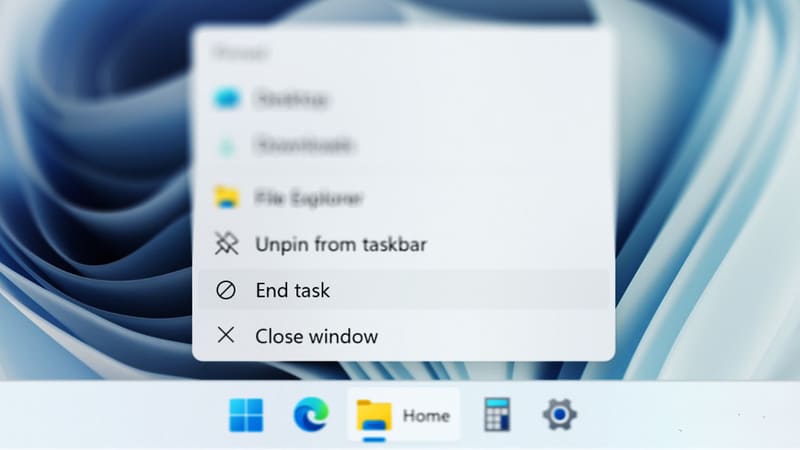
End Task
Difference between Close Window and End Task

For example, when you are using a browser and have multiple tabs open. When you click the Close button in the top right corner of a tab, only that tab will close, while the browser will still run in the background.

Meanwhile, selecting End Task from Task Manager or the Taskbar will completely shut down the browser. This is a method commonly used when the program is unresponsive and cannot be closed via Close Window.

How to activate the End Task feature on the Taskbar

Method 1: Through Settings

Step 1: Open the Settings app (press Windows + I)

Step 2: Select System > 'For developers'
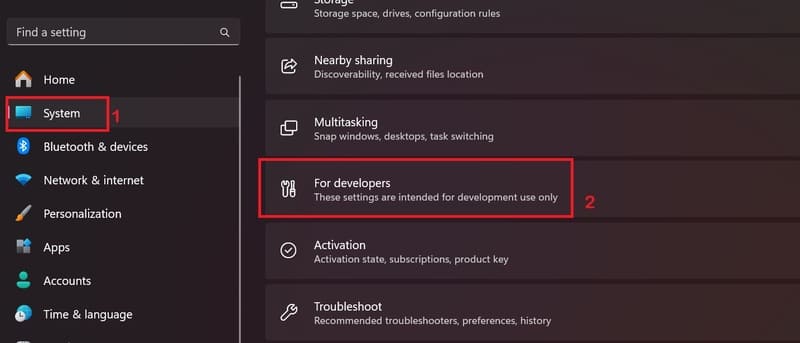
End Task
Select System > 'For developers'

Step 3: Enable activation in 'End Task' section.
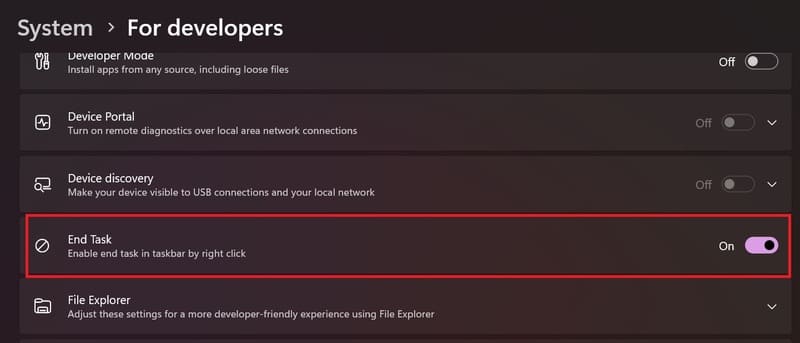
End Task
Enable activation in 'End Task' section.

Now, when you right-click on the icon of a running application from the Taskbar, you will see the End Task option in the context menu. Use it to force close any app if it becomes unresponsive.
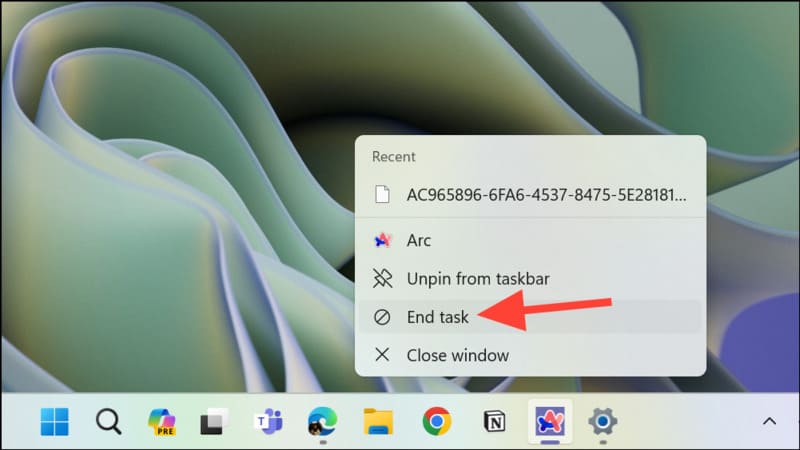
End Task
Enable the End Task feature on the Taskbar

Method 2: Through Registry Editor

If you cannot use the above method to get the End Task button for Taskbar, you can also change the value of the TaskbarEndTask key in the Registry Editor. The steps are as follows:

Note: You should not change the Registry unless there is no other choice. Also, before making any changes, always create a backup first.

Step 1: Open the Run application by pressing Windows + R

Step 2: Type regedit > Press Enter to open the Registry Editor window.

Step 3: Paste the following address > Press Enter

HKCU\Software\Microsoft\Windows\CurrentVersion\Explorer\Advanced\TaskbarDeveloperSettings

Step 4: Double click on DWORD 'TaskbarEndTask' in the right pane.
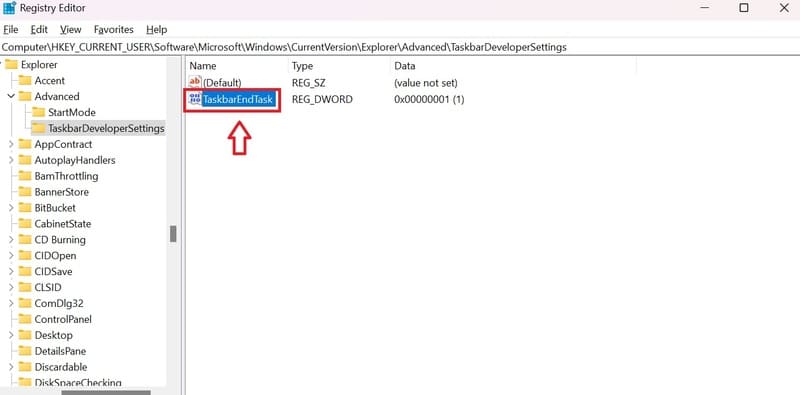
End Task
Double click on DWORD 'TaskbarEndTask'

Step 5: Change the value in the Value data section to 1 and click 'OK'.
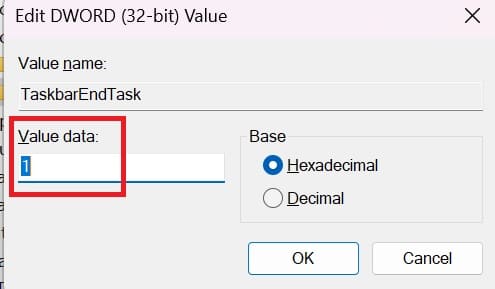
End Task
Value data becomes 1

Step 6: Restart the computer to apply the changes.

Epilogue

How to activate the feature End Task on the Taskbar makes it easy to close unresponsive applications. Thanks to that, task management becomes more flexible and effective, bringing the best computer experience to users.


Tags: activatefeatureTaskTaskbar
Previous Post

Change Windows 8.1/8 boot logo

Next Post

Set up an Ad Hoc wireless network on Windows 7

AnonyViet

AnonyViet

Related Posts

How to record reaction videos with Android phones, no app needed
Tips

How to record reaction videos with Android phones, no app needed

June 1, 2026
Instructions on how to get Google AI Pro 1 year for free for new accounts
Tips

Instructions on how to get Google AI Pro 1 year for free for new accounts

June 1, 2026
Top free AI tools to help write, test and optimize content
Tips

Top free AI tools to help write, test and optimize content

June 1, 2026
Instructions for receiving Lovable Pro 12 months for free
Tips

Instructions for receiving Lovable Pro 12 months for free

May 29, 2026
Instructions for receiving 1 month of ElevenLabs Creator for free worth
Tips

Instructions for receiving 1 month of ElevenLabs Creator for free worth $22

May 25, 2026
How to create beautiful studio-like preschool graduation photos for your child
Tips

How to create beautiful studio-like preschool graduation photos for your child

May 21, 2026
Next Post

Set up an Ad Hoc wireless network on Windows 7

0 0 votes
Article Rating
Subscribe
Login
Notify of
guest

guest

0 Comments
Oldest
Newest Most Voted
Inline Feedbacks
View all comments

Recent News

How to record reaction videos with Android phones, no app needed

How to record reaction videos with Android phones, no app needed

June 1, 2026
Instructions on how to get Google AI Pro 1 year for free for new accounts

Instructions on how to get Google AI Pro 1 year for free for new accounts

June 1, 2026
Top free AI tools to help write, test and optimize content

Top free AI tools to help write, test and optimize content

June 1, 2026
TruyenDrive: Turn Google Drive into a professional manga reader

TruyenDrive: Turn Google Drive into a professional manga reader

May 31, 2026
How to record reaction videos with Android phones, no app needed

How to record reaction videos with Android phones, no app needed

June 1, 2026
Instructions on how to get Google AI Pro 1 year for free for new accounts

Instructions on how to get Google AI Pro 1 year for free for new accounts

June 1, 2026
Top free AI tools to help write, test and optimize content

Top free AI tools to help write, test and optimize content

June 1, 2026
AnonyViet - English Version

AnonyViet

AnonyViet is a website share knowledge that you have never learned in school!

We are ready to welcome your comments, as well as your articles sent to AnonyViet.

Follow Us

Contact:

Email: anonyviet.com[@]gmail.com

Main Website: https://anonyviet.com

Recent News

How to record reaction videos with Android phones, no app needed

How to record reaction videos with Android phones, no app needed

June 1, 2026
Instructions on how to get Google AI Pro 1 year for free for new accounts

Instructions on how to get Google AI Pro 1 year for free for new accounts

June 1, 2026
No Result
View All Result
  • Home
  • News
  • Software
  • Knowledge
  • MMO
  • Tips
  • Security
  • Network
  • Office

wpDiscuz
0
0
Would love your thoughts, please comment.x
()
x
| Reply




