• Home
  • News
  • Software
  • Knowledge
  • MMO
  • Tips
  • Security
  • Network
  • Office
AnonyViet - English Version
  • Home
  • News
  • Software
  • Knowledge
  • MMO
  • Tips
  • Security
  • Network
  • Office
No Result
View All Result
  • Home
  • News
  • Software
  • Knowledge
  • MMO
  • Tips
  • Security
  • Network
  • Office
No Result
View All Result
AnonyViet - English Version
No Result
View All Result

Change Windows 8.1/8 boot logo

AnonyViet by AnonyViet
May 10, 2024
in Tips
0

16

Join the channel Telegram belong to AnonyViet 👉 Link 👈

When you start the computer, the system will start the BIOS to check the devices, this check is called POST (Power-on Self Test). After checking the hardware devices, the system will detect the Master Boot Record file in the drive to load the operating system.

Boot Screen is the waiting screen while starting the operating system. The boot screen contains the operating system logo (Microsoft, Linux, Mac) or the manufacturer's logo (OEM: Asus, Acer, Vaio).

Changing the logo to your liking is no longer difficult for users. Below I will guide you to change the logo of the Windows 8.1/8 operating system easily using the program. 8oot Logo Changer.

1) Download the program here This

2) Proceed with installation:

first

  • Select the installation path

2

3

  • Finish installation and run

4

3) Backup the system logo before proceeding

  • Bitmaps tab, click backup to backup

5

6

4) Proceed to change the logo

  • Select Load Picture –> Find the photo you want to make the logo

9

  • After uploading the image, crop the image, then select the “>” sign to load into the program.

ten

  • Next step is through the Testmode tab to turn on the Testsigning mode feature, this feature allows you to change the logo in the system -> Select “Turn it ON or OFF”

8 2

8 3

  • Via the Bitmaps tab, select “Generate bootres.dll”, to force your image into the bootres file

13

  • Final step, restart Windows

15

Previous Post

Instructions for setting up notifications when the battery is full for iPhone

Next Post

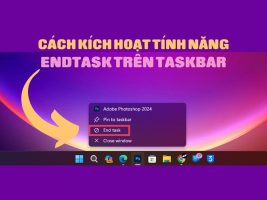
How to activate the End Task feature on the Taskbar

AnonyViet

AnonyViet

Related Posts

Instructions for registering for OxionAI Pro for 1 year with many powerful AI models
Tips

Instructions for registering for OxionAI Pro for 1 year with many powerful AI models

October 24, 2026
How are Windows 11 Pro and Windows 10 Pro different?
Tips

How are Windows 11 Pro and Windows 10 Pro different?

October 23, 2026
Instructions for using CleanYourTV: Remove ads on Android TV, Google TV
Tips

Instructions for using CleanYourTV: Remove ads on Android TV, Google TV

October 23, 2026
How to use Messenger without a Facebook account
Tips

How to use Messenger without a Facebook account

October 22, 2026
The website helps you draw beautifully like TikToker Viet My
Tips

The website helps you draw beautifully like TikToker Viet My

October 21, 2026
Instructions on how to hard reset iPhone 18 Pro / iPhone 18 Pro Max
Tips

Instructions on how to hard reset iPhone 18 Pro / iPhone 18 Pro Max

October 21, 2026
Next Post
How to activate the End Task feature on the Taskbar

How to activate the End Task feature on the Taskbar

0 0 votes
Article Rating
Subscribe
Login
Notify of
guest

guest

0 Comments
Oldest
Newest Most Voted

Recent News

Instructions for registering for OxionAI Pro for 1 year with many powerful AI models

Instructions for registering for OxionAI Pro for 1 year with many powerful AI models

October 24, 2026
How are Windows 11 Pro and Windows 10 Pro different?

How are Windows 11 Pro and Windows 10 Pro different?

October 23, 2026
Instructions for using CleanYourTV: Remove ads on Android TV, Google TV

Instructions for using CleanYourTV: Remove ads on Android TV, Google TV

October 23, 2026
Receive copyright for 3 Halloween software worth 0

Receive copyright for 3 Halloween software worth $150

October 23, 2026
Instructions for registering for OxionAI Pro for 1 year with many powerful AI models

Instructions for registering for OxionAI Pro for 1 year with many powerful AI models

October 24, 2026
How are Windows 11 Pro and Windows 10 Pro different?

How are Windows 11 Pro and Windows 10 Pro different?

October 23, 2026
Instructions for using CleanYourTV: Remove ads on Android TV, Google TV

Instructions for using CleanYourTV: Remove ads on Android TV, Google TV

October 23, 2026
AnonyViet - English Version

AnonyViet

AnonyViet is a website share knowledge that you have never learned in school!

We are ready to welcome your comments, as well as your articles sent to AnonyViet.

Follow Us

Contact:

Email: anonyviet.com[@]gmail.com

Main Website: https://anonyviet.com

Recent News

Instructions for registering for OxionAI Pro for 1 year with many powerful AI models

Instructions for registering for OxionAI Pro for 1 year with many powerful AI models

October 24, 2026
How are Windows 11 Pro and Windows 10 Pro different?

How are Windows 11 Pro and Windows 10 Pro different?

October 23, 2026
  • Home
  • Home 2
  • Home 3
  • Home 4
  • Home 5
  • Home 6
  • Next Dest Page
  • Sample Page

say88 tỷ lệ kèo nhà cái kèo nhà cái 5 febet

No Result
View All Result
  • Home
  • News
  • Software
  • Knowledge
  • MMO
  • Tips
  • Security
  • Network
  • Office

say88 tỷ lệ kèo nhà cái kèo nhà cái 5 febet

wpDiscuz
0
0
Would love your thoughts, please comment.x
()
x
| Reply