• Home
  • News
  • Software
  • Knowledge
  • MMO
  • Tips
  • Security
  • Network
  • Office
AnonyViet - English Version
  • Home
  • News
  • Software
  • Knowledge
  • MMO
  • Tips
  • Security
  • Network
  • Office
No Result
View All Result
  • Home
  • News
  • Software
  • Knowledge
  • MMO
  • Tips
  • Security
  • Network
  • Office
No Result
View All Result
AnonyViet - English Version
No Result
View All Result

Guide to create voice from text on google ai studio

AnonyViet by AnonyViet
May 24, 2025
in Knowledge
0

The technology of converting text into voice (text-to-speech, TTS) is becoming increasingly popular, especially in education, entertainment and content creation. With Create speech from text on google ai studioyou can easily create true conversations without wasting.

Join the channel Telegram belong to Anonyviet 👉 Link 👈

What is Google Ai Studio?

Google Ai Studio As a platform developed by Google, allowing users to take advantage of advanced artificial intelligence tools to create content, including creating speech from text on Google AI Studio. Special features? This feature is completely free, helping teachers, content creators, or anyone who wants to try TTS technology can access easily.

Unlike paid platforms like Elevenlabs or Openai TTS, Google Ai Studio offers a simple, intuitive, and effective solution. You only need a few steps to be able to turn text into vivid sound, suitable for English lectures, podcasts, or creative videos.

What is Google Ai Studio?

Why use Google ai Studio to create speech from text?

Before going into the instructions, take a look at the reasons why creating a speech from the text on google ai studio becomes the first choice:

  • No need to pay or register a high -end package.
  • Friendly interface, suitable for beginners.
  • Support many different reading voices, from men to women, with natural style.
  • Allow creating one or more people to speak.
  • Use the Gemini 2.5 Flash Preview TTS model, ensuring high sound quality.

Why use Google ai Studio to create speech from text?

Instructions on step by step creating speech from text on google ai studio

Here are the detailed steps for you to create speech from text on Google AI Studio easily.

Step 1: First, visit Google Ai Studio by searching for the phrase “Google Ai Studio” on Google or using press immediately HERE. After logging in with Google account, you will see the main interface with the left toolbar.

Step 2: At the left bar, click on Generate Media.
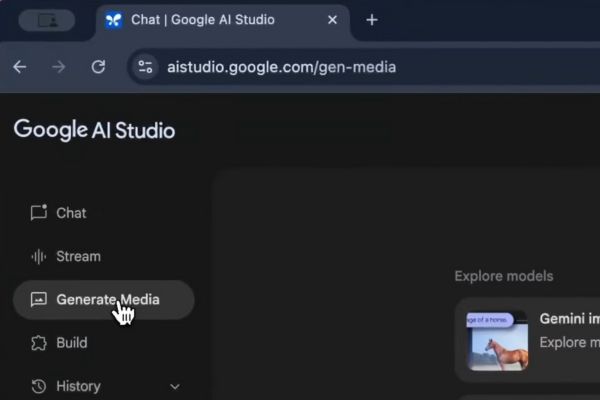
Click Generate Media

In the list of options, select Gemini Speech Generation.
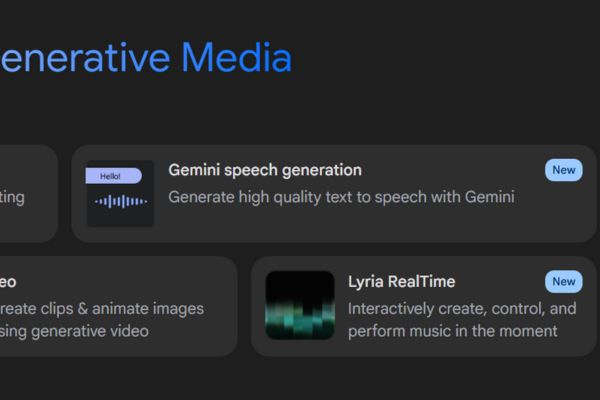
Select Gemini Speech Generation

Step 3: In the run Settings section, choose the model Gemini 2.5 Flash Preview TTS. Next, in the Mode section, you can choose:

  • Single Speaker: Suitable for lectures or content just a voice.
  • Multiple Speakers: Ideal to create conversations between many characters.
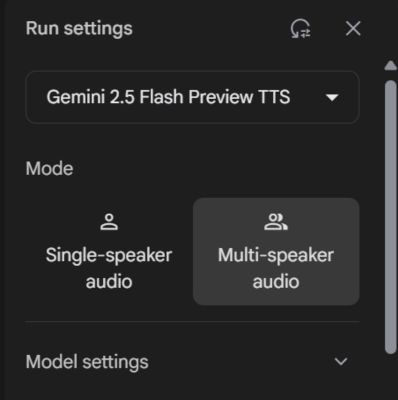
Customize in Run Settings

Step 4: Google Ai Studio provides many different voices. Test to find the right voice for your content.

Step 5: There are two ways to enter the conversation content:

Method 1: Use Raw Structure

Enter the text format: Speaker 1: [ná»™i dung]Speaker 2: [ná»™i dung].
Tip: You can copy the existing sample, then ask AI tools such as chatgpt to edit the content in the format to save time.

Method 2: Use script builder

In the style Instructions, enter the description of the conversation style (in English, for example: “formal”, “casual”, or “dramatic”). Add each dialogue to the characters by clicking on Add Dialog. This is suitable if you want to build a step -by -step conversation.

Step 6: After entering the content, press the button Tremble Let Google Ai Studio process and create audio files.
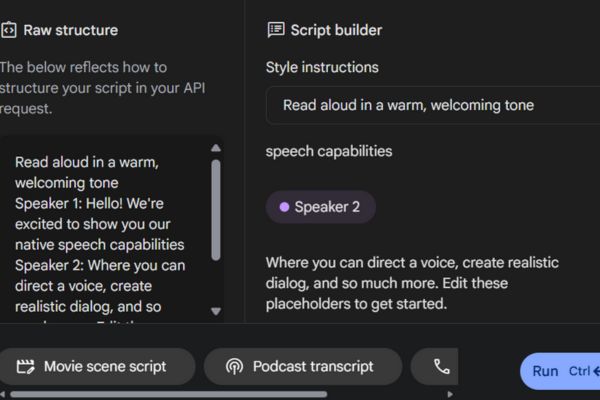
Press the Run button

When completed, you can listen directly or click the three dots icon, select Download to download the file.
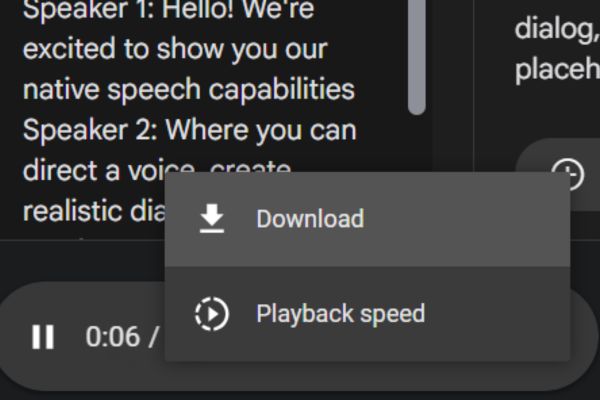
Select download to download the file to your computer

Conclude

Create speech from text on google ai studio Is a great tool, both free and easy to use. With a few simple steps, you can create high quality conversations, serving many purposes from education to entertainment. Try it today!


Tags: createGoogleGuideStudiotextvoice
Previous Post

5 simple photo editing tips to highlight your photos

Next Post

Free Netflix movies on Android and iOS with watched

AnonyViet

AnonyViet

Related Posts

How to avoid Adblock detection on Youtube with 4 good tips
Knowledge

How to avoid Adblock detection on Youtube with 4 good tips

April 17, 2026
How to transfer ChatGPT data to Claude is extremely simple
Knowledge

How to transfer ChatGPT data to Claude is extremely simple

April 16, 2026
Speak Cells: Excel tool to read spreadsheets by voice very well
Knowledge

Speak Cells: Excel tool to read spreadsheets by voice very well

April 15, 2026
Complete set of AI training materials from the Ministry of Education at all levels (Elementary – High School)
Knowledge

Complete set of AI training materials from the Ministry of Education at all levels (Elementary – High School)

April 13, 2026
How to add WiFi Bluetooth button to iPhone home screen
Knowledge

How to add WiFi Bluetooth button to iPhone home screen

April 13, 2026
Instructions on how to activate 120Hz for smooth Safari browsing
Knowledge

Instructions on how to activate 120Hz for smooth Safari browsing

April 12, 2026
Next Post
Free Netflix movies on Android and iOS with watched

Free Netflix movies on Android and iOS with watched

0 0 votes
Article Rating
Subscribe
Login
Notify of
guest

guest

0 Comments
Oldest
Newest Most Voted
Inline Feedbacks
View all comments

Recent News

Top 5+ utilities to install for Gmail to speed up work processing

Top 5+ utilities to install for Gmail to speed up work processing

April 22, 2026
Decoding the problem of 4GB RAM and processing performance

Decoding the problem of 4GB RAM and processing performance

April 21, 2026
How to add sliders to Facebook Stories to easily rewind videos

How to add sliders to Facebook Stories to easily rewind videos

April 21, 2026
Reputable LG repair service in Hanoi & Ho Chi Minh City with LGservicecenter

Reputable LG repair service in Hanoi & Ho Chi Minh City with LGservicecenter

April 21, 2026
Top 5+ utilities to install for Gmail to speed up work processing

Top 5+ utilities to install for Gmail to speed up work processing

April 22, 2026
Decoding the problem of 4GB RAM and processing performance

Decoding the problem of 4GB RAM and processing performance

April 21, 2026
How to add sliders to Facebook Stories to easily rewind videos

How to add sliders to Facebook Stories to easily rewind videos

April 21, 2026
AnonyViet - English Version

AnonyViet

AnonyViet is a website share knowledge that you have never learned in school!

We are ready to welcome your comments, as well as your articles sent to AnonyViet.

Follow Us

Contact:

Email: anonyviet.com[@]gmail.com

Main Website: https://anonyviet.com

Recent News

Top 5+ utilities to install for Gmail to speed up work processing

Top 5+ utilities to install for Gmail to speed up work processing

April 22, 2026
Decoding the problem of 4GB RAM and processing performance

Decoding the problem of 4GB RAM and processing performance

April 21, 2026
No Result
View All Result
  • Home
  • News
  • Software
  • Knowledge
  • MMO
  • Tips
  • Security
  • Network
  • Office

wpDiscuz
0
0
Would love your thoughts, please comment.x
()
x
| Reply