I was thinking that I had free time so I cleaned up the computer. Ready to do an article to guide you to deep clean and destroy all malware on Windows with Tron always helps optimize and speed up your computer extremely fast and safely.
| Join the channel Telegram of the AnonyViet 👉 Link 👈 |
NOTE: DO NOT USE TRON IF YOU ARE STRESSED OR NO COMPUTER KNOWLEDGE AND MEMBER TO CREATE A RESTORE SYSTEM BEFORE RUNTING TRON.
How Tron Works
Tron is an advanced Windows optimization application that helps the computer to get rid of unnecessary components and fix errors that arise when using the computer. Thereby helping the computer to operate stably and faster. To perform
Stage 0: Prepare
Test the environment in which Tron will operate, perform some very basic management tasks to keep Tron running smoothly, and provide a backup should something go wrong.
State 1: Clean cache
Clean a large amount of cache files to free up space on your system.
Phase 2: Uninstall bloatware
Uninstall bloatware to free up space on your system and will usually give you a slight performance boost.
Stage 3: Remove malicious code
Run anti-malware software to find and destroy most malware.
Stage 4: Repair
Check for and try to fix problems with permissions, the operating system, and the underlying structure of the hard drive.
Stage 5: Patch
Update popular applications (if they are already installed on your system) and install any new Windows updates.
Stage 6: Optimization
Reset Windows page files (virtual memory on the hard drive) and defragment the hard drive (this feature is automatically disabled if you are using an SSD).
Stage 7: Finish
Email the job completion (if configured to do so), save its activity log, and reboot the system.
Stage 8: The REDACTED custom script will execute any custom batch scripts installed in the appropriate directory. See Executing 3rd Party Custom Scripts for full details.
Full execution will go through Phases 0-8, but you can also run single phases if you wish. For example, you can still run Stage 3 and skip the other stages
How to Use Tron to Optimize Windows
FIRST THING: RETURN THE COMPUTER BEFORE RUNTING TRON.
This is to end any pending updates. If you don’t do this and the computer restarts while Tron is running, your system will most likely crash.
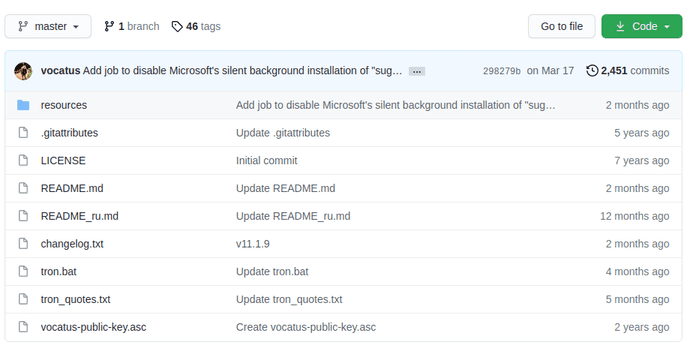
Step 1: Download Tron (Select the .exe file to download). If you download the .exe file, run it and it will unzip the file tron.bat and folder \resources to the current directory. Copy the tron.bat file and the newly created folder to the Desktop.
Step 2: Tron can run in Windows’ Safe Mode or in regular Windows. Unless your computer is infected with Malware, run Tron in regular Windows.
Step 3: Right click on tron.bat and select “Run as Administrator“. Go to screen red you type I AGREE to access Tron. Then press Enter to start setting up the environment for Tron to work.

Step 4: Wait 3-10 hours (really taking a lot of time, DON’T CANCEL WHEN TRON IS RUNNING, DAMAGE THE MACHINE). Note: You will need to click “scan” in the MBAM window that appears at Stage 3: Remove malicious code. However, Tron will continue to run in the background with other tasks waiting for you, so Tron will not be stopped if you are not available to press “scan“.

Step 5: Restart! Restart the system before you want to do anything else.
By default, the main log is at C:\Logs\tron\tron.log. If you want to change the path, you can go into Tron’s github.
Depending on the severity of the infected system, it can take anywhere from 3 to 10 hours to run. I have personally observed times between 4-8 hours and one user reported a runtime of 30 hours. Basically run Tron and forget about it.
If you run with the -udl switch, it will automatically email you the run log at the end of the script. Not required but you should.
NOTE: Each child stage script (e.g. stage_2_de-bloat.bat) can be run individually outside of Tron. Just remember to open them with Administrator privileges.
All other information related to Tron, please read here. You can also use the More cleanup tools here.