• Home
  • News
  • Software
  • Knowledge
  • MMO
  • Tips
  • Security
  • Network
  • Office
AnonyViet - English Version
  • Home
  • News
  • Software
  • Knowledge
  • MMO
  • Tips
  • Security
  • Network
  • Office
No Result
View All Result
  • Home
  • News
  • Software
  • Knowledge
  • MMO
  • Tips
  • Security
  • Network
  • Office
No Result
View All Result
AnonyViet - English Version
No Result
View All Result

Convert Physical Computer to Virtual Machine – Windows Server 2012 R2

AnonyViet by AnonyViet
January 28, 2023
in Network
0

I) Introduction

Join the channel Telegram of the AnonyViet 👉 Link 👈

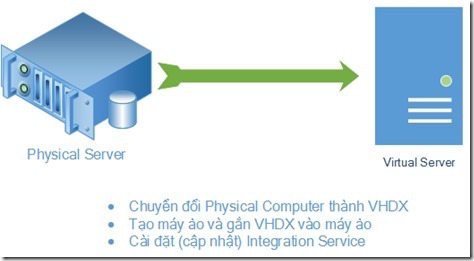
Disk2VHD is a tool that allows creating and packaging a Physical Computer into a VHDX file that can become a virtual machine (Physical-to-Virtual Computer). The benefit of Disk2VHD is that it allows to run directly on the Physical Computer (Online) and does not need to restart or shutdown the physical machine. In addition, Disk2VHD has the ability to save snapshot times of Windows’s Volume Snapshot feature..

Each physical drive of the physical machine corresponds to a VHDX file and retains the structure and partition information of the drive. After completing the conversion and creating the VHDX file, now we create a virtual machine and attach the VHDX file to the virtual machine.

II) Implementation
11111

1) Convert Physical Computer to VHDX

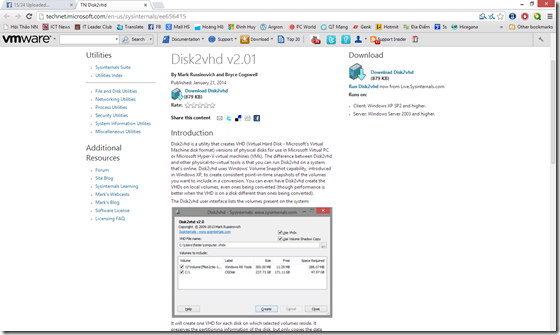
  • Download and install Disk2VHD at this (Note: done on a physical computer that needs to be converted)
first

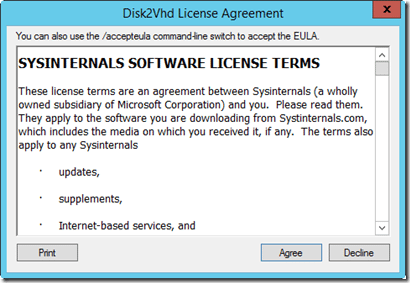
  • Extract and run the file “disk2vhd.exe” with Administrator rights

5

6

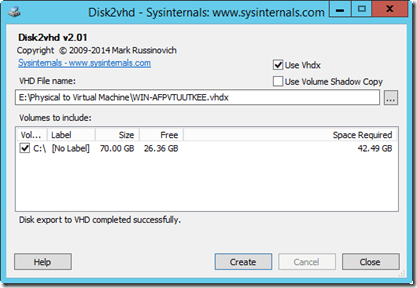
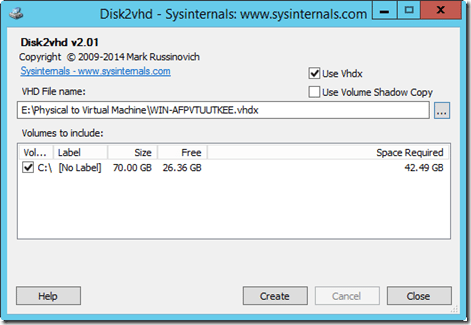
  • Select the drives to be converted (there can be multiple physical disks). Should select “Use VHDX” to convert to VHDX extension (supports up to 64TB) and can select “Volume Shadow Copy” feature to keep snapshots of Windows’s Volume Snapshot feature.
7

  • Then choose the path to save the file and click “Create”, the program will proceed to convert.
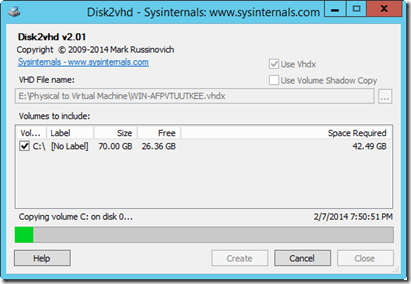
8

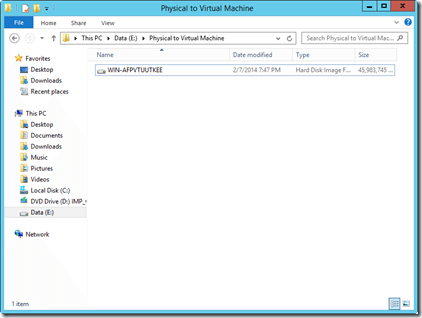
  • Complete the conversion

9

ten

2) Create a virtual machine and attach the VHDX file to the virtual machine to become a Virtual Computer

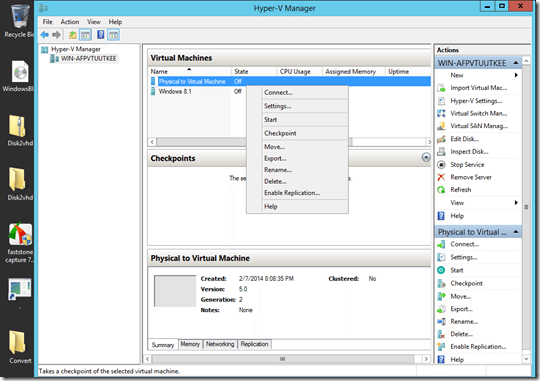
  • Right-click Hyper-V Server, select New -> Virtual Machine
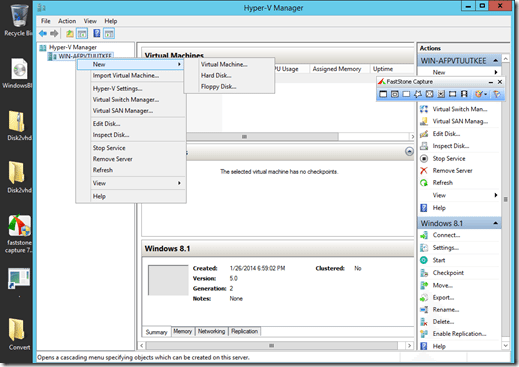
11 0

11

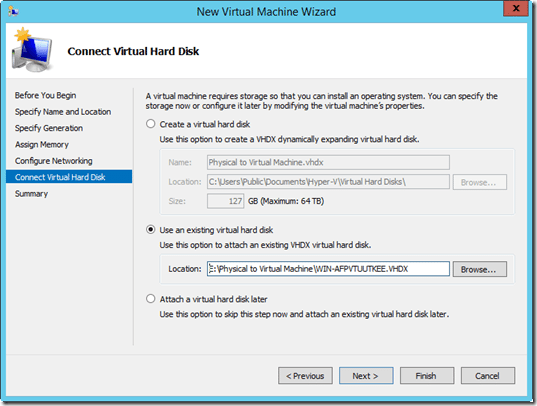
  • Select the newly created VHDX drive

twelfth

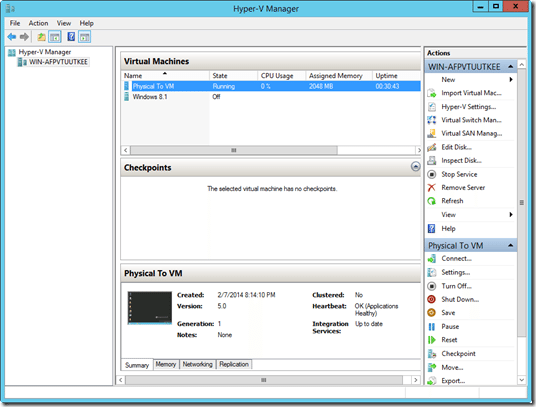
  • Click Finish to finish

13

13 1

14

3) Install (update) the Integration Services feature

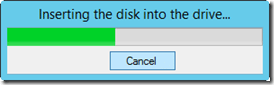
  • On the virtual machine’s console, select Action -> Insert Integration Services Setup Disk
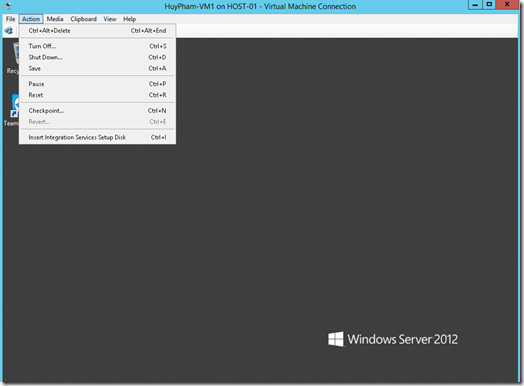
4

  • Select “Install Hyper-V Integration Services”
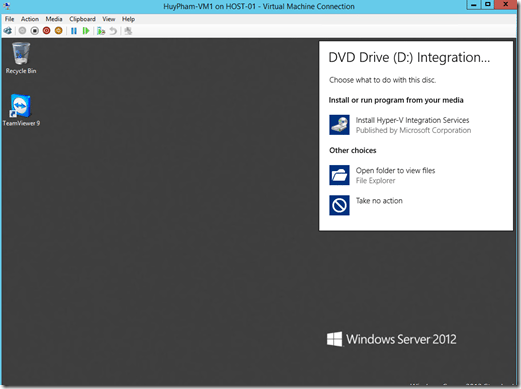
5

  • Select Ok to proceed with the update/installation
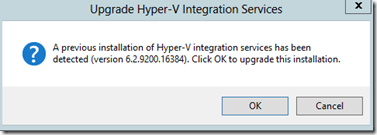
6

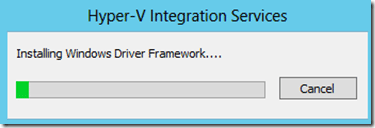
  • In progress

7

  • Finish and ask to restart the virtual machine
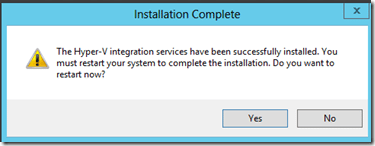
9

The article achieved: 5/5 – (100 votes)

Tags: computerconvertmachinePhysicalServervirtualWindows
Previous Post

Basic Python knowledge for newbies

Next Post

Python Network Security – Lesson 1: Port Scanner

AnonyViet

AnonyViet

Related Posts

How to fix the error of Wireguard Client not being able to access the Internet when NAT twice
Network

How to fix the error of Wireguard Client not being able to access the Internet when NAT twice

November 20, 2025
How to configure dynamic IP as static IP with Cloudflare to do Lab at home
Network

How to configure dynamic IP as static IP with Cloudflare to do Lab at home

November 19, 2025
What is Direct Connect AWS? Benefits when businesses use Direct Connect AWS
Network

What is Direct Connect AWS? Benefits when businesses use Direct Connect AWS

October 29, 2025
Namecheap offers 3 Domains for alt=
Network

Namecheap offers 3 Domains for $0

October 7, 2025
Proxy vượt Cloudflare là gì? Giải pháp hạn chế Captcha Cloudflare bằng Proxy dân cư
Network

Proxy vượt Cloudflare là gì? Giải pháp hạn chế Captcha Cloudflare bằng Proxy dân cư

October 1, 2025
Renova Cloud – The leading AWS management service in Vietnam today
Network

Renova Cloud – The leading AWS management service in Vietnam today

August 26, 2025
Next Post
Python Network Security – Lesson 1: Port Scanner

Python Network Security - Lesson 1: Port Scanner

0 0 votes
Article Rating
Subscribe
Login
Notify of
guest

guest

0 Comments
Oldest
Newest Most Voted
Inline Feedbacks
View all comments

Recent News

How to transfer music from other services to Apple Music, no app required

How to transfer music from other services to Apple Music, no app required

December 8, 2025
How to create Mind Map and Flowchart using ChatGPT is super simple

How to create Mind Map and Flowchart using ChatGPT is super simple

December 7, 2025
Free Gemini Google certification exam guide and Answers

Free Gemini Google certification exam guide and Answers

December 6, 2025
How to write Shell Script in Linux/Unix

How to write Shell Script in Linux/Unix

December 6, 2025
How to transfer music from other services to Apple Music, no app required

How to transfer music from other services to Apple Music, no app required

December 8, 2025
How to create Mind Map and Flowchart using ChatGPT is super simple

How to create Mind Map and Flowchart using ChatGPT is super simple

December 7, 2025
Free Gemini Google certification exam guide and Answers

Free Gemini Google certification exam guide and Answers

December 6, 2025
AnonyViet - English Version

AnonyViet

AnonyViet is a website share knowledge that you have never learned in school!

We are ready to welcome your comments, as well as your articles sent to AnonyViet.

Follow Us

Contact:

Email: anonyviet.com[@]gmail.com

Main Website: https://anonyviet.com

Recent News

How to transfer music from other services to Apple Music, no app required

How to transfer music from other services to Apple Music, no app required

December 8, 2025
How to create Mind Map and Flowchart using ChatGPT is super simple

How to create Mind Map and Flowchart using ChatGPT is super simple

December 7, 2025
  • Home
  • Home 2
  • Home 3
  • Home 4
  • Home 5
  • Home 6
  • Next Dest Page
  • Sample Page

trang chủ f168 nhà cái 78win https://www.qq8827.com/

No Result
View All Result
  • Home
  • News
  • Software
  • Knowledge
  • MMO
  • Tips
  • Security
  • Network
  • Office

trang chủ f168 nhà cái 78win https://www.qq8827.com/

wpDiscuz
0
0
Would love your thoughts, please comment.x
()
x
| Reply