• Home
  • News
  • Software
  • Knowledge
  • MMO
  • Tips
  • Security
  • Network
  • Office
AnonyViet - English Version
  • Home
  • News
  • Software
  • Knowledge
  • MMO
  • Tips
  • Security
  • Network
  • Office
No Result
View All Result
  • Home
  • News
  • Software
  • Knowledge
  • MMO
  • Tips
  • Security
  • Network
  • Office
No Result
View All Result
AnonyViet - English Version
No Result
View All Result

Add advanced features to the Windows 11 Taskbar

AnonyViet by AnonyViet
January 26, 2023
in Tips
0

The taskbar is an integral part of Windows 11 and has a long history in previous versions of Windows. Taskbar includes familiar features like Start Menu, search engine, File Explorer and Widget. You can also add your favorite software shortcuts to the Taskbar.

Join the channel Telegram of the AnonyViet 👉 Link 👈

Add advanced features to the Windows 11 Taskbar

However, the default taskbar in Windows 11 can only add shortcuts. If you add more shortcuts, the icon will be minimized. Therefore, adding another taskbar to Windows 11 will be a great way for you to have more space. And you can do it with Linkbar.

How to download Linkbar

Linkbar is a freeware application that allows you to add a new taskbar to Windows 11, 10, 8.1, 7 and Vista. You can even set up new taskbars with it. You can then add more software shortcuts to the new taskbar.

1. First, open the Linkbar download page on Softpedia.

2. Select Download Now to download the Linkbar ZIP file.

3. Double-click the downloaded ZIP file.

4. Press Extract all in File Explorer.
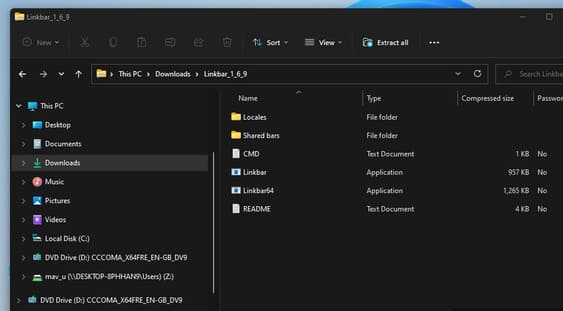
Add advanced features to the Windows 11 Taskbar 13

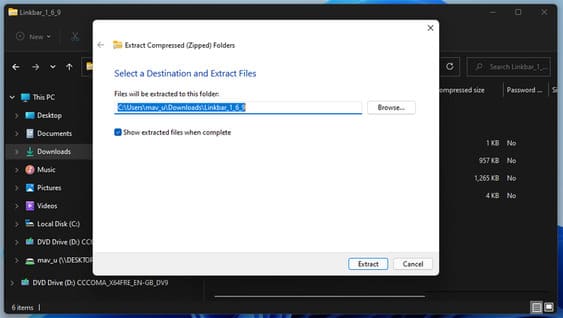
5. Press the button Browse and select the extract location.

6. Select Show extracted files when completeto save you having to open the extracted folder manually.
Add advanced features to the Windows 11 Taskbar 14

9. Click the Extract option to finish.

Once done, an unzipped folder will open. There is no installer for Linkbar, so you don’t need to run any.

How to add Linkbar to taskbar

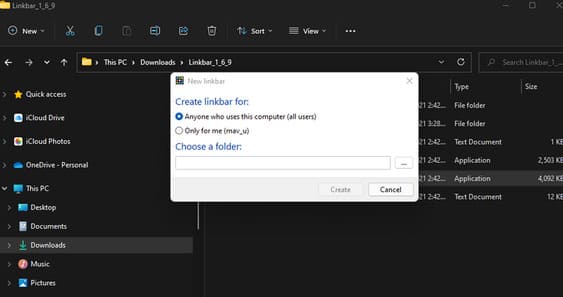
You can now add a new taskbar to Windows 11 with Linkbar. To do so, double-click Linkbar64 in the Linkbar’s folder. Linkbar EXE in the folder for 32-bit machines.
Add advanced features to the Windows 11 Taskbar 15

Select Only for me. Click the dot button to select the working directory for the taskbar. It’s best to choose your user directory. Then press the button Create to add a new empty taskbar as shown in the image below.

Add advanced features to the Windows 11 Taskbar 16

In addition, you can add multiple taskbars when you first set up the taskbar. Just double-click Linkbar64 again and then add a second or third taskbar to make more space for the shortcut. When you add multiple taskbars, they will stack on top of each other as shown below.
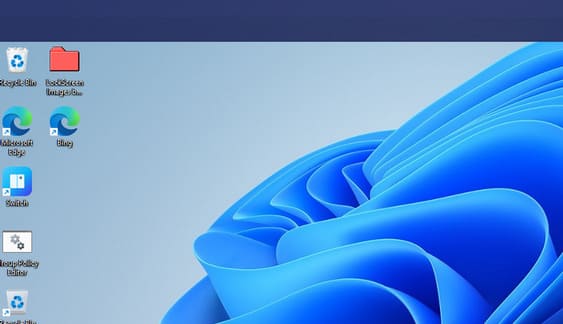
Add advanced features to the Windows 11 Taskbar 17

How to add shortcuts to Taskbar

You can now add multiple shortcuts to the new taskbar. To do so, right click on the Linkbar taskbar and select New > Shortcuts. Select Browse on the window that opens to select the software you want to add.

Press the button nextenter the shortcut name and click finish. Click the shortcut on the Linkbar taskbar to open the software.
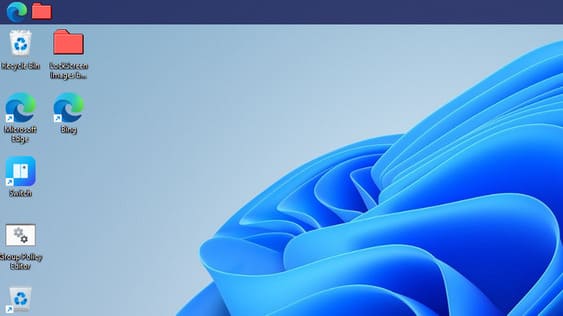
Add advanced features to the Windows 11 Taskbar 18

Alternatively, you can drag and drop desktop shortcuts directly into the Linkbar taskbar. To do that, left click on a desktop shortcut and hold down the left mouse button. Then drag the shortcut to the new taskbar and release the mouse.

To remove an item from the Linkbar taskbar, right-click the shortcut and select Delete. Select Delete the linkbar on the submenu Linkbar if you want to clear the entire taskbar. You can also change the shortcut name by selecting Rename on the context menu.

How to configure Linkbar

After you’ve added some shortcuts, you can view the Linkbar’s additional customization options. Right click on the Linkbar and select Settings. The Linkbar settings window includes settings such as taskbar location, appearance, shortcuts, separators, and auto-hide customizations.

You can change the position of the Linkbar through the Panel tab. Click the menu Position on screen. Then choose Left, Right, topor Bottom.
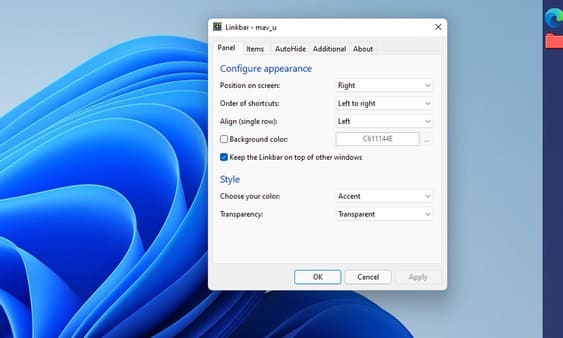
Add advanced features to the Windows 11 Taskbar 19

If you want to change the color of the taskbar, click Background color. Choose a color then press Apply for all changes to take effect.
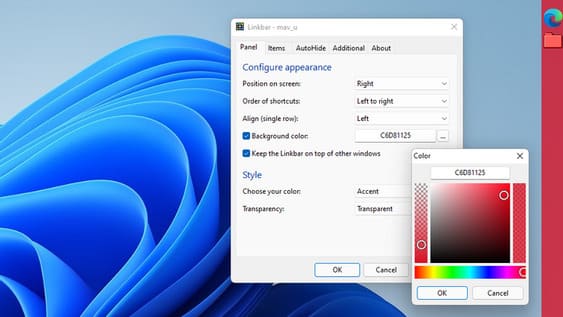
Add advanced features to the Windows 11 Taskbar 20

There is also a taskbar transparency option on the tab Panel. Please click on the menu Transparency then choose Transparent.


The article achieved: 5/5 – (100 votes)

Tags: AddAdvancedfeaturesTaskbarWindows
Previous Post

Share KEY IObit Malware Fighter 9 – Protect your computer from Virus

Next Post

Lesson 43: How to convert numbers to words in Excel

AnonyViet

AnonyViet

Related Posts

Instructions on how to create POV product review videos using Flow
Tips

Instructions on how to create POV product review videos using Flow

July 13, 2026
How to fix “This PC can’t run Windows 11” error This PC doesn’t meet the minimum system requirements
Tips

How to fix “This PC can’t run Windows 11” error This PC doesn’t meet the minimum system requirements

July 13, 2026
How to fix Windows 11 error of not being able to install .Net Framework 3.5
Tips

How to fix Windows 11 error of not being able to install .Net Framework 3.5

July 11, 2026
How to encrypt messages with GenZ’s smiley face icon
Tips

How to encrypt messages with GenZ’s smiley face icon

July 10, 2026
Download the Copyright-Free Music app for Cafes now
Tips

Download the Copyright-Free Music app for Cafes now

July 9, 2026
Multcloud – Manage, copy, and move data between Cloud Drives
Tips

Multcloud – Manage, copy, and move data between Cloud Drives

July 9, 2026
Next Post
Lesson 43: How to convert numbers to words in Excel

Lesson 43: How to convert numbers to words in Excel

0 0 votes
Article Rating
Subscribe
Login
Notify of
guest

guest

0 Comments
Oldest
Newest Most Voted

Recent News

Instructions on how to create POV product review videos using Flow

Instructions on how to create POV product review videos using Flow

July 13, 2026
How to fix “This PC can’t run Windows 11” error This PC doesn’t meet the minimum system requirements

How to fix “This PC can’t run Windows 11” error This PC doesn’t meet the minimum system requirements

July 13, 2026
Compact design, durable battery, excellent camera: Review of OPPO Reno 16 Pro 5G

Compact design, durable battery, excellent camera: Review of OPPO Reno 16 Pro 5G

July 12, 2026
Download the free 3D Pinball Space Cadet game on the App Store now

Download the free 3D Pinball Space Cadet game on the App Store now

July 12, 2026
Instructions on how to create POV product review videos using Flow

Instructions on how to create POV product review videos using Flow

July 13, 2026
How to fix “This PC can’t run Windows 11” error This PC doesn’t meet the minimum system requirements

How to fix “This PC can’t run Windows 11” error This PC doesn’t meet the minimum system requirements

July 13, 2026
Compact design, durable battery, excellent camera: Review of OPPO Reno 16 Pro 5G

Compact design, durable battery, excellent camera: Review of OPPO Reno 16 Pro 5G

July 12, 2026
AnonyViet - English Version

AnonyViet

AnonyViet is a website share knowledge that you have never learned in school!

We are ready to welcome your comments, as well as your articles sent to AnonyViet.

Follow Us

Contact:

Email: anonyviet.com[@]gmail.com

Main Website: https://anonyviet.com

Recent News

Instructions on how to create POV product review videos using Flow

Instructions on how to create POV product review videos using Flow

July 13, 2026
How to fix “This PC can’t run Windows 11” error This PC doesn’t meet the minimum system requirements

How to fix “This PC can’t run Windows 11” error This PC doesn’t meet the minimum system requirements

July 13, 2026
  • Home
  • Home 2
  • Home 3
  • Home 4
  • Home 5
  • Home 6
  • Next Dest Page
  • Sample Page

say88 tỷ lệ kèo nhà cái kèo nhà cái 5 febet

No Result
View All Result
  • Home
  • News
  • Software
  • Knowledge
  • MMO
  • Tips
  • Security
  • Network
  • Office

say88 tỷ lệ kèo nhà cái kèo nhà cái 5 febet

wpDiscuz
0
0
Would love your thoughts, please comment.x
()
x
| Reply