• Home
  • News
  • Software
  • Knowledge
  • MMO
  • Tips
  • Security
  • Network
  • Office
AnonyViet - English Version
  • Home
  • News
  • Software
  • Knowledge
  • MMO
  • Tips
  • Security
  • Network
  • Office
No Result
View All Result
  • Home
  • News
  • Software
  • Knowledge
  • MMO
  • Tips
  • Security
  • Network
  • Office
No Result
View All Result
AnonyViet - English Version
No Result
View All Result

Instructions on how to turn off Cortana completely on Windows 10

AnonyViet by AnonyViet
February 6, 2023
in Tips
0

Windows 10 is getting smarter and smarter with AI processing functions. Artificial intelligence is currently a technology development trend. Cortana robot software is one of the outstanding products in artificial intelligence. Microsoft used Cortana as an AI (Artificial Intelligence) research product.

Join the channel Telegram belong to AnonyViet 👉 Link 👈

However, for mid-range or low-RAM computers, Cortana is very heavy. This smart Robo will take away a large part of computer resources when running in the background. That’s why many people want to turn off Cortana because they don’t use it. That will help the computer save a large amount of resources.

Instructions to turn off Cortana on Windows 10

I will guide you to turn off this annoying robo. However, you can still reopen it as needed. When you don’t need it, turn it off to save resources for the device and increase the life of the PIN. To turn off Cortana, follow the instructions below.

In Windows 10 Home and higher versions, there will be different ways to turn it off. I will divide the tutorial into 2 parts for the Home version and the rest.

For Windows 10 Home

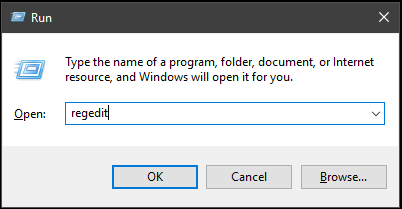
Group Policy Editor is not integrated on Windows 10 Home, so we have to turn it off in another way. We will use Editor Registry to turn off Cortana by pressing the key combination Windows + CHEAP to open the dialog box Run. Then enter the keyword “regedit” and then press Enter to enter the Registry interface.
Instructions on how to turn off Cortana completely on Windows 10 10

Next, you in turn access the following path:

HKEY_LOCAL_MACHINE / SOFTWARE / Policies / Microsoft / Windows / Windows Search

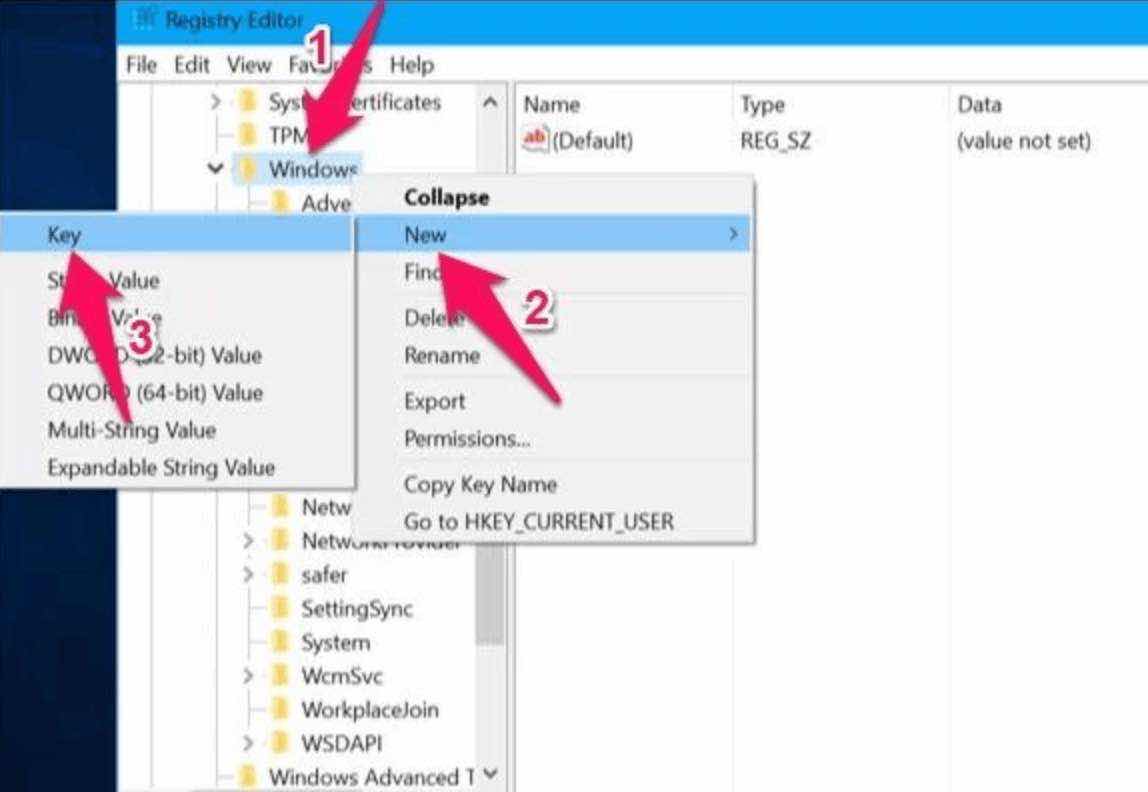
If you don’t see the Windows Search folder, right-click the Windows entry. Then choose New -> Key to create a new KEY and name it Windows Search.
Instructions on how to turn off Cortana completely on Windows 10 11

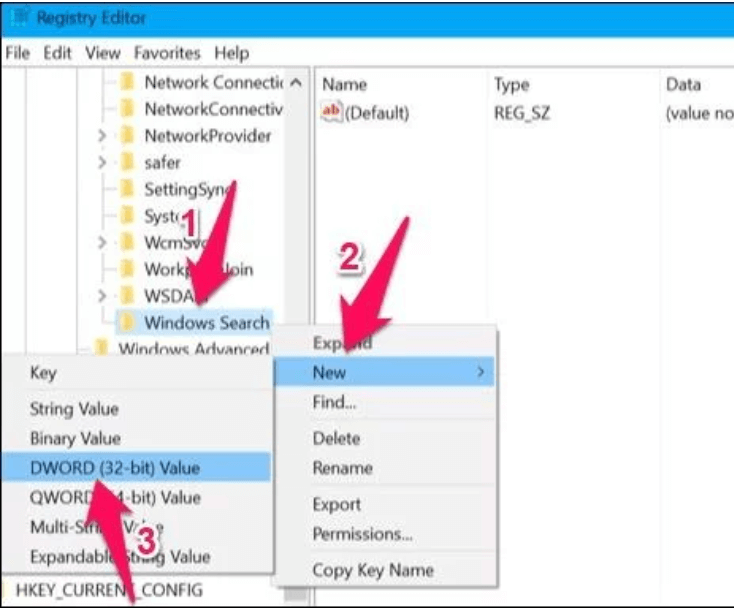
Continue to right-click on the Windows Search folder and then select New to create a new key. Select the DWORD (32-bit) Value key and name it AllowCortana.
Instructions on how to turn off Cortana completely on Windows 10

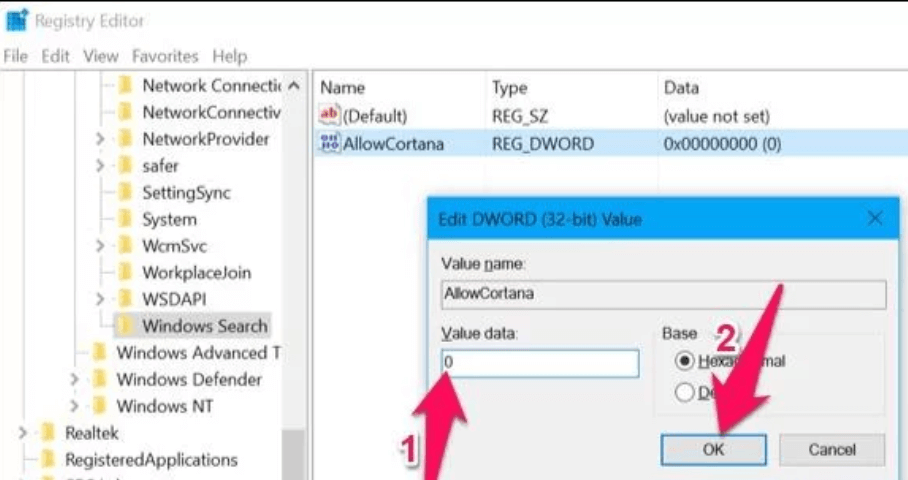
Next, double-click the AllowCortana File just created above and change the Value value to 0 to disable. Finally press OK to apply the setting.
Instructions on how to turn off Cortana completely on Windows 10

Now proceed to turn off the computer and reopen it so that it applies the changed system settings. To re-enable Cortana, change the Value value in the key AllowCortana back to 1 is fine.

For Windows Pro and higher versions

Same as above, but this time we will use Group Policy Editor. Press Windows + R key combination to open the dialog box Run and fill in gpedit.msc

Instructions on how to turn off Cortana completely on Windows 10

  • Then open the Search folder under the following path:
  • Computer Configuration > Administrative Templates > Windows Components > Search
  • Click Search to see the item AllowCortana appears on the right side of the window.
  • Double tap it and select Disable to disable Cortana.

Instructions on how to turn off Cortana completely on Windows 10

Now you just need to reboot the machine to apply the system changes. To re-enable Cortana, you just need to re-enable the item AllowCortana is to be.


The article achieved: 5/5 – (100 votes)

Tags: completelyCortanaInstructionsturnWindows
Previous Post

How to schedule automatic emptying of the Recycle Bin to increase hard drive space

Next Post

NTFS Drive Protection 1.4 – Extremely Powerful USB Freeze

AnonyViet

AnonyViet

Related Posts

How to add sliders to Facebook Stories to easily rewind videos
Tips

How to add sliders to Facebook Stories to easily rewind videos

April 21, 2026
How to change the default font on Windows 10
Tips

How to change the default font on Windows 10

April 13, 2026
5 tips for using a Browser to replace an App (helps save RAM, time and money)
Tips

5 tips for using a Browser to replace an App (helps save RAM, time and money)

April 13, 2026
How to make funny MeMe photos without Photoshop within 10 seconds
Tips

How to make funny MeMe photos without Photoshop within 10 seconds

April 11, 2026
How to quickly design your own Logo without Photoshop
Tips

How to quickly design your own Logo without Photoshop

April 10, 2026
How to convert Website into App on Windows
Tips

How to convert Website into App on Windows

April 9, 2026
Next Post
NTFS Drive Protection 1.4 – Extremely Powerful USB Freeze

NTFS Drive Protection 1.4 – Extremely Powerful USB Freeze

0 0 votes
Article Rating
Subscribe
Login
Notify of
guest

guest

0 Comments
Oldest
Newest Most Voted
Inline Feedbacks
View all comments

Recent News

Instructions for looking up prescriptions on VNeID instead of paper medical books

Instructions for looking up prescriptions on VNeID instead of paper medical books

April 26, 2026
Tips to completely turn off CAPTCHA codes on iPhone and Mac are super simple

Tips to completely turn off CAPTCHA codes on iPhone and Mac are super simple

April 25, 2026
Compare Poco X8 Pro and Poco X7 Pro: A new step for the “king” of mid-range performance

Compare Poco X8 Pro and Poco X7 Pro: A new step for the “king” of mid-range performance

April 24, 2026
How to compress online videos for free without losing quality

How to compress online videos for free without losing quality

April 24, 2026
Instructions for looking up prescriptions on VNeID instead of paper medical books

Instructions for looking up prescriptions on VNeID instead of paper medical books

April 26, 2026
Tips to completely turn off CAPTCHA codes on iPhone and Mac are super simple

Tips to completely turn off CAPTCHA codes on iPhone and Mac are super simple

April 25, 2026
Compare Poco X8 Pro and Poco X7 Pro: A new step for the “king” of mid-range performance

Compare Poco X8 Pro and Poco X7 Pro: A new step for the “king” of mid-range performance

April 24, 2026
AnonyViet - English Version

AnonyViet

AnonyViet is a website share knowledge that you have never learned in school!

We are ready to welcome your comments, as well as your articles sent to AnonyViet.

Follow Us

Contact:

Email: anonyviet.com[@]gmail.com

Main Website: https://anonyviet.com

Recent News

Instructions for looking up prescriptions on VNeID instead of paper medical books

Instructions for looking up prescriptions on VNeID instead of paper medical books

April 26, 2026
Tips to completely turn off CAPTCHA codes on iPhone and Mac are super simple

Tips to completely turn off CAPTCHA codes on iPhone and Mac are super simple

April 25, 2026
No Result
View All Result
  • Home
  • News
  • Software
  • Knowledge
  • MMO
  • Tips
  • Security
  • Network
  • Office

wpDiscuz
0
0
Would love your thoughts, please comment.x
()
x
| Reply