If you notice, the Scroll key is located in the upper left corner of the keyboard. And this is the least used key. In a world where everyone uses “WASD”, it seems that “Scroll Lock” has been forgotten. Most users don’t use it very often, there are many people who don’t even know what this key is for. So what is the Scroll Lock Key for? How to use Scroll Lock Key? But luckily, you can turn this keypress into a shortcut to run programs on Windows 10.
| Join the channel Telegram of the AnonyViet 👉 Link 👈 |
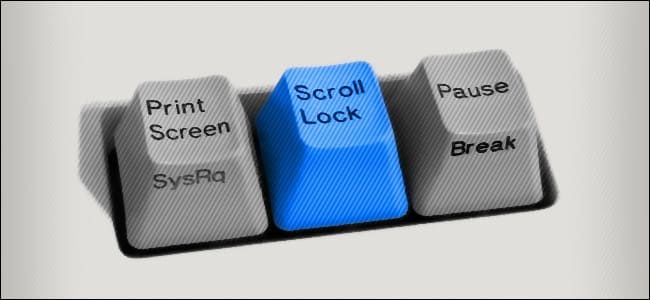
Scroll Lock first appeared with the IBM computer released in 1981. It was intended to be used to switch between the two modes. When Scroll Lock is on, you can no longer use the arrow keys to move through the text. But nowadays, most programs disable Scroll Lock and won’t let you turn it on. Therefore, the Scroll Lock feature does not play as originally planned.
However, a program very familiar to all of us is still using Scroll Lock, guess what? That is Microsoft Excel. Scroll Lock key to replace the mouse scroll button. If the Scroll Lock key is disabled, you can use the arrow keys to move the cursor between cells. When Scroll Lock is on, the arrow keys are used to scroll the entire work page in the window.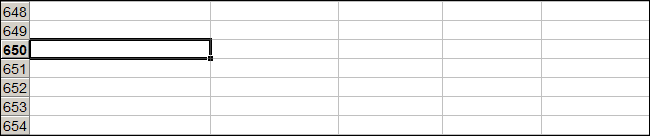
KVM switches will input switch if you press Scroll Lock twice. Some older programs also use Scroll Lock, but this is a relatively rare situation for most users.
In fact, Scroll Lock is not used very often, it may not appear on your keyboard, especially some TKL keyboards.
However, if you have a Scroll Lock key and you never use it, you can give it some useful work. For example, every time Scroll Lock is pressed, it opens Chrome in incognito mode such as.
Use the utility PowerToys by Microsoft for Windows 10, you can easily turn Scroll Lock into another key or some system function. Remap means that when you press Scroll Lock, instead of activating Scroll Lock, this key will perform a different function. This way, you can use Scroll Lock for a variety of tasks.
Here are some suggested functions to assign to the Scroll Lock key:
- Volume up/down: Quickly control the volume of your computer. This comes in handy when you enable Chrome in incognito mode.
- Play/Pause media: Suitable for those who often listen to music on the computer. You just need to press Scroll Lock to stop or press again to play music.
- Sleep: Just one button, you can put your computer to sleep immediately (wish I had a button like that on my body).
- Browser Refresh: Also with just one button, you will refresh your browser.
After selecting the function, this is how to remap Scroll Lock. First, you download Microsoft PowerToys. Turn it on and go to the “Keyboard Manager” section. Next click “Remap a key”.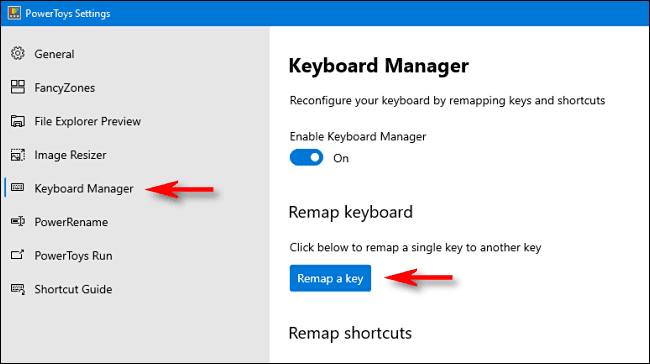
Click the button with the “+” sign to add a shortcut.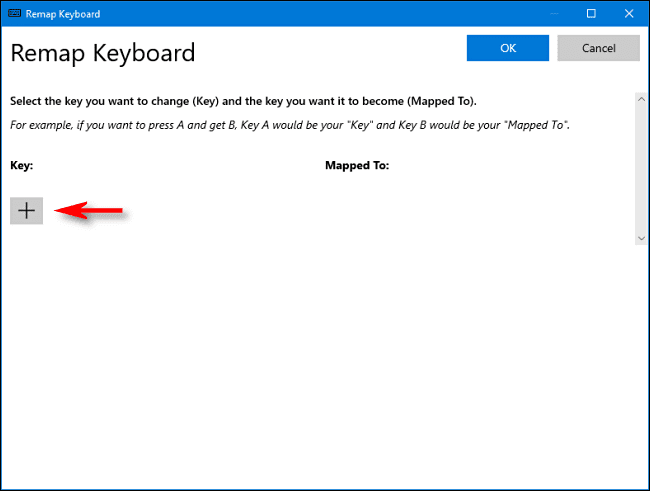
Click on “Type Key”, then click Scroll Lock.
In the “Mapped To” section, select the function you want to assign to Scroll Lock.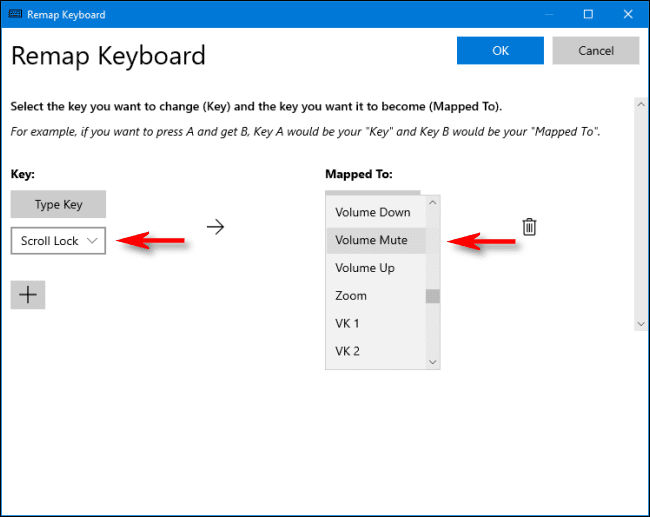
Click “OK” and close “Remap Keyboard”. You have successfully changed the function of Scroll Lock.
You can experiment with many other useful functions. If at any time you don’t want to use that function anymore, just go back to “Remap Keyboard”. Change to another function or delete it by clicking the trash can icon on the right.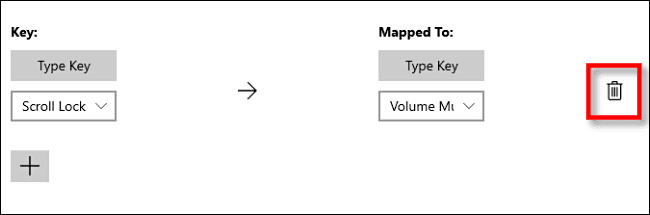 If you don’t like PowerToys, you can also use SharpKey, although its interface is not very user-friendly.
Why not use Scroll Lock as a shortcut to open any software you like, and you don’t need to use any other utility.
First, create a shortcut of the program you want to enable. Then, right-click on the shortcut and select “Properties”.
In the shortcut tab, click “Shortcut Key”, then click Scroll Lock. Windows will automatically fill in “Ctrl+Alt+Scroll Lock”.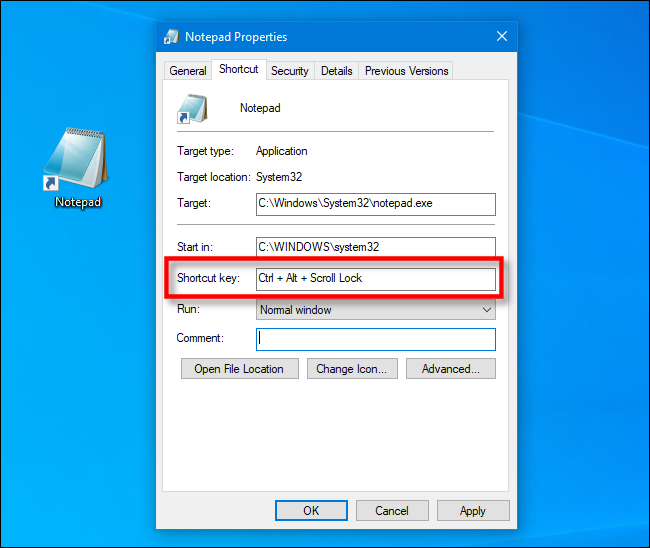
Click “OK” to close the window. From now on, whenever you press Ctrl + Alt + Scroll Lock, that shortcut will launch the program you specified earlier. As long as you don’t delete that shortcut.
Have you chosen your divine combo yet? As for me, Ctrl + Alt + Scroll Lock to open Chrome in incognito mode, and Alt + F4 to turn off Chrome.





![[Lập Trình Game] Bài 13: AnimationPlayer, SpriteSheet và Tấn Công Kẻ Thù](https://anonyviet.com/wp-content/uploads/2020/06/image026.png "[Lập Trình Game] Bài 13: AnimationPlayer, SpriteSheet và Tấn Công Kẻ Thù")