• Home
  • News
  • Software
  • Knowledge
  • MMO
  • Tips
  • Security
  • Network
  • Office
AnonyViet - English Version
  • Home
  • News
  • Software
  • Knowledge
  • MMO
  • Tips
  • Security
  • Network
  • Office
No Result
View All Result
  • Home
  • News
  • Software
  • Knowledge
  • MMO
  • Tips
  • Security
  • Network
  • Office
No Result
View All Result
AnonyViet - English Version
No Result
View All Result

How to move or disable the notification window on Windows 10

AnonyViet by AnonyViet
February 1, 2023
in Tips
0

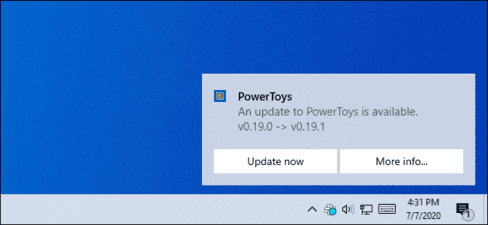
By default, the Windows 10 notification window appears in the lower right corner of your screen. Windows itself doesn’t allow you to move these notifications, but you can still move certain windows to other corners of the screen.

Join the channel Telegram of the AnonyViet 👉 Link 👈

notification window

Registry won’t help you

Some websites will ask you to change the values ​​of “DisplayToastAtBottom” in the registry to change the location of the notification. However, this only worked in the early Preview builds of Windows and it was removed before the final release of Windows 10 was released.

Since the update Windows 10 May 2020there is still no built-in feature to move notifications on Windows 10, to the upper right, or left corner of the screen.

But there are still some things you can do to move those notifications.

Use Settings included in the app

Windows built-in notifications are clearly inflexible. That’s why many Windows applications have developed their own custom notification systems. If you want to turn off or move the notification in the right corner of the screen to another location, see the instructions below.

Some apps even support Windows 10’s built-in notification system. These apps let you choose where notifications appear in their settings,

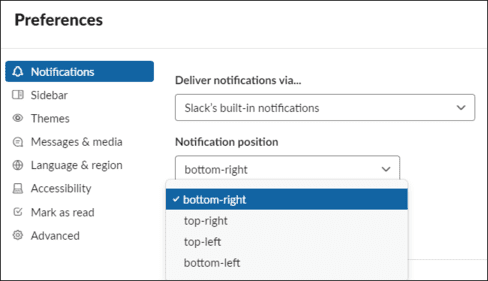
In Slack, for example, you can tap your workspace name in the upper-left corner of the screen and select “Preferences“. Scroll down to the Notifications pane and you will see an option “Deliver notifications via“. Select “Slack’s built-in notifications“, in the “Notification position“, you can choose where you like the notification to appear.

If you choose “Windows Action Center” in Slack, you won’t be able to choose the notification location anymore because Windows 10 doesn’t allow it.
How to move or disable the notification window on Windows 10 6

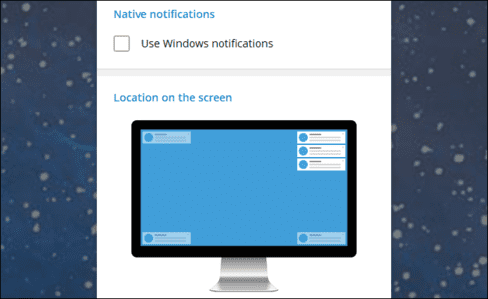
On Telegram, one of the popular chat apps, there is a similar option. If you open Settings and select “Notifications”you can deselect “Use windows notifications” and then you will be free to choose any corner of the screen to display Telegram notifications.
How to move or disable the notification window on Windows 10 7

Not all apps have this option. It also depends on the application developer. But, on Windows 10, all you can do is hope that the app offers options for editing notification locations. Check in the Settings section of the application to see if it has such an option.

Turns off (or hides) an application’s notification window

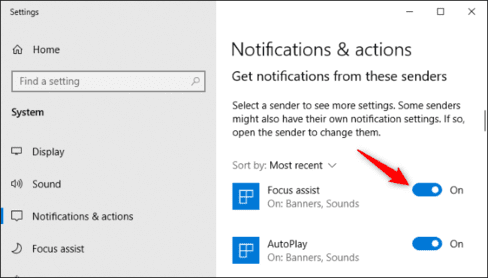
If an app’s notifications keep distracting you and it uses Windows 10’s built-in notifications, you can turn it off there. You can disable all app notifications by going to Settings > System > Notifications & actions. In the section “Get notifications from these senders”switch the apps you want to turn off notifications to “Off”.
How to move or disable the notification window on Windows 10 8

You can also hide the notifications of those apps by tapping the app in “Get notifications from these senders”.

Unchecked “Show notification banners” and turn on “Show notifications in action center”.
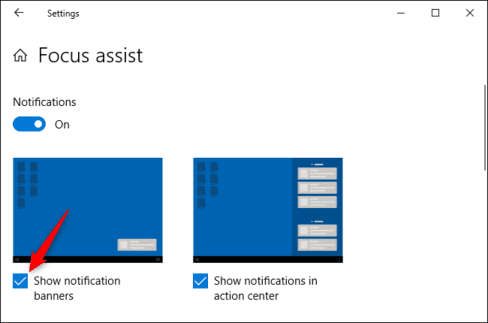
How to move or disable the notification window on Windows 10 9

Those notifications will disappear and you can view them by opening Action Center. Press Win + A or click the notification icon on the taskbar to open the Action Center.


The article achieved: 5/5 – (100 votes)

Tags: DisableMoveNotificationwindowWindows
Previous Post

SQLI Hunter v1.2 – Automatically find SQL Injection errors

Next Post

How to use App 1.1.1.1 on a computer to access blocked websites

AnonyViet

AnonyViet

Related Posts

How to use Messenger without a Facebook account
Tips

How to use Messenger without a Facebook account

October 22, 2026
The website helps you draw beautifully like TikToker Viet My
Tips

The website helps you draw beautifully like TikToker Viet My

October 21, 2026
Instructions on how to hard reset iPhone 18 Pro / iPhone 18 Pro Max
Tips

Instructions on how to hard reset iPhone 18 Pro / iPhone 18 Pro Max

October 21, 2026
Anyone can do how to increase Internet speed using CMD
Tips

Anyone can do how to increase Internet speed using CMD

October 20, 2026
How to report a fraudulent website on Weebly
Tips

How to report a fraudulent website on Weebly

October 19, 2026
How to view Facebook stories without others knowing
Tips

How to view Facebook stories without others knowing

October 18, 2026
Next Post
How to use App 1.1.1.1 on a computer to access blocked websites

How to use App 1.1.1.1 on a computer to access blocked websites

0 0 votes
Article Rating
Subscribe
Login
Notify of
guest

guest

0 Comments
Oldest
Newest Most Voted

Recent News

Receive copyright for 3 Halloween software worth 0

Receive copyright for 3 Halloween software worth $150

October 23, 2026
How to use Messenger without a Facebook account

How to use Messenger without a Facebook account

October 22, 2026
Instructions on how to exit iOS 27 Beta and update to the official version

Instructions on how to exit iOS 27 Beta and update to the official version

October 22, 2026
Instructions for updating PHP to avoid PHP2Shell

Instructions for updating PHP to avoid PHP2Shell

October 22, 2026
Receive copyright for 3 Halloween software worth 0

Receive copyright for 3 Halloween software worth $150

October 23, 2026
How to use Messenger without a Facebook account

How to use Messenger without a Facebook account

October 22, 2026
Instructions on how to exit iOS 27 Beta and update to the official version

Instructions on how to exit iOS 27 Beta and update to the official version

October 22, 2026
AnonyViet - English Version

AnonyViet

AnonyViet is a website share knowledge that you have never learned in school!

We are ready to welcome your comments, as well as your articles sent to AnonyViet.

Follow Us

Contact:

Email: anonyviet.com[@]gmail.com

Main Website: https://anonyviet.com

Recent News

Receive copyright for 3 Halloween software worth 0

Receive copyright for 3 Halloween software worth $150

October 23, 2026
How to use Messenger without a Facebook account

How to use Messenger without a Facebook account

October 22, 2026
  • Home
  • Home 2
  • Home 3
  • Home 4
  • Home 5
  • Home 6
  • Next Dest Page
  • Sample Page

say88 tỷ lệ kèo nhà cái kèo nhà cái 5 febet

No Result
View All Result
  • Home
  • News
  • Software
  • Knowledge
  • MMO
  • Tips
  • Security
  • Network
  • Office

say88 tỷ lệ kèo nhà cái kèo nhà cái 5 febet

wpDiscuz
0
0
Would love your thoughts, please comment.x
()
x
| Reply