• Home
  • News
  • Software
  • Knowledge
  • MMO
  • Tips
  • Security
  • Network
  • Office
AnonyViet - English Version
  • Home
  • News
  • Software
  • Knowledge
  • MMO
  • Tips
  • Security
  • Network
  • Office
No Result
View All Result
  • Home
  • News
  • Software
  • Knowledge
  • MMO
  • Tips
  • Security
  • Network
  • Office
No Result
View All Result
AnonyViet - English Version
No Result
View All Result

Create your own Font with your Handwriting

AnonyViet by AnonyViet
January 30, 2023
in Tips
0

Ever wanted to turn your handwriting into a font and use it on your computer? I guess many of you have thought about this already, but don’t know how. So, in this article, I will guide you to know your handwriting into your own font on your computer. You can use this own font to copy and paste it, but this way just needs a little attention and you will find it right away, be careful.

Join the channel Telegram of the AnonyViet 👉 Link 👈

It makes a lot of sense to use your own handwritten font to write greeting cards for birthdays, teachers, parents or any other special occasion. But if you have bad handwriting, try to make it a little nicer.

How to turn your handwriting into your own Font

Here are quick steps to turn your handwriting into a free font.

  1. Visit the website MyScriptFont.com
  2. Sign up for an account
  3. Download the print form
  4. Print the template on paper
  5. Fill in that sample letter
  6. Scan or take a picture of the finished sample to your computer
  7. Upload a photo, name the font and choose a format
  8. Download your font
  9. Install fonts on your computer
  10. That’s it, now use your own handwritten font!

Handwritten font website and free templates

First, go to the website MyScriptFont.com create Account. Click Start App to start creating Fonts with your own writing.

Friend Download the Font . character filling form printable as PDF or PNG. To choose Vietnamese, go to Menu Languages scroll down select Vietnamese, that press Download Template.

download own handwritten font template

After selecting the print template, then print it on paper. But if you don’t have a printer, you can download it to your phone or tablet, and then use a stylus or your finger to draw your own font. It’s a bit squiggly, but that’s literally handwriting.

If you use a printer, I recommend that you print dozens of samples to try again and again until you are satisfied.

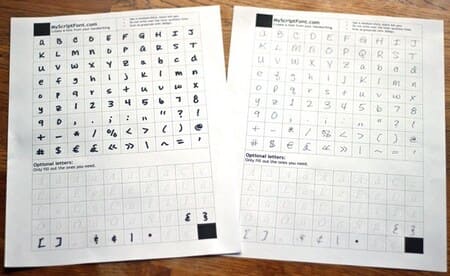
Fill in the printed form

Note, you need to use a black brush. Which kind of ink head is a bit big.

I only have this double-ended whiteboard marker, so I’ll write 2 copies. 1 copy is large and the other 1 uses the small ink tip of the brush.

Create your own Font with your Handwriting 9

Any ink stains outside the specified square will be cut off in the font processing step. To be honest, I also wrote 4 copies, it was quite tiring to get the final result, very tired.
Create your own Font with your Handwriting 10

Scan or take a photo of the completed text form on the computer

Once you’ve completed your form, scan it to your computer, I’ll use my phone to take a quick picture

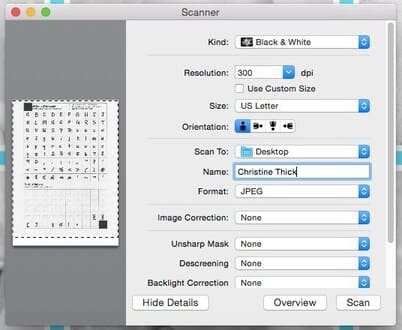
If you have a scanner at home, just feed the sample straight into the scanner. The parameters can be adjusted as shown in the image below.

  • Black & White
  • 300 DPI
  • US Letter
  • Name your own font
  • JPEG format

Create your own Font with your Handwriting 11

Upload an image, name the font, and convert it to your own font

Once you have a character image of your own font, you need to return to MyScriptFont.com and go to Menu My Fonts -> Upload Template to upload an image file of your handwriting and name the font you like.

Upload your own font

Upload each photo that you handwritten.

create handwritten font

Then press “Upload Teamplate“.

Your handwriting has turned into a font

Moments later, a new screen will show a preview of your handwritten font.

Easy, right?

If you are satisfied then select Menu Build Font

build font handwritten

Name your Font, I will leave it as AnonyViet.

Create your own Font with your Handwriting 12

Now you will see a preview of your font, it seems that your font is “not bad”. If it feels good, then click on the Font name and download it to your computer.

You can use the drag bar where Preview to zoom in.

Create your own Font with your Handwriting

Install fonts on your computer

After the font is downloaded, you need to install it on your computer to use it.

If you use Windows, then just right-click on the font and click “Install”, or double click on the Font to choose Install.

change the font for vietnamese by hand

If you use a Mac, double click on the font and click the “Install Font” button to install it.

That’s it, now you can open software like Word to try to see the font you just created.

make font chu in rieng style

NOTE: If you currently have a program open when installing the font, you may need to close the program until the font is installed so it can reload the new fonts.

The free version you can only use 75 characters, if you want to use the full Vietnamese alphabet, you need to upgrade to the Pro version.


The article achieved: 5/5 – (100 votes)

Tags: createFonthandwriting
Previous Post

Download ISO Adobe Master Collection 2020 automatically install and activate

Next Post

unc0ver 5.2 can Jailbreak iOS 13.5.5 but not Jailbreak 13.5.1

AnonyViet

AnonyViet

Related Posts

How to add sliders to Facebook Stories to easily rewind videos
Tips

How to add sliders to Facebook Stories to easily rewind videos

April 21, 2026
How to change the default font on Windows 10
Tips

How to change the default font on Windows 10

April 13, 2026
5 tips for using a Browser to replace an App (helps save RAM, time and money)
Tips

5 tips for using a Browser to replace an App (helps save RAM, time and money)

April 13, 2026
How to make funny MeMe photos without Photoshop within 10 seconds
Tips

How to make funny MeMe photos without Photoshop within 10 seconds

April 11, 2026
How to quickly design your own Logo without Photoshop
Tips

How to quickly design your own Logo without Photoshop

April 10, 2026
How to convert Website into App on Windows
Tips

How to convert Website into App on Windows

April 9, 2026
Next Post
unc0ver 5.2 can Jailbreak iOS 13.5.5 but not Jailbreak 13.5.1

unc0ver 5.2 can Jailbreak iOS 13.5.5 but not Jailbreak 13.5.1

0 0 votes
Article Rating
Subscribe
Login
Notify of
guest

guest

0 Comments
Oldest
Newest Most Voted
Inline Feedbacks
View all comments

Recent News

Tips to completely turn off CAPTCHA codes on iPhone and Mac are super simple

Tips to completely turn off CAPTCHA codes on iPhone and Mac are super simple

April 25, 2026
Compare Poco X8 Pro and Poco X7 Pro: A new step for the “king” of mid-range performance

Compare Poco X8 Pro and Poco X7 Pro: A new step for the “king” of mid-range performance

April 24, 2026
How to compress online videos for free without losing quality

How to compress online videos for free without losing quality

April 24, 2026
Top 5 apps to view good days 2026 for free on iOS and Android

Top 5 apps to view good days 2026 for free on iOS and Android

April 23, 2026
Tips to completely turn off CAPTCHA codes on iPhone and Mac are super simple

Tips to completely turn off CAPTCHA codes on iPhone and Mac are super simple

April 25, 2026
Compare Poco X8 Pro and Poco X7 Pro: A new step for the “king” of mid-range performance

Compare Poco X8 Pro and Poco X7 Pro: A new step for the “king” of mid-range performance

April 24, 2026
How to compress online videos for free without losing quality

How to compress online videos for free without losing quality

April 24, 2026
AnonyViet - English Version

AnonyViet

AnonyViet is a website share knowledge that you have never learned in school!

We are ready to welcome your comments, as well as your articles sent to AnonyViet.

Follow Us

Contact:

Email: anonyviet.com[@]gmail.com

Main Website: https://anonyviet.com

Recent News

Tips to completely turn off CAPTCHA codes on iPhone and Mac are super simple

Tips to completely turn off CAPTCHA codes on iPhone and Mac are super simple

April 25, 2026
Compare Poco X8 Pro and Poco X7 Pro: A new step for the “king” of mid-range performance

Compare Poco X8 Pro and Poco X7 Pro: A new step for the “king” of mid-range performance

April 24, 2026
No Result
View All Result
  • Home
  • News
  • Software
  • Knowledge
  • MMO
  • Tips
  • Security
  • Network
  • Office

wpDiscuz
0
0
Would love your thoughts, please comment.x
()
x
| Reply