• Home
  • News
  • Software
  • Knowledge
  • MMO
  • Tips
  • Security
  • Network
  • Office
AnonyViet - English Version
  • Home
  • News
  • Software
  • Knowledge
  • MMO
  • Tips
  • Security
  • Network
  • Office
No Result
View All Result
  • Home
  • News
  • Software
  • Knowledge
  • MMO
  • Tips
  • Security
  • Network
  • Office
No Result
View All Result
AnonyViet - English Version
No Result
View All Result

How to use Tab Group on Chrome, Firefox, Edge browsers

AnonyViet by AnonyViet
January 27, 2023
in Tips
0

Tabs are an important part of the browsing experience. Recently, a new feature that helps you group tabs is called “Tab Groups” has been adopted by most major browsers. If you haven’t used Tab Group yet, I recommend you learn now.

Join the channel Telegram of the AnonyViet 👉 Link 👈

The concept behind Tab Group is pretty simple. It allows you to combine multiple tabs into groups that can be labeled and moved like tabs. The Group tab is available in Google Chrome on desktop and Android, as well as in Microsoft Edge, Safari, and Firefox. This feature works the same on all platforms.

The use of Tab Group on the browser

Step 1: Right-click on a currently viewing tab

Step 2: Click Add Tab to new group.

How to use Tab Group on Chrome, Firefox, Edge browsers

Step 3: Click New Group and give the Group a name.

Now you can group multiple tabs with similar topics into one group for easy tracking. For example: News group, health group, technology group….

Why you should use Tab Group

Keep everything in one browser

How to use Tab Group on Chrome, Firefox, Edge 5 browsers

Before the Tab Group feature appeared, the easiest way to group tabs together was to put them in a separate browser window. The downside of this way is that you have to manage a lot of windows, which makes it very messy.

Tab Group allows you to group all your tabs in one window, but still make space for other tabs. You don’t have to remember which windows contain which tabs. All related tabs are now in one group with colors and labels for easy searching.

Alternatively, you can also split tabs into their own windows, placing them in Tab Groups means you can get all the tabs at once.

Visual visibility
How to use Group Tab on Chrome, Firefox, Edge 6 browsers

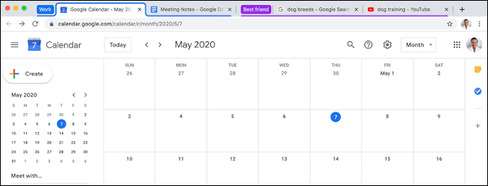
As mentioned above, Tab Groups can be labeled and colored differently. If you are someone who always has a lot of tabs open, these labels can help you identify groups of tabs with the same topic such as entertainment, documents, projects, etc.

The more tabs you open, the smaller they are and the less information you can see. However, in addition to labeling, you can also set colors for different groups of tabs for easier identification.

Simply put, Tab Group labels and colors are the best way to organize tabs with related content.

Collapse tabs

One of the reasons why people tend to end up with tons of tabs open is that they are afraid of losing something. You think, “I might need that tab again, so I’ll leave it open.”

One cool feature of Tab Group is the ability to collapse all the tabs in the group into a single tab. So if you have tabs in a fairly long group, you can collapse the group.

If your device is powerful enough, you can open dozens of tabs but only a few labels on the top of the screen. And you don’t need to worry that you’ll need to find a closed tab again.

Without Tab Group, your browser’s tabs are like a mess. You click a link and the page opens at the bottom of the list of tabs, there is no order for anything and you can forget which tabs you have open.

The Group tab introduces several ways of ordering. For example, if you are in a Tab Group and you click a link, the page will open in that same Tab Group. Are you done using the tabs in this Tab Group? Collapse the Group Tab and move on to the next.

In addition, you can see 11 more Chrome extensions to increase learning productivity here.

The article achieved: 5/5 – (100 votes)

Tags: browsersChromeEdgeFirefoxGroupTab
Previous Post

Guide to choosing the best antivirus for Windows

Next Post

Anti DDOS and Secure Hosting with .htaccess

AnonyViet

AnonyViet

Related Posts

How to change the default font on Windows 10
Tips

How to change the default font on Windows 10

April 13, 2026
5 tips for using a Browser to replace an App (helps save RAM, time and money)
Tips

5 tips for using a Browser to replace an App (helps save RAM, time and money)

April 13, 2026
How to make funny MeMe photos without Photoshop within 10 seconds
Tips

How to make funny MeMe photos without Photoshop within 10 seconds

April 11, 2026
How to quickly design your own Logo without Photoshop
Tips

How to quickly design your own Logo without Photoshop

April 10, 2026
How to convert Website into App on Windows
Tips

How to convert Website into App on Windows

April 9, 2026
Instructions for getting 3 months of Adobe Express Pro for free
Tips

Instructions for getting 3 months of Adobe Express Pro for free

April 9, 2026
Next Post
Anti DDOS and Secure Hosting with .htaccess

Anti DDOS and Secure Hosting with .htaccess

0 0 votes
Article Rating
Subscribe
Login
Notify of
guest

guest

0 Comments
Oldest
Newest Most Voted
Inline Feedbacks
View all comments

Recent News

4K Video Downloader Plus – Tool to download YouTube videos on macOS

4K Video Downloader Plus – Tool to download YouTube videos on macOS

April 20, 2026
How to add Watermark to Google Docs to protect copyright

How to add Watermark to Google Docs to protect copyright

April 19, 2026
How to intercept traffic using Burp Suite to analyze HTTP/HTTPS

How to intercept traffic using Burp Suite to analyze HTTP/HTTPS

April 18, 2026
How to avoid Adblock detection on Youtube with 4 good tips

How to avoid Adblock detection on Youtube with 4 good tips

April 17, 2026
4K Video Downloader Plus – Tool to download YouTube videos on macOS

4K Video Downloader Plus – Tool to download YouTube videos on macOS

April 20, 2026
How to add Watermark to Google Docs to protect copyright

How to add Watermark to Google Docs to protect copyright

April 19, 2026
How to intercept traffic using Burp Suite to analyze HTTP/HTTPS

How to intercept traffic using Burp Suite to analyze HTTP/HTTPS

April 18, 2026
AnonyViet - English Version

AnonyViet

AnonyViet is a website share knowledge that you have never learned in school!

We are ready to welcome your comments, as well as your articles sent to AnonyViet.

Follow Us

Contact:

Email: anonyviet.com[@]gmail.com

Main Website: https://anonyviet.com

Recent News

4K Video Downloader Plus – Tool to download YouTube videos on macOS

4K Video Downloader Plus – Tool to download YouTube videos on macOS

April 20, 2026
How to add Watermark to Google Docs to protect copyright

How to add Watermark to Google Docs to protect copyright

April 19, 2026
No Result
View All Result
  • Home
  • News
  • Software
  • Knowledge
  • MMO
  • Tips
  • Security
  • Network
  • Office

wpDiscuz
0
0
Would love your thoughts, please comment.x
()
x
| Reply