• Home
  • News
  • Software
  • Knowledge
  • MMO
  • Tips
  • Security
  • Network
  • Office
AnonyViet - English Version
  • Home
  • News
  • Software
  • Knowledge
  • MMO
  • Tips
  • Security
  • Network
  • Office
No Result
View All Result
  • Home
  • News
  • Software
  • Knowledge
  • MMO
  • Tips
  • Security
  • Network
  • Office
No Result
View All Result
AnonyViet - English Version
No Result
View All Result

How to return to the old right-click menu on Windows 11

AnonyViet by AnonyViet
January 27, 2023
in Tips
0

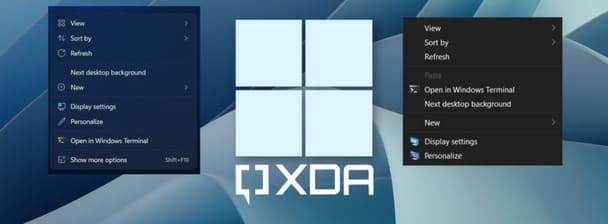
After more than six years of using Windows 10, PC users are now getting major Windows updates with Windows 11. The latest version of Windows has had some of the biggest visual improvements, with the Start Menu and taskbar centered, rounded corners, and more. As part of the UI overhaul, Microsoft also offers menus. Newly modernized right-click (context menu) more condensed than Windows 10.

Join the channel Telegram of the AnonyViet 👉 Link 👈

How to return to the old right-click menu on Windows 11

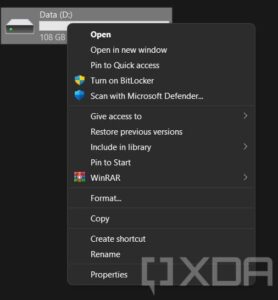
Many users seem to have liked this new minimalist approach from Microsoft, especially since you can still access the old-fashioned menu by tapping the button. Show more options at the bottom or use the keyboard shortcut Shift + F10. However, other users find this design very annoying, as they have to make an extra click every time they need access to additional options.
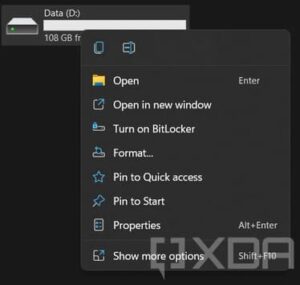
How to return to the old right-click menu on Windows 11 10

How to return to the old right-click menu on Windows 11 11

If you belong to the 2nd group of people and are looking for a way to restore the old right-click menu on Windows 11, then this article is for you. Microsoft does not provide an official method to disable the right-click menu, but there is a method that can help you open the full right-click menu in Windows 11 without using any third-party software.

I have a guide for you to use Tool to turn Windows 11 Right-Click Menu back to Windows 10, but if you use 3rd party software, it can be done manually by editing Regedit with only 1 command line. You can refer to 3 ways below:

Use Command Prompt

1. Open Windows Terminal with Windows PowerShell or Command Prompt. You do not need to open as administrator.

2. Copy and paste the following command into Windows Terminal, then press Enter:

reg add "HKCU\Software\Classes\CLSID\{86ca1aa0-34aa-4e8b-a509-50c905bae2a2}\InprocServer32" /f /ve

If everything goes well, you will see the message “The operation completed successfully.”

How to return to the old right-click menu on Windows 11 12

3. Close Windows Terminal.

4. Start the PC for the changes to take effect.

Use graphics software

1. Press Windows + CHEAPand enter regedit to open the Registry Editor.
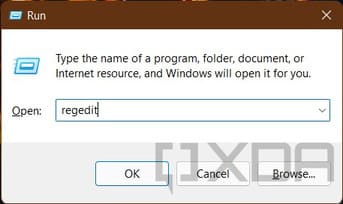
How to return to the old right-click menu on Windows 11 13

2. Go to HKEY_CURRENT_USER\SOFTWARE\CLASSES\CLSID\ and create a new key named {86ca1aa0-34aa-4e8b-a509-50c905bae2a2}.

3. Create another key named InprocServer32 in {86ca1aa0-34aa-4e8b-a509-50c905bae2a2}.

4. Find the (Default) key in InprocServer32, set its value to blank, then press OK.
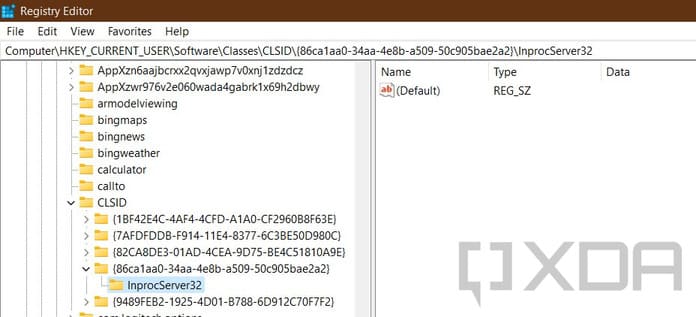
How to return to the old right-click menu on Windows 11 14

5. Close Registry Editor.

6. Restart the PC for the change to take effect.

In case you want to go back to the original design, delete the key {86ca1aa0-34aa-4e8b-a509-50c905bae2a2} (including subkey InprocServer32) from Registry Editor. You can also use this command on Windows Terminal to achieve the same result:

reg delete "HKCU\Software\Classes\CLSID\{86ca1aa0-34aa-4e8b-a509-50c905bae2a2}" /f

How to return to the old right-click menu on Windows 11 15

Restart the PC to apply the change.

I hope you can open the entire right-click menu by default using the methods above. Alternatively, you can also try Windows 11 in the browser here.


The article achieved: 5/5 – (100 votes)

Tags: menureturnrightclickWindows
Previous Post

Instructions to receive $300 from Microsoft’s Azure

Next Post

How to create Slideshow on TikTok with iMyFone Filme

AnonyViet

AnonyViet

Related Posts

Instructions on how to make money from personal Facebook
Tips

Instructions on how to make money from personal Facebook

May 2, 2026
How to add sliders to Facebook Stories to easily rewind videos
Tips

How to add sliders to Facebook Stories to easily rewind videos

April 21, 2026
How to change the default font on Windows 10
Tips

How to change the default font on Windows 10

April 13, 2026
5 tips for using a Browser to replace an App (helps save RAM, time and money)
Tips

5 tips for using a Browser to replace an App (helps save RAM, time and money)

April 13, 2026
How to make funny MeMe photos without Photoshop within 10 seconds
Tips

How to make funny MeMe photos without Photoshop within 10 seconds

April 11, 2026
How to quickly design your own Logo without Photoshop
Tips

How to quickly design your own Logo without Photoshop

April 10, 2026
Next Post
How to create Slideshow on TikTok with iMyFone Filme

How to create Slideshow on TikTok with iMyFone Filme

0 0 votes
Article Rating
Subscribe
Login
Notify of
guest

guest

0 Comments
Oldest
Newest Most Voted
Inline Feedbacks
View all comments

Recent News

Instructions on how to make money from personal Facebook

Instructions on how to make money from personal Facebook

May 2, 2026
Create an avatar to celebrate April 30 with a beautiful red flag shirt with yellow stars

Create an avatar to celebrate April 30 with a beautiful red flag shirt with yellow stars

April 30, 2026
How to get 2 months of Super Duolingo for free worth 300k

How to get 2 months of Super Duolingo for free worth 300k

April 30, 2026
How to create a Face Sticker Collection using ChatGPT

How to create a Face Sticker Collection using ChatGPT

April 29, 2026
Instructions on how to make money from personal Facebook

Instructions on how to make money from personal Facebook

May 2, 2026
Create an avatar to celebrate April 30 with a beautiful red flag shirt with yellow stars

Create an avatar to celebrate April 30 with a beautiful red flag shirt with yellow stars

April 30, 2026
How to get 2 months of Super Duolingo for free worth 300k

How to get 2 months of Super Duolingo for free worth 300k

April 30, 2026
AnonyViet - English Version

AnonyViet

AnonyViet is a website share knowledge that you have never learned in school!

We are ready to welcome your comments, as well as your articles sent to AnonyViet.

Follow Us

Contact:

Email: anonyviet.com[@]gmail.com

Main Website: https://anonyviet.com

Recent News

Instructions on how to make money from personal Facebook

Instructions on how to make money from personal Facebook

May 2, 2026
Create an avatar to celebrate April 30 with a beautiful red flag shirt with yellow stars

Create an avatar to celebrate April 30 with a beautiful red flag shirt with yellow stars

April 30, 2026
No Result
View All Result
  • Home
  • News
  • Software
  • Knowledge
  • MMO
  • Tips
  • Security
  • Network
  • Office

wpDiscuz
0
0
Would love your thoughts, please comment.x
()
x
| Reply