• Home
  • News
  • Software
  • Knowledge
  • MMO
  • Tips
  • Security
  • Network
  • Office
AnonyViet - English Version
  • Home
  • News
  • Software
  • Knowledge
  • MMO
  • Tips
  • Security
  • Network
  • Office
No Result
View All Result
  • Home
  • News
  • Software
  • Knowledge
  • MMO
  • Tips
  • Security
  • Network
  • Office
No Result
View All Result
AnonyViet - English Version
No Result
View All Result

How to create free Cisco Windows VPS 3 days without VISA

AnonyViet by AnonyViet
January 26, 2023
in Network
0

Cisco is a hardware company known for its high-end networking equipment. The Cisco ecosystem provides users with Lab lessons to perform network configuration exercises. One of those labs, will have a function to create VPS Cisco Windows. You can avail to use a free 3-day VPS on Cisco Cloud platform.

Join the channel Telegram of the AnonyViet 👉 Link 👈

Advantage:

  • High configuration (2CPU, 4Gb RAM, Windows 10)
  • High download/update speed
  • Long time to use Free VPS Windows

Defect:

  • Setup time is a bit long
  • Remote speed is slow
  • When the remote VPS can’t use the real computer’s network

How to create a free Cisco Windows VPS for 3 days

Step 1: Create VPS

First you need to access Cisco SandBox site. This is a virtualized environment ecosystem that helps you perform Lab exercises on network configuration. You click on the button SIGN UP FREE to register a new account.

Recommend: Use Gmail to login quickly.

After logging in, click on the box Get started with Sandbox (line access this link). Scroll down to find the section Eximprod click RESERVE

Eximprod click on RESERVE

In the first window, you set the time to 3 Days then click Reserve. That means VPS will be Live for 3 days.

VPS Windows will be Live for 3 daysNext, you notice in the main screen frame:

  • Setup: is the time the VPS is being installed (about 8 minutes). When the installation is complete, it will switch to Active
  • The box on the left is IP, Username, Password used for Remote Desktop

create free cisco windows vps without visa

When the word Setup switch to Active then you click on the tab Output, a black window will appear. This is the information for you to connect the VPN to the Cisco system.

Output

Step 2: Connect VPN to Cisco

Once you have a VPN account. You need to download the software Cisco AnyConnect used to connect VPN to the Cisco system. Download and install as usual (check only Core & VPN)

How to create a free Cisco Windows VPS 3 days without VISA 3

Then open the software AnyConnect Go up and log into your account like in Step 1.

How to create free Cisco Windows VPS 3 days without VISA

Step 3: Remote Desktop to Cisco Windows VPS

You open the Windows Remote Desktop program. Enter IP, Username, Password provided by Cisco in step 1. Usually:

  • IP: 10.10.20.50
  • User: cisco
  • Password: cisco

Remote Desktop to Cisco Windows VPSVPS with speed Download about 16Mb/s and Upload about 50Mb/s

VPS has Download speed

The article achieved: 5/5 – (100 votes)

Tags: CiscocreatedaysfreeVISAVPSWindows
Previous Post

Lesson 4: Create Comments – Basic Excel

Next Post

How to Automatically Forward Emails in Gmail

AnonyViet

AnonyViet

Related Posts

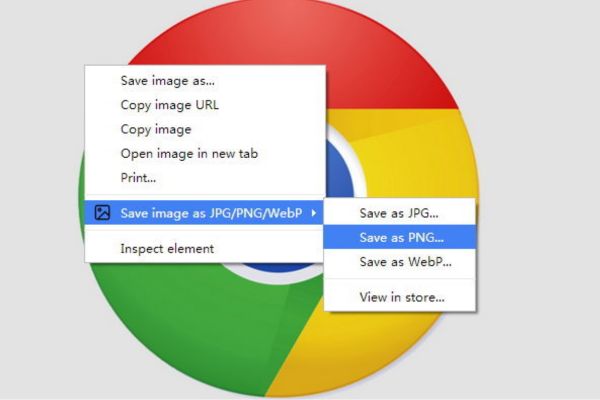
Save image as Type contains malicious code: Remove immediately before losing money unfairly!
Network

Save image as Type contains malicious code: Remove immediately before losing money unfairly!

March 19, 2026
Instructions on how to register a .co.uk domain name for free for 1 year
Network

Instructions on how to register a .co.uk domain name for free for 1 year

March 12, 2026
How to Setup Paperclip AI: Create a Company for AI Agent
Network

How to Setup Paperclip AI: Create a Company for AI Agent

March 12, 2026
Compilation of free and cheap APIs to run OpenClaw stably
Network

Compilation of free and cheap APIs to run OpenClaw stably

March 10, 2026
3 Services to Determine IP Location for Website (IP Geolocation API)
Network

3 Services to Determine IP Location for Website (IP Geolocation API)

March 10, 2026
How to buy a .STORE domain name for 1 USD (2026): Detailed instructions from A–Z
Network

How to buy a .STORE domain name for 1 USD (2026): Detailed instructions from A–Z

March 3, 2026
Next Post
How to Automatically Forward Emails in Gmail

How to Automatically Forward Emails in Gmail

0 0 votes
Article Rating
Subscribe
Login
Notify of
guest

guest

0 Comments
Oldest
Newest Most Voted
Inline Feedbacks
View all comments

Recent News

How to turn off Gemini Nano on Chrome to free up 4GB of memory

How to turn off Gemini Nano on Chrome to free up 4GB of memory

May 30, 2026
Instructions for receiving Lovable Pro 12 months for free

Instructions for receiving Lovable Pro 12 months for free

May 29, 2026
How to extract text from photos using Zalo is super simple

How to extract text from photos using Zalo is super simple

May 29, 2026
HONOR 600 in hand – High-end design, 200MP camera, not cheap price

HONOR 600 in hand – High-end design, 200MP camera, not cheap price

May 28, 2026
How to turn off Gemini Nano on Chrome to free up 4GB of memory

How to turn off Gemini Nano on Chrome to free up 4GB of memory

May 30, 2026
Instructions for receiving Lovable Pro 12 months for free

Instructions for receiving Lovable Pro 12 months for free

May 29, 2026
How to extract text from photos using Zalo is super simple

How to extract text from photos using Zalo is super simple

May 29, 2026
AnonyViet - English Version

AnonyViet

AnonyViet is a website share knowledge that you have never learned in school!

We are ready to welcome your comments, as well as your articles sent to AnonyViet.

Follow Us

Contact:

Email: anonyviet.com[@]gmail.com

Main Website: https://anonyviet.com

Recent News

How to turn off Gemini Nano on Chrome to free up 4GB of memory

How to turn off Gemini Nano on Chrome to free up 4GB of memory

May 30, 2026
Instructions for receiving Lovable Pro 12 months for free

Instructions for receiving Lovable Pro 12 months for free

May 29, 2026
No Result
View All Result
  • Home
  • News
  • Software
  • Knowledge
  • MMO
  • Tips
  • Security
  • Network
  • Office

wpDiscuz
0
0
Would love your thoughts, please comment.x
()
x
| Reply