• Home
  • News
  • Software
  • Knowledge
  • MMO
  • Tips
  • Security
  • Network
  • Office
AnonyViet - English Version
  • Home
  • News
  • Software
  • Knowledge
  • MMO
  • Tips
  • Security
  • Network
  • Office
No Result
View All Result
  • Home
  • News
  • Software
  • Knowledge
  • MMO
  • Tips
  • Security
  • Network
  • Office
No Result
View All Result
AnonyViet - English Version
No Result
View All Result

Lesson 26: How to use Checkbox in Excel

AnonyViet by AnonyViet
January 26, 2023
in Office
0

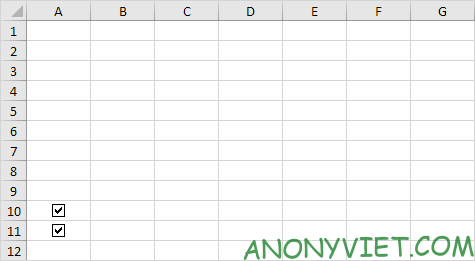
Inserting a checkbox in Excel is very easy. For example, use checkboxes to create a dynamic checklist or chart. You can also insert a check mark symbol.

Join the channel Telegram of the AnonyViet 👉 Link 👈

Lesson 26: How to use Checkbox in Excel

How to use Checkbox in Excel

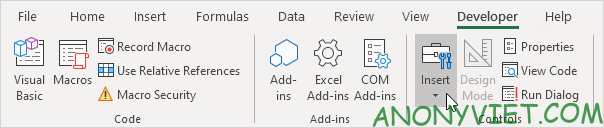
First, open the Developer tab, in the Control section, select Insert.
Lesson 26: How to use Checkbox in Excel 28

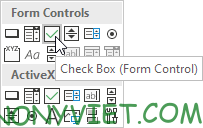
Click Check Box in the Form Controls section.
Lesson 26: How to use Checkbox in Excel 29

I will insert a checkbox in cell B2.

Lesson 26: How to use Checkbox in Excel 30

To remove “Check Box 1”, right-click the checkbox and click the text.

Lesson 26: How to use Checkbox in Excel 31

Checkbox link

To associate a checkbox with a cell, perform the following steps.

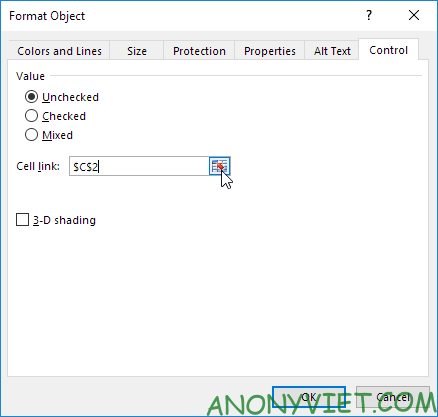
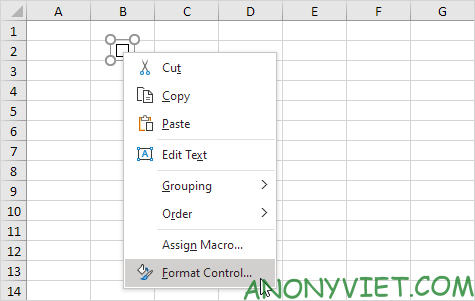
Right-click the checkbox and select Format Control.
Lesson 26: How to use Checkbox in Excel 32

Link the checkbox to cell C2.

Lesson 26: How to use Checkbox in Excel 33

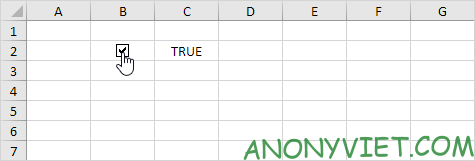
Check checkbox.

Lesson 26: How to use Checkbox in Excel 34

Next, I will hide column C.

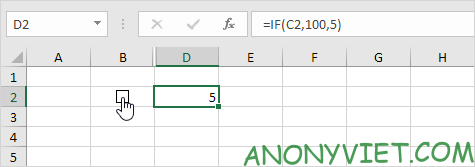
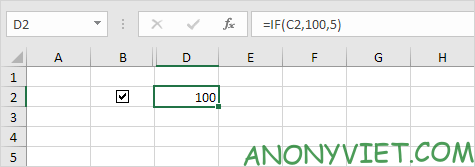
And in this example, I will use the IF function.
Lesson 26: How to use Checkbox in Excel 35

Uncheck the checkbox.

Lesson 26: How to use Checkbox in Excel 36

Explain a bit that cell C2 I have hidden, so you will not see, when selecting the checkbox, cell C2 will have the value True, so the if function in cell D2 will have the result 100. Conversely, when unchecking the checkbox, the cell C2 will have a value of False so cell D2 will have a result of 5.

How to create a Checklist

To create a checklist, you need to follow these steps.

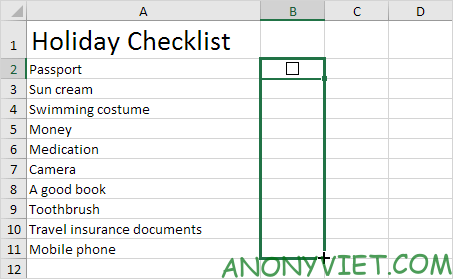
First, insert a checkbox in cell B2.

Click the small square in the lower right corner in cell B2 and drag it down to cell B11.
Lesson 26: How to use Checkbox in Excel 37

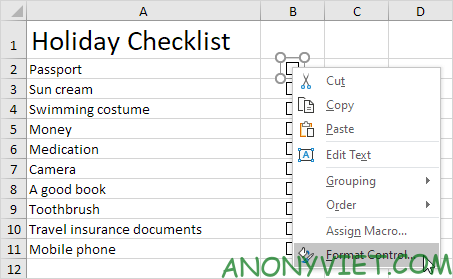
Right-click the checkbox and select Format Control.
Lesson 26: How to use Checkbox in Excel 38

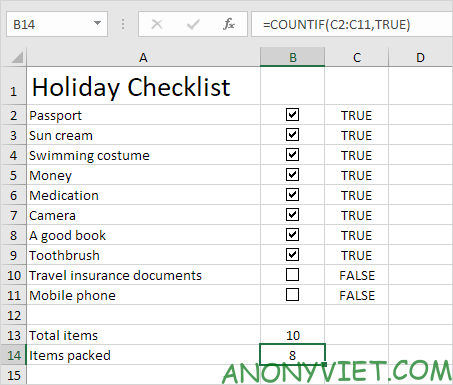
Link the checkbox to the cell next to it (cell C2).

Repeat the above action for all checkboxes.

Use the COUNTIF function to count selected checkboxes.
Lesson 26: How to use Checkbox in Excel 39

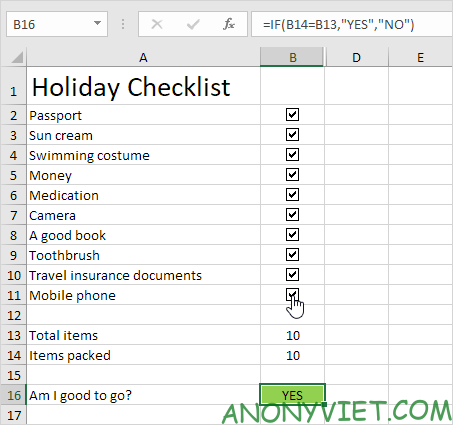
Hide column C. Then insert the IF function to check if all checkboxes are checked.
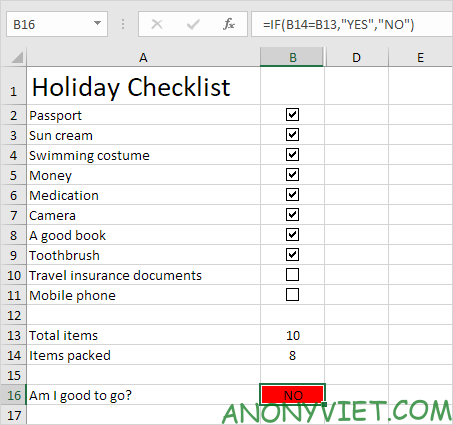
Lesson 26: How to use Checkbox in Excel 40

Select all checkboxes.

Lesson 26: How to use Checkbox in Excel 41

Note: I have use conditional formatting to automatically change cell background color B16.

Dynamic chart

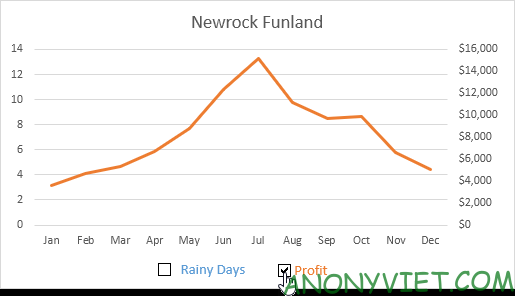
Now I will apply checkboxes and dynamic charts to show you the practicality of checkboxes.

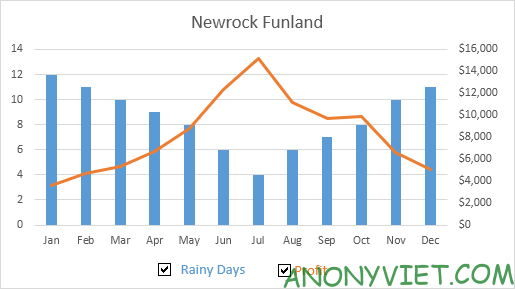
First, create a combo chart with two data series rainy day and profit (Rainy Days and Profit).

Next, insert 2 checkboxes.
Lesson 26: How to use Checkbox in Excel 42

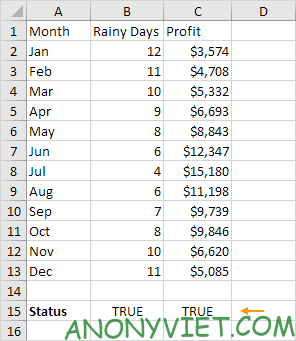
Right-click the first checkbox and select Format Control. Link this checkbox to cell B15.

Right-click the second checkbox and select Format Control. Link this checkbox to cell C15.
Lesson 26: How to use Checkbox in Excel 43

Uncheck the second checkbox. Cell C15 below changes to FALSE.

Now we will create two new data series by inserting the IF function below and copying this formula down to cell F13.

Repeat this step for the new Profit data.

Lesson 26: How to use Checkbox in Excel 44

Explanation: if the checkbox is checked, the old and new data series are the same. If the checkbox is not selected, the new data series will change to the range with the #N/A error.

Use the new data series to create a combo chart. To do so, select the chart, right-click and select Select Data.
Lesson 26: How to use Checkbox in Excel 45

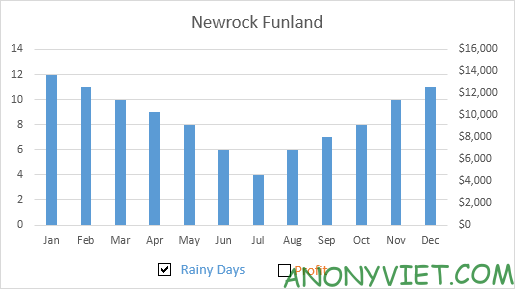
Uncheck the first checkbox and select the second checkbox.
Lesson 26: How to use Checkbox in Excel 46

How to clear checkbox

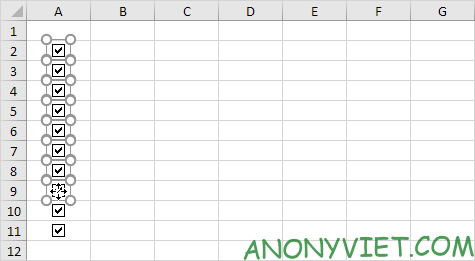
To delete multiple checkboxes at once, you just need to follow these steps.

Hold down Control and select the checkboxes you want to delete.
Lesson 26: How to use Checkbox in Excel 47

Then press Delete.

Lesson 26: How to use Checkbox in Excel 48

The power of checkboxes

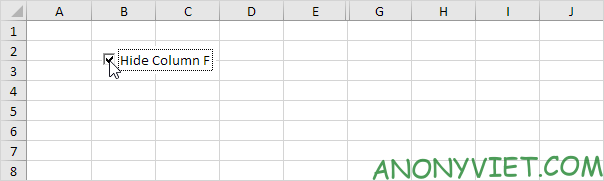
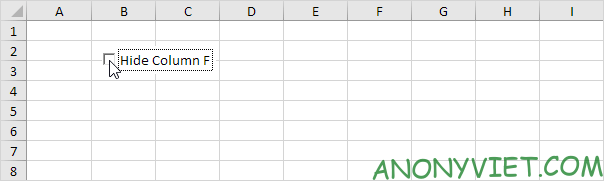
Finally, you can also use VBA to create powerful checkboxes in Excel. Instead of inserting a Form control, insert an ActiveX control.

First, insert checkbox (ActiveX control).

Next, add the following two code snippets to hide and show column F.

If CheckBox1.Value = True Then Columns("F").Hidden = True
If CheckBox1.Value = False Then Columns("F").Hidden = False
Lesson 26: How to use Checkbox in Excel 49

Lesson 26: How to use Checkbox in Excel 50

In addition, you can also view many other excel articles here.

The article achieved: 5/5 – (100 votes)

Tags: CheckboxExcelLesson
Previous Post

8 Code security tools that programmers need to have

Next Post

Sync Temporary Clipboard between Windows and Android with SwiftKey

AnonyViet

AnonyViet

Related Posts

How to add Watermark to Google Docs to protect copyright
Office

How to add Watermark to Google Docs to protect copyright

April 19, 2026
Instructions on how to hide formulas in Excel to secure data
Office

Instructions on how to hide formulas in Excel to secure data

February 6, 2026
Top who creates the most beautiful presentation slide today
Office

Top who creates the most beautiful presentation slide today

September 23, 2025
Automatically check and correct spelling errors on Google Docs
Office

Automatically check and correct spelling errors on Google Docs

February 23, 2025
Instructions for downloading Google Docs files easily on any device
Office

Instructions for downloading Google Docs files easily on any device

December 18, 2024
Launching AI image creation feature on Google Docs
Office

Launching AI image creation feature on Google Docs

November 20, 2024
Next Post
Sync Temporary Clipboard between Windows and Android with SwiftKey

Sync Temporary Clipboard between Windows and Android with SwiftKey

0 0 votes
Article Rating
Subscribe
Login
Notify of
guest

guest

0 Comments
Oldest
Newest Most Voted
Inline Feedbacks
View all comments

Recent News

Reputable LG repair service in Hanoi & Ho Chi Minh City with LGservicecenter

Reputable LG repair service in Hanoi & Ho Chi Minh City with LGservicecenter

April 21, 2026
Japanese Watch Week: Choose the color that suits your destiny, start the new year well at Mobile World

Japanese Watch Week: Choose the color that suits your destiny, start the new year well at Mobile World

April 20, 2026
4K Video Downloader Plus – Tool to download YouTube videos on macOS

4K Video Downloader Plus – Tool to download YouTube videos on macOS

April 20, 2026
How to add Watermark to Google Docs to protect copyright

How to add Watermark to Google Docs to protect copyright

April 19, 2026
Reputable LG repair service in Hanoi & Ho Chi Minh City with LGservicecenter

Reputable LG repair service in Hanoi & Ho Chi Minh City with LGservicecenter

April 21, 2026
Japanese Watch Week: Choose the color that suits your destiny, start the new year well at Mobile World

Japanese Watch Week: Choose the color that suits your destiny, start the new year well at Mobile World

April 20, 2026
4K Video Downloader Plus – Tool to download YouTube videos on macOS

4K Video Downloader Plus – Tool to download YouTube videos on macOS

April 20, 2026
AnonyViet - English Version

AnonyViet

AnonyViet is a website share knowledge that you have never learned in school!

We are ready to welcome your comments, as well as your articles sent to AnonyViet.

Follow Us

Contact:

Email: anonyviet.com[@]gmail.com

Main Website: https://anonyviet.com

Recent News

Reputable LG repair service in Hanoi & Ho Chi Minh City with LGservicecenter

Reputable LG repair service in Hanoi & Ho Chi Minh City with LGservicecenter

April 21, 2026
Japanese Watch Week: Choose the color that suits your destiny, start the new year well at Mobile World

Japanese Watch Week: Choose the color that suits your destiny, start the new year well at Mobile World

April 20, 2026
No Result
View All Result
  • Home
  • News
  • Software
  • Knowledge
  • MMO
  • Tips
  • Security
  • Network
  • Office

wpDiscuz
0
0
Would love your thoughts, please comment.x
()
x
| Reply