• Home
  • News
  • Software
  • Knowledge
  • MMO
  • Tips
  • Security
  • Network
  • Office
AnonyViet - English Version
  • Home
  • News
  • Software
  • Knowledge
  • MMO
  • Tips
  • Security
  • Network
  • Office
No Result
View All Result
  • Home
  • News
  • Software
  • Knowledge
  • MMO
  • Tips
  • Security
  • Network
  • Office
No Result
View All Result
AnonyViet - English Version
No Result
View All Result

Guide to correct spelling mistakes for you or when you type

AnonyViet by AnonyViet
January 26, 2023
in Tips
0

Are you a typist? If you have trouble typing or editing because of typos, I’m just like you. But I already have the secret to not making spelling mistakes when editing anymore and today, I will show you how to avoid spelling problems!

Join the channel Telegram of the AnonyViet 👉 Link 👈

How to check spelling?

If you are not used to typing, editing or are you having problems with your Vietnamese? Need to draft an important document and you’re not sure about your spelling? Do you make a long essay to submit to your philology teacher that you are afraid of making mistakes in your Vietnamese? Do not worried. Most people who draft long paragraphs will have this problem and it’s hard to test them.

But not without a way. For spelling problems, tools have now allowed us to detect errors easily with Auto Correct and up to now, it can support both English and Vietnamese. So how to use it? let’s find out together

Use Auto Correct to check spelling errors

Method 1: Use Auto Correct right in Word

This way, I will guide you to do spell check right on word for those of you who do not have access to the internet!

Step 1: At your editing page, click File in the top left corner of your screen
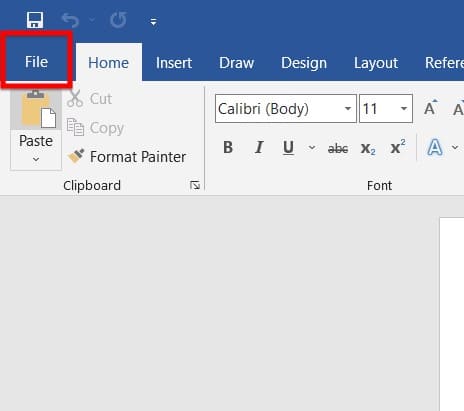
Go to file in word

Step 2: In the bottom left corner, select Option
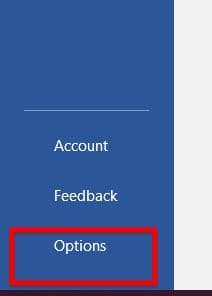
Option item in word

Step 3: Go to the proofing section and make sure Check spelling as you type has been turned on
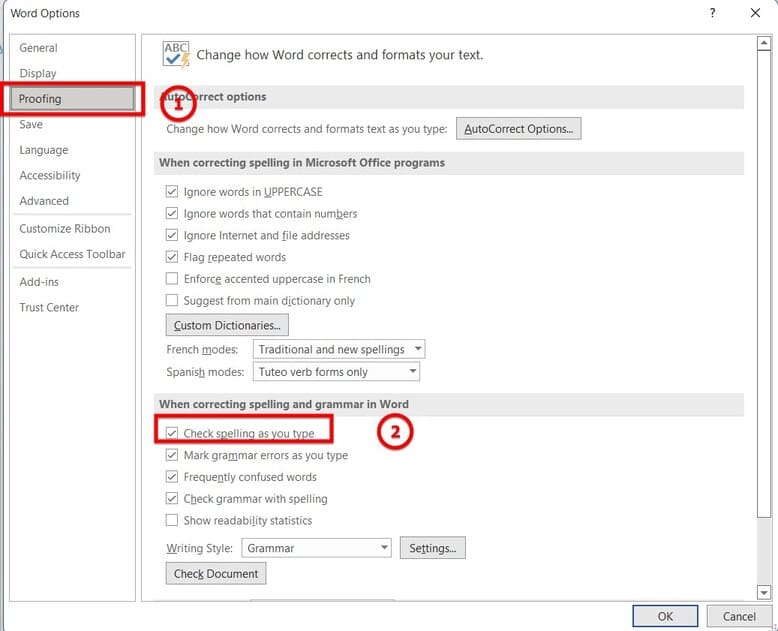
turn on spelling check

So now your Word can detect the error for you. For those of you who don’t know how to correct your words, let’s learn how to do #2!

Method 2: Use Google Doc

This way, I will always use Google’s doc to correct spelling errors!

Step 1: You go to Google Doc here

Step 2: Create a new file and paste the part to be checked

You can choose to upload your prepared files

Step 3: Click on the red underlined text below. Then press the corrected word above
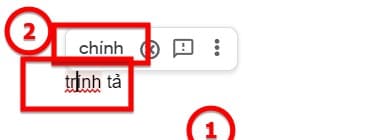
Fix spelling errors on Google Doc

Repeat until the red brick is gone, then you have checked and corrected all spelling errors in your editing file.

Method 3: Integrate Vietnamese dictionary into Word

You may not know that the auto correct function only supports English, but if you have a Vietnamese dictionary to integrate into Word, you can still check Vietnamese spelling errors when typing text. Then if you type the wrong Vietnamese word, there will be a red underlined mark below.

You can see the details in the article How to enable Vietnamese spell check in Word it will do.

The article achieved: 5/5 – (100 votes)

Tags: correctGuideMistakesspellingtype
Previous Post

Lesson 51: How to mark in Excel

Next Post

7 ways to make your WiFi safer from Hackers

AnonyViet

AnonyViet

Related Posts

How to change the Windows 10 interface to a very beautiful Windows 11
Tips

How to change the Windows 10 interface to a very beautiful Windows 11

June 28, 2026
How to create Comic style advertising photos that attract millions of Likes
Tips

How to create Comic style advertising photos that attract millions of Likes

June 27, 2026
How to change the default font in Word
Tips

How to change the default font in Word

June 27, 2026
11 reasons to buy a Macbook instead of a Windows Laptop
Tips

11 reasons to buy a Macbook instead of a Windows Laptop

June 26, 2026
Instructions on how to change Gmail address without worrying about losing data
Tips

Instructions on how to change Gmail address without worrying about losing data

June 25, 2026
8 quick tips for learning Excel that anyone can learn
Tips

8 quick tips for learning Excel that anyone can learn

June 25, 2026
Next Post
7 ways to make your WiFi safer from Hackers

7 ways to make your WiFi safer from Hackers

0 0 votes
Article Rating
Subscribe
Login
Notify of
guest

guest

0 Comments
Oldest
Newest Most Voted
Inline Feedbacks
View all comments

Recent News

How to change the Windows 10 interface to a very beautiful Windows 11

How to change the Windows 10 interface to a very beautiful Windows 11

June 28, 2026
How to create Comic style advertising photos that attract millions of Likes

How to create Comic style advertising photos that attract millions of Likes

June 27, 2026
How to change the default font in Word

How to change the default font in Word

June 27, 2026
Tips for browsing the web with Safari on iPhone

Tips for browsing the web with Safari on iPhone

June 26, 2026
How to change the Windows 10 interface to a very beautiful Windows 11

How to change the Windows 10 interface to a very beautiful Windows 11

June 28, 2026
How to create Comic style advertising photos that attract millions of Likes

How to create Comic style advertising photos that attract millions of Likes

June 27, 2026
How to change the default font in Word

How to change the default font in Word

June 27, 2026
AnonyViet - English Version

AnonyViet

AnonyViet is a website share knowledge that you have never learned in school!

We are ready to welcome your comments, as well as your articles sent to AnonyViet.

Follow Us

Contact:

Email: anonyviet.com[@]gmail.com

Main Website: https://anonyviet.com

Recent News

How to change the Windows 10 interface to a very beautiful Windows 11

How to change the Windows 10 interface to a very beautiful Windows 11

June 28, 2026
How to create Comic style advertising photos that attract millions of Likes

How to create Comic style advertising photos that attract millions of Likes

June 27, 2026
  • Home
  • Home 2
  • Home 3
  • Home 4
  • Home 5
  • Home 6
  • Next Dest Page
  • Sample Page

6789 kv999

No Result
View All Result
  • Home
  • News
  • Software
  • Knowledge
  • MMO
  • Tips
  • Security
  • Network
  • Office

6789 kv999

wpDiscuz
0
0
Would love your thoughts, please comment.x
()
x
| Reply