• Home
  • News
  • Software
  • Knowledge
  • MMO
  • Tips
  • Security
  • Network
  • Office
AnonyViet - English Version
  • Home
  • News
  • Software
  • Knowledge
  • MMO
  • Tips
  • Security
  • Network
  • Office
No Result
View All Result
  • Home
  • News
  • Software
  • Knowledge
  • MMO
  • Tips
  • Security
  • Network
  • Office
No Result
View All Result
AnonyViet - English Version
No Result
View All Result

Lesson 109: How to use the SUM function in Excel

AnonyViet by AnonyViet
January 25, 2023
in Office
0

In this article, I will show you how to use the . function SUMMARY in Excel to sum cells.

Join the channel Telegram of the AnonyViet 👉 Link 👈

How to use the SUM function in Excel

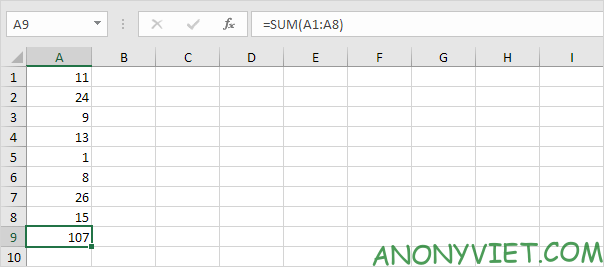
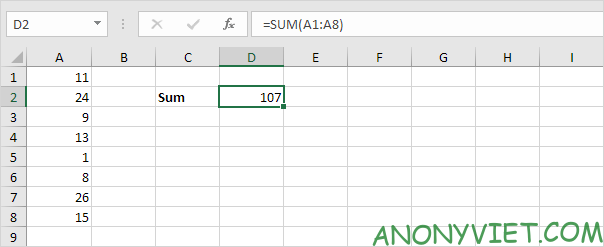
Normally, you would use the SUM function in Excel to sum a range of cells.
Lesson 109: How to use the SUM function in Excel

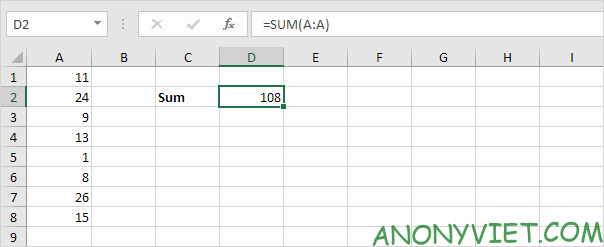
You can also use the SUM function in Excel to sum a column.
Lesson 109: How to use the SUM function in Excel 14Lesson 109: How to use the SUM function in Excel 15

Note: you can also use the SUM function in Excel to sum entire rows. For example, =SUM(5:5) sums all values ​​in the 5th row.

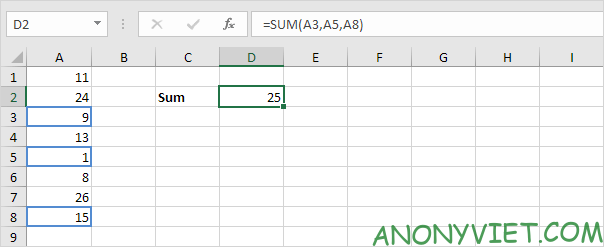
You can also use the SUM function in Excel to sum cells that are not contiguous, that is, not next to each other.
Lesson 109: How to use the SUM function in Excel 16

Note: =A3 + A5 + A8 gives the same result.

AutoSum

Use AutoSum or press ALT + = to quickly sum a column or row of numbers.

1. First, select the cell below the column of numbers (or next to the row of numbers) you want to sum.
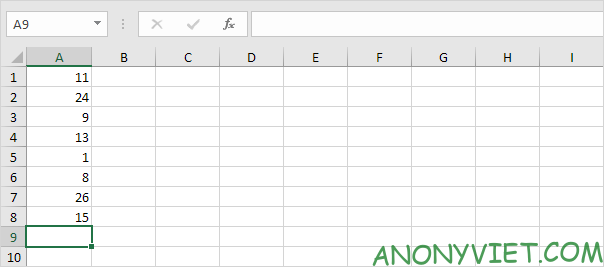
Lesson 109: How to use the SUM function in Excel 17

2. On the Home tab, in the Editing group, click AutoSum (or press ATL + =).

Lesson 109: How to use the SUM function in Excel 18

3. Press Enter.

Lesson 109: How to use the SUM function in Excel 19

Calculating total goods

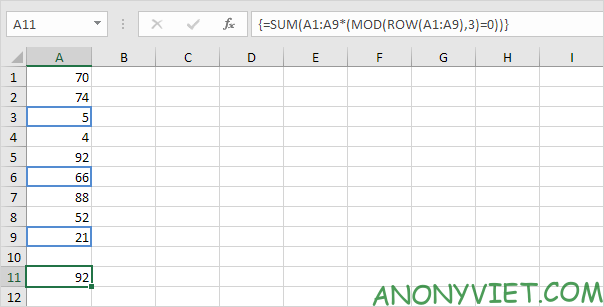
The SUM formula below uses SUM, MOD, and ROW to sum every nth row. Changing 3 to 4 will sum every 4th row, to 5 to sum every 5th row, etc.
Lesson 109: How to use the SUM function in Excel 20

Note: this is an array formula enclosed in curly braces {}. Don’t type these yourself. To enter an array formula, finish by pressing CTRL + SHIFT + ENTER.

Add the largest numbers

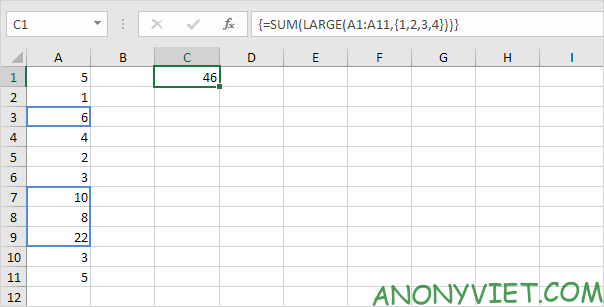
The SUM formula below uses SUM and LARGE to sum the largest numbers in a range. Change {1,2,3,4} to {1,2,3,4,5} to sum the largest 5 numbers.
Lesson 109: How to use the SUM function in Excel 21

Sum cells with no errors

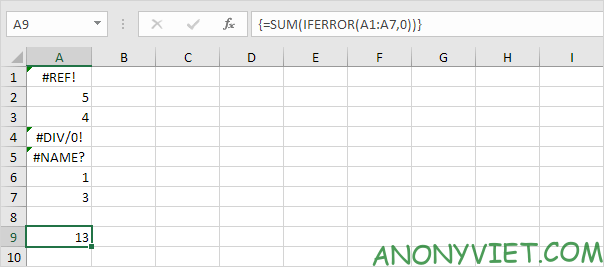
The SUM formula below uses SUM and IFERROR to sum a range of cells with errors. You can also use the Excel AGGREGATE function to sum an error range.
Lesson 109: How to use the SUM function in Excel 22

In addition, you can also view many other excel articles here.

The article achieved: 5/5 – (100 votes)

Tags: ExcelfunctionLessonsum
Previous Post

How to change the mouse pointer color on Windows 10/11

Next Post

Should you use a VPN for gaming?

AnonyViet

AnonyViet

Related Posts

Instructions on how to convert text into QR codes in Word
Office

Instructions on how to convert text into QR codes in Word

October 5, 2026
Tool to adjust the format of administrative documents according to Decree 30
Office

Tool to adjust the format of administrative documents according to Decree 30

October 1, 2026
How to add Watermark to Google Docs to protect copyright
Office

How to add Watermark to Google Docs to protect copyright

April 19, 2026
Instructions on how to hide formulas in Excel to secure data
Office

Instructions on how to hide formulas in Excel to secure data

February 6, 2026
Top who creates the most beautiful presentation slide today
Office

Top who creates the most beautiful presentation slide today

September 23, 2025
Automatically check and correct spelling errors on Google Docs
Office

Automatically check and correct spelling errors on Google Docs

February 23, 2025
Next Post
Should you use a VPN for gaming?

Should you use a VPN for gaming?

0 0 votes
Article Rating
Subscribe
Login
Notify of
guest

guest

0 Comments
Oldest
Newest Most Voted

Recent News

Instructions for receiving Avira Prime 3 months for free, no credit card

Instructions for receiving Avira Prime 3 months for free, no credit card

October 31, 2026
Instructions for cleaning LG TV with Antigravity to help it run faster

Instructions for cleaning LG TV with Antigravity to help it run faster

October 30, 2026
Cách hạn chế Synology NAS bị Ransomware .L0CK3D: Cách khắc phục

Cách hạn chế Synology NAS bị Ransomware .L0CK3D: Cách khắc phục

October 30, 2026
Instructions for installing CleanYourTv to remove Android TV ads

Instructions for installing CleanYourTv to remove Android TV ads

October 29, 2026
Instructions for receiving Avira Prime 3 months for free, no credit card

Instructions for receiving Avira Prime 3 months for free, no credit card

October 31, 2026
Instructions for cleaning LG TV with Antigravity to help it run faster

Instructions for cleaning LG TV with Antigravity to help it run faster

October 30, 2026
Cách hạn chế Synology NAS bị Ransomware .L0CK3D: Cách khắc phục

Cách hạn chế Synology NAS bị Ransomware .L0CK3D: Cách khắc phục

October 30, 2026
AnonyViet - English Version

AnonyViet

AnonyViet is a website share knowledge that you have never learned in school!

We are ready to welcome your comments, as well as your articles sent to AnonyViet.

Follow Us

Contact:

Email: anonyviet.com[@]gmail.com

Main Website: https://anonyviet.com

Recent News

Instructions for receiving Avira Prime 3 months for free, no credit card

Instructions for receiving Avira Prime 3 months for free, no credit card

October 31, 2026
Instructions for cleaning LG TV with Antigravity to help it run faster

Instructions for cleaning LG TV with Antigravity to help it run faster

October 30, 2026
  • Home
  • Home 2
  • Home 3
  • Home 4
  • Home 5
  • Home 6
  • Next Dest Page
  • Sample Page

say88 tỷ lệ kèo nhà cái kèo nhà cái 5 febet

No Result
View All Result
  • Home
  • News
  • Software
  • Knowledge
  • MMO
  • Tips
  • Security
  • Network
  • Office

say88 tỷ lệ kèo nhà cái kèo nhà cái 5 febet

wpDiscuz
0
0
Would love your thoughts, please comment.x
()
x
| Reply