Many Huawei users install Gmail to work, receive verification codes, and exchange emails every day, but are confused when they need to log out of their accounts. Some people change phones, some people lend devices, and some people just want to separate their personal accounts from their phones. Actually, how to log out of gmail on huawei phone is not complicated at all if you go to the right section in the application.
📢 Join the channel Telegram belong to AnonyViet
Update new articles, cool tools and IT tips fastest
If you have just set up Gmail through Google’s support environment on a Huawei device, you can see more how to log out of gmail on huawei phone to grasp the usage flow before operating.
When should I log out of Gmail on Huawei?
Exiting Gmail at the right time helps you protect personal data and avoid accidental synchronization on other devices. You should use the method to log out of gmail on Huawei phones in the following cases:
- Prepare to sell, exchange or lend the device to others.
- Login to the wrong account and want to switch to another email.
- Gmail is syncing too much data, need to temporarily disconnect.
- The device has many Google accounts and you want to clean it up.
In most cases, you just need to delete the account from your device, not permanently delete Gmail. This is a very important point because many people often mistake these two operations as one.
How to log out of gmail on Huawei phones step by step
The fastest way is to do it directly in the Gmail app:
- Open the Gmail app on your Huawei phone.
- Click on the avatar in the upper right corner.
- Select Manage accounts on this device.
- Select the Gmail account you want to log out of.
- Tap Remove from device or Remove from this device.
- Confirm again to complete.
Once done, the account will no longer appear in Gmail on your device and mail sync will pause. If you are using multiple accounts, repeat the operation for each email that needs to be logged out.
If you need to check more about installing and using Gmail on your Huawei device before exiting your account, you can reopen it how to log out of gmail on huawei phone to properly check the steps involved.
How is signing out of Gmail different from deleting an account?
This is the most confusing part when it comes to how to sign out of gmail on Huawei phones.
- Sign out: only remove account from current device, data remains on Google servers.
- Deleting a Gmail account: is a deeper operation that can affect Google services and data associated with that account.
In other words, if you just want to stop using Gmail on this Huawei, select delete from device. If you want to completely remove your Gmail address, you must go to Google account management and handle it at the service level, don’t do it in a hurry.
Note for safer operation
Before performing how to log out of gmail on Huawei phones, you should check a few small but very useful points:
- Make sure to remember your Gmail password if you need to log in again later.
- If the account is for work, back up important emails first.
- With a shared device, you should check whether other Google applications have exited or not.
- If Gmail is logging in to multiple accounts, prioritize exiting the rarely used account first to avoid confusion.
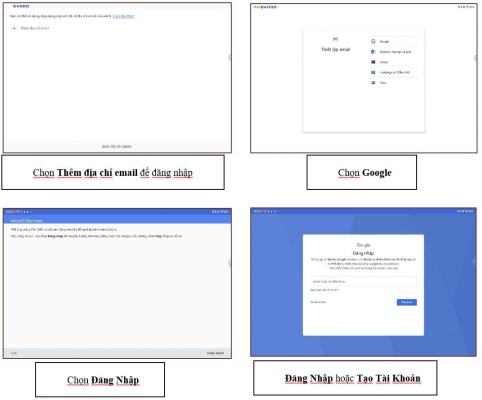
In case you just want to switch to another account, after deleting from the device, opening Gmail and choosing to add a new account is enough. If you need to reuse your old email, just re-enter the address and password as usual.
For those who are using Gmail on Huawei to work, study or receive important notifications, understanding how to log out of Gmail on Huawei phones will help the process of switching devices, changing accounts or handling personal devices become more compact and safe.