• Home
  • News
  • Software
  • Knowledge
  • MMO
  • Tips
  • Security
  • Network
  • Office
AnonyViet - English Version
  • Home
  • News
  • Software
  • Knowledge
  • MMO
  • Tips
  • Security
  • Network
  • Office
No Result
View All Result
  • Home
  • News
  • Software
  • Knowledge
  • MMO
  • Tips
  • Security
  • Network
  • Office
No Result
View All Result
AnonyViet - English Version
No Result
View All Result

The easiest way to convert Word File to PowerPoint – Convert DOCX File to PTTX

AnonyViet by AnonyViet
July 6, 2026
in Tips
0

Not all presentations have to be done using PowerPoint. If your presentation is in Word (DOCX file), I will show you how to convert the Word file into a PowerPoint presentation (PPTX file). This is a simple way to convert from DOCX to PPTX and you will quickly convert Word to PowerPoint.

📢 Join the channel Telegram belong to AnonyViet


👉 Go to Telegram AnonyViet

Update new articles, cool tools and IT tips fastest

The easiest way to convert Word File to PowerPoint – Convert DOCX File to PTTX

The easiest way is to convert on the web

convert word to powerpoint

You can easily Convert Word files to PowerPoint on the web. You click Choose Files Select the Word file you want to convert to PowerPoint, then press the button Convert Everything will be automatic and you just need to download the resulting file.

This is the easiest way, but you must upload your Word file to Microsoft’s web application. If your computer does not have an Internet connection, you can still convert DOCX to PPTX manually.

Convert Word files to PowerPoint on PC

The Microsoft Word desktop application does not provide the above feature to automatically convert Word files to PowerPoint. Instead, it uses a manual solution to convert your files.

This method will format your Word file according to PowerPoint and then import the Word file into PowerPoint.

First, format the Word file

The first step is to make your Word file compatible with PowerPoint. To do this, you need to apply a title H1 for all headings and titles H2 for all paragraphs in your document.

Open your document in Microsoft Word. In the Word window, select a heading in the document.
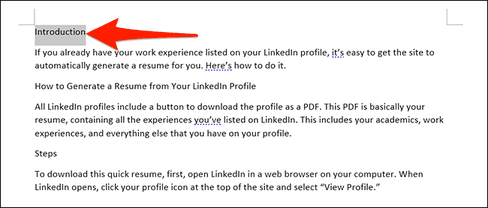
Word file format

In the “Styles” at the top of the Word window, click “Heading 1” Do the same with all the headings in your document.
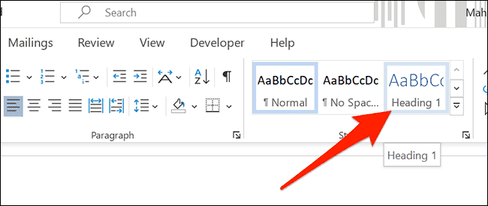
The easiest way to convert Word File to PowerPoint - Convert DOCX File to PTTX 5

Next, select the paragraph below your title. Then, in the “Styles” at the top, click “More” then select “Heading 2Format all your content this way.
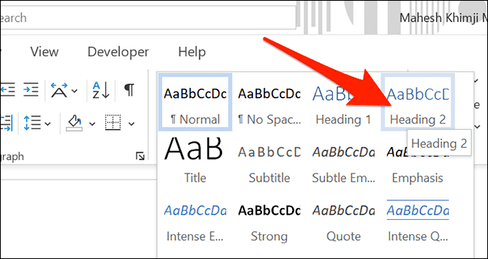
Convert Word File to PowerPoint

Finally, click File > Save in Word’s menu bar to save the document. You can also press Ctrl + S on Windows or Command + S on Mac.
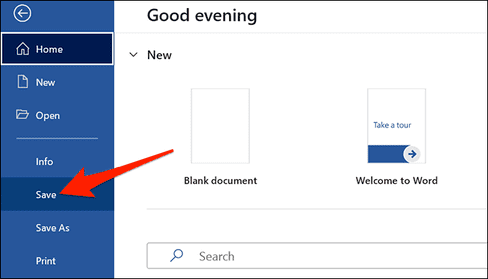
save word to powerpoint

Import Word files into PowerPoint

Your Word file is now ready to import into PowerPoint and convert into a presentation.

Start the import process by opening PowerPoint. On the first screen of PowerPoint, click “Blank Presentation” to create a new presentation.
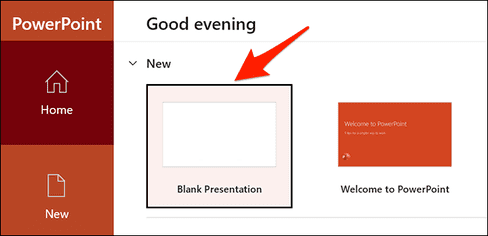
Import Word files into PowerPoint

In the PowerPoint editing window, click the “Home” at the top. Then in the “Slides”, and click the arrow icon next to “New Slide”.
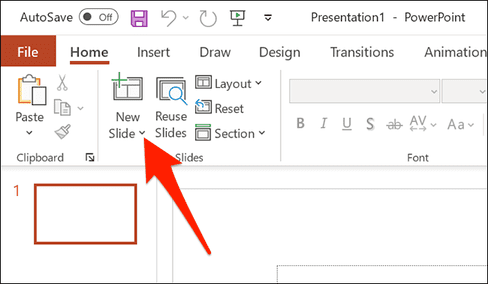
New Slide

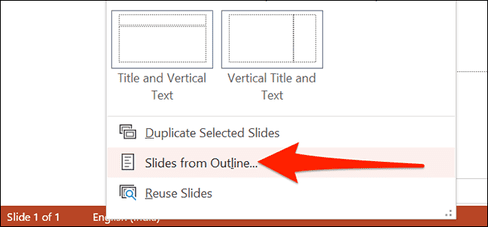
Select “Slides from Outline”.

Slides from Outline

PowerPoint will ask you to choose a file to import into your presentation. Here, select the Word file that you previously formatted.
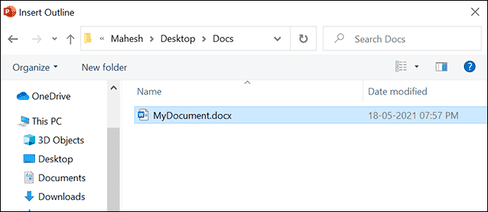
Select Word file

Your Word file will now be converted into a PowerPoint presentation. Each “Header 1” in your Word file will now be a different slide in the presentation. Review this presentation and make changes as you like.
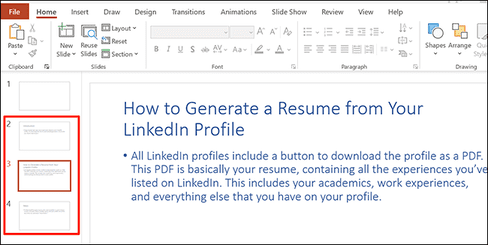
convert word to powerpoint

Finally, save the presentation by clicking File > Save in PowerPoint’s menu bar.
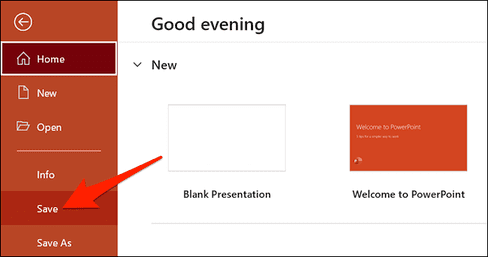
save

And that’s all you need to do to convert Word files to PowerPoint. You don’t have to copy each part from Word to Powerpoint, everything will be converted automatically.

Frequently asked questions

Can I convert Word files to PowerPoint online?

Yes, you can absolutely use online conversion tools to convert Word (DOCX) files to PowerPoint (PPTX) easily. Just upload the file to the conversion support website and wait for the process to complete.

If I don’t have an internet connection, can I convert Word files to PowerPoint?

Yes, you can convert a Word file to PowerPoint by formatting the Word file with H1 and H2 headings, then importing the file into PowerPoint as an outline. This method requires the use of Microsoft Word and PowerPoint software on a computer.

Is there a faster way to convert Word files to PowerPoint?

The fastest way is to use online conversion tools. However, this method requires an internet connection. If there is no internet, the manual method using Word and PowerPoint will require more steps but still ensures successful conversion.

Previous Post

The simplest way to log out of Gmail on Huawei phones

AnonyViet

AnonyViet

Related Posts

What is TPM 2.0 CHIP? Why is it required to have a TPM chip when installing Windows 11?
Tips

What is TPM 2.0 CHIP? Why is it required to have a TPM chip when installing Windows 11?

July 5, 2026
Windows 11 Download link and new interface appear
Tips

Windows 11 Download link and new interface appear

July 3, 2026
Tips

How to know if strangers are viewing your Story on Facebook

July 2, 2026
Tips

How to block any website on your computer and phone to avoid distraction

July 1, 2026
How to Insert Pictures into Text in Microsoft Word
Tips

How to Insert Pictures into Text in Microsoft Word

June 30, 2026
How to use Windows 3.1/95/98/Me with Emupedia
Tips

How to use Windows 3.1/95/98/Me with Emupedia

June 29, 2026
0 0 votes
Article Rating
Subscribe
Login
Notify of
guest

guest

0 Comments
Oldest
Newest Most Voted
Inline Feedbacks
View all comments

Recent News

The easiest way to convert Word File to PowerPoint – Convert DOCX File to PTTX

The easiest way to convert Word File to PowerPoint – Convert DOCX File to PTTX

July 6, 2026
The simplest way to log out of Gmail on Huawei phones

The simplest way to log out of Gmail on Huawei phones

July 5, 2026
Receive a free 6-month Smart Game Booster VIP license

Receive a free 6-month Smart Game Booster VIP license

July 5, 2026
What is TPM 2.0 CHIP? Why is it required to have a TPM chip when installing Windows 11?

What is TPM 2.0 CHIP? Why is it required to have a TPM chip when installing Windows 11?

July 5, 2026
The easiest way to convert Word File to PowerPoint – Convert DOCX File to PTTX

The easiest way to convert Word File to PowerPoint – Convert DOCX File to PTTX

July 6, 2026
The simplest way to log out of Gmail on Huawei phones

The simplest way to log out of Gmail on Huawei phones

July 5, 2026
Receive a free 6-month Smart Game Booster VIP license

Receive a free 6-month Smart Game Booster VIP license

July 5, 2026
AnonyViet - English Version

AnonyViet

AnonyViet is a website share knowledge that you have never learned in school!

We are ready to welcome your comments, as well as your articles sent to AnonyViet.

Follow Us

Contact:

Email: anonyviet.com[@]gmail.com

Main Website: https://anonyviet.com

Recent News

The easiest way to convert Word File to PowerPoint – Convert DOCX File to PTTX

The easiest way to convert Word File to PowerPoint – Convert DOCX File to PTTX

July 6, 2026
The simplest way to log out of Gmail on Huawei phones

The simplest way to log out of Gmail on Huawei phones

July 5, 2026
  • Home
  • Home 2
  • Home 3
  • Home 4
  • Home 5
  • Home 6
  • Next Dest Page
  • Sample Page

6789 kv999

No Result
View All Result
  • Home
  • News
  • Software
  • Knowledge
  • MMO
  • Tips
  • Security
  • Network
  • Office

6789 kv999

wpDiscuz
0
0
Would love your thoughts, please comment.x
()
x
| Reply