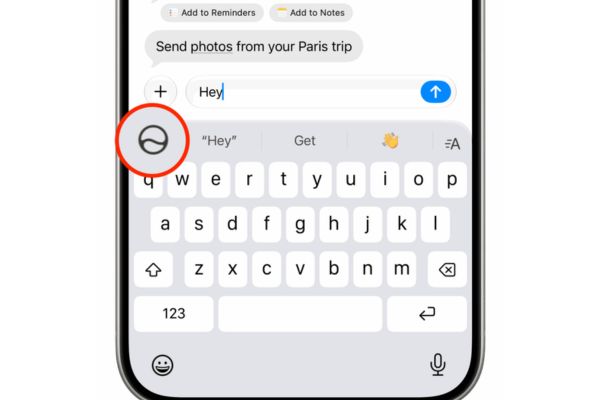
Browse the web using Safari on iPhone Helps users easily access a vast world of information with just a few touches. To help you not miss any interesting features, we would like to share a complete set of instructions for using Safari from basic to advanced, making surfing the web more enjoyable.
📢 Join the channel Telegram belong to AnonyViet
Update new articles, cool tools and IT tips fastest
The secret to professional web browsing with Safari on iPhone
Mastering platform settings and hidden features will help you enhance your internet experience on your Apple device. Below are detailed instructions to help you master this browser.
Set Safari as default browser
Many users often download other browsers but forget the original power of the device. Setting the Apple app as the default will help every link you click open as smoothly as possible.
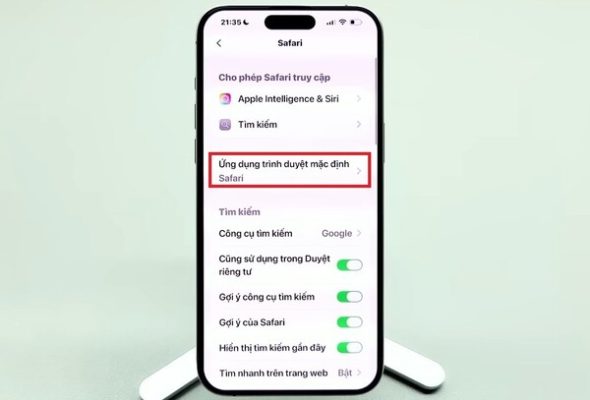
Step 1: You access the application Setting on the phone.
Step 2: Swipe down to the bottom or use the search bar, type “Safari” and select the corresponding result.
Step 3: At section Default browser applicationclick and check the box Safari is complete.
Compact and change the homepage background image
The initial interface sometimes displays too much unnecessary information, making you confused. You can completely clean them up and put on a new coat. Personalization not only makes the device look more beautiful but also creates inspiration every time you need to look up information.
Step 1: Open the browser, create a completely new tab to display the start page.
Step 2: Scroll to the bottom of the screen and tap the button Fix.
Step 3: Here, turn off the switches on items you don’t want to display such as Favorites, Siri Suggestions, Privacy Report,… to make the home page more empty and neat.
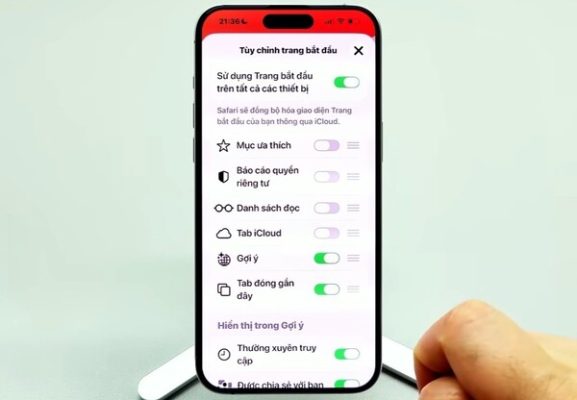
Step 4: To add a wallpaper, turn on the switch in section Background image. You can select available images provided by the system or click the plus icon (+) to upload your favorite photo from your personal library.

Tips for searching and storing websites
Browsing process using Safari above iPhone You will save a lot of time thanks to these extremely subtle tips.
Use voice to search
In the age of speed, quick operations are always the top priority. Apple’s voice recognition feature is increasingly improving, recognizing Vietnamese extremely accurately. Browsing process by Safari on your iPhone will become much more hands-free and modern, especially useful when you are on the road or your hands are busy and cannot type.
Step 1: In your browser’s search address bar, you will see the icon microphone Small is in the right corner.
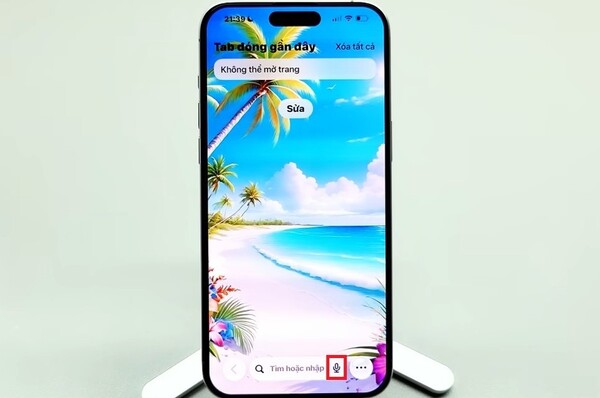
Step 2: Click on that icon. If it is your first time using it, the system will ask you Turn on dictationpress OK and select Share audio recordings.
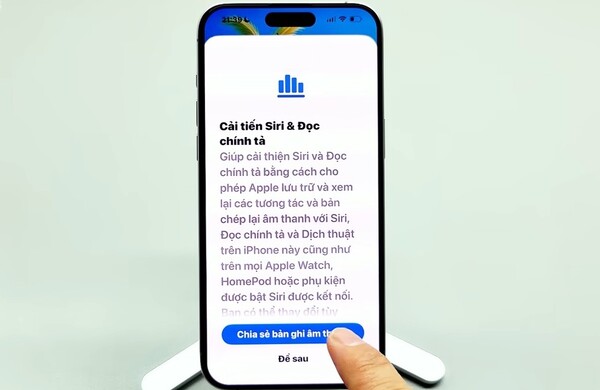
Step 3: Read out loud the keyword you want to find, the system will automatically convert voice into text and return results immediately.
Add favorite websites to the home screen
If you regularly follow the news, watch lottery results or read stories on a fixed website, pin it to the home screen for quick access as a standalone application.
Step 1: Visit the website you want to save often.
Step 2: Click on the icon Share (square with arrow pointing up) is in the bottom toolbar.
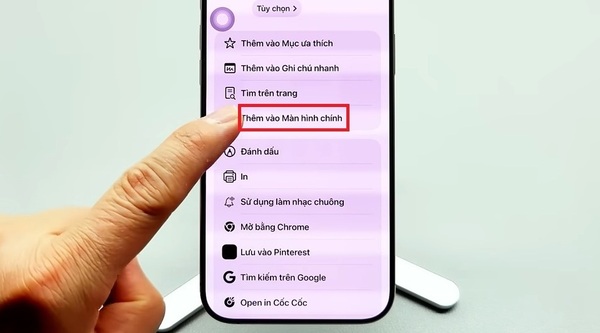
Step 3: Swipe up the list of options and find the item Add to home screen.
Step 4: Press More. Now, the website icon is right on your phone screen.
Smart and scientific way to manage tabs
The habit of opening too many pages at the same time often causes chaos, is difficult to control, and weighs down the computer. However, the system already provides extremely smooth touch gestures to completely solve this problem.
Switch and open new tabs quickly
- To go to the previous or next page, simply place your finger on the address bar at the bottom and swipe left or right.
- To open a completely new page, swipe the address bar to the right until a blank page appears, or simply click the plus (+) icon in the lower left corner of the tab management screen.

Close tabs manually and in bulk
The feature to delete multiple tabs will help the application operate more smoothly, minimizing lag and unnecessary battery drain when browsing the web with Safari on iPhone.
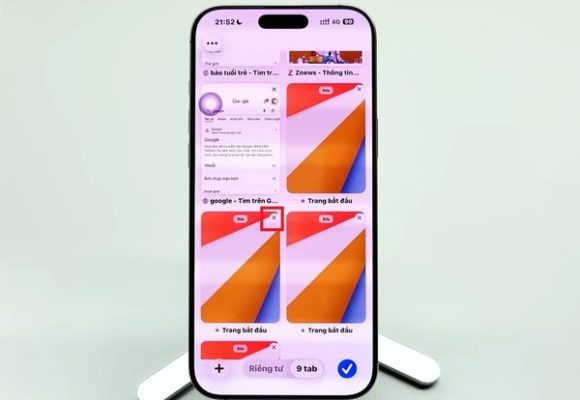
Step 1: To close each individual page, click the mark 3 dotsselect All tabsthen press the mark x in the corner of the tab or swipe the tab horizontally.
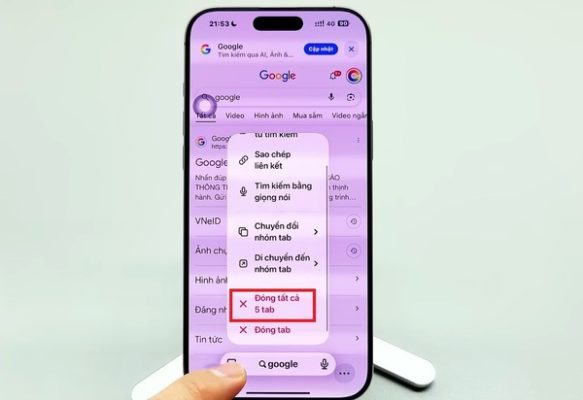
Step 2: If you want to clean everything at once, long press on the address bar. A small menu will appear, you just need to select Close all [số lượng] tab that’s it.
Use and lock incognito tabs with Face ID
In terms of security, the biometric tab lock feature is a big step forward. Browsing the web with Safari on iPhone will now be completely safe and private.
Step 1: Click 3 dotsselect item New private tab. The interface will now change to a characteristic dark tone.

Step 2: To lock these private pages when you log out, you need to log in Setting of your phone, navigate to section Safari.
Step 3: Scroll down to the section Privacy & Securityturn on the switch at line Requires Face ID to unlock Private Browsing.
Step 4: From now on, every time you return to the incognito tab group, the system will require a successful face scan to allow the content inside to be displayed.

Conclusion
Browse the web with Safari on iPhone not simply finding information but also a way for you to optimize your work. With these tips on security and tab management, you’ll have a safe and fast internet experience.