Professionals can rely on Event Logs to monitor computer activity. Especially tracing or troubleshooting problems with Windows and other applications. However, you can also Delete all Event Logs on Windows to erase traces of your activities on your computer. First, you need to learn about Event Log and Event Viewer:
📢 Join the channel Telegram belong to AnonyViet
Update new articles, cool tools and IT tips fastest
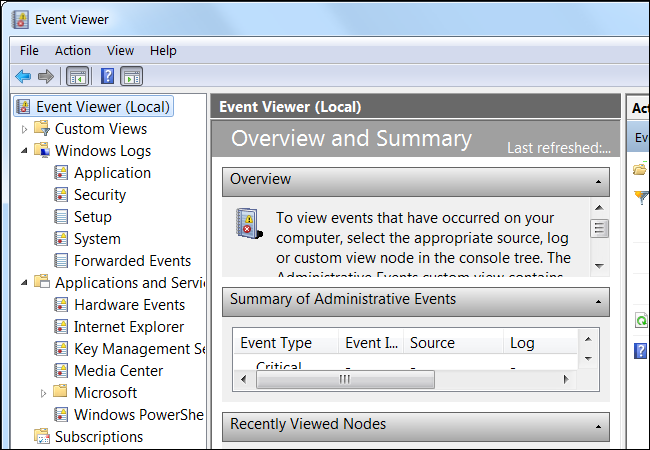
Event Viewer is a tool that displays detailed information in the form of an event log about important events on your PC.
Event logs are special files that record important events on your PC. For example, when a user logs in to a PC or when an application crashes. Whenever these types of events occur, Windows logs the event in Event logs which you can read using Event Viewer.
You can refer How to track computer turn-on and turn-off times using Event Viewer.
Delete all Event Logs on Windows
- You must log in with Administrator rights to delete everything Event logs.
- This will not delete Analytic or Debug. If you have them enabled, the wevutl command will return an error, but all other logs will be cleared.
- Delete all Event Viewer will also delete it Reliability.
Delete Event Viewer Logs using .bat file
1. Download the file below to your computer
2. Unzip the file and you will have the file Clear_Event_Viewer_Logs.bat
3. Right-click on the .bat file and select it Run as Administrator
4. A command prompt will open to clear event logs. The window will automatically close when finished.
Delete all Event Logs with 1 CMD command
Open CMD with Adminstrator rights. Copy the command line below and press Enter:
for /F "tokens=*" %1 in ('wevtutil.exe el') DO wevtutil.exe cl "%1"

The process of automatically deleting the Event Log will take place, wait about 1 minute to complete.
Delete Event Viewer Logs using PowerShell
PowerShell can delete all logs in the Event Log very quickly. Open PowerShell and enter the command below:
Get-WinEvent -ListLog * | where {$_.RecordCount} | ForEach-Object -Process { [System.Diagnostics.Eventing.Reader.EventLogSession]::GlobalSession.ClearLog($_.LogName) }
OR
Get-EventLog -LogName * | ForEach { Clear-EventLog $_.Log }
OR
wevtutil el | Foreach-Object {wevtutil cl "$_"}
Event Log will be deleted. You can close PowerShell when finished.

Delete each Event Viewer Logs in Event Viewer
1. Press the Win + R keys to open the Run dialog box, enter eventvwr.msc and click OK .
2. Select the type of log you want to delete (eg: Application). Log types will be displayed in the left panel Event Viewer.
3. Click Clear Log in the right panel.
Or
3. Right click Click on the log (e.g. Application) you want to delete in the left pane of Even Viewer. Select Clear Log…
Frequently asked questions
Do I need administrator rights to delete Event Logs?
Yes, you need to be logged in as an administrator to delete Event Logs.
Does deleting Event Logs delete everything?
No, deleting Event Logs will not delete Analytic or Debug logs if they are enabled. Some other logs may still be retained depending on the system configuration.
Is there a way to delete Event Logs one by one?
Yes, you can open Event Viewer (eventvwr.msc), select the log you want to clear and select “Clear Log” or right-click on the log and select “Clear Log…”.