• Home
  • News
  • Software
  • Knowledge
  • MMO
  • Tips
  • Security
  • Network
  • Office
AnonyViet - English Version
  • Home
  • News
  • Software
  • Knowledge
  • MMO
  • Tips
  • Security
  • Network
  • Office
No Result
View All Result
  • Home
  • News
  • Software
  • Knowledge
  • MMO
  • Tips
  • Security
  • Network
  • Office
No Result
View All Result
AnonyViet - English Version
No Result
View All Result

How to transfer files between Windows and Mac over LAN

AnonyViet by AnonyViet
May 26, 2026
in Knowledge
0

How to transfer files between Windows and Mac over LAN is the optimal solution to help you escape the inconvenience of traditional USB types. Instead of wasting time copying manually, you can establish a direct connection between two computers. Let’s go together AnonyViet Explore this simple implementation process.

📢 Join the channel Telegram belong to AnonyViet


👉 Go to Telegram AnonyViet

Update new articles, cool tools and IT tips fastest

Instructions on how to transfer files between Windows and Mac via LAN

If you are using both Windows and Macfiddling with portable hard drives to transfer data is quite annoying. Instead of depending on cloud services, you can completely take advantage of the internal network to share folders. Below is a standard setup process to help you do this job professionally.

Note: Before starting, make sure both your devices are on the same Wi-Fi network or LAN.

1. Set up sharing on Windows

For your Mac to see data from your PC, you need to enable Network Discovery and specify folders to share.

Step 1: You open Notification Centerselect All Settings to access the system control panel.
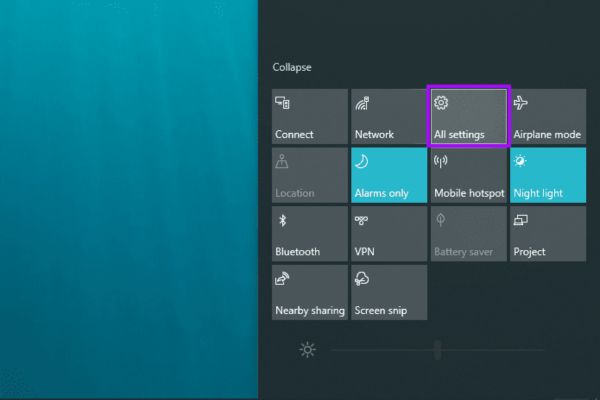
How to transfer files between Windows and Mac over LAN
Select All Settings

Step 2: Click to select the item Network & Internet.
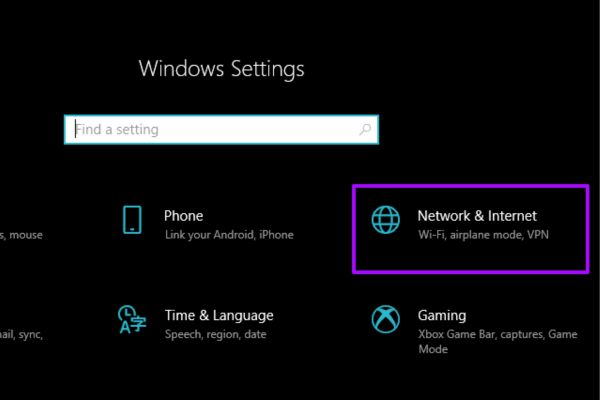
Select Network & Internet.
Select Network & Internet

Step 3: Select the Wi-Fi or Ethernet tab depending on your device’s current connection.

Step 4: Find and select the item Change advanced sharing options in the Related Settings section.
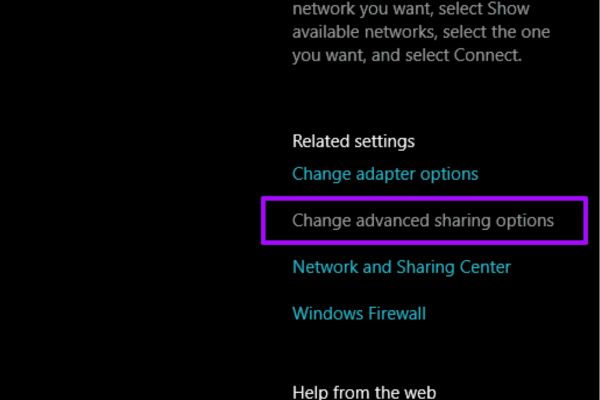
Select Change advanced sharing options

Step 5: You expand the item Privatethen select Turn on network discovery and check the box Turn on automatic setup of network connected devices. Also, enable the option Turn on file and printer sharing.
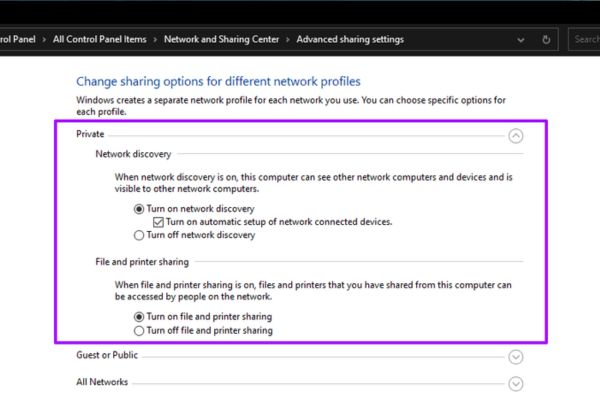
Select as shown in the picture

Step 6: Press Save changes to save the settings you just made.

Step 7: Right-click on the folder you want to share, select Properties.

Step 8: You switch to tab Sharingpress the button Share for quick sharing, or select Advanced Sharing to customize access rights (Full Control, Change, or Read).

Step 9: Close the Properties window and repeat this operation for other folders if necessary.
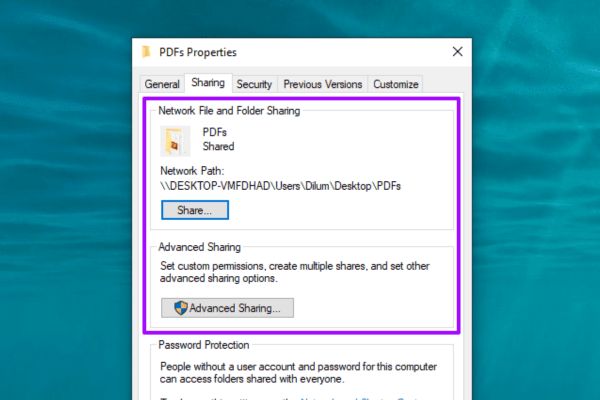
How to transfer files between Windows and Mac over LAN

2. How to access Windows folders from Mac

Once you have configured the Windows side, you can use Finder to connect.

Step 1: Access the application Finder on Mac.

Step 2: You click on the menu Go on the toolbar and select Connect to Server.
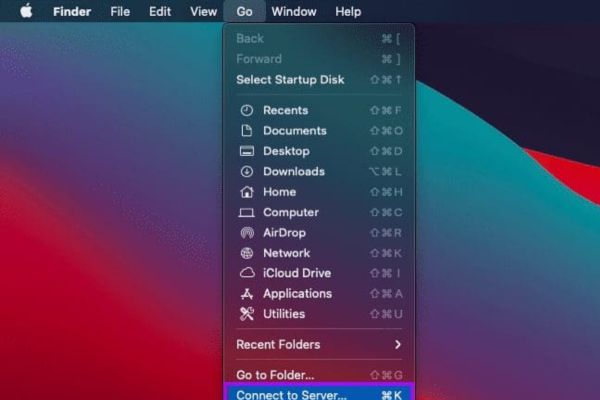
Select Connect to Server

Step 3: Enter syntax smb:// followed by your Windows computer name (You can find your computer name at Settings > System > About).
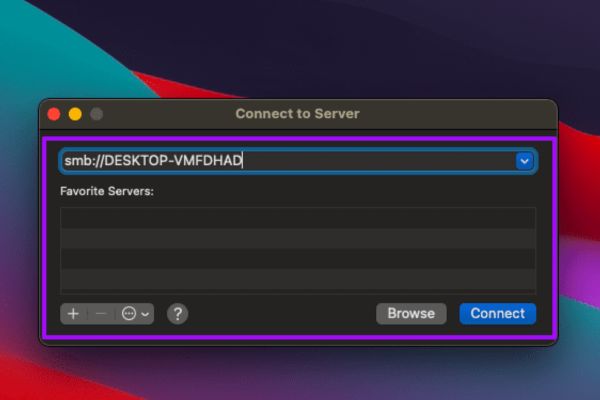
Enter the syntax smb:// followed by the computer name

Step 4: Enter your Windows machine’s username and password when prompted to authenticate the connection. Then select your Windows computer from the Finder sidebar to start accessing shared folders.
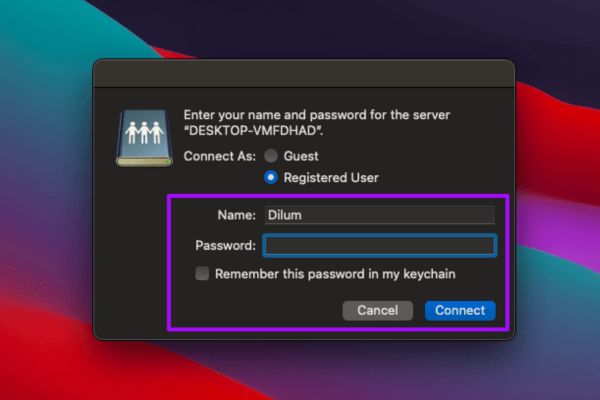
Enter username and password

3. Set up folder sharing from Mac to Windows

macOS provides very intuitive sharing features through the Sharing panel.

Step 1: Open the Apple menu, select System Preferences > Tap the icon Sharing.
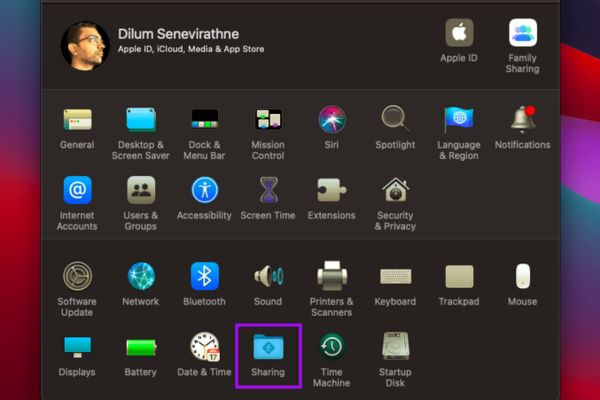
Set up folder sharing from Mac to Windows

Step 2: You tick the box File Sharing and press the button Options.
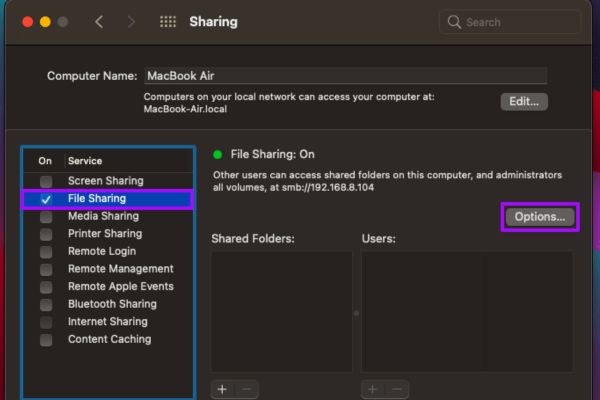
Check the File Sharing box

Step 3: Select Share files and folders using SMBselect your user account, then tap Done.
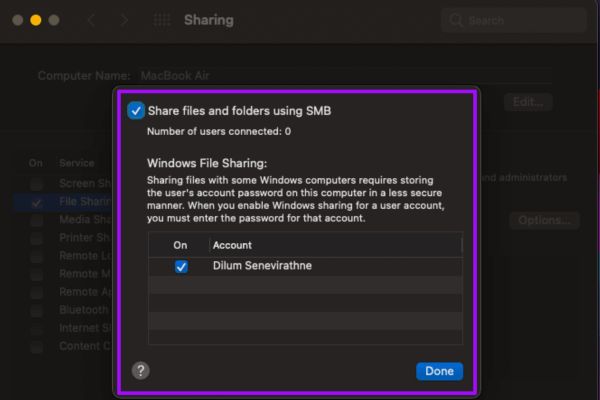
Check Share files and folders using SMB

Step 4: Click the plus sign (+) below the Shared Folders section to add the folder you want to share, and set permissions for each user in the Users section. Close the Sharing panel to complete.
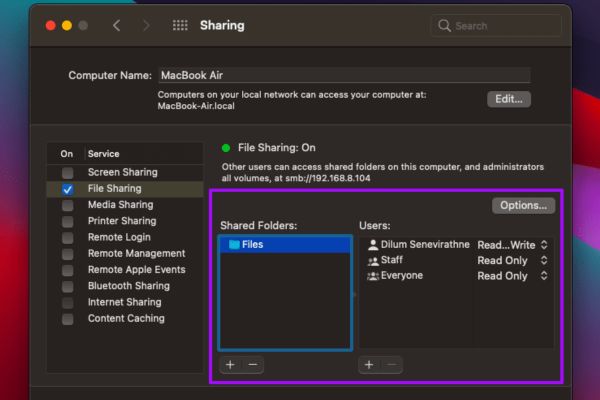
Click the plus sign (+)

4. How to access Mac folders from Windows computer

To continue how to transfer files between Windows and Mac via LAN, once configured on Mac, you can use File Explorer on Windows to retrieve data.

Step 1: You open File Explorer on Windows > Enter \\ followed by your Mac’s IP address in the address bar (This IP address is displayed in the Sharing panel on your Mac).
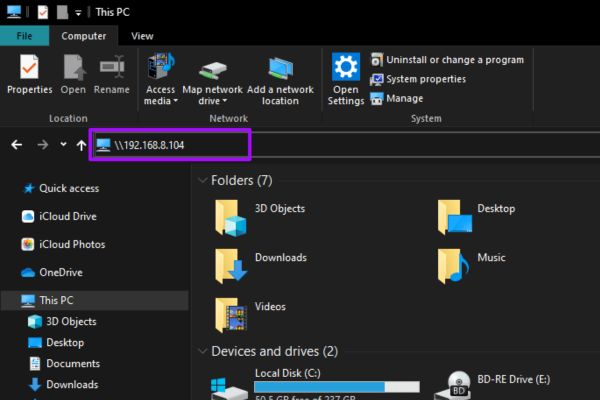
How to access Mac folders from Windows computer

Step 2: Enter user account information on your Mac for authentication.

You can view and manage shared folders directly from the File Explorer sidebar.
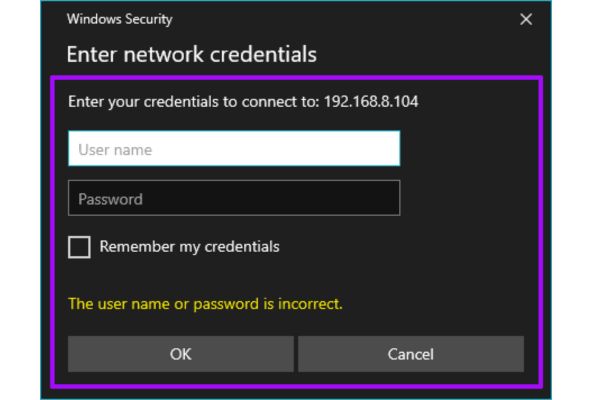
Enter user account information

Conclusion

Through this article, you have mastered how to transfer files between Windows and Mac via LAN without the need for intermediate devices. If you encounter any problems during connection, check your network settings and access permissions. Wishing you always work effectively with your devices.

Frequently Asked Questions (Q&A)

1. Can I share files over public networks?

You should not, because sharing files over public networks is very susceptible to bad guys, you should only do it on a personal Wi-Fi network or a trusted internal network.

2. Why can’t my Mac find my Windows machine?

Check to see if both devices are connected to the same Wi-Fi network and make sure the Network Discovery feature is enabled on Windows.

3. Is the file transfer speed fast?

Speed ​​depends on your network bandwidth. If using a LAN or 5GHz Wi-Fi connection, the speed will be very fast and stable.

Tags: filesLanMacTransferWindows
Previous Post

Instructions on how to turn text into stickers on Gboard

AnonyViet

AnonyViet

Related Posts

Snapvie: Tool to download 8K YouTube videos, no installation required
Knowledge

Snapvie: Tool to download 8K YouTube videos, no installation required

May 24, 2026
How to create your own Video AI App to use Omni, Nano Banana without API Key
Knowledge

How to create your own Video AI App to use Omni, Nano Banana without API Key

May 23, 2026
Top 6 websites for 2026 high school graduation mock test, close to real questions, standard with Ministry of Education
Knowledge

Top 6 websites for 2026 high school graduation mock test, close to real questions, standard with Ministry of Education

May 16, 2026
How to block pop-up ads on Safari without installing an app
Knowledge

How to block pop-up ads on Safari without installing an app

May 6, 2026
How to use Clean Up on iPhone to remove excess objects extremely quickly
Knowledge

How to use Clean Up on iPhone to remove excess objects extremely quickly

May 4, 2026
Tips for pinning the step counter to the iPhone screen to monitor your health
Knowledge

Tips for pinning the step counter to the iPhone screen to monitor your health

April 28, 2026
0 0 votes
Article Rating
Subscribe
Login
Notify of
guest

guest

0 Comments
Oldest
Newest Most Voted
Inline Feedbacks
View all comments

Recent News

How to transfer files between Windows and Mac over LAN

How to transfer files between Windows and Mac over LAN

May 26, 2026
Instructions on how to turn text into stickers on Gboard

Instructions on how to turn text into stickers on Gboard

May 26, 2026
Instructions for receiving 1 month of ElevenLabs Creator for free worth

Instructions for receiving 1 month of ElevenLabs Creator for free worth $22

May 25, 2026
Instructions on how to turn off YouTube Shorts on iPhone

Instructions on how to turn off YouTube Shorts on iPhone

May 24, 2026
How to transfer files between Windows and Mac over LAN

How to transfer files between Windows and Mac over LAN

May 26, 2026
Instructions on how to turn text into stickers on Gboard

Instructions on how to turn text into stickers on Gboard

May 26, 2026
Instructions for receiving 1 month of ElevenLabs Creator for free worth

Instructions for receiving 1 month of ElevenLabs Creator for free worth $22

May 25, 2026
AnonyViet - English Version

AnonyViet

AnonyViet is a website share knowledge that you have never learned in school!

We are ready to welcome your comments, as well as your articles sent to AnonyViet.

Follow Us

Contact:

Email: anonyviet.com[@]gmail.com

Main Website: https://anonyviet.com

Recent News

How to transfer files between Windows and Mac over LAN

How to transfer files between Windows and Mac over LAN

May 26, 2026
Instructions on how to turn text into stickers on Gboard

Instructions on how to turn text into stickers on Gboard

May 26, 2026
No Result
View All Result
  • Home
  • News
  • Software
  • Knowledge
  • MMO
  • Tips
  • Security
  • Network
  • Office

wpDiscuz
0
0
Would love your thoughts, please comment.x
()
x
| Reply