Tips to completely turn off CAPTCHA codes on iPhone and Mac is something that anyone who regularly surfs the web should know. Having to constantly choose images of traffic lights or crosswalks really takes up a lot of our time. Now, you can completely pass this step automatically. Let’s explore with AnonyViet how to set up this great feature!
📢 Join the channel Telegram belong to AnonyViet
Update new articles, cool tools and IT tips fastest
Mechanism of operation of Automatic Verification
CAPTCHA codes are created for a good reason, mainly to prevent automated spam software, creating fake accounts or password guessing attacks on websites. However, real users accidentally become victims of this inconvenience. To solve the problem, Apple has developed an automatic verification feature through Private Access Tokens technology. When you apply the tip to completely turn off CAPTCHA codes on iPhone and Mac, the device will act as an authentication intermediary.
Specifically, when a website requests a test, your device will send a signal to the Apple server. Apple then confirms it’s a valid device and sends a security token back to the website in a split second. You will be granted instant access without ever seeing any image puzzles. In particular, Apple is committed to absolute security as the website cannot collect your Apple ID, name or personal information, providing absolute peace of mind when surfing the web.
Comparison table between manual entry and tips to completely turn off CAPTCHA codes
To clearly see the difference and benefits that this feature brings, let’s take a look at the detailed evaluation table below:
| Evaluation criteria | Enter CAPTCHA manually | Auto Verify (Apple) |
| Implementation time | It takes 10 to 30 seconds to look at and select pictures. | Completed in less than 1 second. |
| User experience | Causes discomfort and interrupts the web surfing process. | Smooth, no additional operations required. |
| Accuracy | It’s easy to choose the wrong watermark and have to do it again and again. | Absolute accuracy thanks to security tokens. |
| Privacy security | There is a risk of click tracking. | Absolutely safe, no personal information revealed. |
Tips to completely turn off CAPTCHA codes on iPhone and Mac
On Iphone
By default, this feature is usually enabled on newer devices, but you should still check to make sure the trick to completely turning off CAPTCHA codes on iPhone and Mac works smoothly.
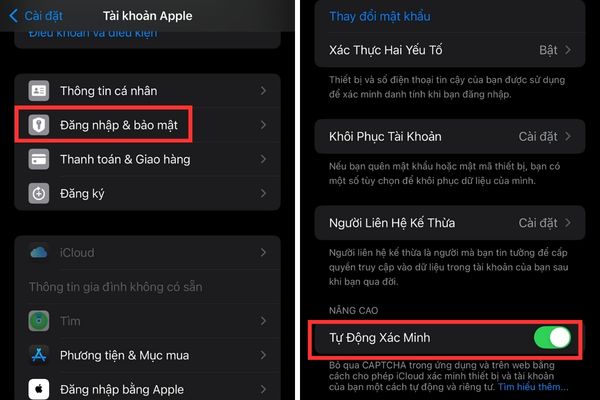
Step 1: You open the application Setting on the home screen and tap your Apple ID account name at the top.
Step 2: You continue to search and select the item Login & Security to access advanced options.
Step 3: You scroll down to find the line Automatically verifythen turn the switch to green to turn this feature on if it is turned off.
With just three simple steps, your phone is ready to automatically process verification requests from supported websites.
On Mac computers
Similar to the phone, performing the trick will completely turn off the above CAPTCHA code iPhone and Mac For Apple computers, it’s also extremely easy. The only requirement is that your device must run macOS Ventura or higher and be logged into an Apple account.
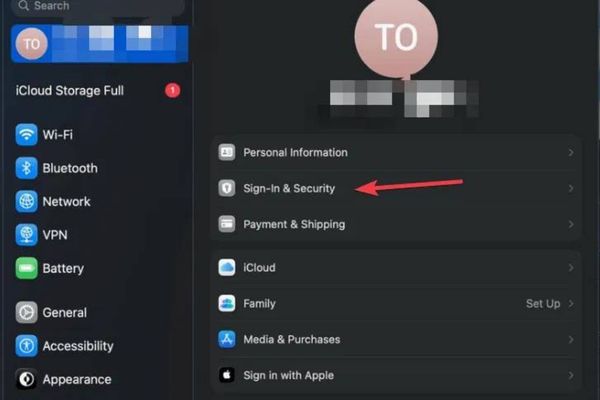
Step 1: You access System settings (System Settings) and click on your account name located in the left menu column.
Step 2: You click on the section Login & Security (Sign-In & Security) to open the control panel.
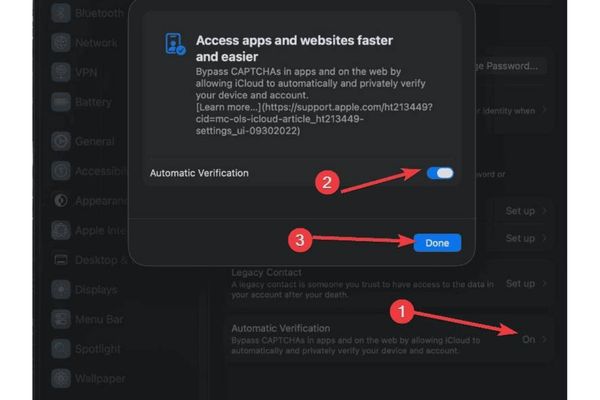
Step 3: You find the item Automatically verify (Automatic Verification), turn on the activation switch and press the button Finished (Done) to save.
Once completed, the system will work silently in the background to minimize the appearance of annoying confirmation codes.
The convenience of the new verification standard
Although it is impossible to remove 100% of CAPTCHAs on the entire internet, the trick to completely turn off CAPTCHA codes on iPhone and Mac is really a great assistant that works silently. As the Privacy Pass standard becomes more and more popular, users of the Apple ecosystem will certainly be the first and biggest beneficiaries.
Frequently Asked Questions (Q&A)
1. Does auto-verification reveal my personal information?
Answer: Absolutely not. Apple uses Private Access Tokens technology, the website only receives confirmation that you are a real person without knowing your Apple ID, name or any other identifying data.
2. Why do I still encounter CAPTCHA codes with this feature enabled?
Answer: This feature only works smoothly on websites that support the Privacy Pass standard. For older websites that have not updated this technology, you will still have to enter CAPTCHA manually.
3. Can my older Mac use this auto-verification feature?
Answer: To use this feature, your Mac must be updated to macOS Ventura or later and signed in with a valid Apple ID.
Conclusion
In short, Tips to completely turn off CAPTCHA codes on iPhone and Mac is a small trick but brings extremely great experience value. Not only will you save valuable time, but you will also protect your privacy online. Please check and activate this feature on your device immediately.