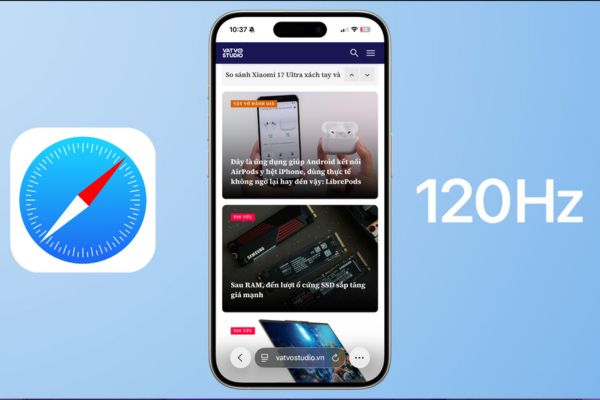
How to activate 120Hz above Safari will help you take full advantage of the high scanning frequency of high-end Apple devices. Many people mistakenly think that the ProMotion screen always runs at the highest level, but in fact the default browser is locked to the frame. Unlocking this feature brings an extremely “handy” touch feeling.
📢 Join the channel Telegram belong to AnonyViet
Update new articles, cool tools and IT tips fastest
Why is it necessary to enable 120Hz for Safari?
Technology ProMotion belong to Apple Allows the screen to flexibly change the scanning frequency up to 120Hz. However, to ensure battery life, Safari often limits itself to this 60Hz (equivalent to 60 frames/second). This unintentionally reduces the premium quality of the iPhone Pro or MacBook Pro lines when surfing the web.
When 120Hz is enabled, the screen refresh interval reduces from 16.7ms to just 8.3ms. The result is that every movement, from page scrolling to transitions, becomes smoother and more instantaneous.
Upgrading to 120Hz helps minimize eye strain when reading long text and increases accuracy when interacting. However, it should be noted that high scanning frequency will consume more energy. If the battery is low, the system may automatically return to a low level to maintain usage time.
How to activate 120Hz on iPhone and iPad
For lines iPhone 13 Pro and above and iPad Pro models with ProMotion, customization is done right in the system settings.
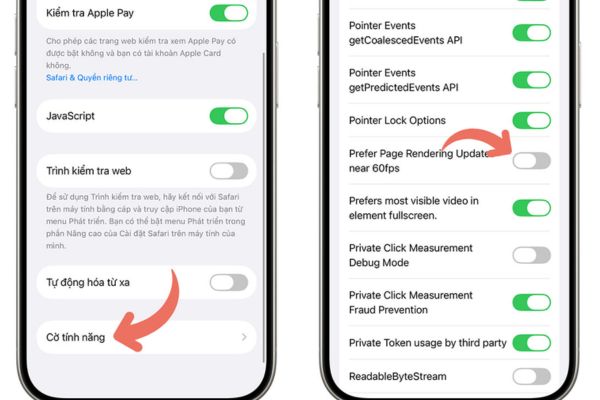
Step 1: Access the application Setting on the home screen.
Step 2: Find the item Applicationthen select the Safari browser.
Step 3: Scroll to the bottom to select a section Advanced.
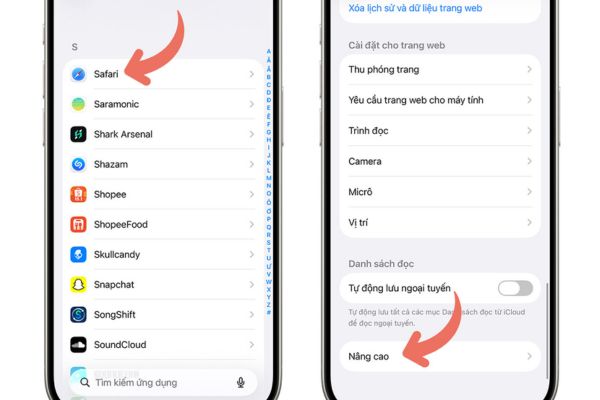
Step 4: Click on the line Feature flag.
Step 5: Search for the text “Prefer Page Rendering Updates near 60fps” and flip the switch to Off (gray).
Step 6: Restart Safari to feel the change.
How to enable 120Hz on Mac
On line MacBook Pro 14-inch and 16-inchthis process requires you to enable deeper intervention in developer features.
Step 1: Start the Safari browser, then find and select the item Setting right on the menu bar at the top of the screen.
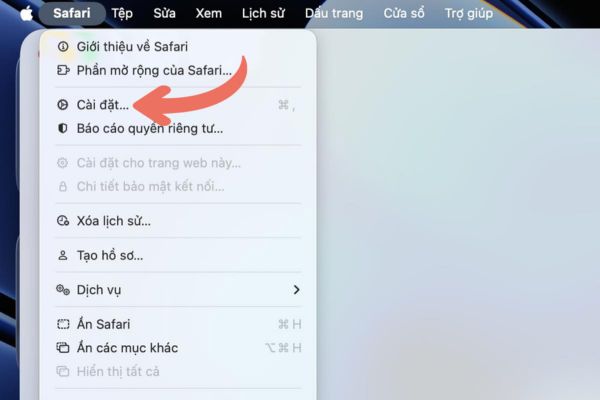
Step 2: At the interface that just appears, click on the card Advanced.
Step 3: Check the box “Show features to web developers” in the last line.
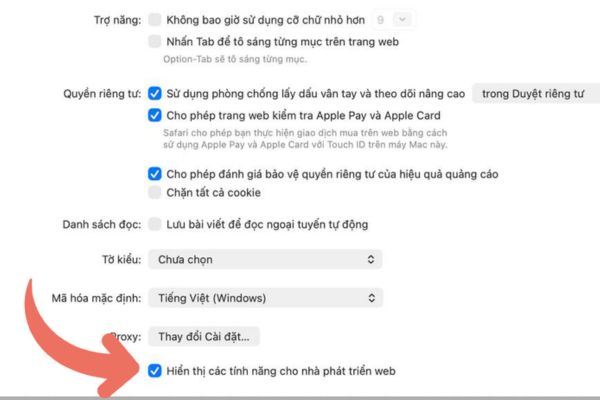
Step 4: Click the tab Feature flag just appeared on the toolbar.
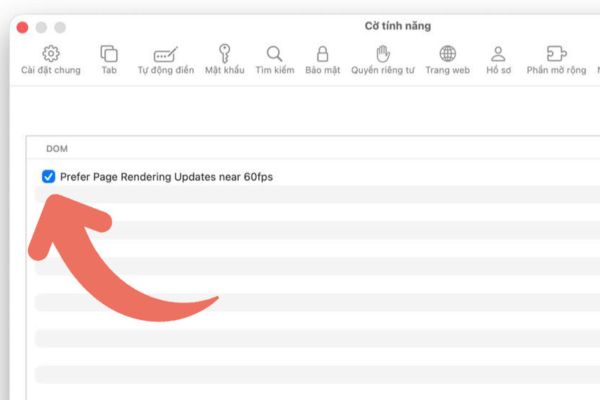
Step 5: In the search box, enter the keyword “60fps”.
Step 6: Uncheck the item “Prefer Page Rendering Updates near 60fps”.
Step 7: Completely close Safari (Command + Q) and reopen it to finish.
Conclusion
Understanding How to activate 120Hz Helps you master the device and fully enjoy Apple’s expensive screen technology. Although it consumes a bit more battery, the smoothness it brings is completely worth it. Please share this tip with your friends.