When opening a link with a pdf file, browsers will often default to opening the pdf file with that browser, instead of downloading it to your computer for you. But your need is to download PDF without preview, follow the method below and you can simply download the pdf file to your computer. To download a PDF file and not preview it, you need to change some settings in your browser. This feature works on Chrome, Firefox, and Edge.
📢 Join the channel Telegram belong to AnonyViet
Update new articles, cool tools and IT tips fastest

How to download PDF without preview on browsers
Download PDF Files with Chrome
Google Chrome Use the built-in PDF viewer to let you preview PDF FILEs. You can disable this PDF viewer and then Chrome will prompt you to download PDF FILE instead of previewing them.
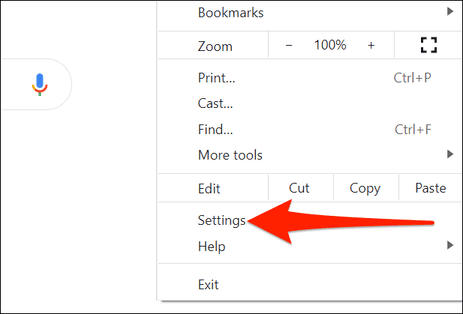
First, you need to open Google Chrome. Then click the 3-dot button on the top right and select “Settings”.
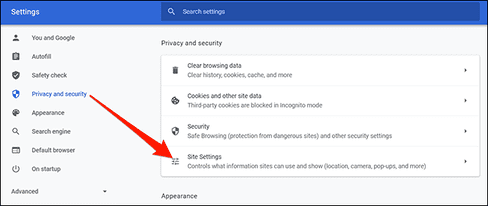
In Settings, select “Privacy and security” – >“Site Settings”.
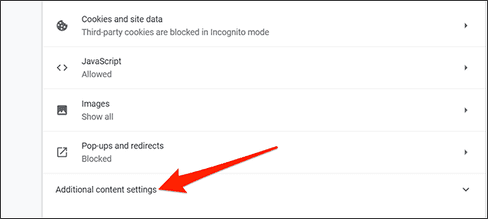
Scroll down and select “Additional content settings”.
In the drop-down menu, select “PDF documents”.
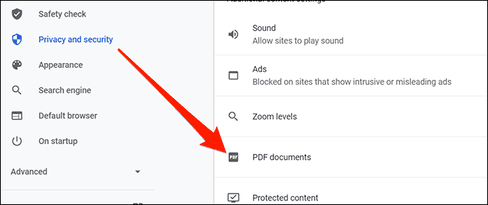
Finally, enable the “Download PDF files instead of automatically opening them in Chrome” option.
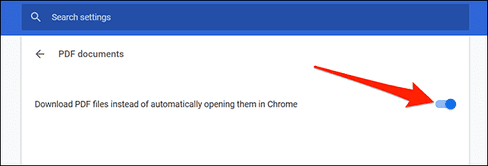
Chrome will now ask you to download PDF files instead of letting you preview them in the browser.
Download PDF Files with Firefox
Mozilla Firefox also has a built-in option to let you download PDF files instead of previewing them in the browser.
First, you need to open Firefox and go to “Options”.
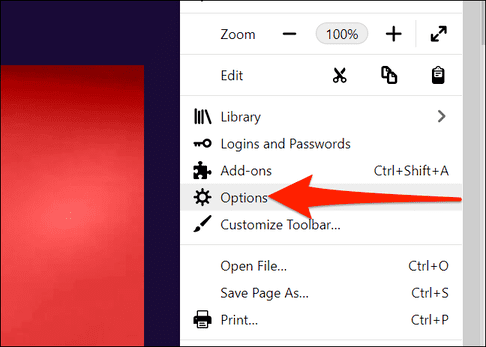
In Options, click “General” on the left. Scroll down the menu on the right until you see “Applications”.
In Applications, click the “Portable Document Format (PDF)” option and select “Save File”.
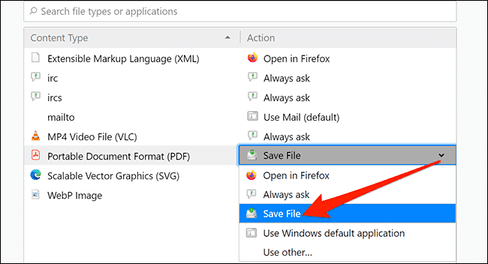
So you can download pdf files to your computer without having to view them in the browser.
Download PDF Files with Microsoft Edge
Microsoft Edge uses a built-in PDF viewer to let you preview PDF files. Turn off the option to view pdf using the browser and edge will automatically download the pdf file to your computer, you just need to do the following:
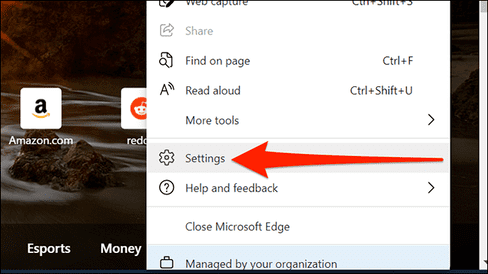
First, you need to open Edge and go to “Settings”.
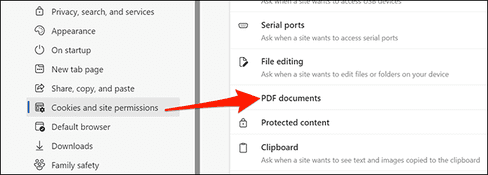
In Settings, click “Cookies and site permissions” on the left, then select “PDF documents” on the right.
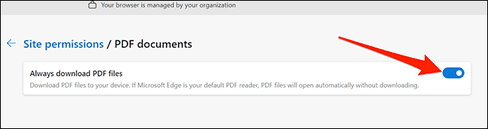
Turn on the “Always download PDF files” option.
That’s it. You can too download web pages as PDF to read offline too.
Download the Web page as PDF to your computer
You surf the web and accidentally see a good website, you want to download that article, instead of pressing Ctrl + S to save the entire html, js, css file, now you can save that website with just a single pdf file.
Saving web pages as pdf makes it easy for you to print, store, and share with others. You just need to visit the website you want to save as a pdf, right-click on the website and select it Print

In section Destination you choose Save as Pdfthen press the button Saveselect the path to save the pdf file and you’re done.
In case the pdf file does not display the image, remember to select More Settings, check the box Background graphics.

In this article, I have shown you how to download pdf without previewing in the browser. Now you can download textbooks and pdf documents to your computer easily.
Frequently asked questions
Can I download PDF files without preview on Chrome, Firefox and Edge?
Yes, you absolutely can. The article has detailed instructions on how to turn off the built-in PDF preview feature on each browser, helping you download PDF files directly to your computer.
If I accidentally opened a PDF file in my browser, can I download it?
Yes, most browsers allow you to download opened PDF files. You can usually find the download option in your browser’s menu or toolbar.
How to download a web page as PDF?
You can use the “Print” function of your browser. Select “Save as PDF” as the printing device and choose a location to save the file.